Как продлить видео с помощью ИИ
Загрузите непрерывный план, опишите действие после его окончания, выберите допустимую длительность и проверьте продолжение. Разберём подготовку клипа и инструкции для следующего момента.
LumiYingОбновлено
Нужны новые кадры или больше времени на экране?
Удлинить клип можно разными способами, но только продолжение создаёт новое действие после исходника.
Подготовьте клип и настройки
Это текущие требования модели LumiYing по умолчанию. При выборе другой модели проверьте загрузчик ещё раз.
Посмотрите последний момент до написания промпта
Конец исходника становится началом новых кадров. Инструкции должны соответствовать этому моменту.
Назовите следующее видимое действие
Вместо «сделай длиннее» напишите: велосипедист проходит поворот, камера продолжает отъезжать или продукт завершает небольшой оборот.
Разделяйте объект и камеру
Движение объекта вправо не означает, что камера тоже должна повернуть вправо. При необходимости опишите оба движения в соответствии с исходником.
Оставьте только важные детали
Укажите одежду, силуэт продукта или свет, которые должны оставаться узнаваемыми. Другие изменения стиля попробуйте отдельно.
Продлите видео за четыре шага
Храните исходник вместе с промптом, чтобы сравнивать версии.
Подготовьте окончание
Просмотрите последнюю секунду. Уберите склейку или кадр с закрытым объектом и загрузите непрерывный план в инструмент.
Напишите инструкцию продолжения
Используйте показанную метку, например @Video1. Опишите следующее действие, движение камеры и две-три детали для сохранения.
Начните с короткого запроса
Проверьте режим продления, длительность, разрешение и оценку кредитов. Выберите минимальную длину, достаточную для действия.
Проверьте, скачайте и смонтируйте
Просмотрите переход к продолжению, затем весь результат. Проверьте движение, формы и звук. Скачайте выбранную версию и при необходимости соберите последовательность в редакторе.
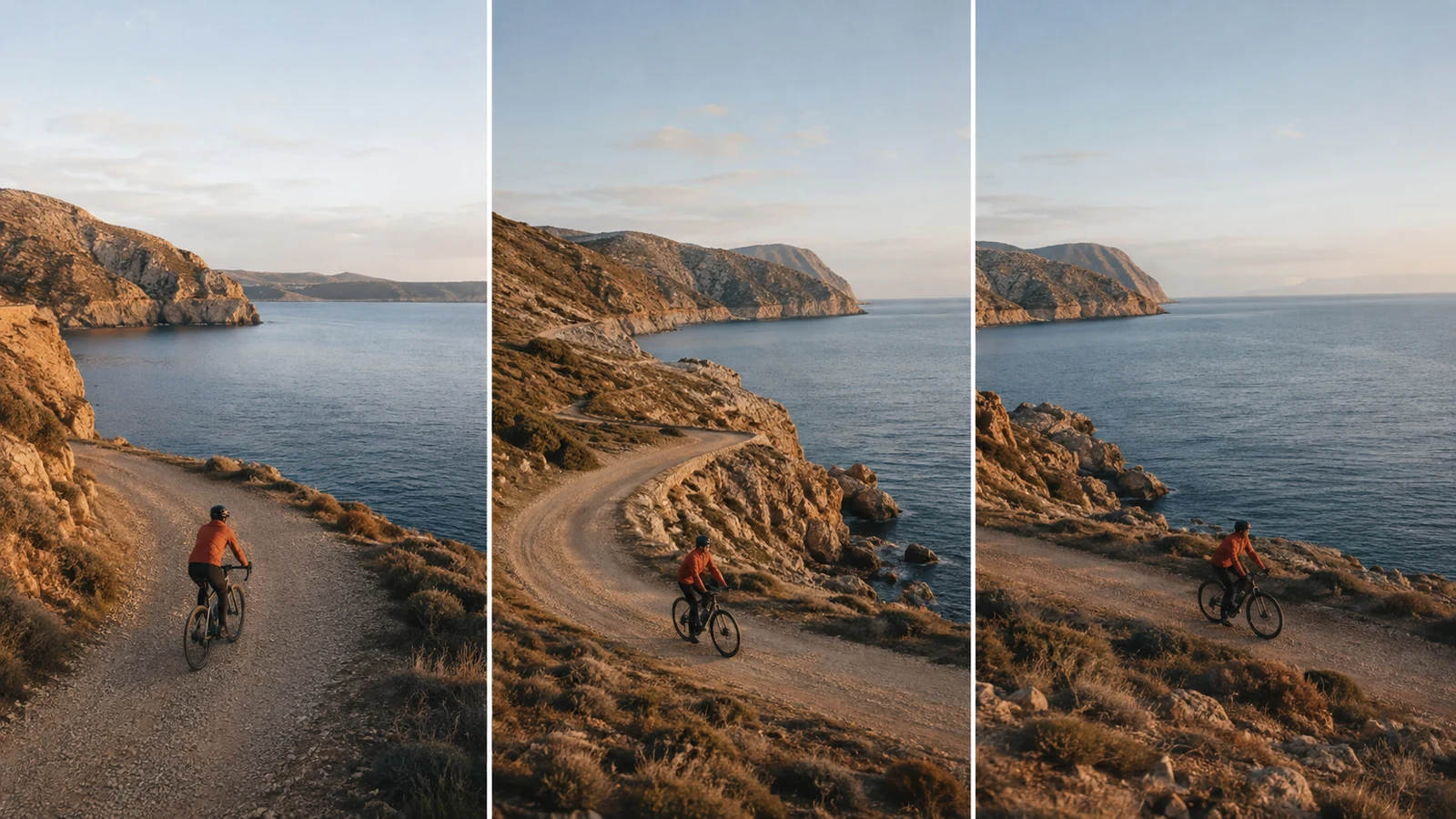
Пример планирования: закончить поездку у моря
Это пример подготовки, а не измеренный результат генерации видео. Обложка иллюстрирует предполагаемую последовательность.
Три промпта продолжения для адаптации
Замените @Video1 на метку загруженного файла. Согласуйте каждую инструкцию с реальным действием исходника.
Продолжить действие
Продолжи @Video1 с его окончания. Велосипедист в рыжевато-коричневой куртке проходит поворот прибрежной тропы с той же постоянной скоростью. Сохрани направление слежения камеры, велосипед, одежду и свет позднего дня. Один непрерывный план.
Используйте исходник, заканчивающийся до завершения поворота.
Завершить раскрытие пейзажа
Продолжи медленный отъезд камеры в конце @Video1, показывая больше мыса с маяком и моря. Сохрани форму маяка, горизонт и тёплый вечерний свет. Не переключайся на другой ракурс.
Сохраняйте направление и скорость исходной камеры.
Продлить предметную съёмку
Продолжи @Video1. Синий керамический чайник завершает плавный поворот на подставке и останавливается в спокойном финальном кадре. Сохрани носик, деревянную ручку, пропорции, стол и мягкий свет из окна. Не добавляй текст или новые предметы.
Титры и заставку добавьте позже; сначала проверьте геометрию продукта.
Выберите подходящий процесс ИИ-видео
Перейдите к генерации или сравните более простой способ ввода и связанные руководства.
Продление видео с ИИ
Продлите видео с помощью ИИ. Загрузите клип, опишите следующее действие и создайте продолжение сцены, предметной съёмки или ролика для соцсетей.
Как использовать Video to Video ИИ
Подготовьте исходный клип, разделите указания на сохранение и изменение, проверьте движение. Четыре промпта и советы по мерцанию и изменению формы.
Image to Video AI
Оживите одно изображение, если нужен только первый кадр.
Цены
Посмотрите доступные тарифы.
Вопросы о создании продолжения видео
Можно ли продлить видео, созданное ИИ?
Можно загрузить экспортированный клип, соответствующий требованиям. Проверяйте формат, длину, видимость деталей и продолжение независимо от исходной модели.
Что должно быть в промпте?
Исходник, действие после его конца, направление камеры и важные детали. Не пересказывайте всю сцену так, будто она должна начаться заново.
Можно ли продлить результат ещё раз?
Совместимый экспорт можно использовать как новый вход. Соблюдайте ограничения загрузки и проверяйте каждый этап: после нескольких генераций детали могут измениться.
Сохранится ли оригинальный звук?
Не рассчитывайте, что звуковая дорожка останется неизменной. Прослушайте результат и сохраните исходное аудио в монтажном проекте, если важна точная синхронизация речи или музыки.
Когда лучше использовать цикл?
Когда повторение движения задумано специально. Продление с ИИ подходит для нового действия или продолжения движения камеры после конца исходника.
Попробуйте следующий момент своего клипа
Подготовьте непрерывный план и короткую инструкцию о том, что произойдёт дальше.