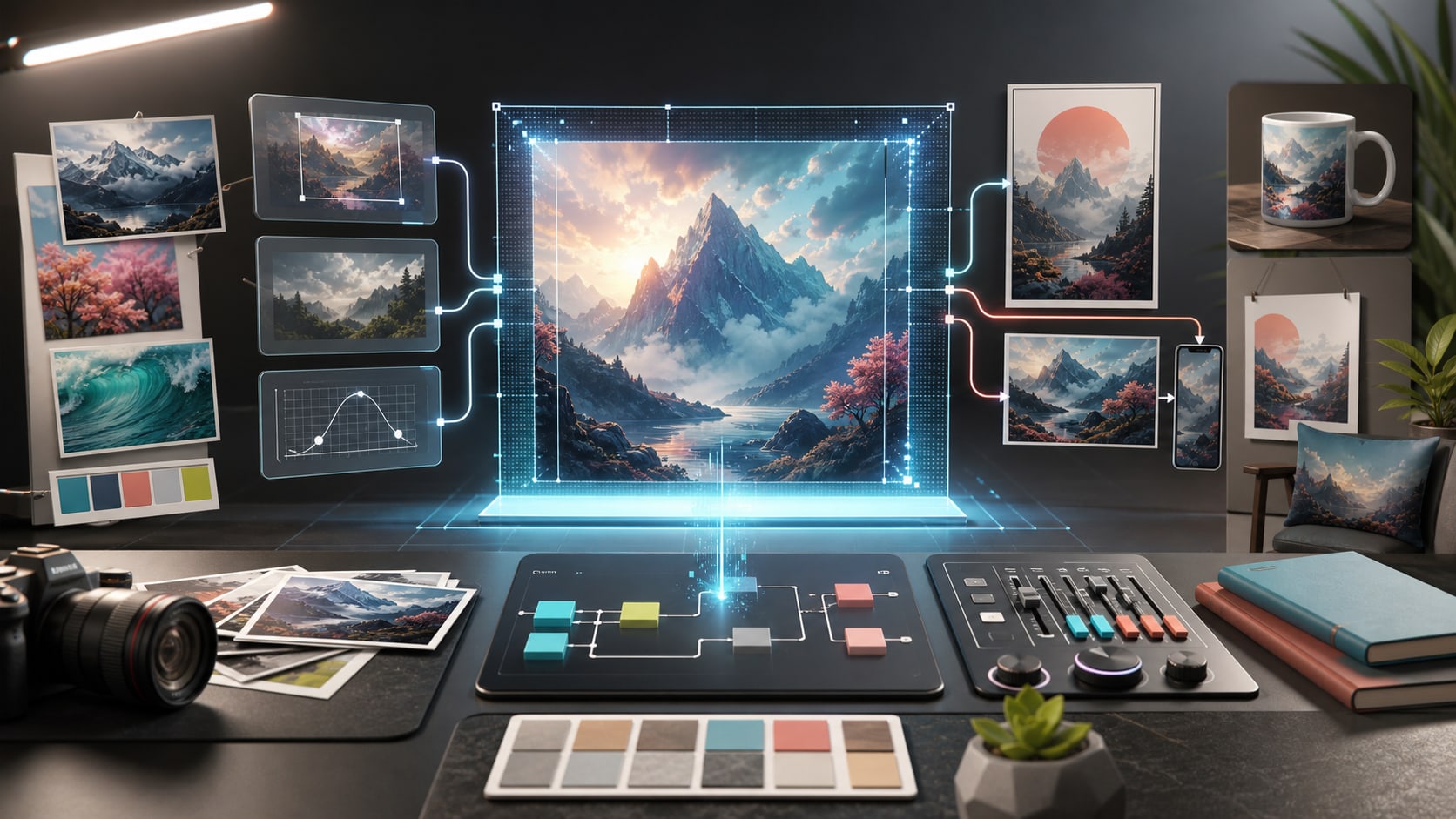
GPT Image 2 Tutorial
A practical guide to using GPT Image 2 on LumiYing: write stronger prompts, use reference images, choose resolution and quality, then iterate toward polished images for ads, products, posters, thumbnails, and video keyframes.
What GPT Image 2 Is Best For
GPT Image 2 is OpenAI's current image generation model in the GPT Image family. In LumiYing, it is available as an image model for prompt-only image generation and reference-image editing workflows.
Use GPT Image 2 when the final asset is a still image: a product mockup, poster, social ad, thumbnail, packaging concept, editorial image, UI concept, or keyframe that you may later animate with a video model.
The biggest improvement comes from treating the prompt like a creative brief. Tell GPT Image 2 the subject, composition, exact text, materials, lighting, camera angle, background, output format, and the details that must not change.
Why GPT Image 2 Belongs in an AI Creation Workflow
GPT Image 2 is useful before, during, and after video generation. It can create polished still assets directly, or produce reference frames that make later video generations easier to control.
Create production-ready stills
Generate ad images, product shots, poster concepts, thumbnails, UI mockups, packaging ideas, editorial images, and campaign visuals from one structured prompt.
Edit with reference images
Upload one or more reference images, then ask for a changed background, cleaner composition, new lighting, stronger product staging, or a consistent visual direction.
Handle text-heavy designs
Use it for images where words matter: posters, signs, labels, menu boards, packaging copy, social cards, and branded mockups. Always spell out the exact text in quotes.
Choose quality by intent
Draft cheaply with lower settings, use medium for most iterations, then reserve high quality and higher resolution for the version you plan to publish or upscale.
Make video keyframes
Generate a clean first frame, product frame, or character reference before moving into Seedance, Sora-style, Veo-style, or other video workflows on LumiYing.
Iterate with a checklist
Review composition, text accuracy, product details, anatomy, lighting, brand fit, and cropping after each generation. Change one or two variables at a time.
How to Use GPT Image 2 on LumiYing
This workflow keeps each generation focused. Start with the asset goal, then add references, settings, and review criteria.
Define the asset before prompting
Decide whether you need a poster, product image, thumbnail, social ad, UI concept, packaging mockup, or video keyframe. Include the platform, orientation, audience, and final use.
Upload references when consistency matters
Use reference images for product shape, brand style, character identity, composition, or mood. In the prompt, name what each reference should control so the model does not guess.
Write the prompt like a layout brief
Describe subject, placement, background, style, lighting, camera angle, materials, colors, exact visible text, and negative cues. Keep the instruction specific but not overstuffed.
Pick resolution, ratio, and quality
Start at 1k or 2k for exploration. Use 4k and high quality for final landscape or portrait assets. In LumiYing, GPT Image 2 supports low, medium, and high quality choices.
Review, isolate the problem, and regenerate
If the output fails, identify the exact issue: wrong text, weak composition, product drift, messy hands, poor crop, or style mismatch. Rewrite only the part that failed before generating again.
GPT Image 2 Settings Cheat Sheet
Use the settings as creative controls, not just technical options. Match resolution, ratio, and quality to the job.
Copyable GPT Image 2 Prompts
Paste one of these into LumiYing, then replace the bracketed parts with your actual asset details.
Product hero image
Create a premium product hero image for [product]. Show the product centered on [surface], with [background], [lighting], [camera angle], realistic materials, crisp edges, and clean negative space for ad copy. No extra logos, no misspelled text, no distorted product shape.
Best for ecommerce, launch visuals, landing pages, and paid social creatives.
Reference edit
Use the uploaded image as the main product reference. Keep the product shape, color, proportions, and key details unchanged. Change the scene to [new setting], add [lighting style], and make the image feel [brand mood]. Do not alter the product label or geometry.
Use this when you upload a product, character, room, or composition reference.
Poster with exact text
Design a vertical poster for [event/product]. Exact headline text: "[headline]". Exact subtext: "[subtext]". Use [style], strong hierarchy, readable typography, [color palette], and a clean background. Ensure all text is spelled exactly as provided.
Keep the amount of text short. If text is critical, inspect it before accepting the image.
Video keyframe
Create a cinematic first frame for a 9:16 AI video. Subject: [subject]. Action implied: [action]. Location: [setting]. Camera: [lens and angle]. Lighting: [lighting]. Mood: [mood]. Leave enough visual clarity for a later image-to-video generation.
Use the result as a reference frame for a video model after the still image looks right.
Where to Go Next
Use official OpenAI references for model facts, then use LumiYing pages for the product-specific workflow.
OpenAI: GPT Image 2 model reference
Official OpenAI model page for GPT Image 2, including supported modalities and model positioning.
OpenAI image generation guide
Official guide for image generation and editing with OpenAI image models.
OpenAI: Introducing ChatGPT Images 2.0
OpenAI's announcement page for ChatGPT Images 2.0 and the GPT Image 2 model family.
LumiYing GPT Image 2 model page
Review how GPT Image 2 is configured inside LumiYing before starting a generation.
Frequently Asked Questions
Is GPT Image 2 only for text-to-image generation?
No. On LumiYing, GPT Image 2 supports prompt-only generation and reference-image workflows. Use references when you need stronger control over product shape, identity, style, or composition.
Which quality setting should I start with?
Start with medium for most work. Use low when you are exploring many prompt directions, and use high when you are close to a final asset or when text and small details matter.
Can GPT Image 2 create readable text inside images?
It is a good choice for text-aware image work, but you should still keep copy short, quote exact words in the prompt, and inspect the output carefully before publishing.
When should I use 4k?
Use 4k for final landscape or portrait outputs where detail matters. For early ideation, 1k or 2k is usually more efficient because you can iterate faster before spending more credits.
How is GPT Image 2 different from Midjourney or Nano Banana models?
GPT Image 2 is especially useful when prompt adherence, text rendering, and reference-image editing matter. Midjourney-style models are often chosen for stylized exploration, while Nano Banana-style models can be useful for fast image workflows and broad reference-driven edits.
Can I use GPT Image 2 outputs as video references?
Yes. A strong still image can become a first frame, character reference, product reference, or style guide for a later AI video generation in LumiYing.
Create your next image with GPT Image 2
Start with a clear prompt, add references when needed, and use LumiYing's settings to move from draft to final image.