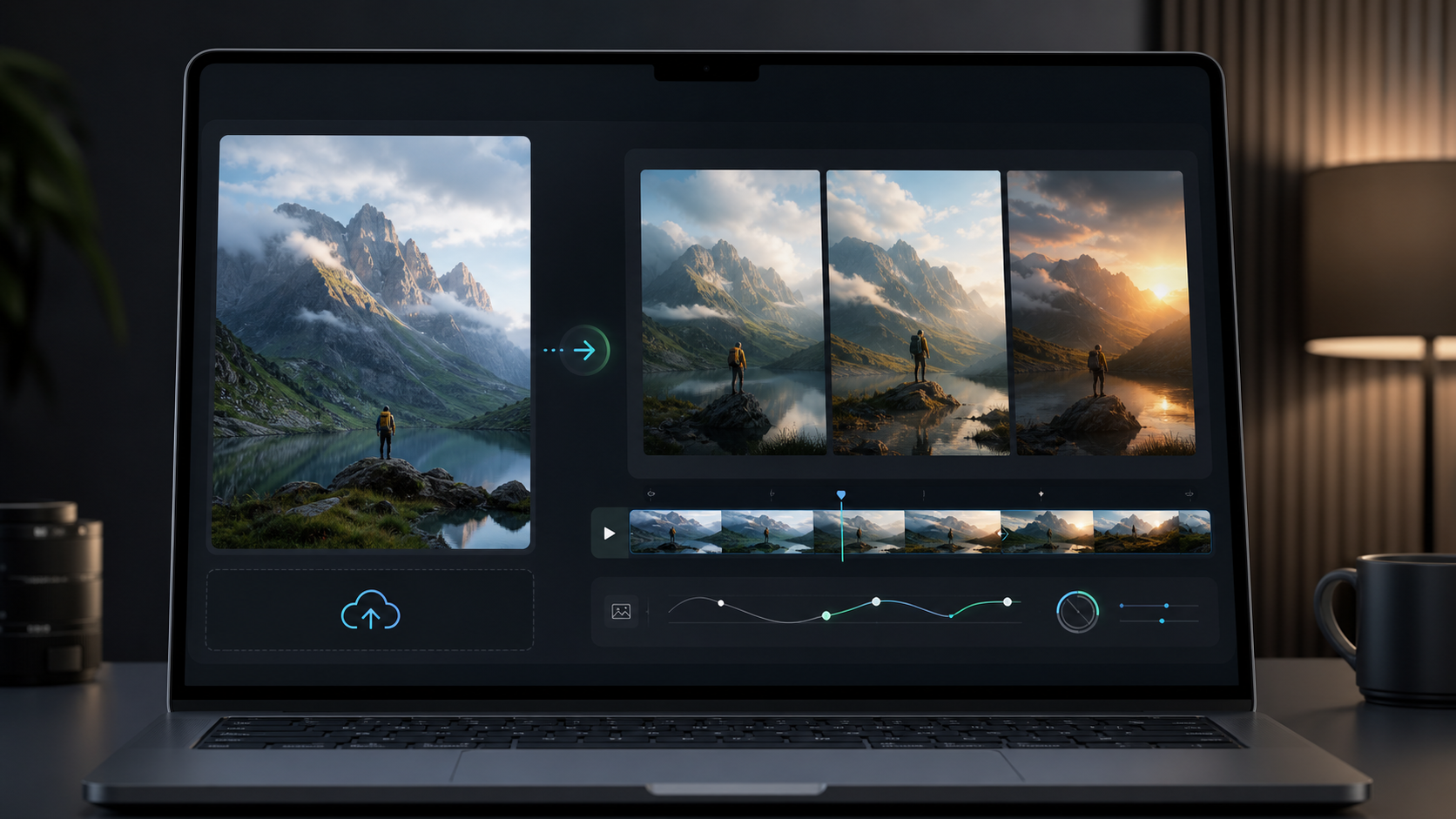
How to Turn an Image Into a Video With AI
Turn a single source image into a short AI video by checking composition, choosing controlled motion, and writing prompts that preserve the subject.
What to prepare before you generate
A strong image-to-video result starts with source image quality and a clear motion brief. Use this checklist before uploading a reference image.
Write for stable image-to-video motion
Use this section to make prompt decisions before opening the generator. The goal is a short, controlled clip that preserves the source image.
Start with one strong image
Use a clear subject, enough background for camera movement, and minimal text overlays. Weak source images create unstable clips.
Describe one motion idea
A single camera move plus one subject or environment motion is easier for AI video models to preserve.
Match prompt to output use
Product ads, social loops, music visuals, and travel shots need different pacing, aspect ratios, and motion detail.
Generate when the brief is ready
Once the image, motion, and review criteria are clear, open the Image to Video tool and revise one variable at a time.
A practical image-to-video workflow
Use this sequence before spending credits on repeated generations.
Audit the source image
Check subject clarity, lighting, resolution, background space, and whether the image contains text or tiny details that may warp during motion.
Choose one video job
Decide whether the clip is a product reveal, portrait motion, landscape push-in, social loop, or storyboard shot before writing the prompt.
Write controlled motion
Describe camera direction, subject action, lighting shift, and atmosphere in one compact prompt. Avoid stacking unrelated actions.
Generate, compare, and revise
Review identity stability, camera smoothness, edge artifacts, and subject drift. Revise the prompt one variable at a time.
Image-to-video prompt patterns
Use these as structures, then replace the subject and scene details with your own image context.
Product photo reveal
Slow camera push-in on the product, subtle rotating highlight across the packaging, soft studio reflections, premium commercial lighting, clean background, stable product shape.
Best when the product photo has clean edges and enough background around the object.
Portrait motion
Gentle handheld portrait shot, slight head turn, natural hair movement, soft window light shift, calm expression, shallow depth of field, no dramatic face change.
Keep motion subtle when identity consistency matters.
Travel image motion
Slow cinematic push forward through the landscape, drifting clouds, subtle water movement, warm sunset light, smooth stabilized camera, realistic atmosphere.
Works best with wide images that already include depth.
Social loop
Seamless short loop, slow camera orbit, small background particles moving, consistent subject silhouette, clean composition for vertical social video.
Use when the goal is a reusable social clip rather than a narrative scene.
Where to go next
Use these links to move from planning into generation, storyboard work, and model selection.
Image to Video AI Generator
Upload a source image and turn it into a short AI video clip.
Seedance 2.0 Tutorial
Learn prompt structure, settings, and video iteration tips for LumiYing video models.
AI Storyboard Generator
Plan the sequence before generating individual image-to-video shots.
AI Models
Compare available image and video models before choosing a generation workflow.
How to Make a Photo Dance with AI
Learn how to make a photo dance with AI: choose a clear image, describe a short routine or add a motion reference, and use three practical dance prompts.
Image to Video AI FAQ
What is the best image to turn into an AI video?
Use a clear image with one main subject, good lighting, and enough surrounding space for camera movement. Avoid heavy text, tiny subjects, and messy overlays.
Should I write a long image-to-video prompt?
No. A focused prompt usually works better. Describe one camera move, one subject or environment motion, and the mood you want preserved.
Can I use this workflow for product photos?
Yes. Product photos work well when the prompt asks for controlled motion such as a slow push-in, lighting sweep, rotation, or lifestyle reveal.
How do I improve a weak image-to-video result?
Change one prompt variable at a time. Reduce motion if the subject warps, simplify the camera move if the background drifts, and use a cleaner source image if details keep breaking.
Turn your source image into a video
Open the Image to Video tool when your source image and motion prompt are ready.