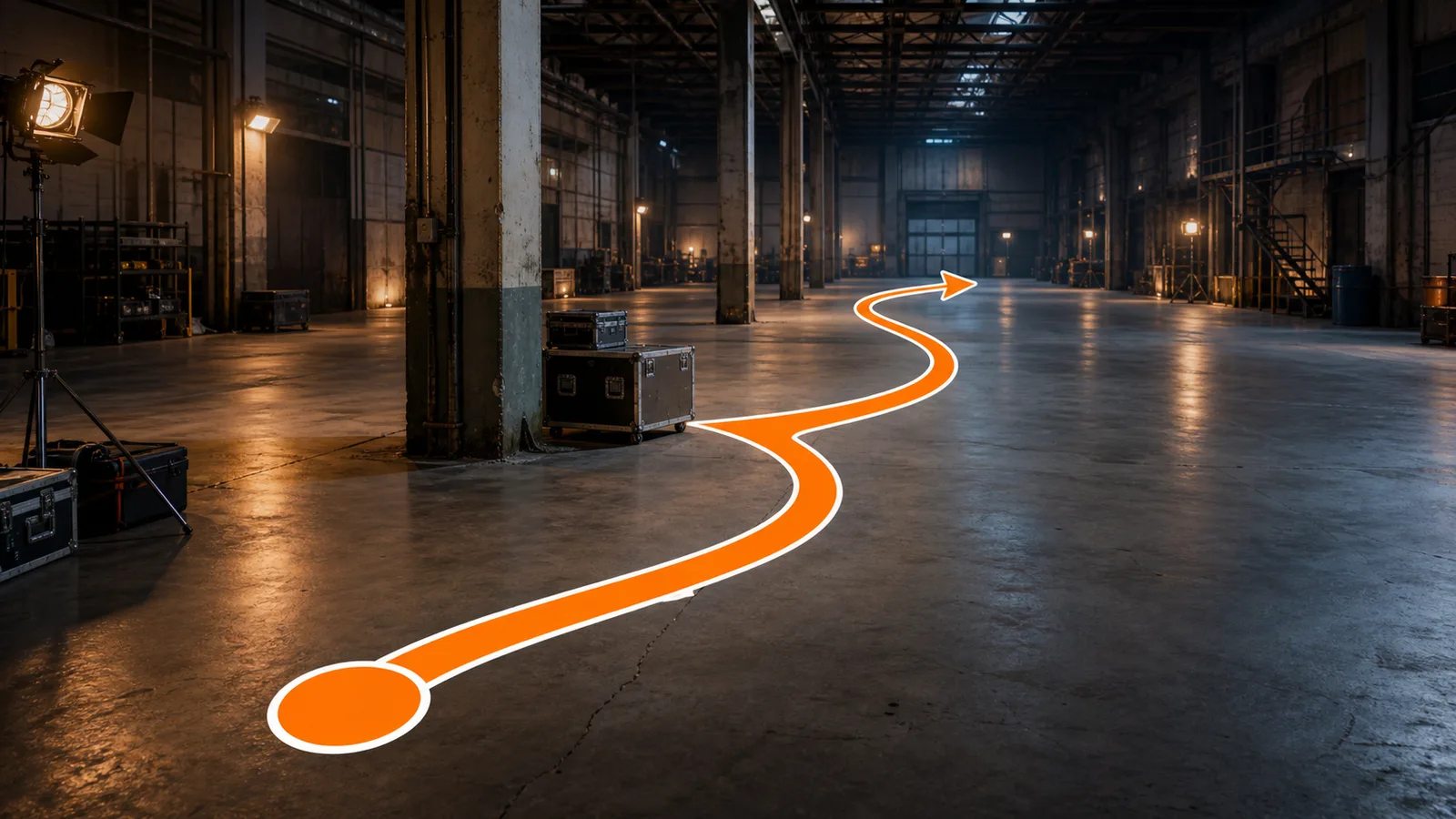
What Is a Motion Path?
A motion path is a visual route showing where a person, camera, vehicle, or object should move. In LumiYing, it is a static perspective-aware overlay on your reference scene—not a PowerPoint effect, CSS path, or finished animation.
LumiYingUpdated
The parts of a motion path reference
A production route sheet combines scene context with a small set of consistent visual markers.
Where motion paths help production planning
The same route format can communicate movement across film, animation, games, product work, and virtual production.
Actor blocking
Show where a performer enters, walks, turns, avoids props, and reaches the final mark.
Camera movement
Map a dolly, Steadicam, handheld, crane, or virtual-camera route through the location.
Vehicles, robots, and drones
Plan ground or air movement around barriers, terrain, structures, and safety zones.
Objects without a person
A motion path can direct a product, suitcase, prop, or animated object in an otherwise empty scene.
Game and navigation planning
Use a route overlay to communicate player traversal, quest flow, NPC movement, or cinematic staging.
Storyboard and previs handoff
Carry a clear movement decision into storyboards, shot lists, animation notes, or later video workflows.
How to create a motion path from reference images
Start with scene context, then describe one movement route in production language.
Upload one or more references
Use a single scene image or several complementary views. Do not assign a primary image; the references work together as context.
Describe the route
Name the moving subject, start position, direction, turns, obstacles to avoid, and final destination.
Generate and inspect
Create the static direction sheet, then check that the route follows perspective and does not pass through visible obstacles.
Refine and reuse
Tighten the route description if needed, then download the image or reuse it in storyboards, previs, or later generation.
Motion path descriptions for common scenes
These prompts describe movement only; pair each one with a relevant reference scene.
Walk or run blocking
Start beside the doorway, cross behind the table, curve around the sofa, then stop at the window without crossing any furniture.
Useful for performers, characters, or action staging.
Camera push and arc
Begin in the wide entrance position, push toward the subject, arc clockwise around the central display, and finish in a close three-quarter view.
Useful for dolly, Steadicam, or virtual camera planning.
Vehicle turn
Enter through the near gate, keep to the open lane, turn left around the barrier, then stop parallel to the loading platform.
Useful for vehicles, carts, and robots.
Drone flight
Lift from the overlook, rise above the first ridge, curve around the tower, then finish facing the valley in clear airspace.
Useful for drone, crane, or flying-object paths.
Object movement without a character
Start with the suitcase in the foreground, move around both seating islands, and end in the empty area beside the far corridor.
No person needs to appear in the reference image.
Game navigation
Begin at the circular courtyard, avoid the flooded floor and collapsed columns, take the intact stairs, and end at the open gate.
Useful for traversal, quests, NPC routes, or cinematic blocking.
Connect motion paths to scene production
Build the reference scene, map movement, then continue into shots or video.
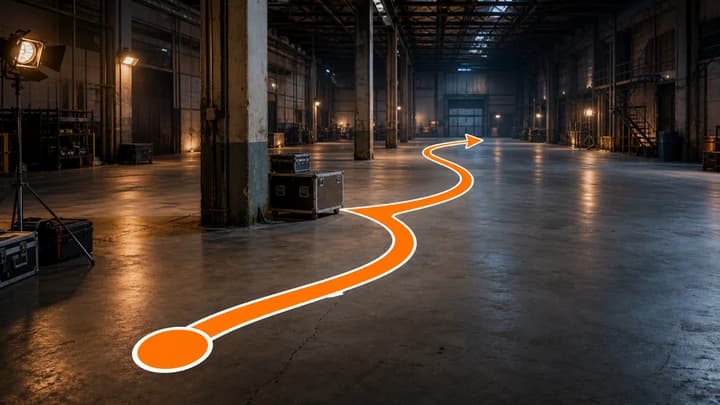
AI Motion Path Generator
Create a static perspective-aware route over your reference imagery.
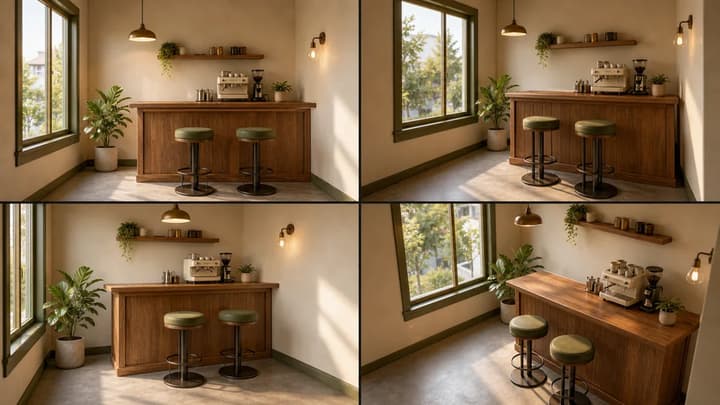
AI Scene Generator
Create consistent scene references before planning movement.
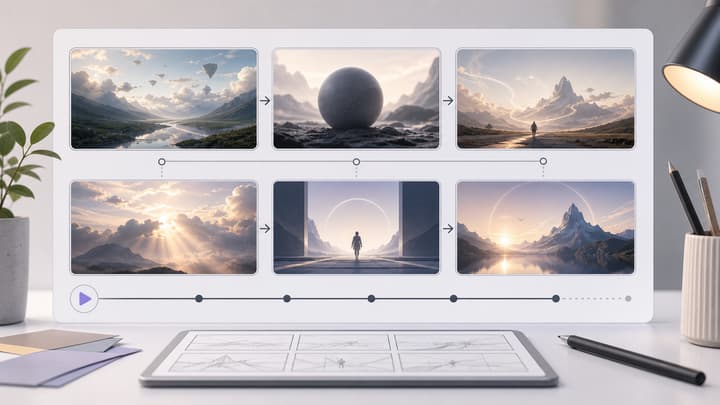
AI Storyboard Generator
Turn scene and blocking decisions into a sequence of shots.
Image to Video AI
Continue from a planning image into a video-generation workflow.
Motion Path FAQ
What is a motion path?
A motion path is a visual route that communicates where a person, camera, vehicle, or object should move from a defined start to a defined endpoint.
How is this different from a PowerPoint, CSS, or GSAP motion path?
PowerPoint, CSS, and GSAP paths animate slide or web elements. LumiYing creates a static route reference over scene imagery for blocking and production planning.
Does the result move or animate the subject?
No. The result is a normal static image with a route overlay. It can guide later animation, video, storyboard, or previs work.
Does a reference image need a person?
No. The route can describe camera, vehicle, robot, drone, product, prop, or game-navigation movement in an empty environment.
Can I use multiple reference images?
Yes. One or more images can provide scene context collectively, and you do not need to choose a primary image.
Does Motion Path change my selected image model?
No. Selecting the Motion Path layout does not set, restrict, or replace the current image model.
What should a route description include?
Include the moving subject, start position, direction, turns, visible obstacles to avoid, and final destination.
Create a motion path for your scene
Upload your reference imagery, describe one route, and generate a clear static direction sheet.