How to Make a Talking Avatar

Prepare a clear portrait and a complete spoken phrase, choose suitable settings, and check speech, mouth movement and identity before keeping a take.

LumiYingUpdated

Start with the recording you want to hear

To make a talking avatar, prepare one clear portrait and an MP3 or WAV recording of a complete spoken phrase. Open AI Talking Avatar, select a model, upload the files, choose a frame and a video duration that covers the recording, then generate and review the result with sound.

Listen to the recording before choosing the photo. A calm explanation suits a steady, readable face. A brief greeting can use a warmer expression. Keep one speaker in the first attempt so you can judge the connection between voice, face and timing.

Prepare the voice, then the performance

  1. Step 01 Trim a complete spoken phrase

    Choose a short sentence with a small pause before the first word and after the last. Remove loud background music and clipped peaks. Export an MP3 or WAV within the model’s audio limits. Listen once from start to finish to check that the phrase is complete.

  2. Step 02 Choose a face that can speak clearly

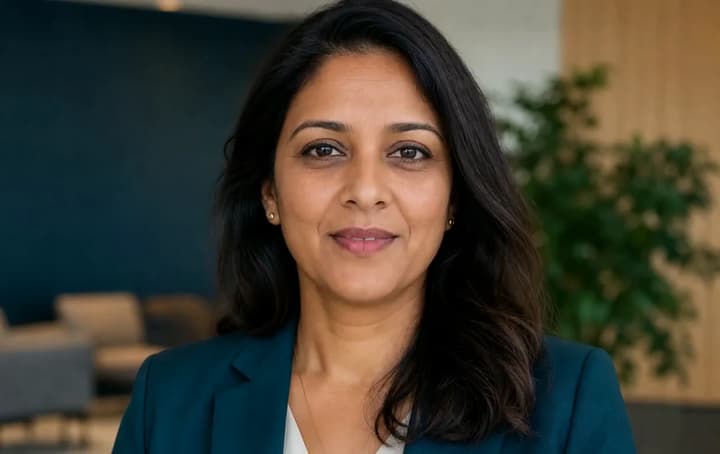
    Use a front-facing or gently turned portrait. Keep the mouth, jaw and eyes visible, with room around the head and shoulders. A hand over the lips, heavy shadow or an extreme side view makes the intended movement harder to read. Use one character per image.

  3. Step 03 Upload and set the frame

    Choose a model in AI Talking Avatar, then add the portrait and recording. Pick an output duration at least as long as the audio. A 7-second phrase needs a supported duration that covers it, such as 10 seconds. Match the aspect ratio to the portrait and intended placement, and review the displayed credits.

  4. Step 04 Describe only the performance you need

    The default direction already asks the person to speak the recording. Use the optional field for delivery, such as a calm explanation, a small nod or a brief smile at the end. Keep the camera steady for the first attempt. A second, conflicting script makes the requested speech less clear.

  5. Step 05 Review the whole take with sound

    Compare the original recording and the video at normal speed. Check the first word, closed-mouth sounds, silent pauses and final word, then inspect face, clothing and background continuity. Use Re-edit to replace one input or simplify the direction. Keep useful settings when preparing the next phrase.

Choose inputs that support the same performance

A practical first setup

Portrait
One unobstructed face in a stable composition
Leave the mouth and jaw visible and keep enough room around the head.
Voice
One speaker delivering one complete phrase
Listen for clipping, background voices and an abrupt ending.
Direction
An expression and small gestures
Keep the requested delivery consistent with the recording.
Length and frame
A supported duration covering the audio
Check the full phrase fits before generating, including any opening pause.

Three performances to inspect

Listen to the recording, watch the take, then load the same inputs to prepare a new version.

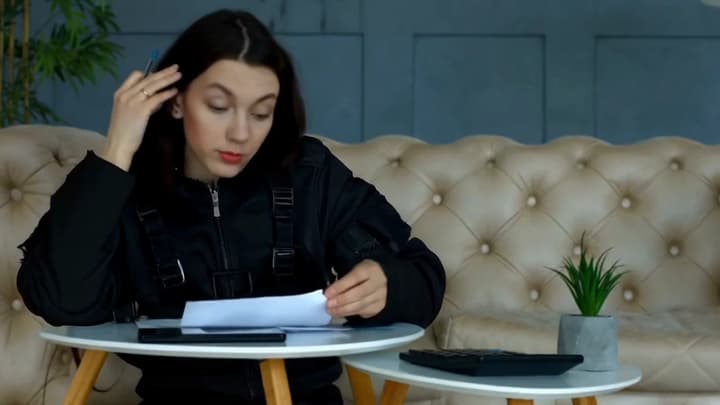
A studio introduction

Start with the first spoken word and follow the mouth through pauses. Keep the direct framing when testing a new portrait, so a camera move does not hide the part you need to inspect.

Portrait

Voice recording

Video example
Suggested prompt

Use image 1 for the single speaker, appearance, clothing and background. Have this character deliver the uploaded voice recording, matching the spoken words, mouth movements and silent pauses. Keep the same face and a steady camera. Use a composed, welcoming expression and small natural hand gestures.
Load this example

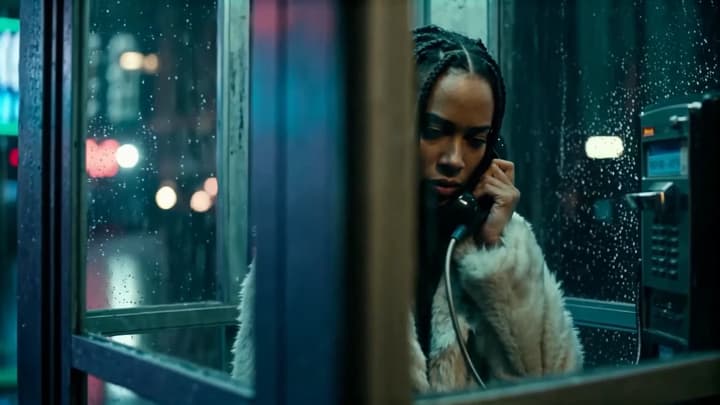
An animated explanation

For a stylized character, check that the mouth shape remains readable and the face stays recognisable. Reduce gestures if the movement distracts from the explanation.

Portrait

Voice recording

Video example
Suggested prompt

Use image 1 for the single speaker, appearance, clothing and background. Have this character deliver the uploaded voice recording, matching the spoken words, mouth movements and silent pauses. Keep the same face and a steady camera. Use a clear, engaged explanation with restrained teaching gestures.

Load this example

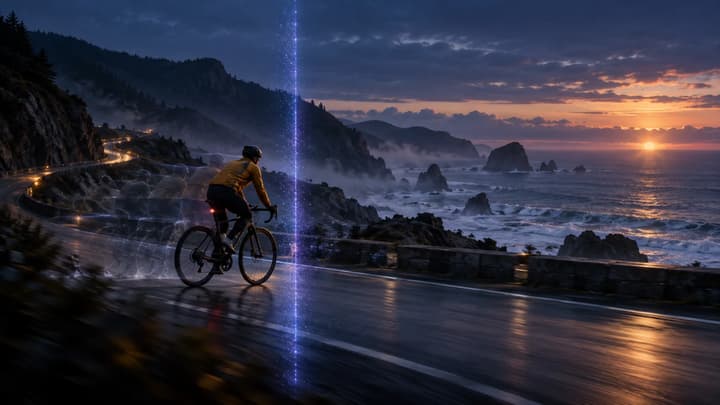
A keeper’s story

In an outdoor scene, compare identity and mouth movement with the recording while checking the background. A steadier camera and smaller head motion make a first test easier to judge.

Portrait

Voice recording

Video example
Suggested prompt

Use image 1 for the single speaker, appearance, clothing and background. Have this character deliver the uploaded voice recording, matching the spoken words, mouth movements and silent pauses. Keep the same face and a steady camera. Use a thoughtful, unhurried delivery and subtle head movement.

Load this example

Change the cause you can see or hear

Mouth and voice drift apart
Fast speech, noisy audio or movement hiding the face
Use a clearer, shorter phrase and a steady front view. Compare another compatible model.
A word is missing or the ending is cut
Recording length against the chosen video duration
Choose more output time or trim at a complete sentence boundary.
The face or setting changes
An occluded portrait or competing directions
Use a clearer photo and simplify the performance to small expressions.
The generated voice changes
The original recording and the generated soundtrack
Review a new take with clearer audio. Check mouth timing again if you replace the soundtrack in an editor.
Frequently asked questions

Frequently asked questions

Can I type the words instead of uploading audio?

This workflow takes an uploaded voice recording. Record the phrase yourself or prepare speech in a separate voice tool, then upload the resulting MP3 or WAV.

Can I use an illustrated character?

You can try a clear single-character portrait. Choose a readable face and mouth, then check that the model keeps the design consistent while speaking.

How should I handle a longer script?

Split the recording at complete phrases that fit the model’s limits. Generate and review each phrase, then assemble the accepted clips in a video editor.

Try one face and one phrase