AI Video Extender
Keep a good shot going. Upload a video, describe the next action, and use the AI video extender to generate a continuation from your source footage.
What would you like to happen next?
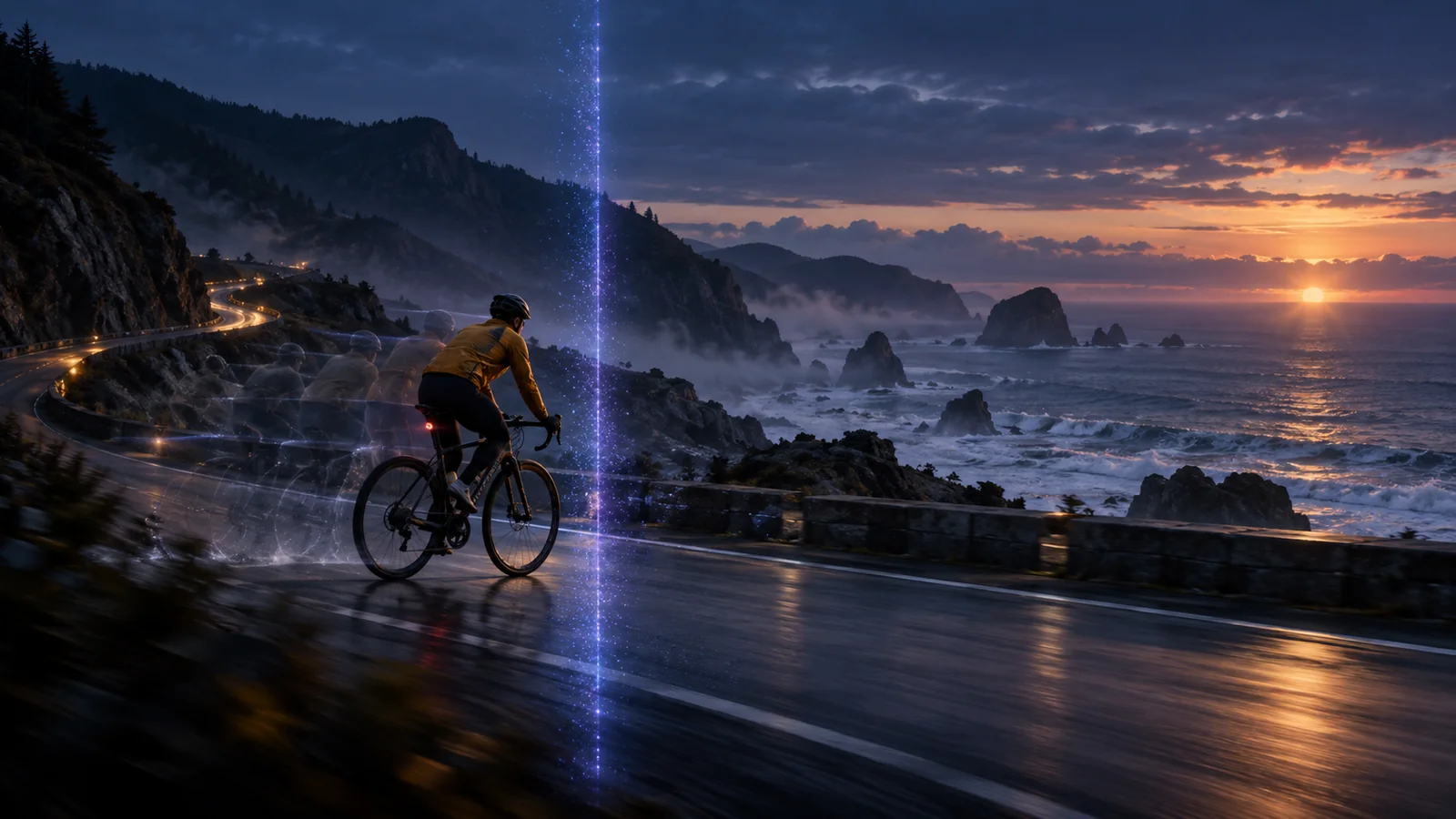
Continue a movement, finish a camera reveal, or give a product shot more room. These illustrations show continuation concepts.
Let the action finish
A cyclist reaches a bend just as the clip ends. Continue the ride in the same direction, carrying the subject and setting into the next beat instead of starting a different scene.
Give the camera move more time
A slow pullback needs a few more moments to reveal the landscape. Describe the direction and pace of the existing move so the continuation has a clear visual destination.
Leave room for the product
Extend a gentle turn or a quiet closing shot before adding your end card in an editor. Name the product shape, material and lighting to retain, then check those details in the result.
How to extend a video with AI
Upload your source clip
Open the generator in video extension mode and upload one continuous shot. The current default accepts MP4 or MOV clips lasting 2–30 seconds, up to 200MB.
Describe the next beat
Reference the uploaded clip with its displayed @ label. Say what happens after its ending, keep the camera direction clear, and choose a supported duration. The current default offers 4–30 seconds at 720p.
Generate and review
Check the credit estimate, generate the continuation, and watch the transition and full output. Download a useful version and assemble it with your edit as needed.
Start with an ending the AI can follow
A clear source and one specific next action give you a useful basis for directing the continuation.
Choose a readable final moment
Use a shot that ends with the subject visible. Trim away a hard cut, heavy motion blur or a long obstruction before uploading.
Continue the scene, then change it
For the first attempt, keep the setting and lighting steady. Ask for one next action rather than a new location, a new outfit and a different camera move together.
Match the length to the task
Begin with the shortest supported duration that serves the shot. Inspect the result before extending again; longer chains can introduce changes to faces, objects or scenery.
AI video extender questions
What is an AI video extender?
It uses an existing clip as context to generate what happens next. It creates new footage rather than simply repeating frames or slowing playback.
How do I extend a video with AI?
Upload a supported source clip, describe the action after its final moment, choose the available settings, and generate. Review the join and the rest of the output before using it.
Which video files can I upload?
The current default supports MP4 and MOV, 2–30 seconds per clip and up to 200MB. The uploader also checks dimensions and total reference duration; follow its requirements if you change the model.
How long can I extend a video?
The current default lets you request 4–30 seconds in extension mode. Check the selected model and output before planning the final running time. This is not an unlimited-length export.
Is the AI video extender free?
Generation uses credits. Sign in to see your balance and check the estimate before generating. Available plans are listed on the pricing page; free unlimited extension is not offered here.
Does this extend the frame or guarantee a seamless join?
This workflow continues the video in time; it does not widen the canvas. Motion, lighting and details can vary in generated footage, so compare the continuation with your source.
Continue Your AI Video Workflow

How to Extend a Video with AI
Learn how to extend videos with AI: prepare a source clip, write a continuation prompt, choose settings, and review the result with practical examples.
Video to Video AI Generator
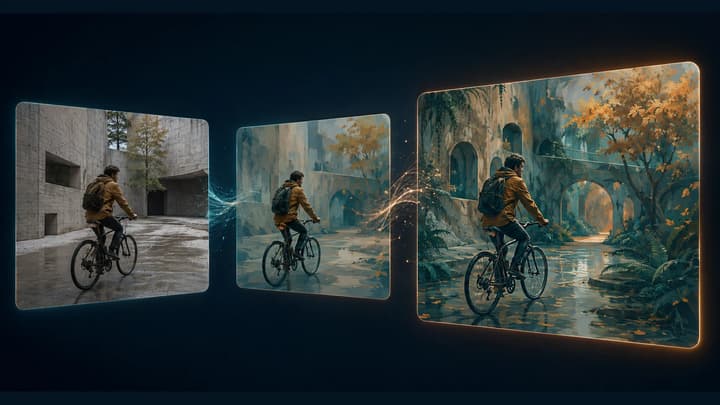
Transform an existing video with AI. Upload a source clip, describe what to keep or change, and explore new styles, lighting, and environments.
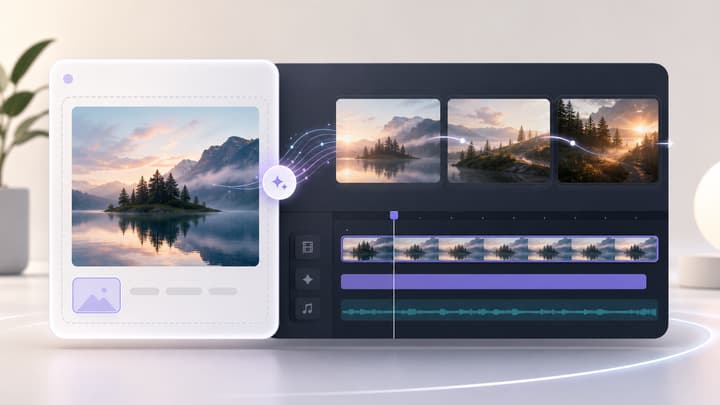
Image to Video AI Generator
Animate one image when you only need a starting frame and motion prompt.
Pricing
View the available plans for different creation workflows.
Keep your next shot moving
Bring a short clip and describe what should happen after its final frame.