Muse Video vs Veo 3.1

Watch Muse Video and Veo 3.1 outputs for wildlife and podcast scenes. The samples show full-body motion, feather detail, a photorealistic speaker and an illustrated host. Each pair uses independently published briefs and inputs, with the conditions listed below. Use the result you need to guide your model and workflow choice.

LumiYingUpdated

Watch the video results side by side

Choose a scene and play both clips. These samples come from Meta’s launch showcase and Vercel’s Veo 3.1 demonstration. The table below records their published inputs and measured file specifications.

Wildlife movement and fine detail

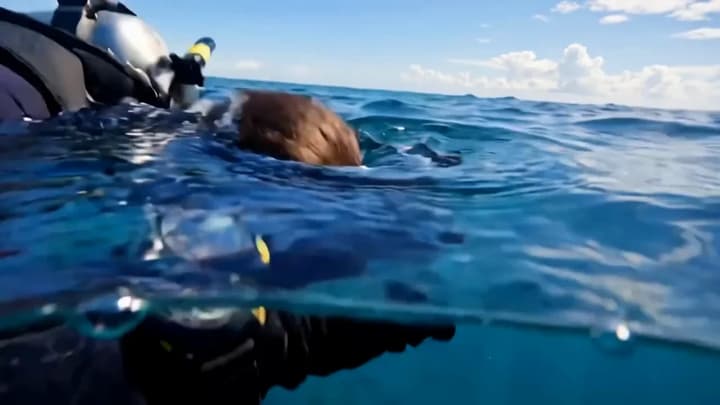
Muse Video follows a panda through repeated tumbles across a grassy slope, with the face and limbs rotating through the shot. Veo 3.1 keeps an owl perched in a close-up as it turns its head toward the camera. Inspect the panda’s body-to-ground contact and the owl’s feather edges and eye direction as the poses change.
Muse Video
Veo 3.1

Choose around your shot

Explore several scene ideas
Muse Video
A short duration and a small credit budget make it practical to test an action, setting or product concept.
Deliver at 1080p or 4K
Veo 3.1
Check the selected Google model and workflow for the resolution required by your final edit.
Specify an ending frame or extend footage
Veo 3.1
Those controls are useful when the next shot must connect to an existing sequence.

What each workflow supports

Clip length
2–10 whole seconds
4, 6 or 8 seconds. Reference-image generation uses 8 seconds.
Resolution
720p
720p, 1080p and 4K, depending on the workflow
Image guidance
Up to 9 references, 11 MiB combined
Reference-image generation and first/last-frame control
Composition
Seven fixed ratios plus Adaptive
16:9 and 9:16
Sound
Generated with the video
Native speech, ambience and effects
Continue existing footage
Text and image generation
Video extension in supported Google workflows

Compare using one clear brief

Step 1

Align the settings

Start at 720p and 16:9 with the same subject and action. Use 8 seconds if you are testing image-reference workflows in both.

Step 2

Inspect the same details

Check subject identity, object shape, action continuity, camera framing and the timing of speech or sound effects. Meta’s preview notes room for improvement in audiovisual sync and fast motion.

Step 3

Count accepted takes

Record total credits or dollars across attempts and review the number of usable clips. Keep the settings of the take you choose.

The conditions behind these videos

Durations and dimensions were read from the original published files. These observations apply to the displayed clips. Their prompts, subjects, styles and input modes differ.

Wildlife brief
A baby panda tumbles down a grassy slope.
A great horned owl slowly turns its head in a moonlit forest.
Podcast brief
A realistic host with headphones delivers a comic rant about alphabet order.
An illustrated podcast host greets the audience in a cozy room with rain outside.
Published input details
Text prompts are shown. Reference inputs, seed and complete request settings are undisclosed.
Wildlife uses text. The podcast uses a Nano Banana Pro image with text. Seeds are undisclosed.
Measured wildlife files
10.24 s · 1280 × 720 · 24 fps · AAC audio
8.00 s · 1280 × 720 · 24 fps · AAC audio
Measured podcast files
10.24 s · 1280 × 720 · 24 fps · AAC audio
4.01 s · 1280 × 720 · 24 fps · AAC audio

Keep the price units visible

Checked November 15, 2026. Muse’s LumiYing credit rate and API procurement cost use different units. Google’s prices describe its standard Veo 3.1 audio-video tier. Fast and Lite have separate rates.

LumiYing credits
2 credits per second. A 5-second clip costs 10 credits.
Check availability and pricing in the provider you use.
Public API price context
APIMart lists approximately $0.002352 per second for this route.
Google lists standard video with audio at $0.40 per second for 720p and 1080p.

Questions about Muse Video and Veo 3.1

Can I use the same prompt?

Yes. Start with a single action and explicit camera and sound directions. Use reference inputs that the selected workflow accepts.

Is Veo 3.1 available on LumiYing?

This article compares the Muse Video integration with Google’s documented Veo 3.1 capabilities. Use the model selector to check current LumiYing availability.

Does Muse Video support video editing or extension?

The connected Muse route supports text and image references. Choose a model with native video-input controls when you need editing or continuation.

What are the conditions for these video comparisons?

The two scene pairs use published samples from Meta and Vercel. Each pair has different prompts and inputs. The wildlife clips run for 10.24 and 8 seconds, and the podcast clips for 10.24 and 4.01 seconds. All four files are 720p at 24 fps with audio. The notes identify the published controls and unknown settings.

Make a short scene with Muse Video