How to Make Twitch Emotes
Make a readable Twitch emote with one clear reaction, a focused character brief and a transparent PNG. Check the 28px preview and prepare your upload.
LumiYingUpdated
Give each emote a single job
Choose the chat moment
Write one use, such as laughing, greeting, celebrating or ending a stream. This gives the face and gesture a clear direction.
Choose what identifies the character
Keep two or three recognizable details, such as ear shape, main color and cheek markings. Use your own character image when continuity matters.
Set a small-size priority
Decide whether eyes, mouth or a hand carries the reaction. Give that feature room before adding accessories.
From a character idea to a Twitch upload
Write the reaction first
Start with one sentence such as “orange fox laughing with two large tears.” Name the expression and one gesture. Add the palette and line style, then ask for one emote with a transparent background. Leave out scenery that competes with the face.
Prepare an optional character reference
Use a clear image of one character with visible face and distinctive markings. Upload it in the reference field and describe what should stay recognizable. State the new expression explicitly. Generate from text alone when you are creating a new character.
Generate a square PNG
Open Twitch Emote Maker, enter the description and start at 1K. The tool fixes the canvas to 1:1 and requests a transparent PNG. Check the displayed credit price, then generate. Keep the downloaded master so later resizing starts from the full image.
Inspect the reaction at 28px
Make a 28×28 preview in your image editor and view it at 100%. Check whether the intended emotion is immediate. If the tear merges with the eye or a hand hides the mouth, simplify that feature in the brief and compare the next version at the same size.
Check transparency and prepare the file
Reopen the PNG over light and dark backgrounds. Remove stray pixels, unwanted halos or clipped edges in an editor as needed. Twitch lists a 1 MB limit. Its auto-resize path accepts a single square PNG from 112×112 to 4096×4096. For manual sizing, export separate 28×28, 56×56 and 112×112 PNGs with alpha preserved. For manual upload, Twitch’s subscriber guide requires the same image at all three sizes, each under 100 KB.
Upload and review in Twitch
In Creator Dashboard, open Viewer Rewards → Emotes and choose an available slot. Use auto-resize or the manual-size upload option shown there. Add the emote name and follow the current eligibility, naming and content rules. Check the chat preview and submission status before considering the emote ready.
File checks before upload
Readability checks for different reactions
These AI-generated concepts show possible directions. Load their text and settings, then evaluate your own generated PNG.
Laughing fox
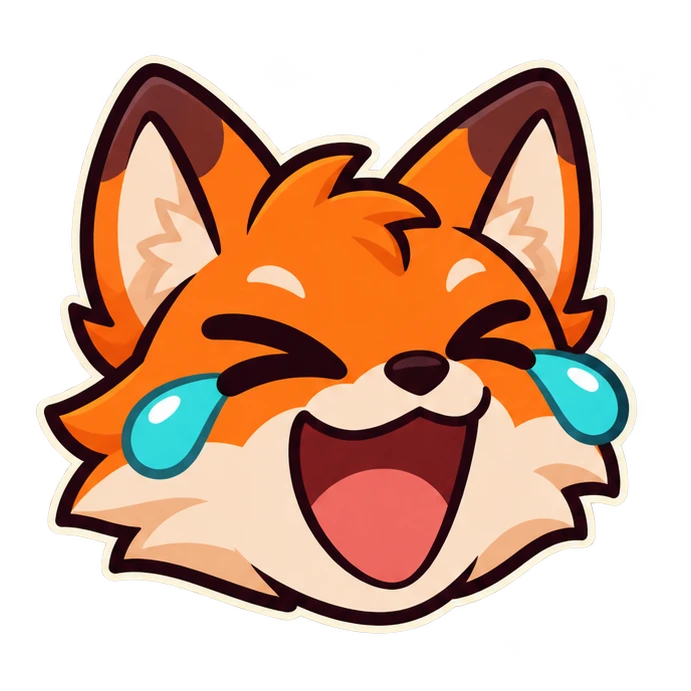
One original orange fox face laughing with two large turquoise tears, eyes joyfully closed, broad dark outlines, cream cheeks. Large face, transparent background, no text.
The two tears communicate laughter, but their outline must stay separate from the cheeks. At 28px, prioritize the open mouth and closed eyes if the extra tear detail becomes clutter.
Load this exampleSleepy cat
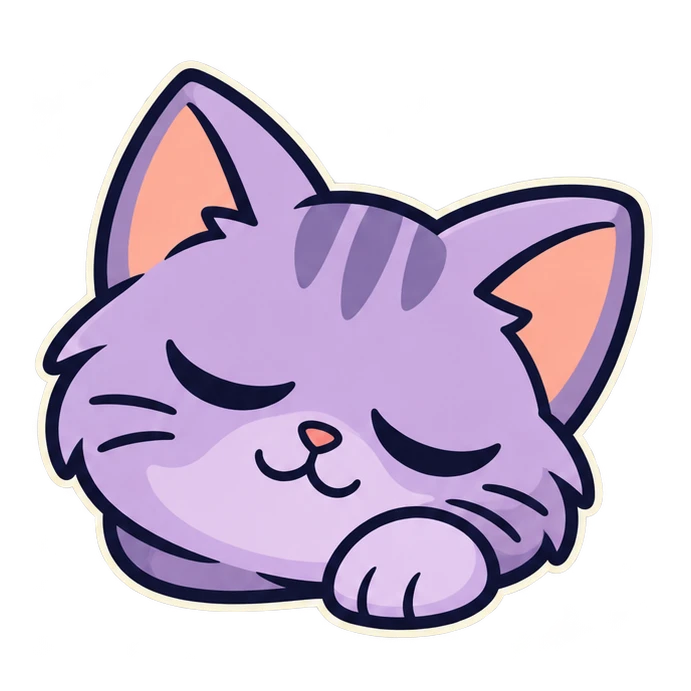
One sleepy lavender cat face with closed eyes, a small relaxed paw and peach ear interiors. Bold navy outline, simple shading, transparent background, no text.
The closed eyes and relaxed paw make the cat feel sleepy. Check that the paw does not turn into an indistinct blob under the muzzle. Preserve the broad ear shape when reducing the image.
Load this exampleApproving robot

One friendly teal robot with bright lime eyes, an orange antenna and a single clear thumbs-up hand. Strong silhouette, broad dark outlines, transparent background, no text.
The raised thumb carries approval. Keep a gap between the hand and face. A smaller antenna can disappear without weakening the main gesture, so simplify it before shrinking the thumb.
Load this exampleSurprised axolotl

One surprised cream axolotl with coral-pink gills, wide dark eyes, a round open mouth and paws beside the cheeks. Bold shapes, transparent background, no text.
The wide eyes and round mouth carry surprise. At 28px, check that the paws stay below the eyes and that the gills form a clear outer silhouette. If the fringe becomes noisy, reduce its branches while keeping the eyes and open mouth large.
Load this exampleLove from a corgi
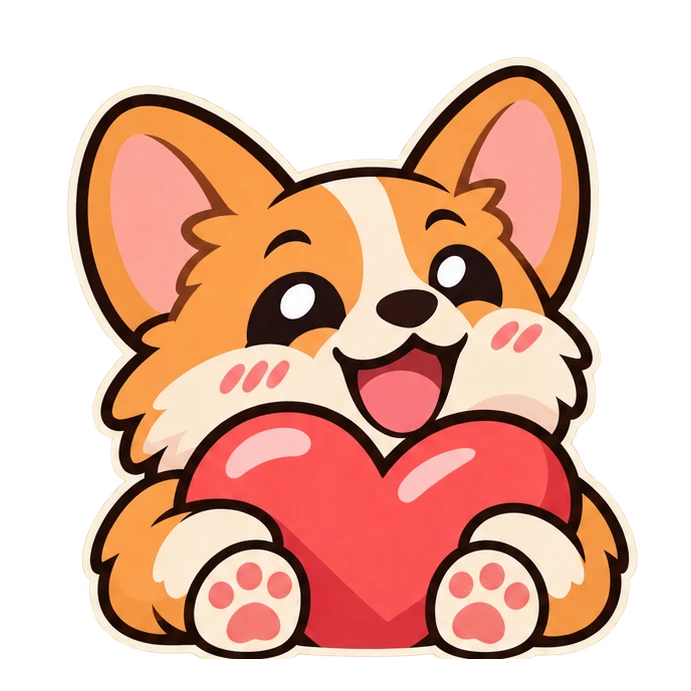
One cheerful tan-and-cream corgi cuddling a large coral heart with two clear paws. Happy bold eyes, dark outlines, transparent background, no text.
The heart can fill the lower half while the face carries affection. Check that its top edge leaves the mouth visible and the two paws remain distinct. If the heart hides the expression, lower it or crop the body more tightly before reviewing the same 28px preview.
Load this exampleWizard-frog hype
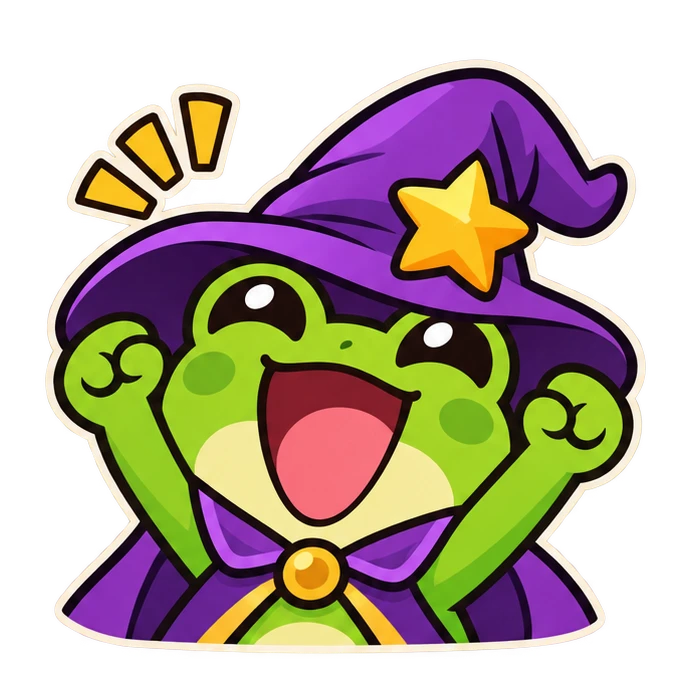
One excited green wizard frog in a violet hat with one large gold star, both arms lifted, big open smile. Clean chunky shapes, transparent background, no text.
The raised arms communicate celebration, while the hat identifies the wizard. Check that the star and brim leave room for the eyes. If the hat dominates the small preview, shorten it and simplify the star before changing the facial expression.
Load this exampleFix the visible problem
Related tools and guides

Twitch Emote Maker
Create custom Twitch emotes from text or a character reference. Choose a reaction, generate a square transparent PNG and review it at chat size.
Twitch Logo Maker
Create an original Twitch channel logo from a text brief. Choose a mascot, monogram or wordmark, set the aspect ratio and resolution, and download an SVG to refine for your channel.

AI GIF Maker
Create an animated GIF from text and an optional still-image reference. Choose frame size, frame count and timing, review the credits and download your GIF.
How to Make Stickers with AI
Turn a photo or a written idea into a sticker. Choose a clear subject, write a useful prompt, check transparent edges and prepare the PNG for its destination.
Twitch emote questions
Can I use my own character?
Yes. Upload one JPEG, PNG or WebP up to 30 MB and describe the expression you want. Review the result for consistent markings and features.
What does the tool generate?
One square static PNG with a transparent background. Choose 1K, 2K or 4K and inspect the downloaded file before uploading.
What size are Twitch emotes?
Twitch lists 28×28, 56×56 and 112×112 for manual uploads. Its auto-resize option accepts a square PNG from 112×112 to 4096×4096. Check the current dashboard and 1 MB file limit. For manual upload, Twitch’s subscriber guide requires the same image at all three sizes, each under 100 KB.