Warmer daylight
Compare skin tones and shadows throughout the shot.
Edit prompt
Apply a sunny daylight look to this video.
Edit a video with text. Upload your clip, describe a change to clothing, objects, background or lighting, and add reference images when you need a specific look.
Play both clips to compare the requested change. Load an example to prepare its source and prompt.
Compare skin tones and shadows throughout the shot.
Apply a sunny daylight look to this video.
Direct a specific change in existing footage, from wardrobe to scene lighting. The source clip supplies the action and camera movement.
Describe a change to hair, facial hair or clothing. Use the original expression and movement as the starting point, then check the face throughout the clip.
Place a new item in a specific part of the shot. Name its position and size, then check perspective, lighting and whether it stays in place.
Try warmer dawn light or a different time of day. Keep the source action and camera framing as the starting point while changing the mood.
Add a reference image for a new background and explain which details it should guide. The source video still supplies the person’s movement and camera path.
Add one MP4 or MOV shot. Check the selected model’s duration, size and dimension requirements.
Name the target edit and details to keep. Add image references if useful, then choose a model and resolution.
Check the whole edited clip against your source. Download an accepted result or reopen its inputs to refine the edit.
Direct a specific change in existing footage, from wardrobe to scene lighting. The source clip supplies the action and camera movement.
Separate an outfit change from a camera move or a new setting so you can judge each result.
A clear subject and one continuous shot make moving details easier to follow.
Check the beginning, middle and end, then play the full clip for flicker, shape changes and sound.
Use text to request changes to subjects, clothing, objects, backgrounds or lighting in an existing clip. Results depend on the footage and model; exact preservation is not guaranteed.
Upload one MP4 or MOV up to 200 MB. The default accepts 2–30 seconds. Duration, dimension and reference limits depend on your selected model; check the uploader’s requirements.
Yes. PNG and JPEG images can guide a requested appearance or object. Explain their role in the prompt and check the image limit shown for your selected model.
This editing mode follows the source clip rather than offering a separate output length or canvas. Choose the available resolution; prepare a different crop or trimmed source before uploading when needed.
Generation uses credits. Upload a supported clip and review the estimate for its duration, selected model and resolution before generating. Loading an example does not start generation.
Use this editor for a specific change within an existing shot. Video to Video is the starting point for an overall visual restyle. Neither tool replaces a timeline editor for trimming and assembling a full production.
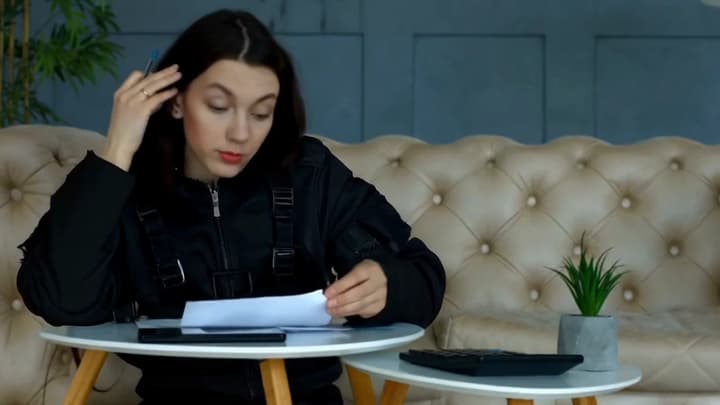
Start with one clear shot, name one change and specify what should stay. This guide shows how to prepare footage, use image references and review an AI edit across the whole clip.
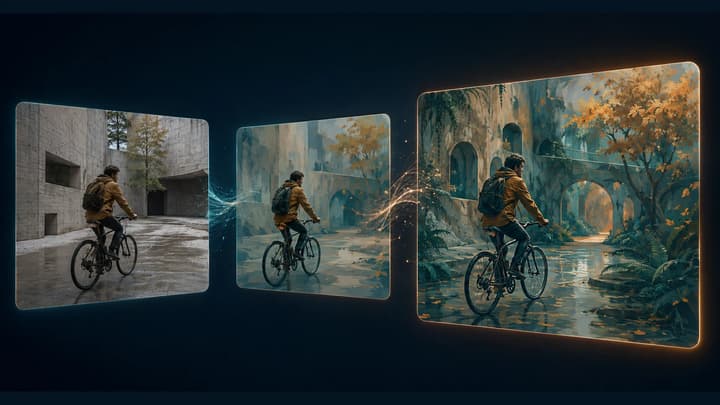
Restyle the whole clip with Video to Video.
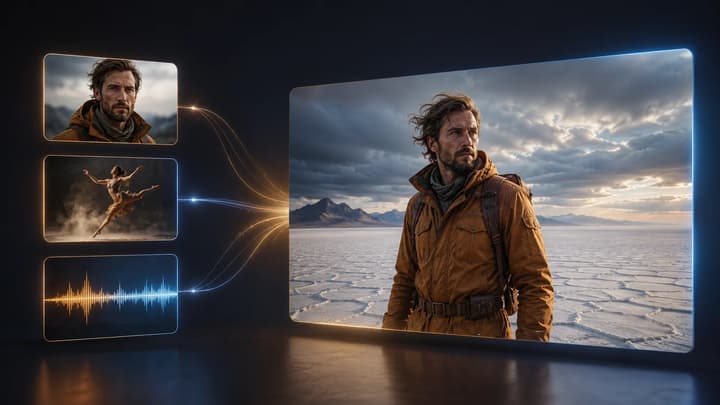
Use references to create a new shot.
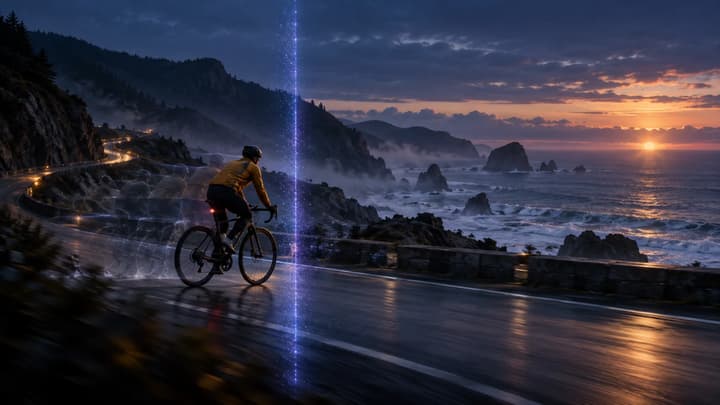
Generate what happens after a clip ends.
Direct a specific change in existing footage, from wardrobe to scene lighting. The source clip supplies the action and camera movement.