How to Make Stickers with AI
Turn a photo or a written idea into a sticker. Choose a clear subject, write a useful prompt, check transparent edges and prepare the PNG for its destination.
LumiYingUpdated
Decide what the sticker must communicate
Start with text or a photo
Use text for an original idea. Use a clear photo when a pet's markings, a face or a product must remain recognizable. For an exact photographic cutout, preserve the original pixels with a masking editor.
Write the preservation details
Choose two or three identifying details before selecting a style. A corgi's forehead blaze or a pair of glasses is more useful than a long list of decorative effects.
Choose a destination
A chat reaction, planner decoration and packaging draft need different levels of detail. Decide the intended display size before judging the image.
From an idea to a usable sticker file
Prepare a clear subject
Choose a well-lit photo with a visible face or full object. Crop away unrelated people and clutter while leaving the ears, paws or product edges intact. Keep the original for comparison. For a text-led sticker, write the subject in one short sentence.
Add the photo when continuity matters
Open AI Sticker Generator and upload the photo in the first field. One JPEG, PNG or WebP up to 30 MB is supported. Leave this field empty for a new text-led design. A reference guides the redraw, so compare its identifying details after generation.
Write subject, style and border
Name the action or expression, then choose a visual style and a few colors. State what to preserve from the photo. Ask for one complete sticker, a white border and transparent space outside it. Keep scenery and detached decorations minimal.
Set resolution and generate
Start at 1K for a draft. Choose 2K or 4K when the intended layout needs more pixels. The output stays square. Read the credit price, generate, and keep the downloaded master for later resizing.
Compare identity and lettering
Check the result beside the source photo. Look at markings, glasses, face shape or product proportions. Read each generated letter. Use Re-edit to restore the source and brief, change the specific problem, then review the next result at the same size.
Inspect transparency and the outline
Open the downloaded PNG over white and dark backgrounds in an image editor. Check the area outside the white border, gaps between leaves or arms, and the full contour. Clean stray pixels or a halo with a mask as needed, preserving the subject and border.
Prepare it for its destination
Make a copy at the required pixel dimensions and file size while preserving alpha. For a collection, reuse the palette and line style across individual files. For print, confirm physical size, effective resolution, bleed and cut lines with the printer, then inspect a proof before ordering.
Choose settings for the actual use
Six checks for different sticker subjects
These original AI-generated concepts illustrate possible directions on light backgrounds. Photo examples load their matching source. Text examples load a new text-only draft.
Corgi companion
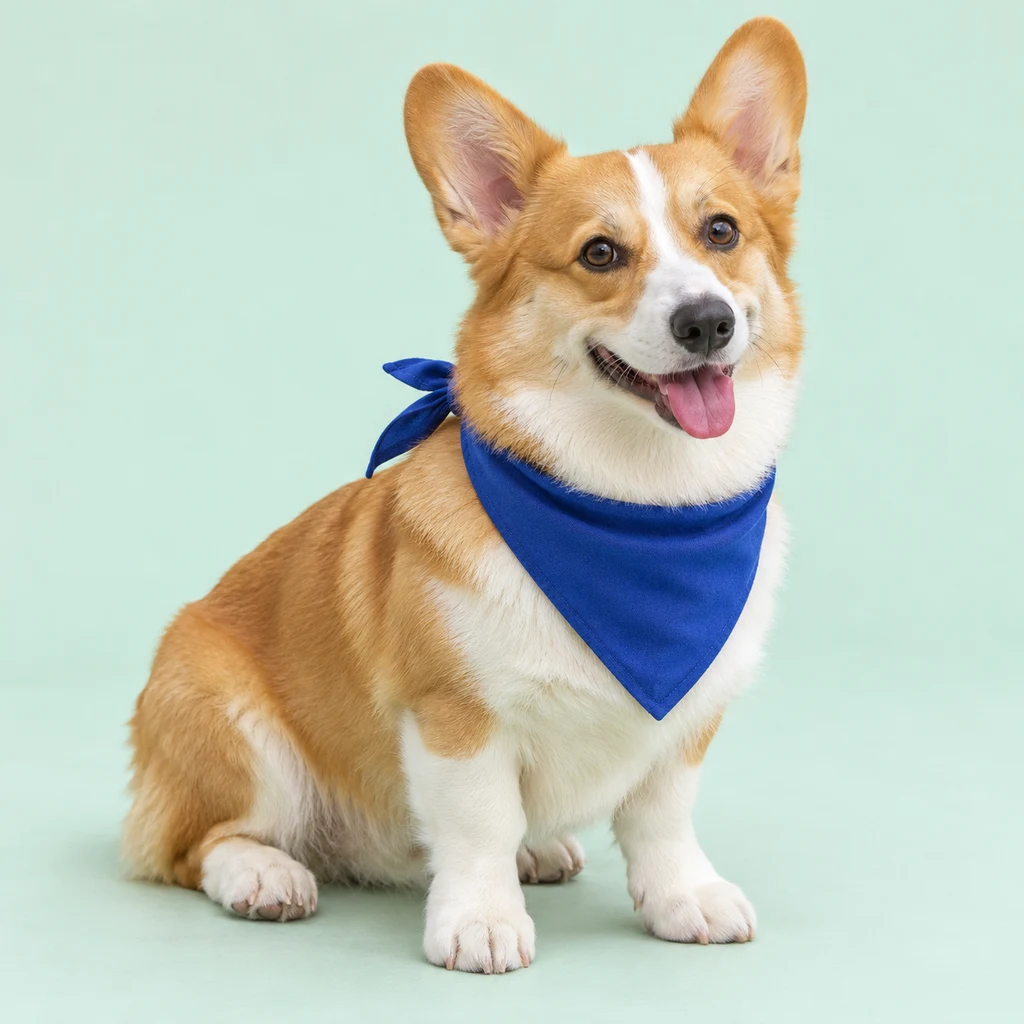
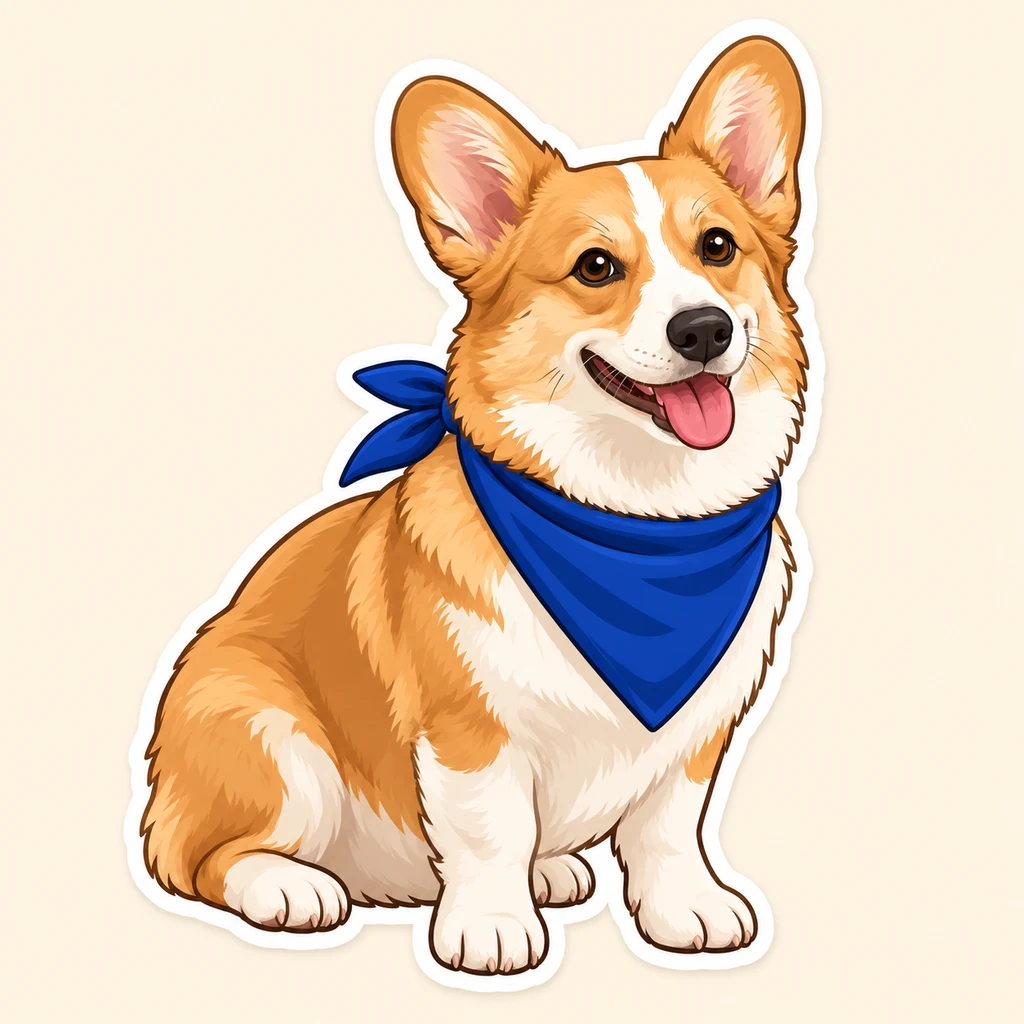
Turn the reference corgi into one cartoon sticker. Keep its tan-and-white markings, broad white forehead blaze, short legs, cobalt bandana and seated pose. Use clean bold outlines and a smooth white border with transparent space outside. Keep the full ears and paws inside the canvas. No text.
Compare the tan ears, broad white blaze and cobalt bandana with the source. If the markings drift, name those three details again and simplify the requested style. Inspect both ear tips and the paws before making a small copy.
Load this examplePortrait with personality

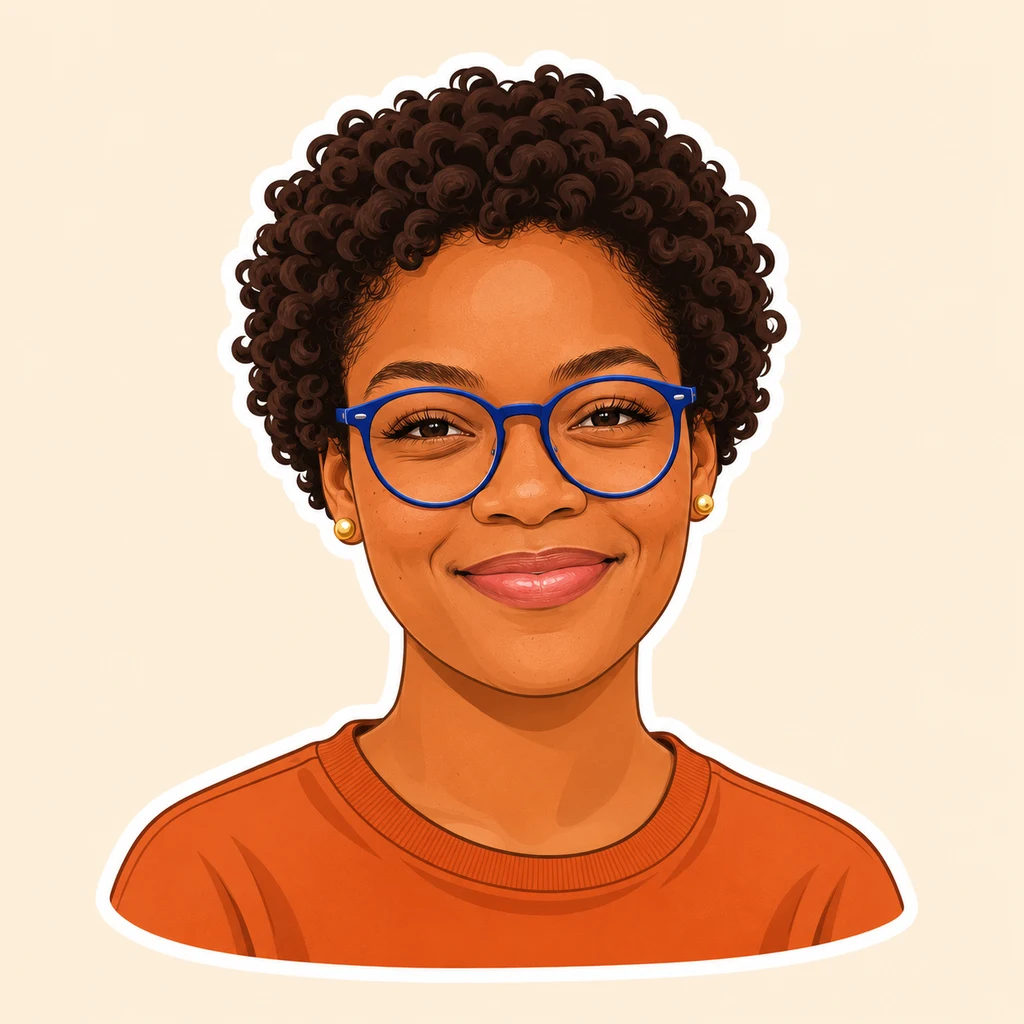
Create one illustrated portrait sticker from the reference. Keep the recognizable face, warm skin tone, short curls, round cobalt glasses, gold earrings, orange shirt and smile. Use clean cartoon lines, a white border and transparent background. Leave room around the hair and shoulders. No text.
The round glasses, short curls and earrings carry identity. Check that the frame does not merge into the eyes and that the hair stays inside the border. When likeness drifts, reduce stylization and repeat the distinctive features in the brief.
Load this exampleProduct mini
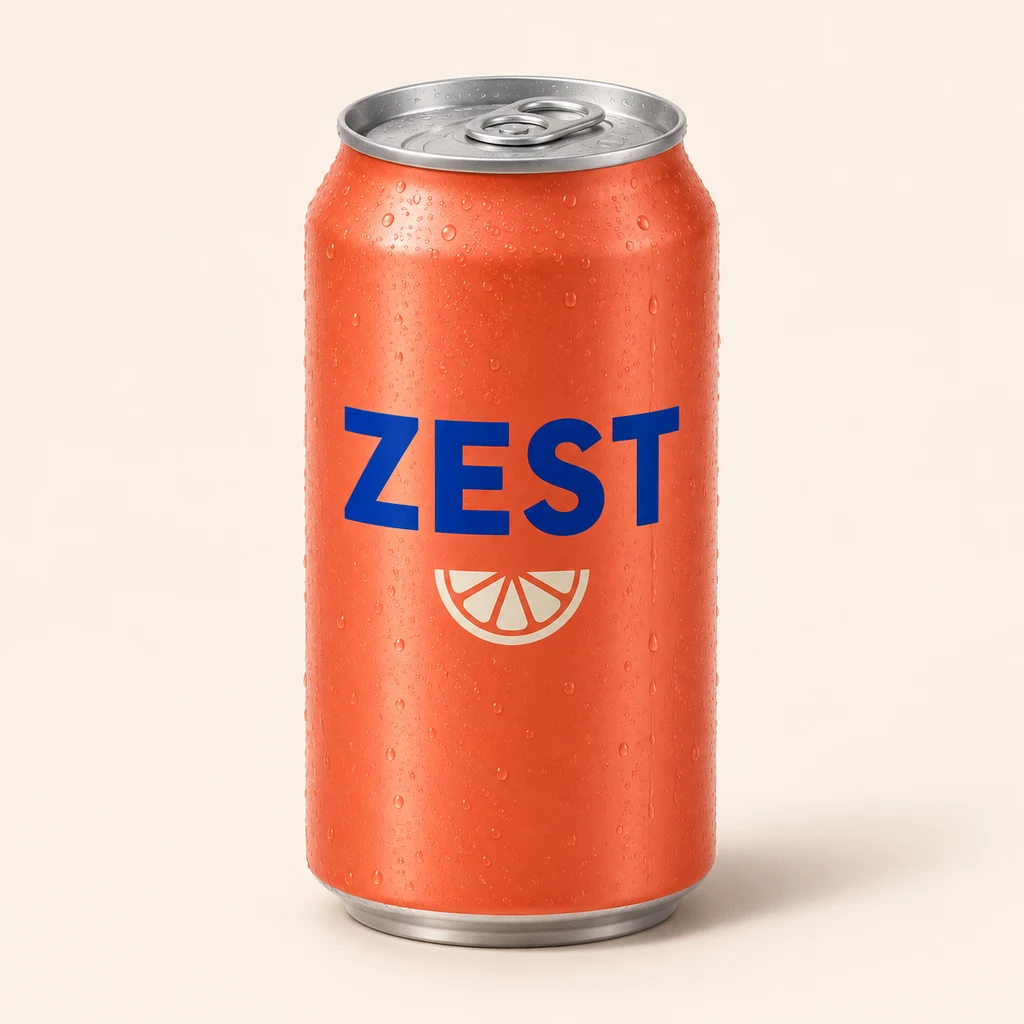
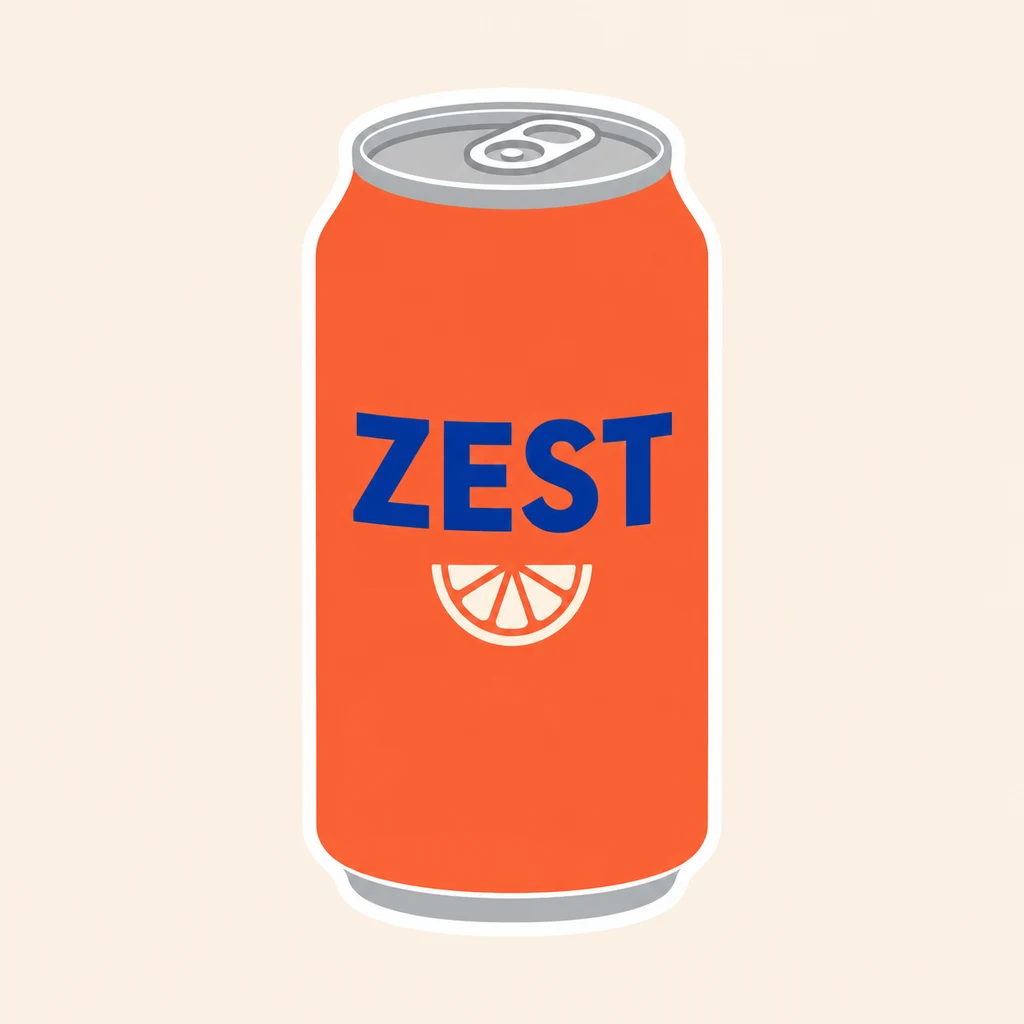
Turn the reference ZEST can into one flat illustrated sticker. Preserve the coral can proportions, silver rim, exact cobalt word ZEST and ivory citrus mark. Simplify the shading. Add a smooth white contour border and transparent background. Keep the whole can inside the canvas.
Compare the can's width, silver rim and citrus mark with the photo. Read ZEST letter by letter. Generated branding can shift, so repair exact lettering in an editor before a commercial layout when required.
Load this exampleGood things
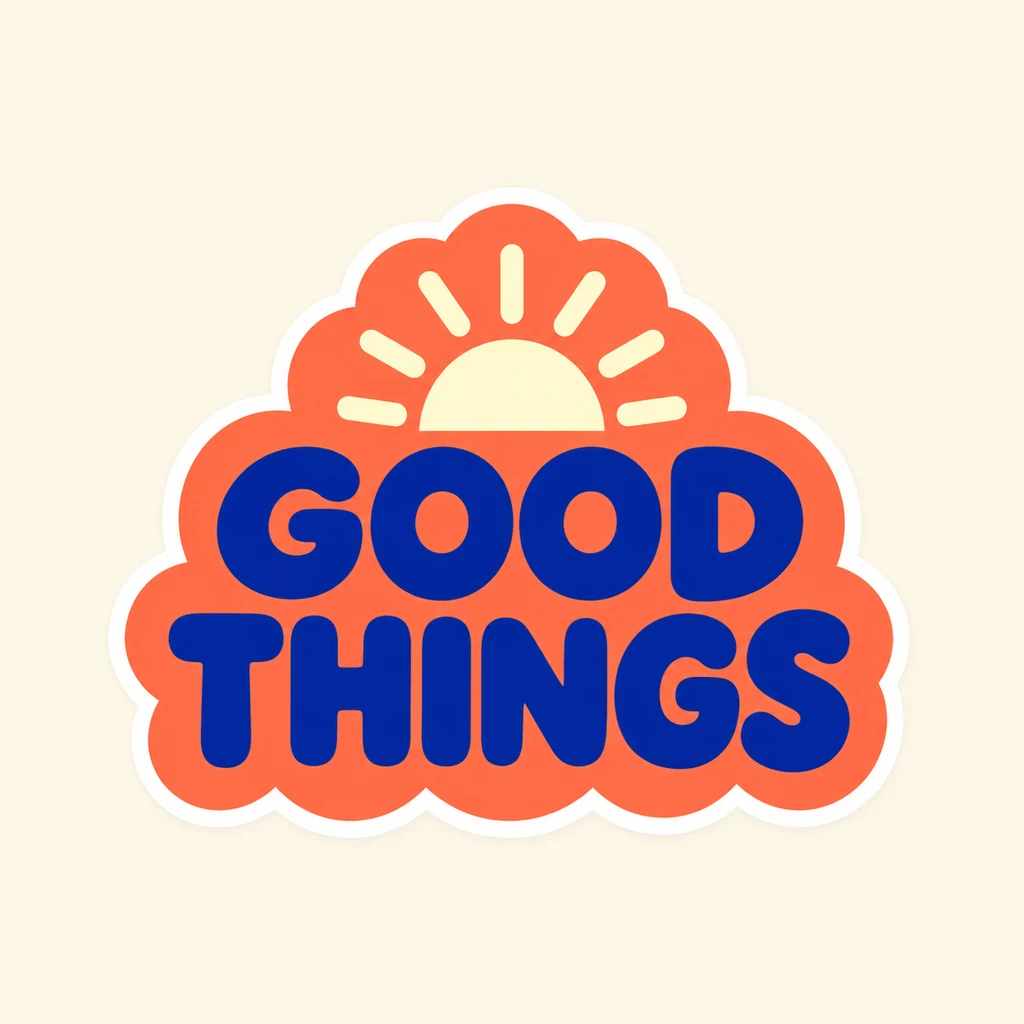
One coral scalloped badge with the exact uppercase words GOOD THINGS on two lines in thick cobalt lettering. Add a small cream sun within the badge, a smooth white contour border and transparent background. Keep all letters clear and leave margin around the complete badge.
GOOD THINGS uses two short lines. Check the spacing inside the O shapes and the separation between the two words at the final display size. Longer phrases usually need a larger sticker or a simpler layout.
Load this examplePlanner plant

One mint monstera with three broad leaves and thick connected stems in a coral pot marked with a cobalt crescent. Clean flat illustration, a smooth white border and transparent background. Keep the whole plant inside the canvas with margin. No text.
The three broad leaves and thick stems create a connected silhouette. Inspect the gaps around the stems and the white border on a dark background. Simplify narrow offshoots when they produce fragile fragments.
Load this exampleTrail souvenir
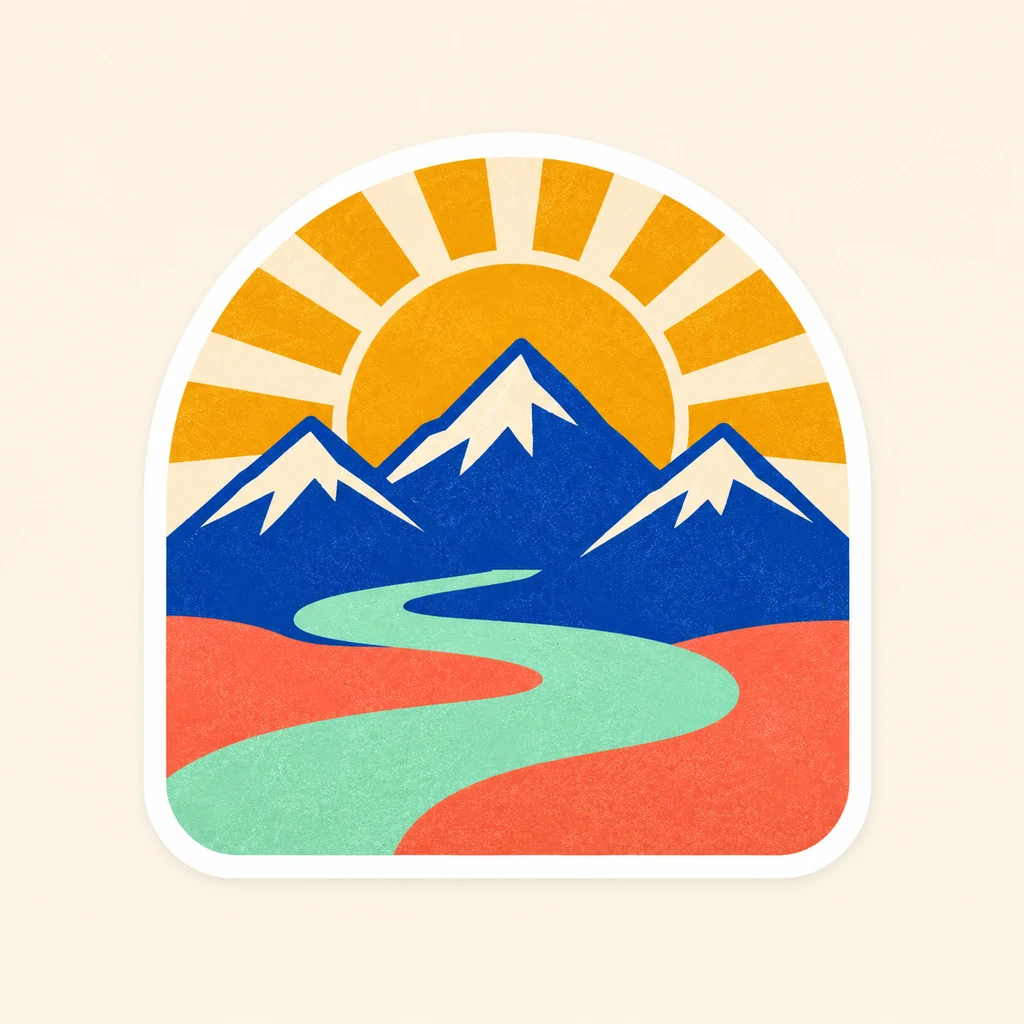
One rounded-arch outdoor sticker containing three cobalt mountains, an ochre sun and a broad mint river over a coral foreground. Use bold geometric shapes, a smooth white border and transparent background. Keep the design in one connected badge. No text.
The mountains, river and sun carry the whole scene with a small palette. View a thumbnail and check whether the river stays distinct from the foreground. Increase shape separation before adding more landscape details.
Load this exampleFix the visible problem
Related tools and guides
AI Sticker Generator
Create custom stickers from text or a photo. Describe the subject and style, generate one transparent PNG, and refine it for messages, journals or brand artwork.

Twitch Emote Maker
Create custom Twitch emotes from text or a character reference. Choose a reaction, generate a square transparent PNG and review it at chat size.

AI Logo Generator
Create a custom SVG logo from text. Describe your brand name, symbol, lettering and colours, choose the aspect ratio and resolution, then generate and review your logo.
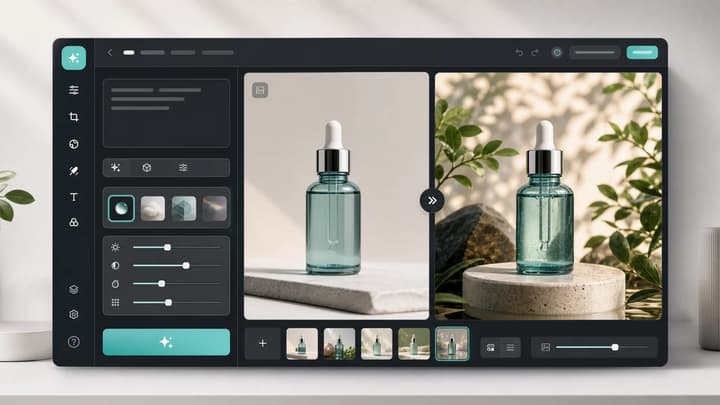
AI Image Editor
Upload an image, describe the edit, and create polished visuals for products, social posts, posters, or keyframes.
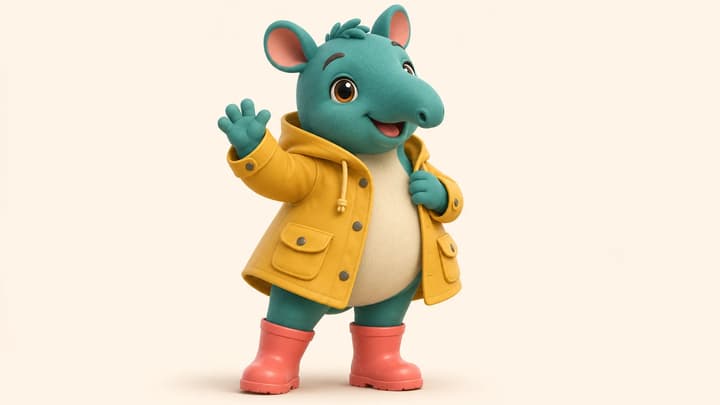
How to Make a Mascot with AI
Build a recognizable digital mascot, from the first brief to new poses. Choose defining features, use a reference and check the PNG at its intended size.
AI sticker questions
Can I make a sticker from a photo?
Yes. Add one JPEG, PNG or WebP up to 30 MB and describe the illustrated look you want. Check recognizable details against the original photo.
What file will I get?
One square static PNG requested with a transparent background. Choose 1K, 2K or 4K and inspect the downloaded file's edges.
Can I create a sticker from text alone?
Yes. Describe the subject, colors, style and border. Put exact wording in quotation marks when the sticker needs lettering.