How to Create a Logo with AI
Write a focused brand brief, choose a symbol, wordmark or monogram, then generate a logo. Check the exact name, shapes, colour and small-size readability before refining the SVG and exporting the files you need.
LumiYingUpdated
Decide what the logo needs to communicate
Name and audience
Write the exact brand name, what the project does and who it serves. Keep a slogan separate and include it only when it must appear in the artwork.
One visual priority
Pick one useful association, such as a wave for a coastal roaster. Choose a symbol, a wordmark, initials or a combination before adding decorative details.
First place it will appear
Identify an actual use, such as a website header or bag label. Record its available width, background and whether the name must be readable there.
From brand brief to a reviewed logo
Write a specific brief
Include the exact name, business, audience, one motif, lettering direction, palette and background. For TIDE ROAST, ask for a broad wave and rising sun, with the name in navy uppercase. Avoid adding unrelated objects just to fill the canvas.
Generate one SVG
Enter the brief in AI Logo Generator. Start with 1:1 for a stacked logo or choose a wider ratio for a horizontal composition. Select the resolution, review the displayed credits and generate. Loading an example only fills the form.
Read every letter
Compare the result against your written name, including spaces, punctuation and initials. Check letters such as O and D at the intended size. If spelling or spacing fails, correct the lettering in a vector editor or revise the brief for a new generation.
Compare shape and colour
Place a copy at its actual display size. Check the name and symbol together, then inspect a single-colour copy on light and dark backgrounds. If important gaps close, simplify the drawing or separate the shapes in an editable copy.
Inspect the SVG
Open the downloaded file in a vector editor. Select objects to confirm which are paths, text or embedded images. Check the viewBox, clipping and background rectangle. Adjust internal margins and preserve a separate editable master before preparing variants.
Prepare files for the destination
Keep the reviewed SVG master. In a vector editor, export PNG at the required pixel dimensions and confirm the background. Choose Page when the file should retain the planned margins. Reopen the export in its intended website or layout and check it again.
Choose the structure for the job
A brief and review plan for TIDE ROAST
This example links a fictional coffee brand brief to concrete review decisions. The concept illustration below shows the direction. Inspect the actual generated file separately.
Three briefs and what to inspect
Load a written preset, change it for your brand and review the resulting file. These AI-generated concepts illustrate different design decisions.
Coastal coffee
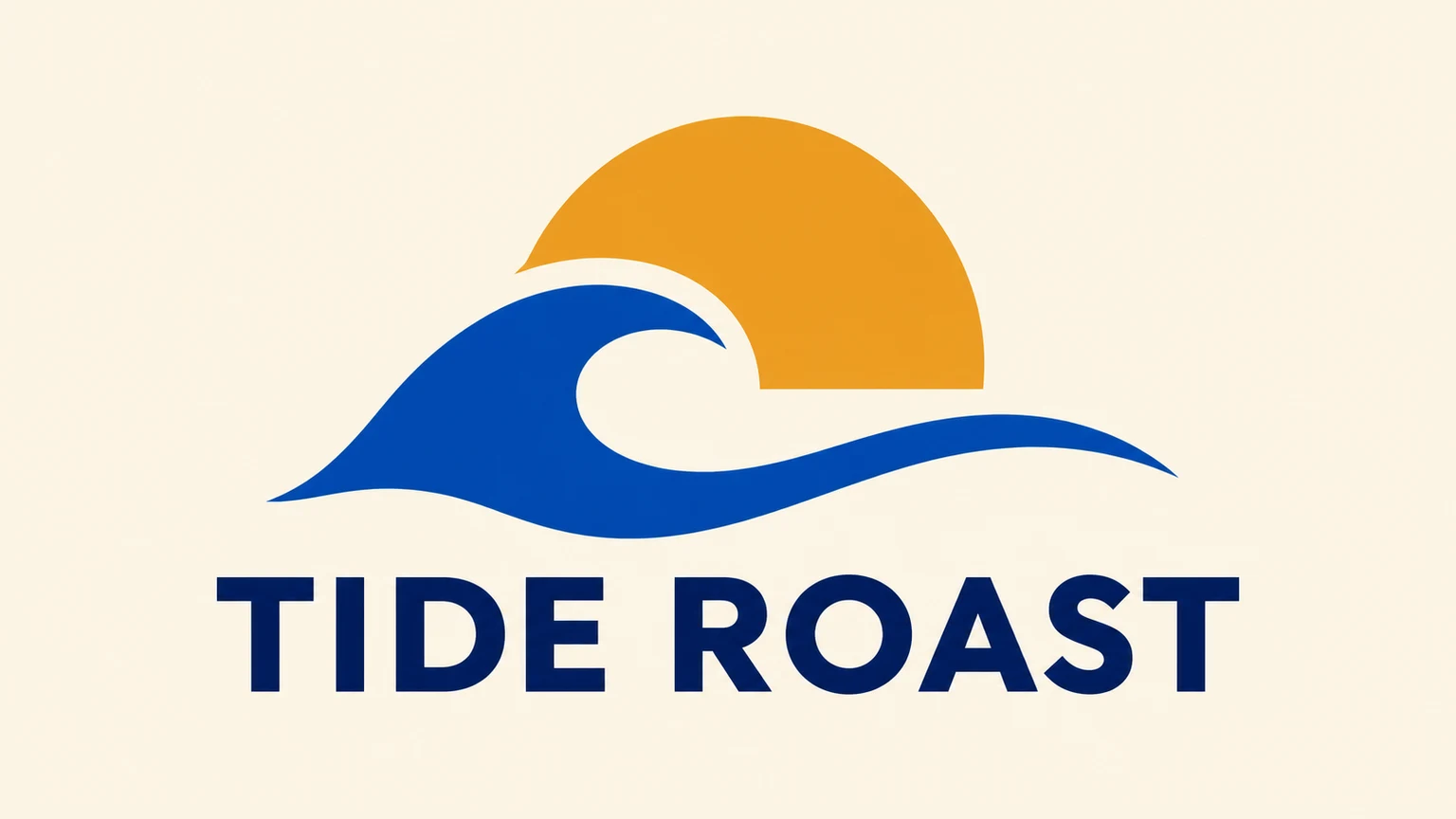
Create one original static SVG logo. TIDE ROAST with a broad cobalt wave, an ochre rising sun and navy uppercase lettering on ivory. Use clean editable vector shapes, clear open spaces and comfortable margins. Render the supplied brand name or initials exactly as written. Return one complete logo on one artboard.
Check that TIDE and ROAST read as two words. Inspect the wave opening and the gap below the symbol at the actual width. Refine those relationships before adding a slogan.
Load promptArchitecture monogram
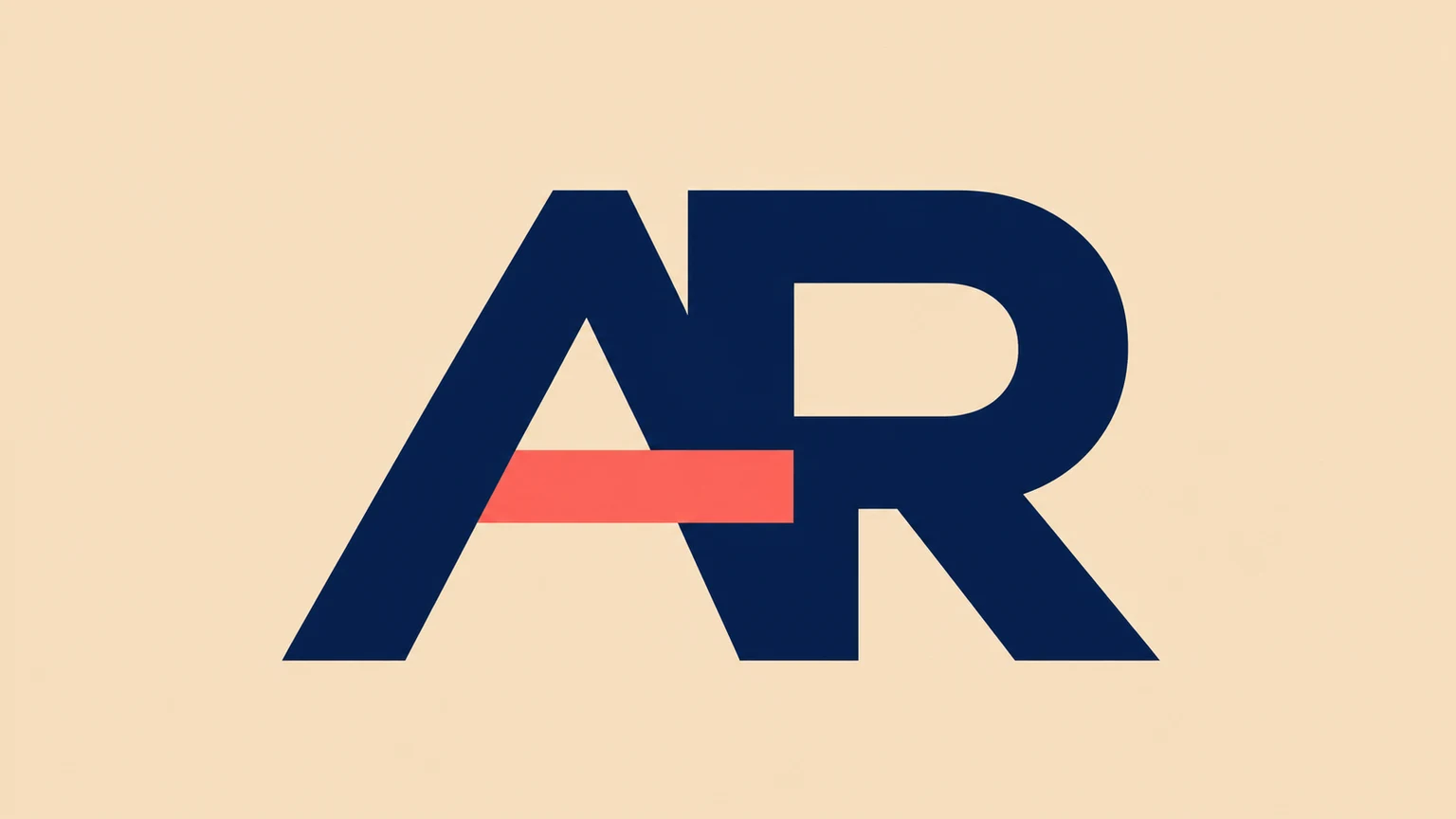
Create one original static SVG logo. The initials AR in broad navy architectural forms with a coral crossbar, on warm sand. Use clean editable vector shapes, clear open spaces and comfortable margins. Render the supplied brand name or initials exactly as written. Return one complete logo on one artboard.
For AR, look at the counter inside A and the opening in R. The coral crossbar should support the initials. Review a single-colour copy to see whether the letters still read.
Load promptIndependent music
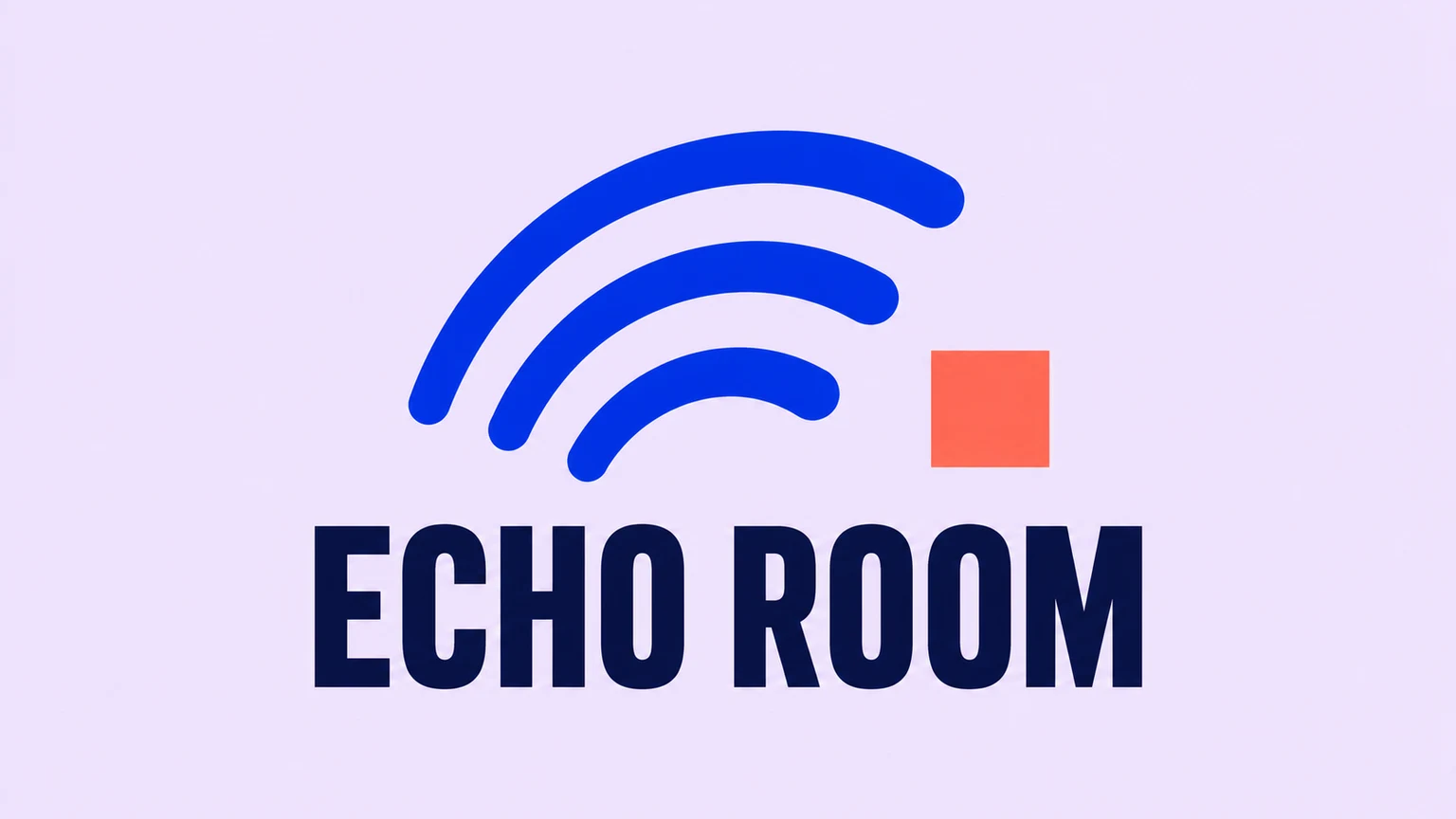
Create one original static SVG logo. ECHO ROOM in navy condensed lettering below three cobalt sound arcs and a coral square, on pale lilac. Use clean editable vector shapes, clear open spaces and comfortable margins. Render the supplied brand name or initials exactly as written. Return one complete logo on one artboard.
For ECHO ROOM, check the narrow letter counters and the spacing of the three arcs. Remove a small accent or widen a gap when it disappears at the intended size.
Load promptFix the problem you can actually see
Related tools and guides
AI Logo Generator
Create a custom SVG logo from text. Describe your brand name, symbol, lettering and colours, choose the aspect ratio and resolution, then generate and review your logo.
AI Vector Generator
Generate editable SVG artwork from text for logos, icons and illustrations. Describe your subject and style, choose the aspect ratio and generation resolution, then download the SVG file.
SVG Icon Generator
Create custom SVG icons from text with AI. Describe the subject, outline or filled style and colours, then choose the aspect ratio and resolution for one downloadable SVG.
Clothing Brand Logo Maker
Create a clothing brand logo as an SVG from your text brief. Describe your brand name, audience, style and colours, choose the aspect ratio and resolution, then generate and review your design.
Questions about creating an AI logo
What should I put in the logo brief?
Include the exact brand name or initials, the business, one motif, lettering direction, colours and background. State whether you want a symbol, wordmark, monogram or combination.
Can I upload my existing logo?
This SVG workflow creates a new logo from text. Existing artwork needs an editing or tracing workflow that accepts the original file.
Does each generation create a complete brand kit?
Each submission creates one SVG artwork. Prepare additional layouts, colour variants and destination-specific files after reviewing the design.
How can I refine the downloaded SVG?
Open it in a vector editor, inspect paths and lettering, then adjust the shapes, spacing and colours. Save a master before exporting copies.
What happens when I load an example?
Its written brief, aspect ratio and resolution fill the workspace. You can edit them before clicking Generate. Loading a preset spends no credits.
How is generation priced?
The credit price appears beside Generate and changes with the selected resolution. One submission creates one SVG. Review the quote before generating.