Compare Seedream 5.5 and GPT Image 2.5 for repeated edits, transparent assets, realistic scenes and text-heavy layouts. Try both on LumiYing with the same brief.
Each pair uses the same prompt and canvas size. The Seedream 5.5 images are published samples. The GPT Image 2.5 Sunburst images were generated for this comparison at Medium quality.
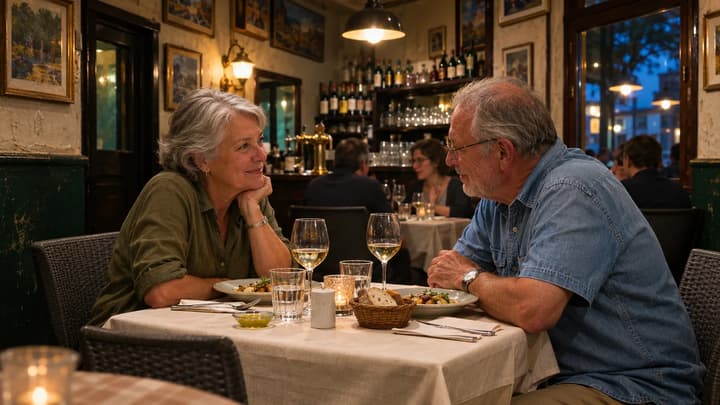
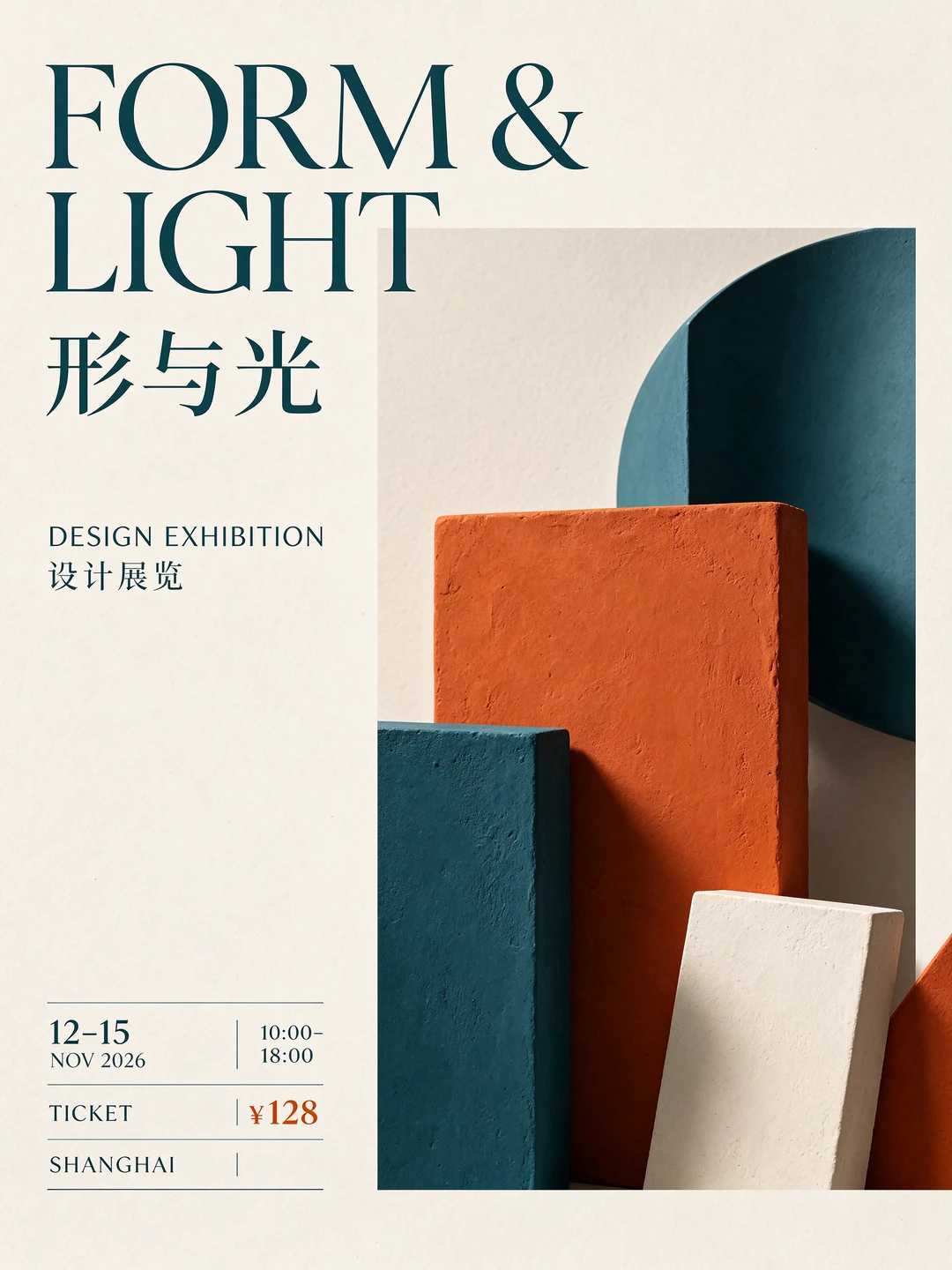
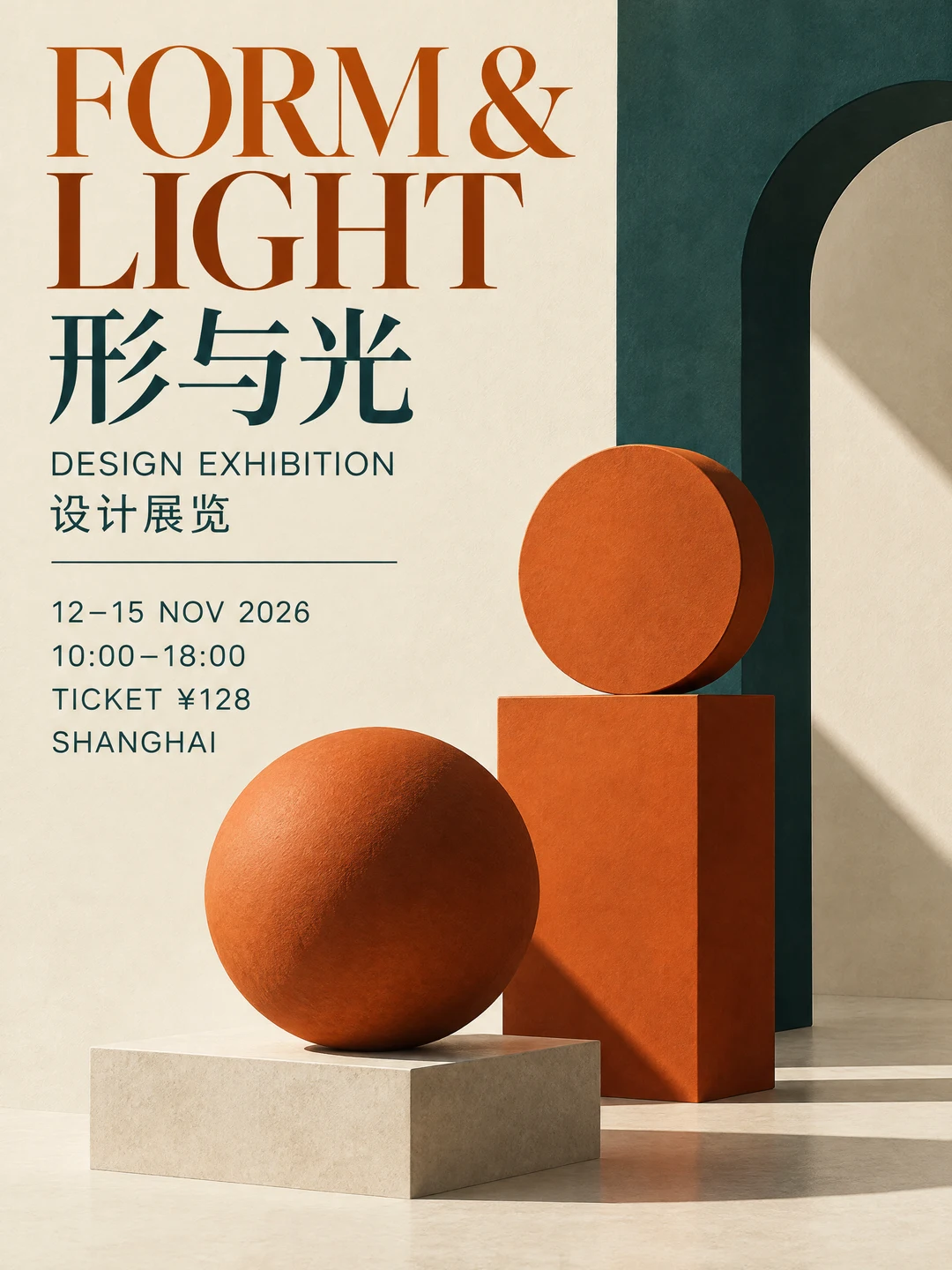
Bilingual exhibition poster
Text to image · 1776 × 2368
Seedream 5.5
GPT Image 2.5 Sunburst
Shared brief
Design an ivory poster with an English and Chinese headline, orange and teal geometric shapes, and legible dates, hours, and ticket price.
Seedream sets the small details in a grid at the bottom. Sunburst stacks them below the subtitle and uses more prominent orange shapes.
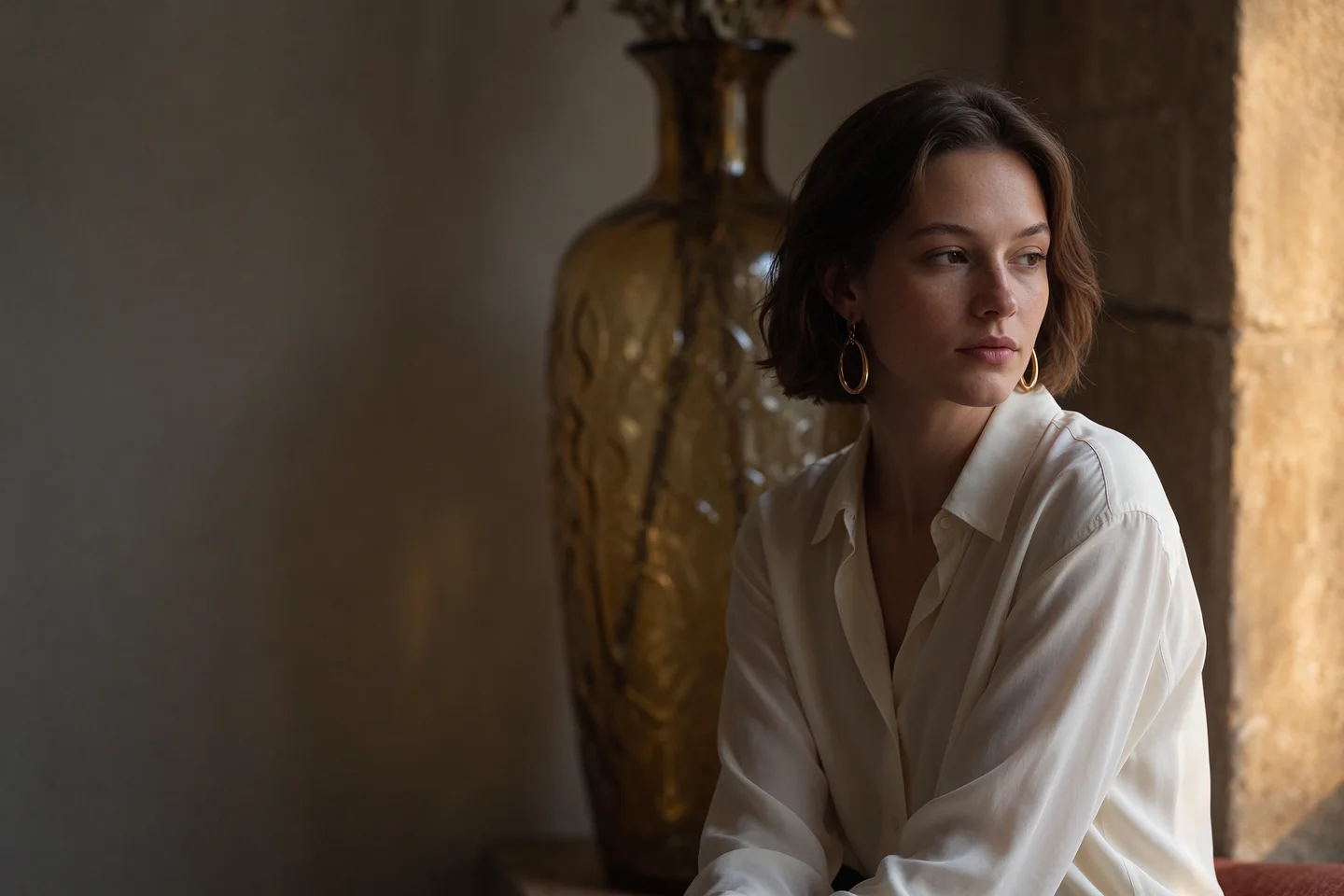
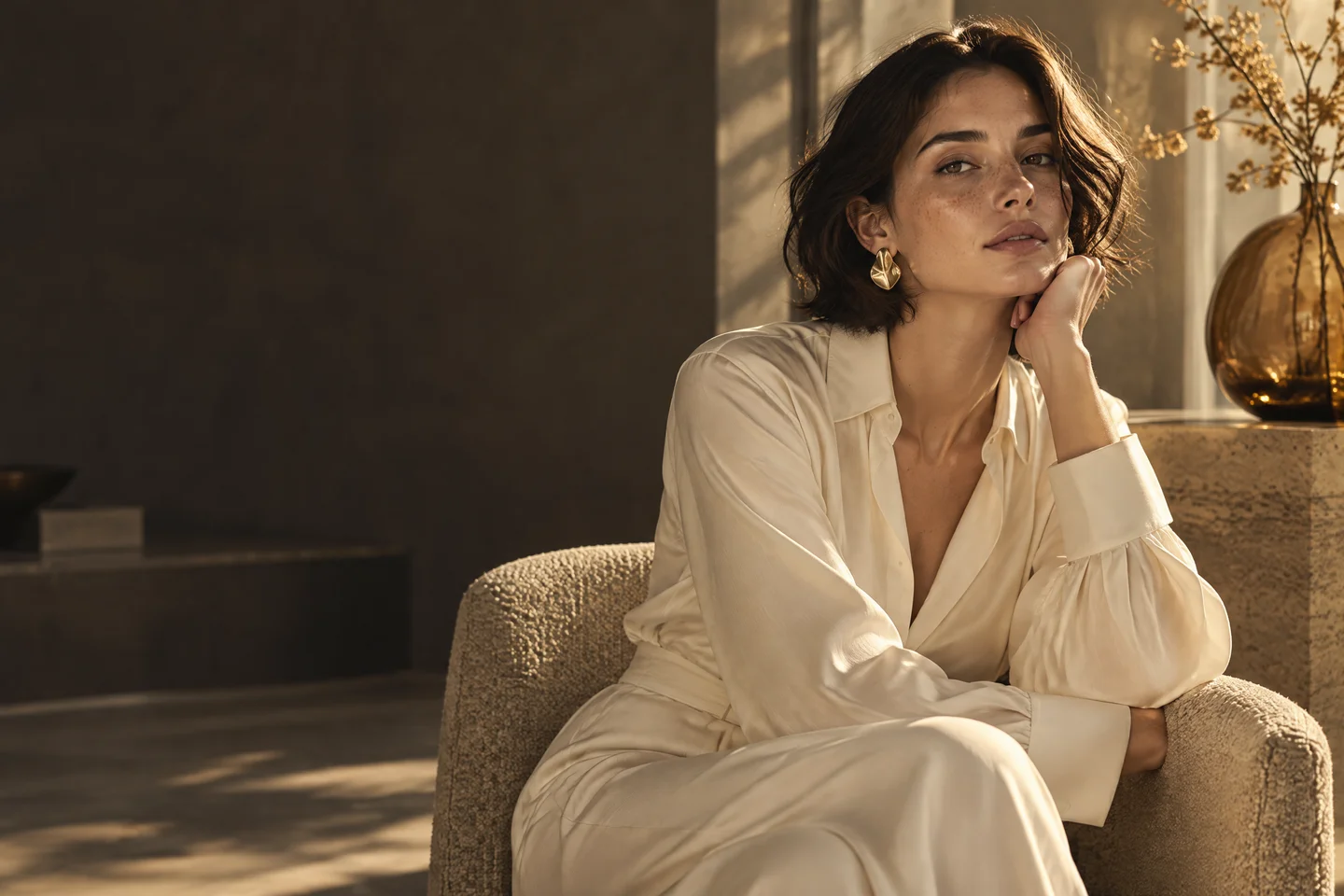
Natural-light editorial portrait
Text to image · 2496 × 1664
Seedream 5.5
GPT Image 2.5 Sunburst
Shared brief
Place a woman in an ivory blouse on the right, with warm afternoon light, visible skin and fabric texture, and room for a headline on the left.
Both leave space on the left. The Seedream portrait has a softer side profile. Sunburst gives the subject a more frontal pose and stronger light and shadow.
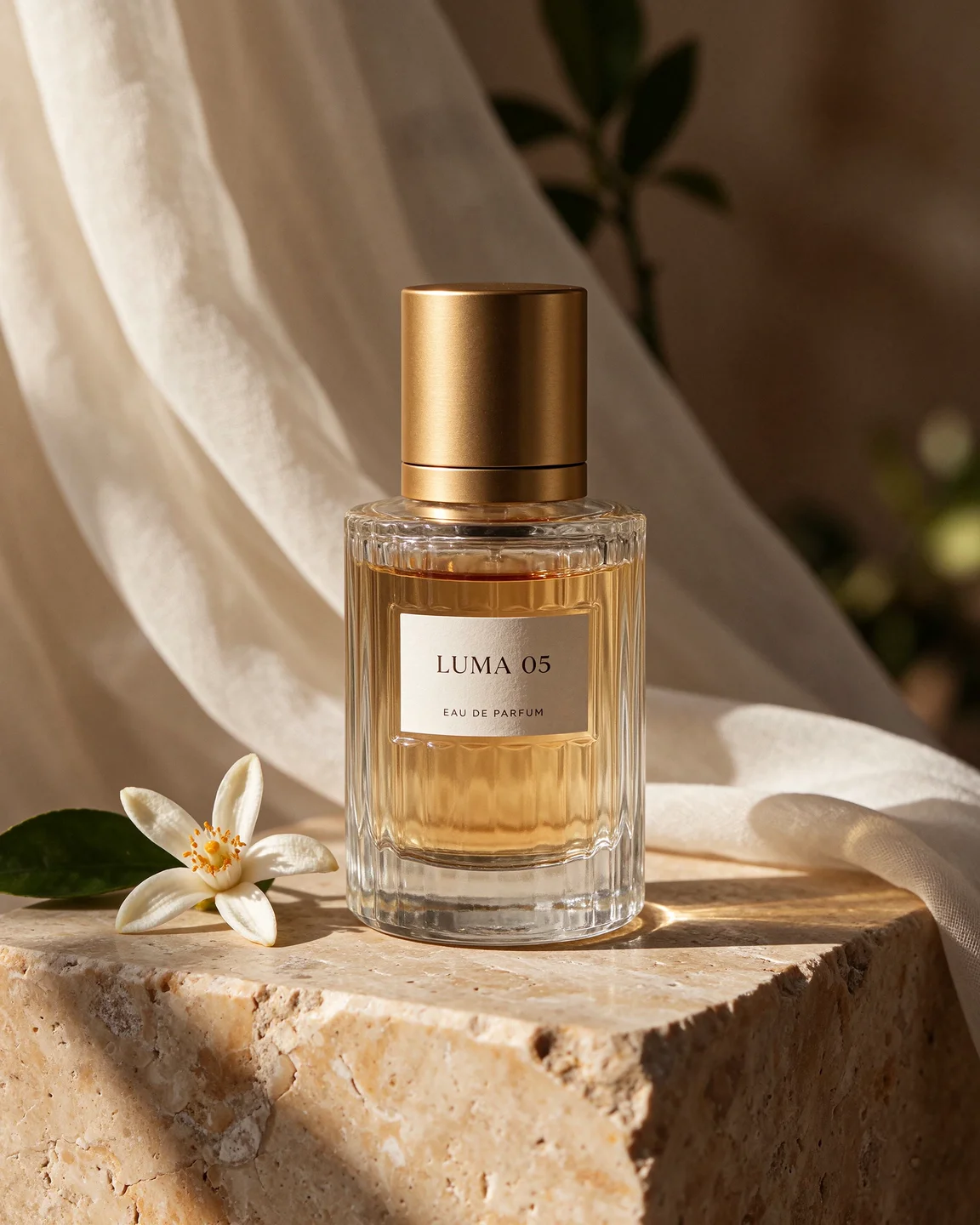
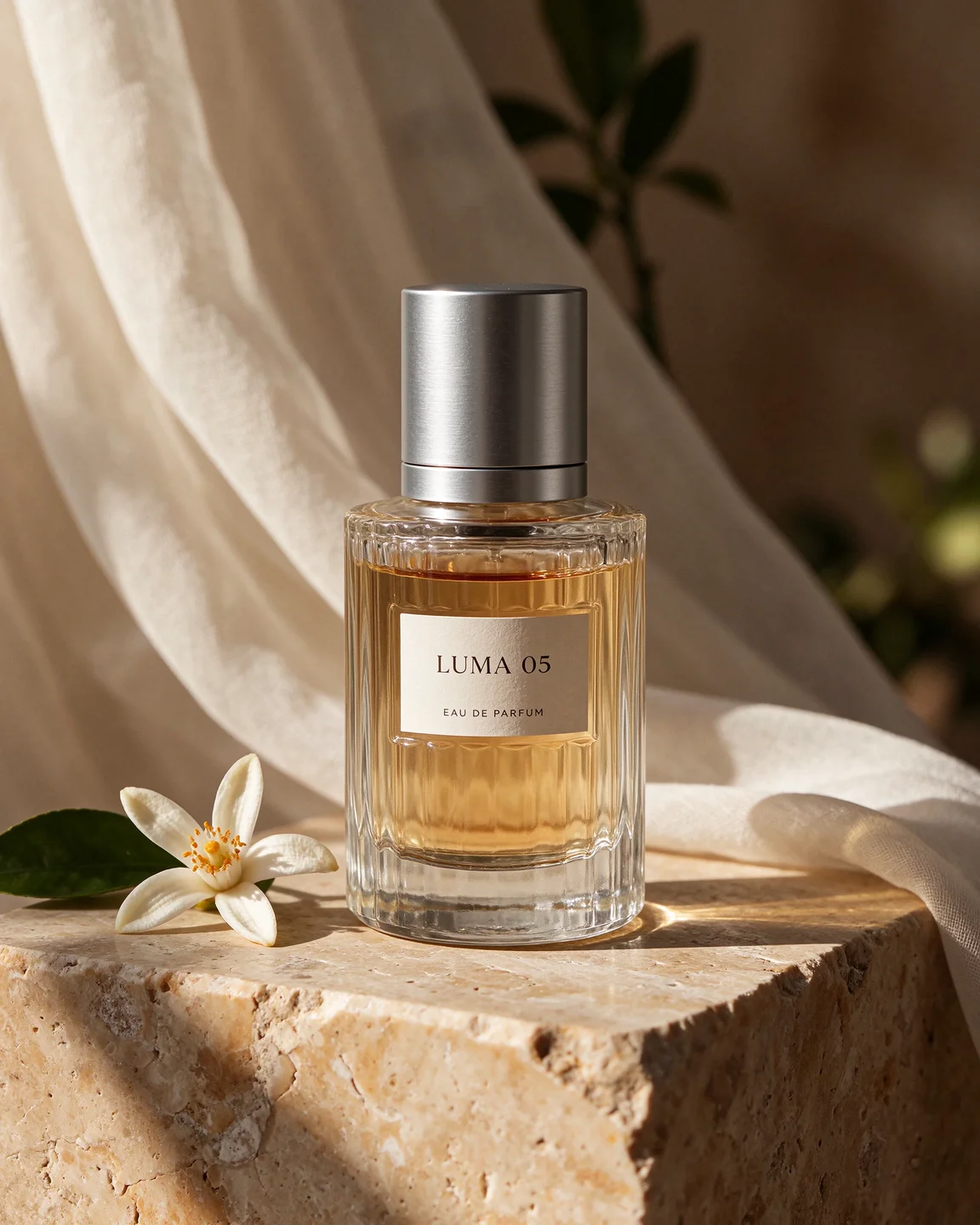
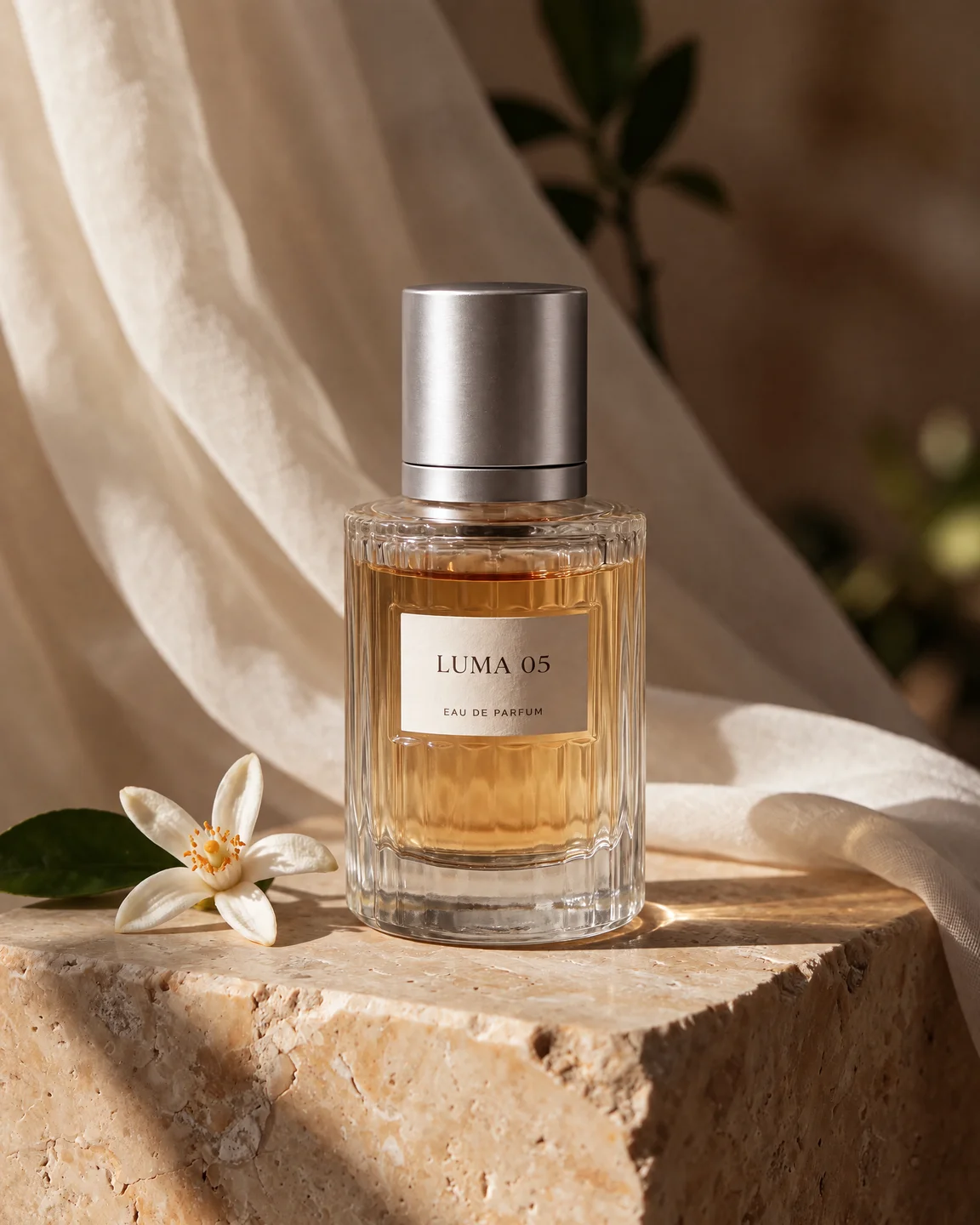
Local edit of a perfume cap
Image edit · 1792 × 2240
Shared reference
Seedream 5.5
GPT Image 2.5 Sunburst
Shared brief
Change the gold cap to brushed silver while retaining the bottle shape, label, crop, and surrounding scene.
Both results change the cap to silver and keep the bottle, label, flower, and fabric in the same positions. The reflections on the caps differ slightly.
Transparent product cutout
Text to image · 2048 × 2048
Seedream 5.5
GPT Image 2.5 Sunburst
Shared brief
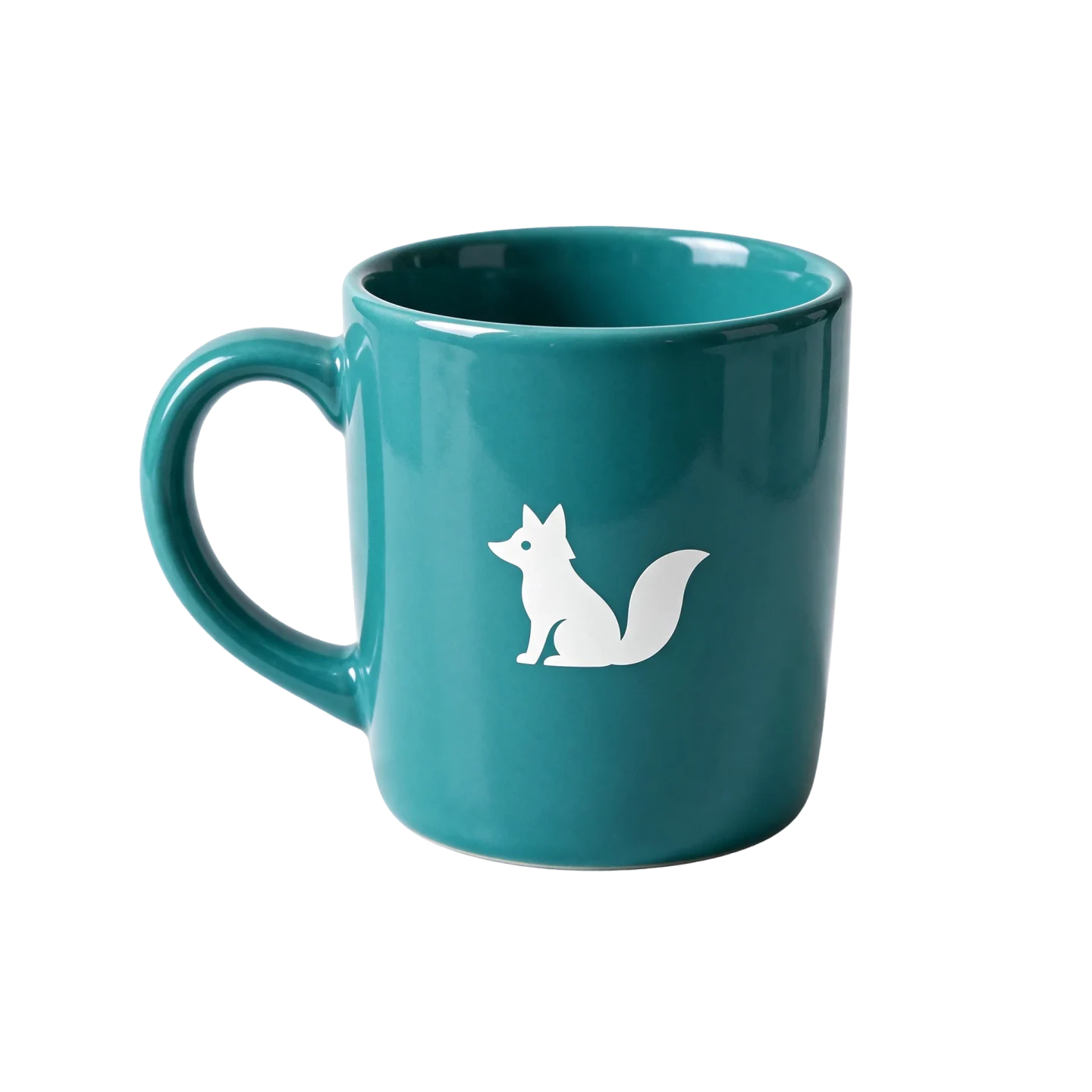
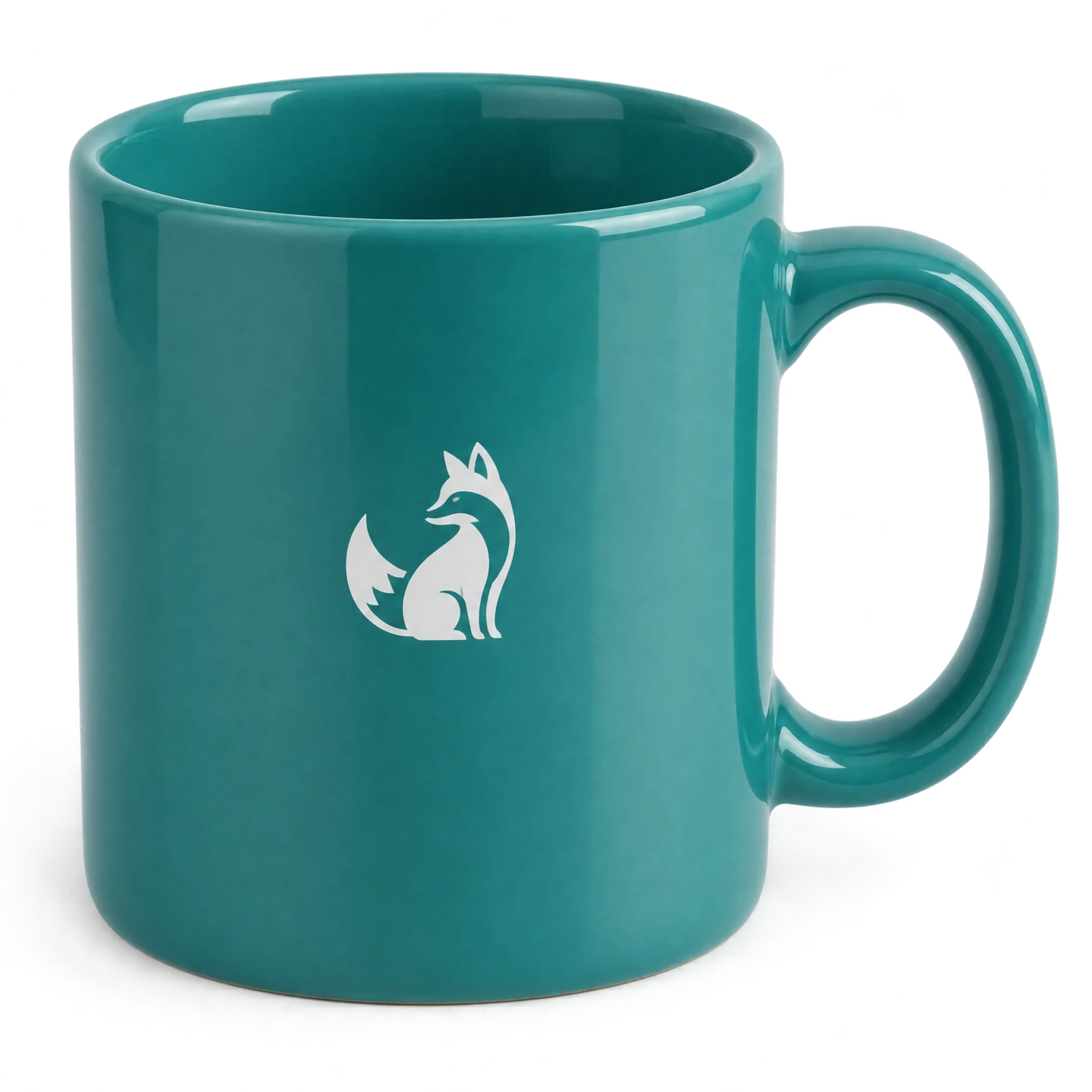
A glossy ceramic teal coffee mug with a small white fox logo, three-quarter view, soft studio light, isolated product cutout.
The Seedream mug occupies less of the frame and has a tighter cutout. The Sunburst mug fills more of the frame and has a visible soft halo around the handle and base.
Seedream 5.5 vs GPT Image 2.5 at a glance
The table separates model capabilities from the controls available on LumiYing.
AreaSeedream 5.5GPT Image 2.5
LumiYing access
Available with 1K, 1.5K and 2K output and up to 10 references.
Available in Flare and Sunburst, with quality set separately.
Repeated edits
A demo shows 100 successive edits to one portrait. The model is designed to keep unedited regions stable.
Both variants support reference edits. OpenAI positions Sunburst for more precise work and Flare for faster iteration.
Transparent assets
Native RGBA output supports partial transparency for layered designs.
OpenAI’s API supports transparent backgrounds in both variants. Check the options on the surface you plan to use.
Text and realism
Built for realistic lighting and materials, plus layouts with dense, small text.
Use text and reference images for product scenes, posters and other layouts. Verify the exact text and reference details in the output.
Settings and credits on LumiYing
Access, settings and credits will be confirmed at launch.
Choose 1K, 2K or 4K and one of five quality levels. The generator displays the credit total before you run it.
Which model fits the job?
Decide what must survive the edit, what the file must contain, and when you need to deliver.
For a campaign that needs several revisions
Shortlist Seedream 5.5 when successive edits must preserve an approved crop, logo or layout. Test the same sequence with Sunburst if you need to ship on LumiYing today.
For transparent stickers and cutouts
Check semitransparent edges against both dark and light backgrounds. Choose the workflow that exports the alpha channel your design tool needs.
For a text-heavy poster or product photo
For a poster, test exact spelling and reading order at delivery size. For a product photo, compare the label, silhouette and reflections with your reference.
How to compare them on your own brief
Step 1
Start with identical inputs
Use the same source image, wording and aspect ratio where possible. Record each model variant and quality level so you can repeat the test.
Step 2
Check each change against the source
For repeated edits, feed the accepted output into the next turn. Compare unchanged areas to the original and to the previous turn. For transparency, check the exported alpha channel.
Step 3
Pick the output that needs the least cleanup
Read the copy at delivery size and inspect subject geometry and edges. Count the retries and time to an approved result.
Three prompts to try with both models
Run them on the same source files when you have access to both models. The checks tell you what to look for.
TestPromptCheck the result
Two product-image revisions
Change only the background to matte pale blue. Keep the label, bottle shape and crop fixed. In the next round, add a folded linen napkin behind the bottle.
Check the original label, crop and bottle silhouette after both rounds.
Transparent asset
Isolate the clear glass bottle from the reference on a transparent background. Preserve the translucent glass edges and the liquid inside.
Check the alpha channel and place the result on a light and a dark layer.
Small text
Make a portrait poster with the title “SUNDAY MARKET” and the lines “11 NOVEMBER” and “10 AM–4 PM”. Keep all three lines separate and legible.
Check every character and make sure the reading order holds at thumbnail size.
Choose based on your task. Seedream 5.5 is designed for successive edits and reusable transparent assets. GPT Image 2.5 offers Flare for quick iterations and Sunburst for precise edits, and you can use both variants on LumiYing today.
Can both models make transparent assets?
Yes. Seedream 5.5 supports native RGBA, and the GPT Image 2.5 API supports transparent backgrounds in Flare and Sunburst. Export options depend on the product you use.
Which model can I use on LumiYing now?
Yes. Generate and edit images with Seedream 5.5 on LumiYing using up to 10 reference images.