Video to Video AI Generator
Video to Video AI transforms an existing clip using your instructions. Upload a source video, describe the visual changes, and use its action and framing as the starting point for your next version.
What is Video to Video AI?
Video-to-video generation starts with moving footage instead of a blank prompt or a still image. Use it to restyle a shot, change its lighting, or reimagine its setting. The output is newly generated, so review motion and important details. Images below illustrate workflows, not actual video results.
Build on the source action
Start with a clip whose movement and framing already work. Tell the AI to retain the subject's action, camera path, and composition while changing one visual treatment. Review the beginning, middle, and end for unwanted changes.
Restyle video with a clear visual direction
Describe the medium, palette, and texture you want: painted animation, soft cinematic color, or a restrained vintage look. A focused style prompt makes the result easier to judge than several competing aesthetics.
Explore new lighting and environments
Request a different time of day or background while naming the subject details to retain. For product footage, specify shape, color, and material; check contact shadows, edges, and reflections after the edit.
How to use Video to Video AI
Upload one source clip
Open the editor and upload one clear, continuous video. Use footage with a readable subject and check the current file requirements shown by the uploader.
Describe what stays and what changes
Name the source video with its displayed @ label. Specify the action and framing to retain, then describe one style, lighting, or environment change.
Generate, compare, and refine
Create the edited version and watch the full clip. Check movement, shape, lighting, and background continuity, then revise the most important instruction before generating again.
Get more from footage you already have
A useful edit starts with a specific creative goal and a source shot that supports it.
Test a new creative treatment
Explore alternate looks for a product shot or social clip while keeping one source as a consistent point of comparison. Change one treatment at a time so you can tell what improved.
Keep important details explicit
List only the details that matter to the shot: a product silhouette, an outfit, a walking direction, or a camera move. Long lists of conflicting constraints make the edit harder to direct.
Review continuity across the clip
A good first frame does not prove a good video. Watch for flicker, changing hands or props, sliding feet, and unstable backgrounds. Simplify the edit or choose a clearer source when these appear.
Video to Video AI FAQ
What does a Video to Video AI generator do?
It generates an edited version of uploaded footage from a text instruction. The source supplies a moving scene; your prompt describes the intended visual changes.
Can I change a video's style with AI?
You can request a new visual style through the prompt, including illustrated or cinematic treatments. Describe the look clearly and review the result; a prompt is a creative direction, not a guaranteed preset.
Will the original motion stay exactly the same?
Source footage helps guide movement and composition, but generative edits may alter timing or details. State what should stay, use a simple source, and compare the full output against it.
Which video files can I upload?
Use one source clip accepted by the editor. Supported formats, file size, and duration limits are shown in the upload interface and can vary by the selected model.
How is this different from Reference to Video?
Video to Video edits a source clip. Reference to Video can use a clip only as movement or camera guidance while images, audio, and a prompt define a new shot.
Can I choose a different duration or aspect ratio?
Controls depend on the mode. This page opens source-video editing, where duration and framing are handled from the input by the selected model. Use another supported workflow when you need to choose a new output layout or length.
How long does processing take?
Time varies with the source, requested edit, selected model, and service load. Follow the generation status in the workspace rather than assuming a fixed completion time.
Continue Your AI Video Workflow
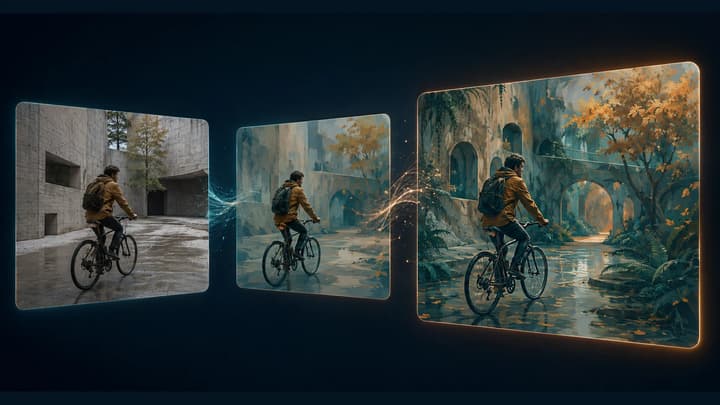
How to Use Video to Video AI
Learn how to restyle a video with AI: prepare source clips, write preserve-and-change prompts, review motion, and troubleshoot flicker or visual drift.
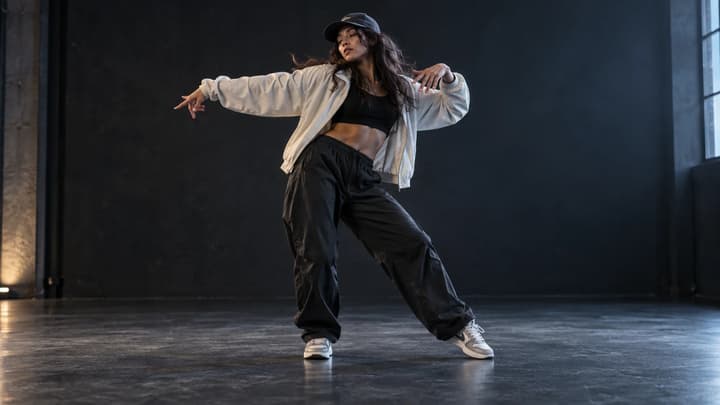
AI Dance Generator
Upload a person or character photo, then choose a dance template or upload your own motion video. Generate a dance clip and review the movement before sharing.
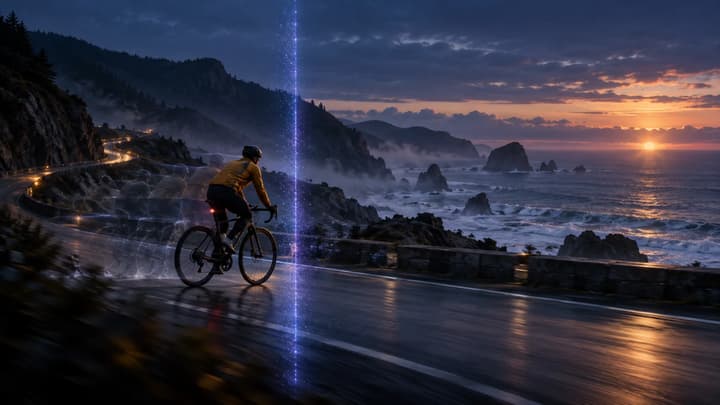
AI Video Extender
Extend a video with AI. Upload a clip, describe what happens next, and generate a continuation for scenes, product shots, and social videos.
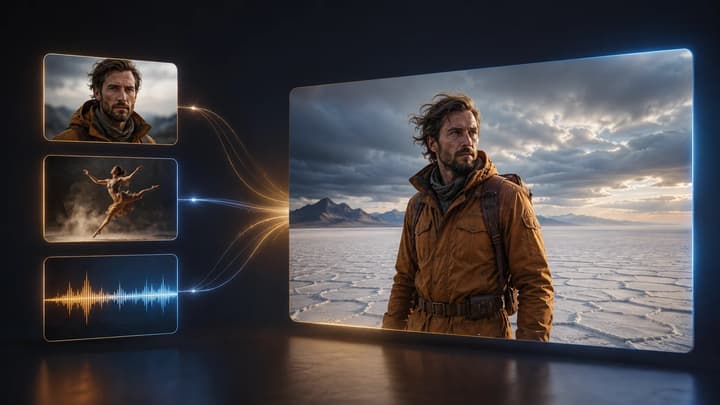
Reference to Video AI Generator
Upload image, video, and audio references in one multimodal workflow.
Image to Video AI Generator
Animate one image when you only need a starting frame and motion prompt.
Text to Video AI Generator
Turn a written prompt into an AI video. Describe one scene, choose a video model, aspect ratio, resolution, and duration, then carry your prompt into LumiYing to generate and refine the clip.
AI Models
Review the image and video models currently available in LumiYing.
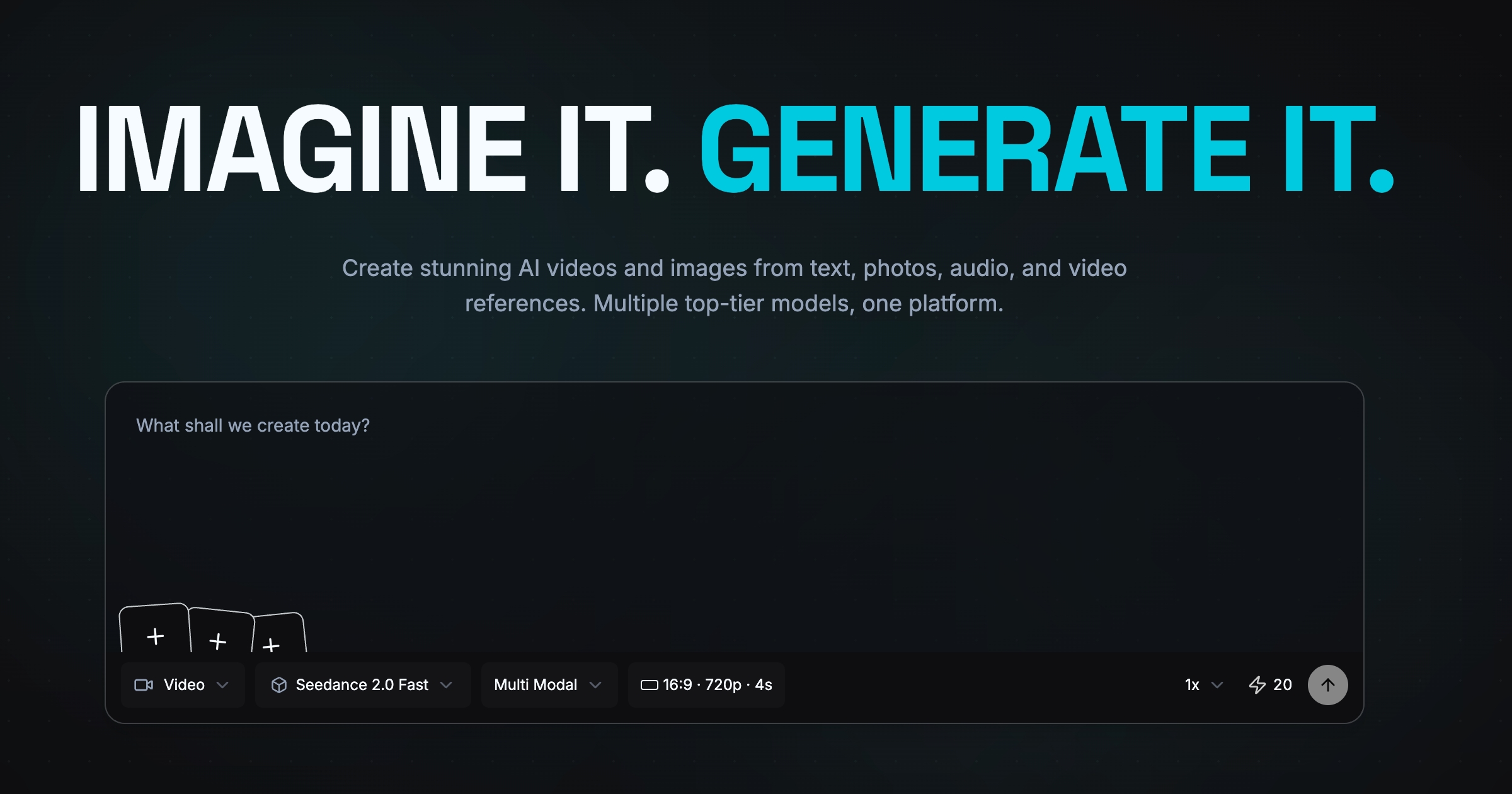
Pricing
View the available plans for different creation workflows.
Give your next clip a new direction
Choose one source video and describe the change you want to make.