How to Make a YouTube Logo
Choose one symbol or a few initials that represent your channel. Write a focused brief, generate an SVG and check the design inside a circle at a small size. Export a square PNG in a vector editor, then review the crop before publishing it in YouTube Studio.
LumiYingUpdated
Decide what viewers should recognise
Channel promise
Describe what the videos offer and who they are for. A science channel might use a planet; a cooking channel might use one clear utensil.
Symbol or initials
Choose the element that must remain readable when small. Put a long channel name in the channel title rather than forcing every word into an avatar.
First use
Treat the profile picture as its own square asset. A banner, thumbnail and video watermark need separate layouts and checks.
From a channel idea to an uploaded profile logo
Write the channel brief
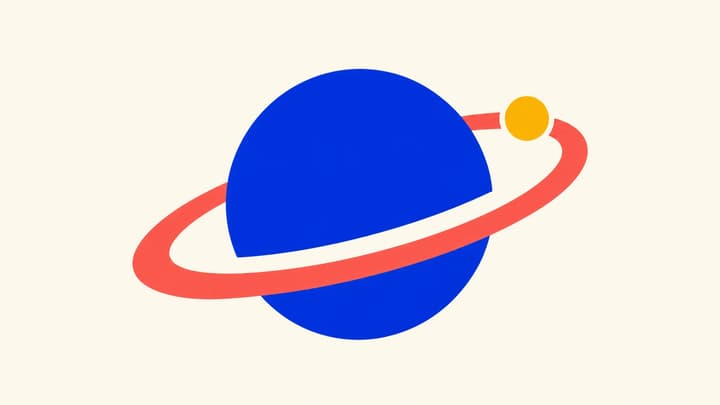
Include the topic, audience, one motif, palette, background and any exact initials. For ORBIT LAB, request a broad planet and one orbit, with no lettering. Remove unrelated objects that compete with the main shape.
Generate the SVG master
Enter the brief in YouTube Logo Maker. Start with 1:1 for a profile picture, choose the resolution and review the displayed credits before generating. Loading a case only fills the form; it does not submit a request.
Check shapes and lettering
Open the downloaded SVG in a vector editor. Inspect the objects, viewBox and background. Compare any letters against the brief. Save an editable master and make corrections on a copy before preparing the upload.
Test a circular crop and a small view
On a duplicate, draw a circle touching the four sides of the square page and use it to clip the artwork. Check whether important parts disappear, then view a 98 × 98 pixel preview. Move, simplify or reduce the mark when a meaningful part touches the edge. Keep the unclipped master.
Export a square PNG
In the vector editor, export the page as PNG to retain its planned margins. An 800 × 800 pixel square is a useful working example, not a YouTube minimum. Keep the artwork proportional, choose the intended background and reopen the PNG to check its dimensions and file size.
Review and publish in YouTube Studio
Open YouTube Studio, then Customization and Profile. Change the profile picture, select the PNG and adjust its crop. Confirm Done, then Publish. Recheck the small avatar after the change appears; it can take a few minutes.
Prepare the right files
An upload plan for ORBIT LAB
This fictional science-channel concept makes each decision concrete. The illustration shows a direction; the actual generated SVG and exported PNG need their own checks.
Three briefs and what to look for
These AI-generated concepts illustrate different profile-logo decisions. Load the written settings, adapt them and inspect the file you generate.
Science explainers
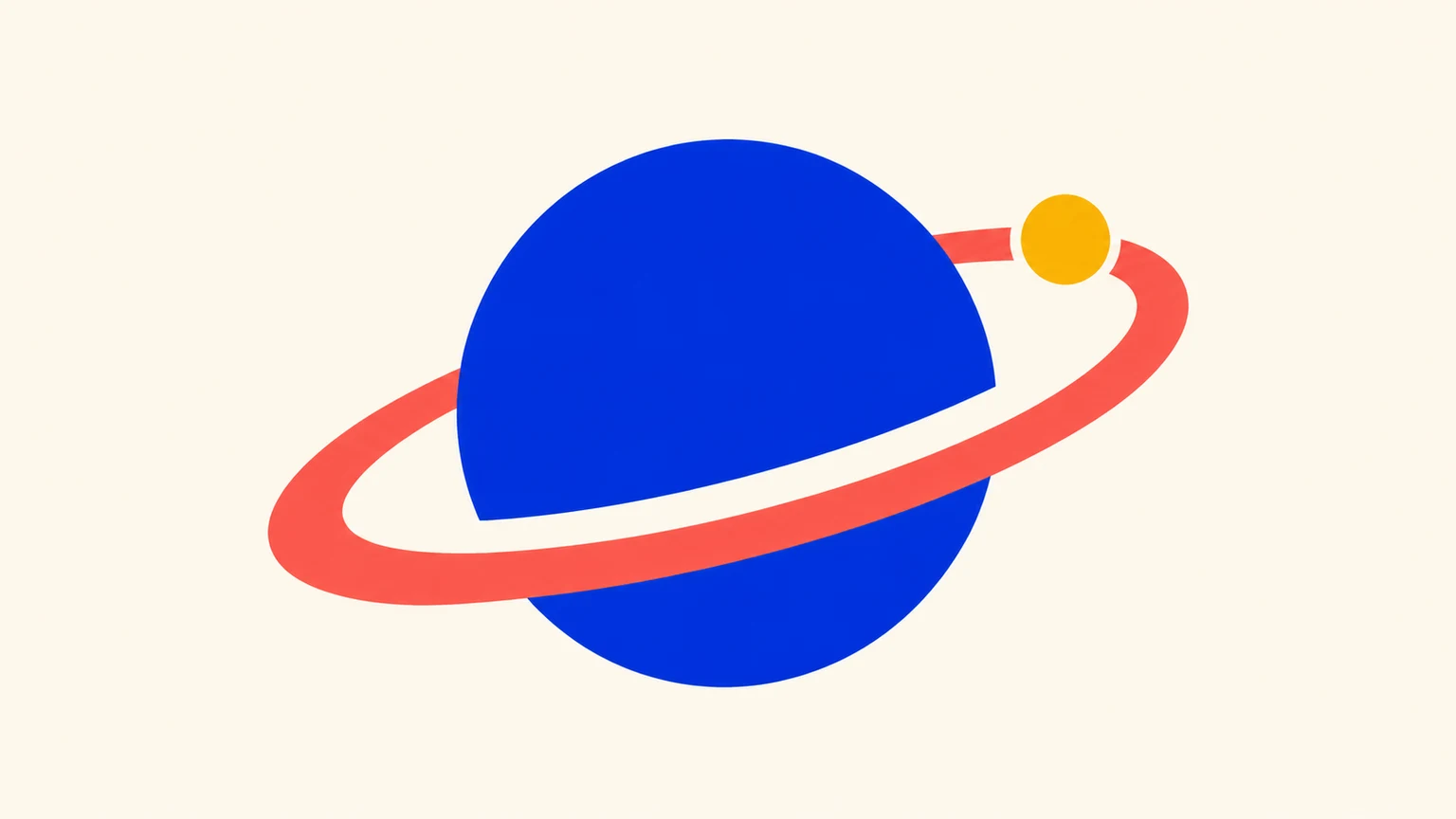
Create one original static SVG logo for a YouTube channel. For ORBIT LAB, a cobalt planet with a coral orbital band and an ochre satellite dot on ivory. No lettering. Use broad editable vector shapes and clear open gaps. Centre the complete mark with comfortable margins for a circular profile crop. Follow the requested lettering exactly. Return one logo on one artboard.
For ORBIT LAB, keep the planet recognisable before worrying about the satellite dot. Check the orbit opening and the whole outline through a circular crop at a small size.
Load promptMaking and repairs
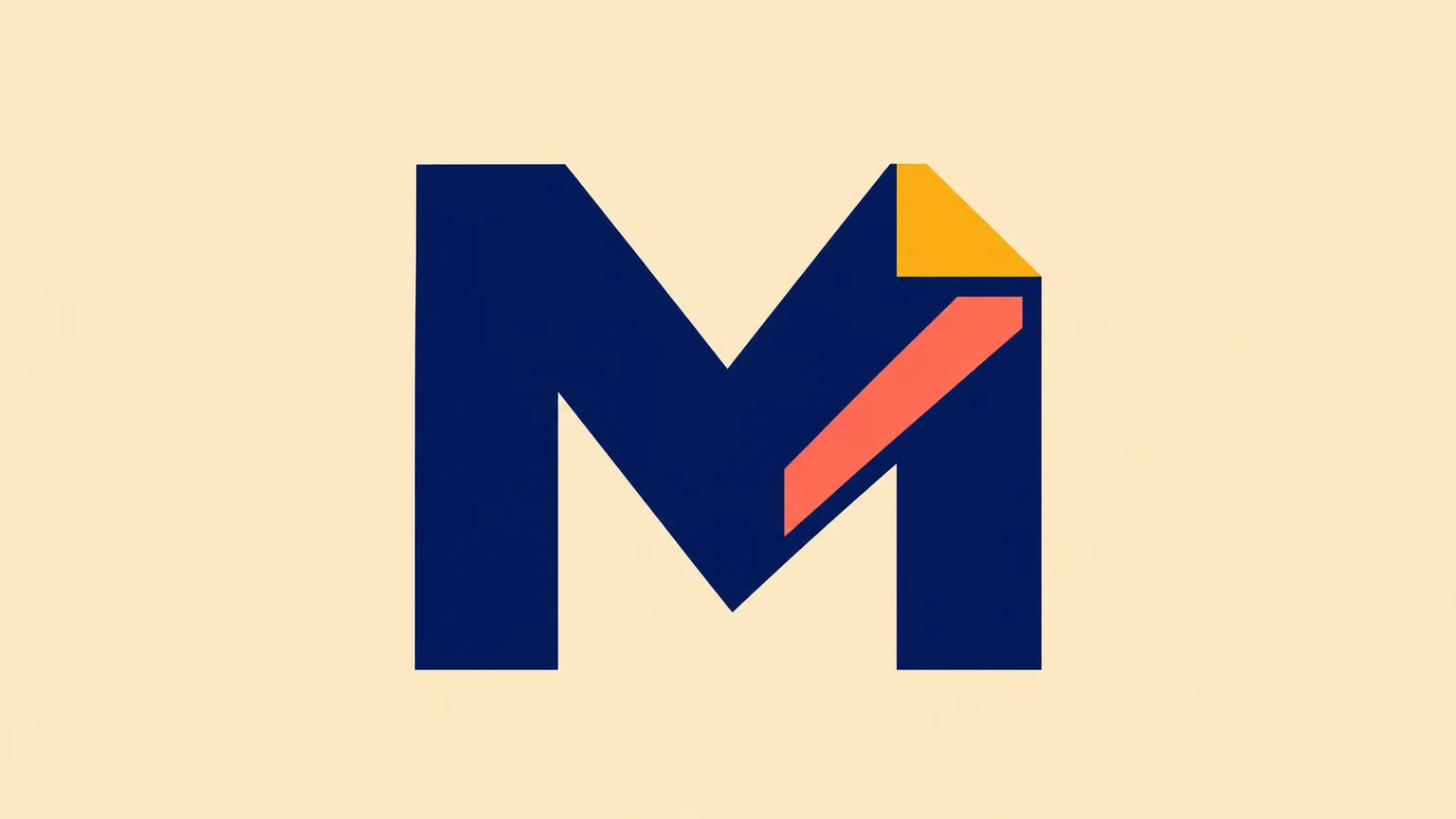
Create one original static SVG logo for a YouTube channel. For MAKER M, exactly one navy capital M with an ochre folded corner and a coral diagonal inset on warm sand. No other lettering. Use broad editable vector shapes and clear open gaps. Centre the complete mark with comfortable margins for a circular profile crop. Follow the requested lettering exactly. Return one logo on one artboard.
For MAKER M, confirm there is exactly one readable M. Keep the inner openings broad. If the coral inset merges into the letter, simplify it rather than increasing export size alone.
Load promptBook reviews

Create one original static SVG logo for a YouTube channel. For AFTERPAGE, an ochre bookmark with an ivory crescent cutout inside a broad plum arch on blush. No lettering. Use broad editable vector shapes and clear open gaps. Centre the complete mark with comfortable margins for a circular profile crop. Follow the requested lettering exactly. Return one logo on one artboard.
For AFTERPAGE, check that the bookmark silhouette and crescent cutout remain distinct. Reduce the arch or move the bookmark when a circular crop makes the top feel cramped.
Load promptFix the symptom before generating again
Related tools and guides

YouTube Logo Maker
Create a custom SVG logo for your YouTube channel from text. Choose your symbol, initials and colours, then prepare a PNG in a vector editor.
AI Logo Generator
Create a custom SVG logo from text. Describe your brand name, symbol, lettering and colours, choose the aspect ratio and resolution, then generate and review your logo.
SVG Icon Generator
Create custom SVG icons from text with AI. Describe the subject, outline or filled style and colours, then choose the aspect ratio and resolution for one downloadable SVG.
Twitch Logo Maker
Create an original Twitch channel logo from a text brief. Choose a mascot, monogram or wordmark, set the aspect ratio and resolution, and download an SVG to refine for your channel.
YouTube Help
Current profile-picture formats, file size, displayed size and Studio upload steps.
Inkscape — PNG
PNG export area, pixel dimensions and background settings.
viewBox — MDN
SVG coordinate area and clipping checks.
Inkscape — Clip
How a clipping path changes the visible area without removing the source objects.
Questions about making a YouTube logo
Can I upload an existing logo or a photo?
This SVG workflow creates a new mark from text. Editing or tracing existing artwork needs a workflow that accepts the original file.
Can I upload the downloaded SVG straight to YouTube?
Export it as PNG in a vector editor first. YouTube's profile guidelines list JPG, GIF, BMP and PNG. Keep the SVG as your editable source.
What size should I make a YouTube logo?
Start with a square composition. An 800 × 800 PNG is a practical export example; YouTube says the profile image renders at 98 × 98 pixels. Review both the circular crop and the small view.
Should I include my full channel name?
Use the exact name when it can remain readable. For a long name, try a symbol or a few initials for the profile picture and keep the full name in the channel title.
Does a preset generate an image automatically?
Loading a preset fills the text brief, aspect ratio and resolution. Edit them before clicking Generate. Loading alone spends no credits.
How much does generation cost?
The displayed credit quote changes with the selected resolution. Each submission creates one SVG. Review the quote before generating.