Reference to Video AI Generator
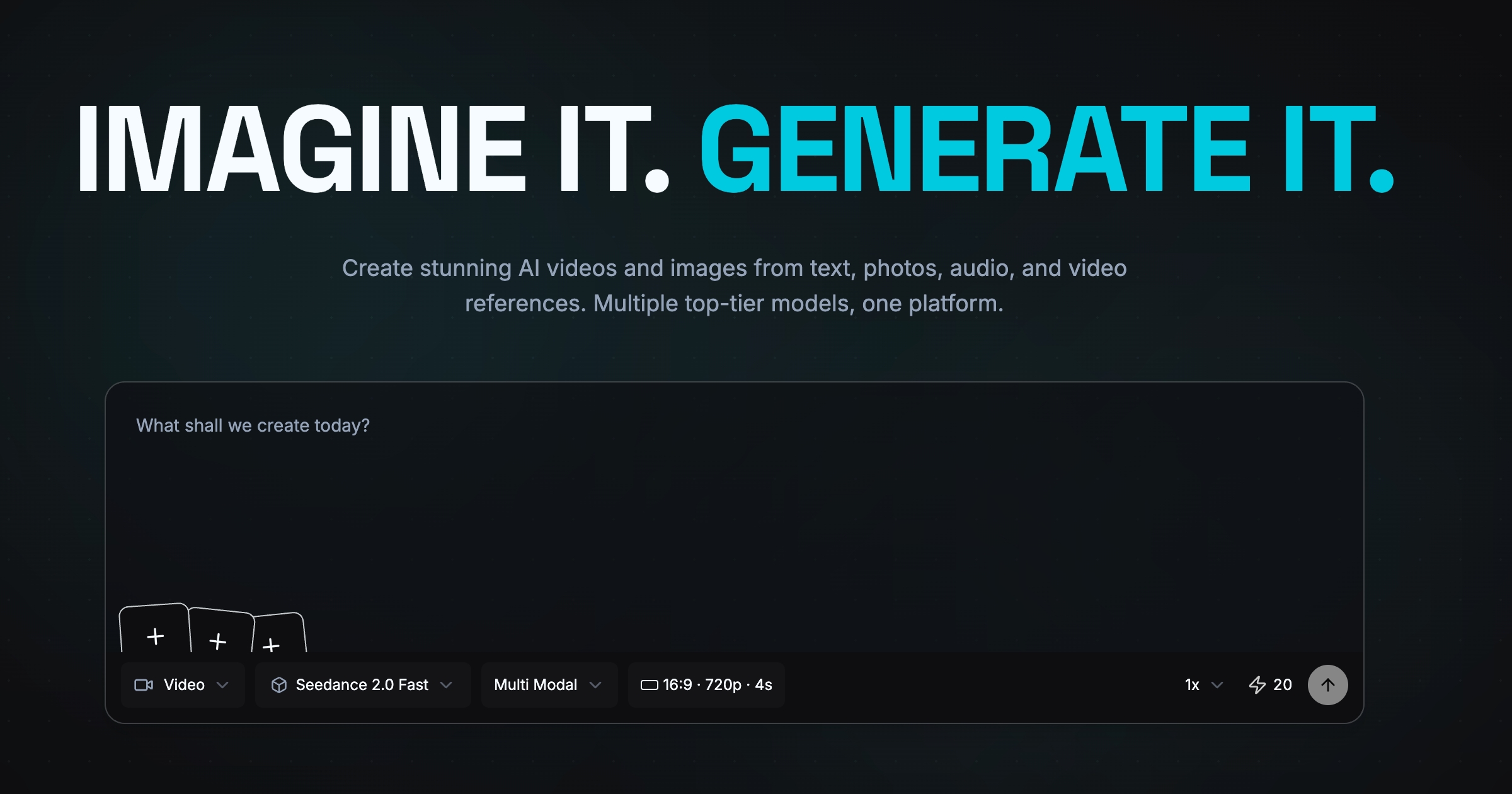
Guide a new shot with image, video, and audio references. Assign each asset a clear role for character, product, scene, motion, camera, or rhythm, then generate and review the result.
What Is Reference-to-Video AI?
Combine image, video, and audio references
Use images for appearance, video for movement or camera language, and audio for pace or rhythm. Keep the prompt focused on the new shot you want.
Assign each asset a role with @
Mention uploaded assets in the prompt and state what each one controls, such as @Image1 for the character, @Image2 for clothing, or @Video1 for camera movement.
Carry recognizable characters and products into new scenes
Use clean, compatible references to preserve useful identity, wardrobe, product-shape, color, and scene cues. Results can vary, so review important details before publishing.
Guide motion, camera, and audio rhythm
Let a reference clip suggest blocking or camera movement and let audio shape timing. Avoid asking one asset to control several conflicting decisions.
Reference-to-video examples
One character sheet turned into three consistent shots, plus a walking clip reused as a motion reference.
Character sheet → storyboard → three shots
A courier walks into a bakery, picks up a bag and heads back into the rain. Each shot starts from its storyboard panel.
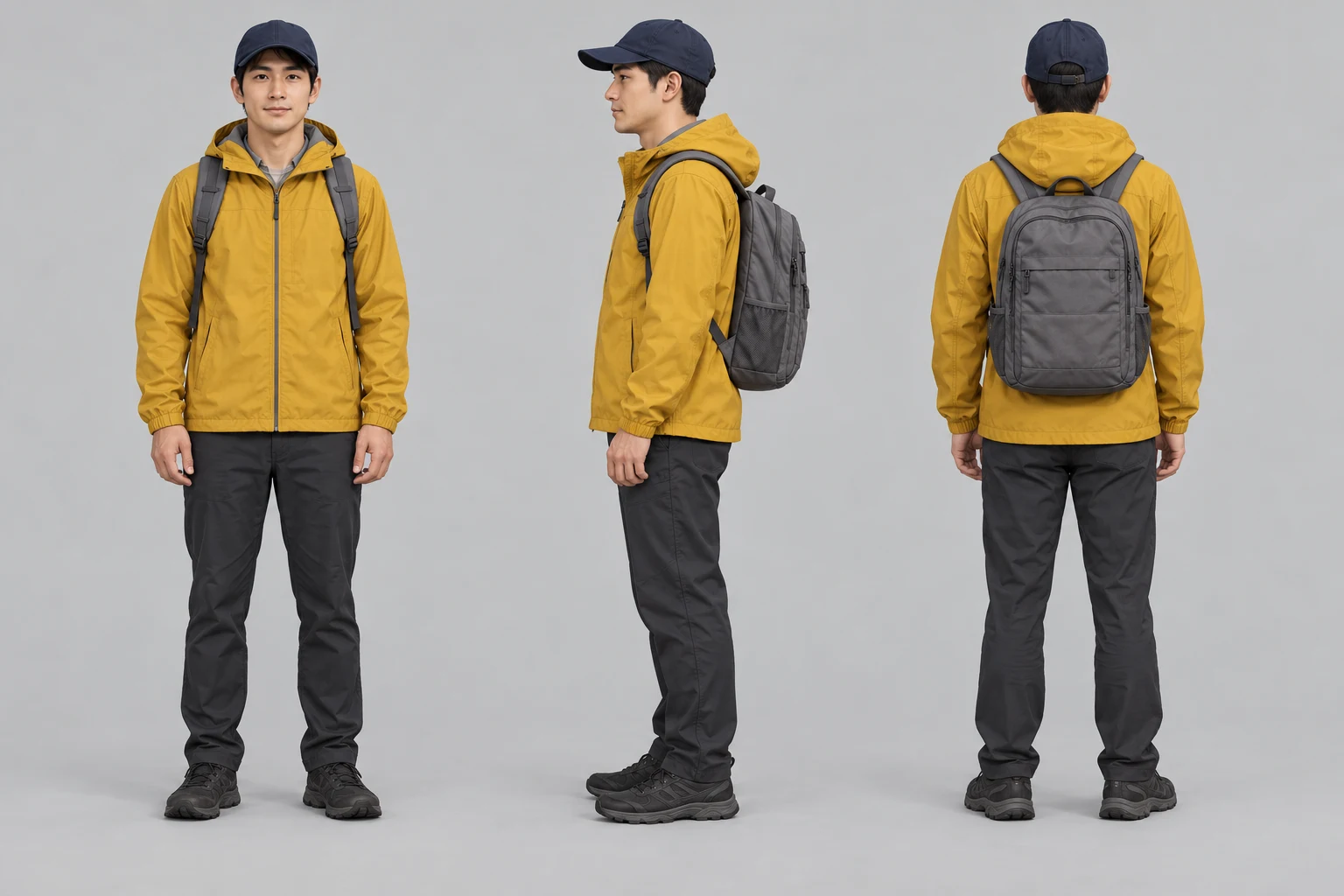
Courier character sheet
Front, side and back views used as the identity reference.
Prompt
Use case: illustration-story. Create one landscape character turnaround sheet with three equally sized full-body views of the SAME original fictional adult courier: front, side profile, back, arranged left to right on a neutral light-grey background. Adult approximately 30, clean-shaven oval face, short black hair, brown eyes, understated realistic illustrated cinematic style. Identical mustard-yellow hooded rain jacket with hood down, plain navy baseball cap, medium grey backpack with two shoulder straps, dark charcoal trousers and dark shoes in all views. Front view shows the same backpack straps; side and back show the grey backpack. Relaxed standing pose, consistent proportions and soft neutral lighting, enough space around all three complete silhouettes. No text, panel labels, logos or watermarks. This is an identity reference for a three-shot bakery sequence.
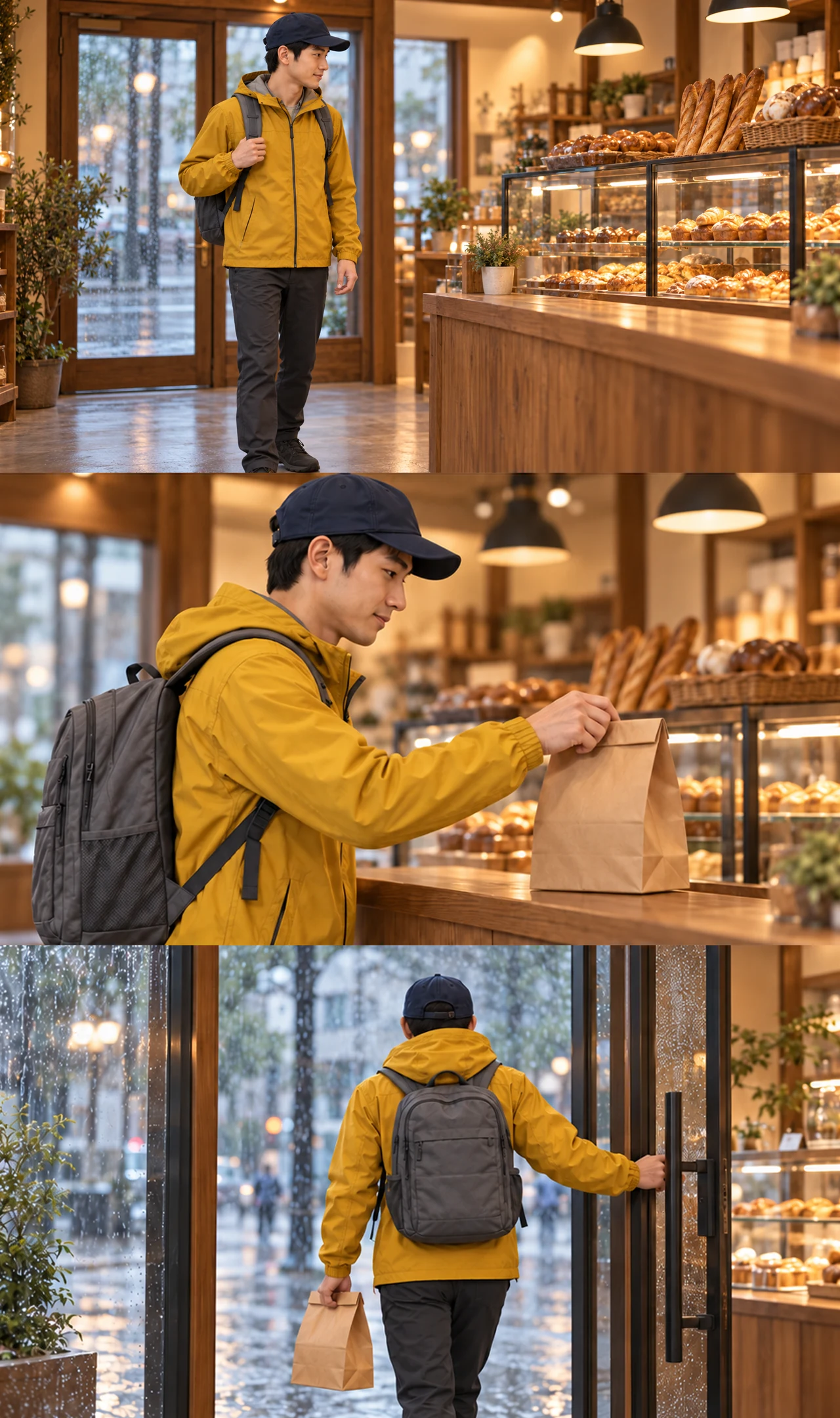
Bakery storyboard
Three panels: walk in, pick up the bag, walk out.
Prompt
Normalize only image edges to exact 16:9, then rebuild storyboard from new shot 1 and existing shot 2/3; no generative edits.
Walk toward the counter
The courier steps in from the entrance and heads to the counter.
Prompt
Medium-wide shot, eye level, warm tungsten bakery lighting, rain visible through the closed glass door behind him. The courier walks from the entrance toward the bakery counter on the right, glancing at the pastries. The glass door behind him stays closed and still. Natural walking motion, stable camera, cinematic, realistic.
Pick up the paper bag
Lifts the bag from the counter; face and outfit stay consistent.
Prompt
Close-up, eye level, warm tungsten bakery lighting, shallow depth of field, stable camera, cinematic photorealism. The courier picks up the plain brown paper bag from the wooden counter with a natural hand movement. Keep the courier's face, mustard rain jacket, navy cap and grey backpack consistent with the first frame. Preserve the bag's folded top, size and shape, and the same bakery background.
Walk out into the rain
Leaves with the bag. Also used as the motion reference below.
Prompt
Medium shot from inside the bakery, eye level, warm tungsten interior lighting contrasting with the cool rainy street, stable camera, cinematic photorealism. The courier turns and walks back out through the glass door into the rain, carrying the same plain brown paper bag. Natural walking motion. Keep the courier's face, mustard rain jacket, navy cap and grey backpack consistent with the first frame. Preserve the bakery layout, glass door geometry, and the bag's size and folded top.
Manual steps
- Crop the storyboard into single panels.
- Regenerate any shot that breaks continuity.
- Join the clips in your own video editor.
Motion reference: courier walk → fox
The fox image sets the look; the courier clip sets the walk and camera.
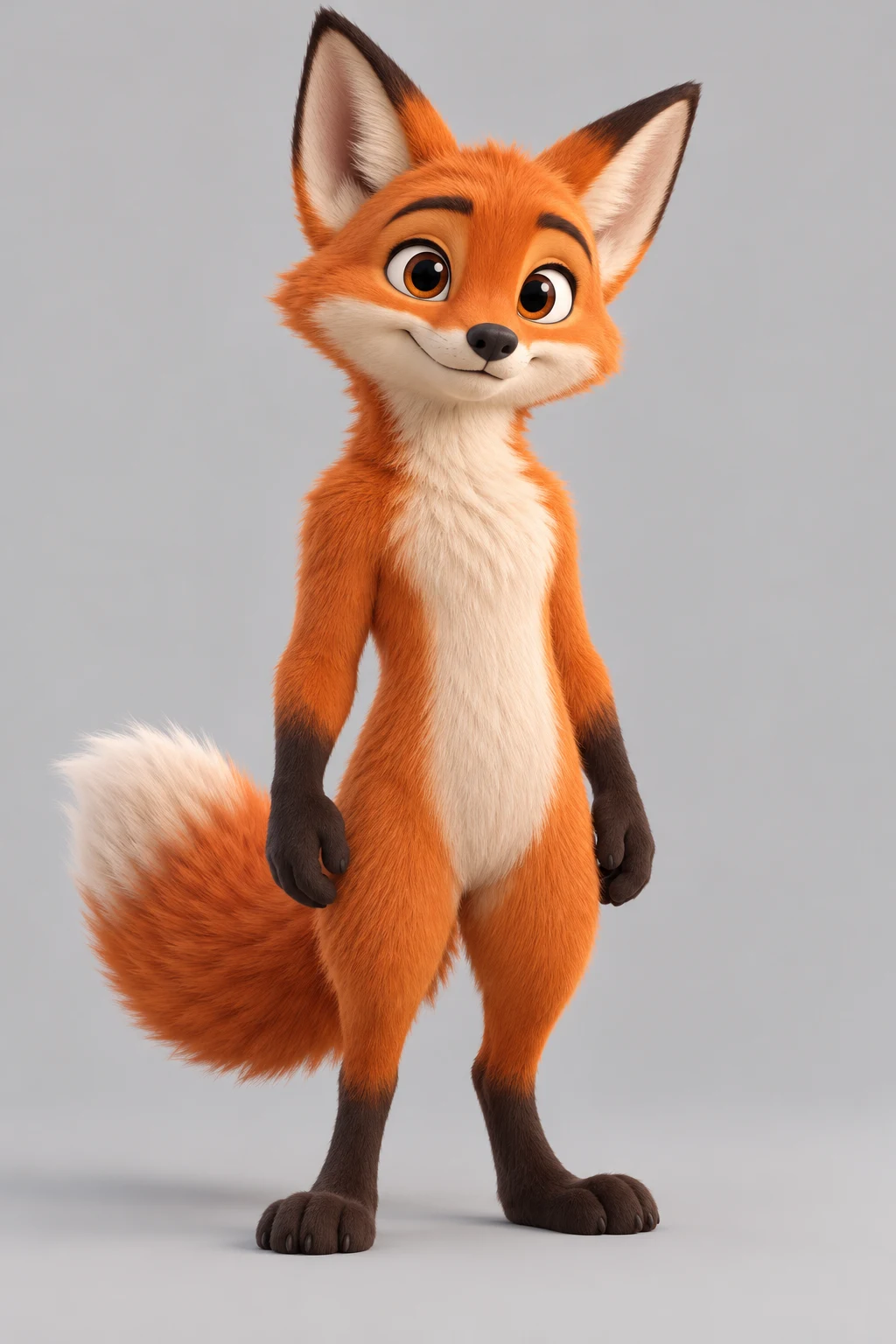
Fox character
Sets the fox's look and proportions.
Prompt
Use case: stylized-concept. Create one original stylized 3D cartoon fox character standing upright on two feet in a relaxed neutral pose, full body entirely visible including ears, both paws, both feet and fluffy tail. Orange fur, cream muzzle and chest, dark small paws and feet, expressive friendly face, balanced clear silhouette. Plain light-grey studio background, soft even studio lighting, high-quality 3D animated-film rendering. No clothing, props, text, logo, watermark or other characters. This is a character source image for a later motion-reference animation test.
Walk out into the rain
Leaves with the bag. Also used as the motion reference below.
Fox walk result
The fox walks upright like the courier, following the overall motion rather than every step.
Prompt
The upright cartoon fox from the reference image walks on two legs exactly like the person in the reference video, with the same walking rhythm and camera movement, on a simple rainy street. Keep the fox standing upright with the same colors and body proportions as the reference image; it does not drop to four legs.
How to Generate a Video From References
Choose compatible reference assets
Select clear images, short motion examples, or audio with one useful purpose each. Remove redundant or contradictory references before generating.
Assign roles and describe the new shot
Use @ mentions to state what each asset controls, then define the new action, setting, camera, lighting, and mood in the prompt.
Generate and change one variable
Review identity, product shape, motion, camera, rhythm, and artifacts. Keep the useful parts fixed and change one reference or instruction for the next result.
Why Use a Multimodal Reference Workflow?
A multimodal workflow gives each source asset a practical job while the prompt defines a new shot. Important visual details should always be reviewed.
More control than a single starting image
Add separate cues for appearance, motion, camera, and rhythm when one still frame cannot express the whole shot.
Clearer instructions through asset roles
Role-based @ mentions reduce ambiguity by telling the model which reference supports each visible or temporal decision.
Useful continuity without absolute promises
References can improve recognizable character, wardrobe, product, and style cues, but output remains generative and should be checked.
A repeatable iteration loop
Changing one variable at a time makes it easier to learn whether a reference, role, prompt detail, or setting improved the shot.
Reference to Video AI FAQ
What is Reference to Video AI?
It is an AI video workflow that uses uploaded images, video, or audio as guidance while generating a new shot from your prompt. Each reference can control a different part of appearance, motion, camera, or timing.
Which reference media can I use?
Use image, video and audio references where supported. The generator shows the upload limits for the model you select.
How does @ role assignment work?
Mention an uploaded asset by its @ label in the prompt and state one clear responsibility, such as character appearance, product shape, camera movement, or audio rhythm.
Can it keep a character or product consistent?
Clean and compatible references can improve recognizable details across a new scene, but no generative model guarantees perfect identity or product geometry. Review each result before use.
How is this different from Image to Video?
Image to Video usually animates one starting image or frame. Reference to Video can combine several images with video motion and audio timing while the prompt defines a new shot.
How is this different from Video to Video?
Video to Video transforms or edits a source clip across its timeline. In Reference to Video, a clip can be one source of motion or camera guidance rather than the complete output structure.
What should I do when references conflict?
Remove the least important asset, give every remaining reference one role, and eliminate duplicate instructions. Generate again after changing only one variable.
How should I review a generated result?
Check identity, product shape, motion, camera, rhythm, and visual artifacts. Keep the useful parts fixed and revise one variable at a time.
Continue Your AI Video Workflow
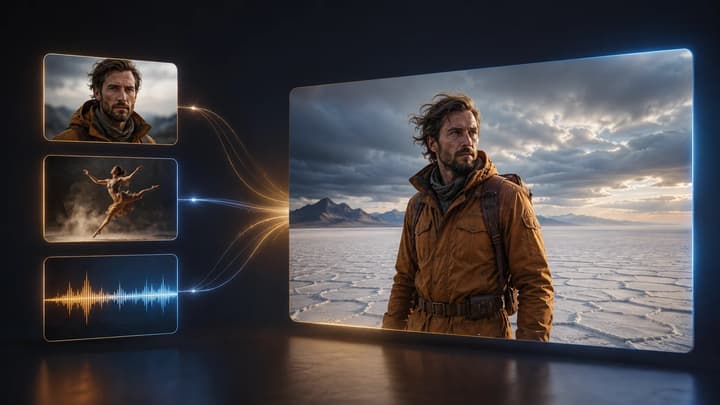
How to Use Reference to Video AI
Follow the complete role assignment, conflict avoidance, prompt, and iteration workflow.
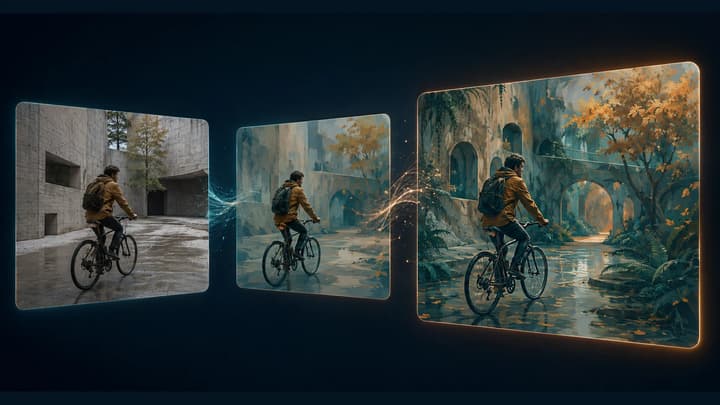
Video to Video AI Generator
Transform an existing video with AI. Upload a source clip, describe what to keep or change, and explore new styles, lighting, and environments.
AI Video Generator
Start from a broader video workflow when you are still choosing an input method.
Image to Video AI
Animate one source image when a multimodal reference set is unnecessary.
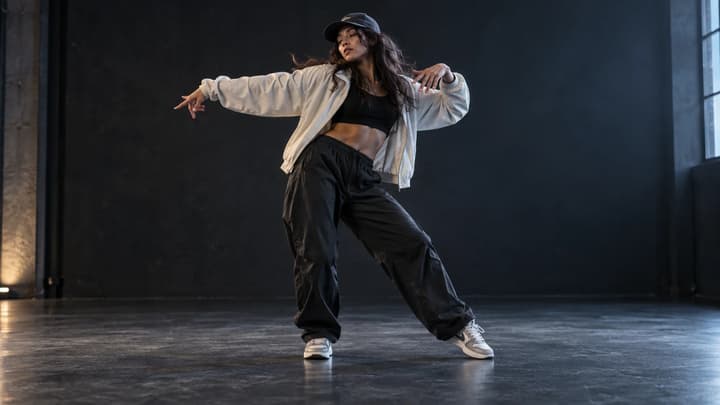
AI Dance Generator
Upload a person or character photo, then choose a dance template or upload your own motion video. Generate a dance clip and review the movement before sharing.

How to Extend a Video with AI
Learn how to extend videos with AI: prepare a source clip, write a continuation prompt, choose settings, and review the result with practical examples.
Pricing
View the available plans for different creation workflows.
Build a new shot from your references
Upload compatible assets, assign one role to each, and continue with multimodal reference generation.