How to Use Reference to Video AI
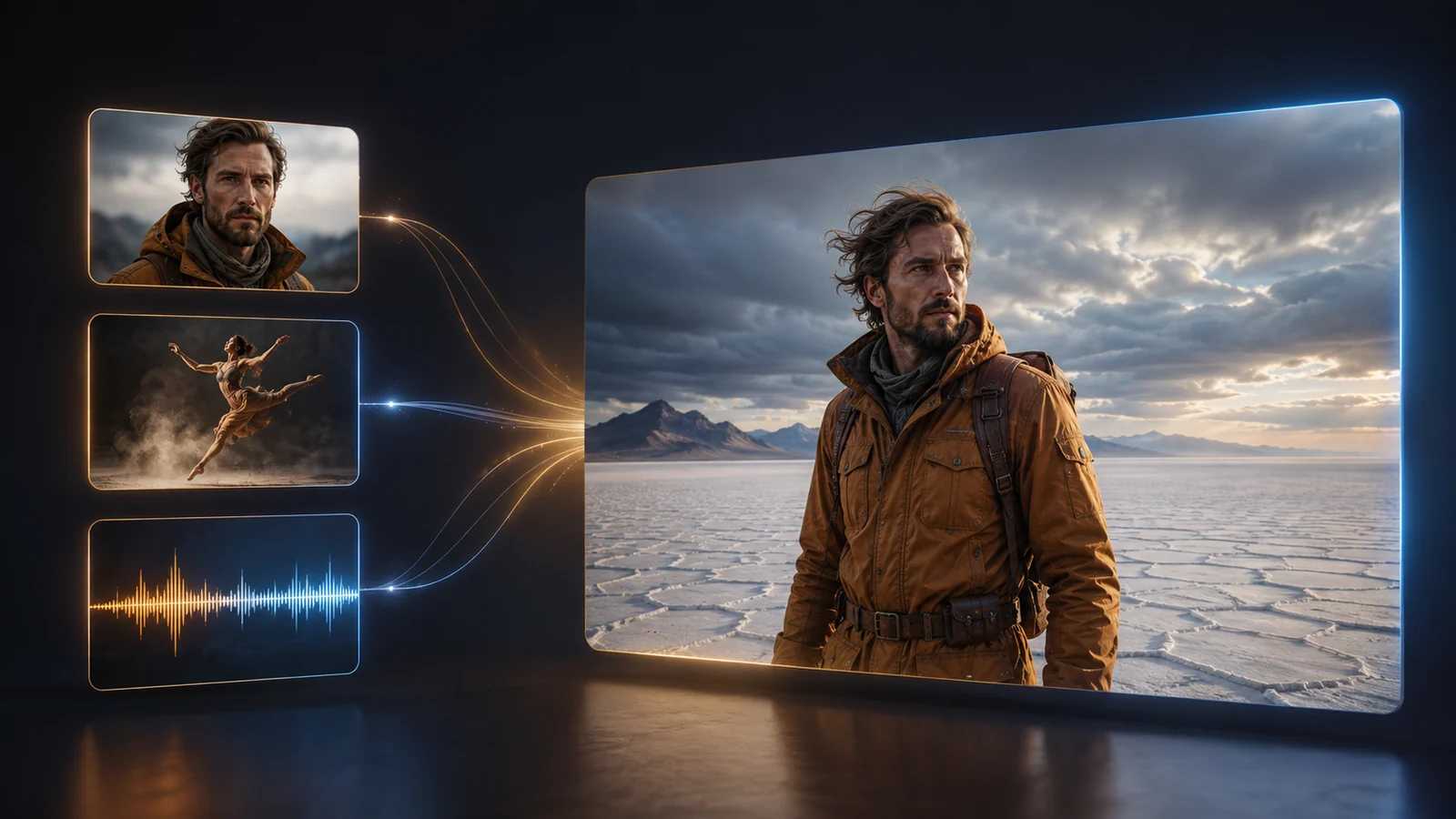
Turn a set of images, clips, and audio into a controllable shot brief. Choose compatible references, assign each asset one job with @, describe the new scene, and iterate without changing everything at once.
LumiYingUpdated
Match each reference type to one control goal
A reference works best when its responsibility is explicit. Use the live generator configuration for current file and duration limits.
Prepare references before generating
The model has to reconcile every uploaded asset. A smaller, role-based reference set is easier to diagnose than a folder of competing ideas.
Choose clean, compatible assets
Prefer references with readable subjects, useful angles, and no unrelated logos or text. Keep wardrobe, product details, lighting, and style compatible with the intended shot.
Give each reference one job
Decide which asset controls identity, clothing, product, scene, motion, camera, or rhythm. Write that responsibility next to its @ mention.
Prevent conflicts before upload
Do not ask two images to define different faces, product shapes, or lighting styles unless the prompt clearly selects one. Remove redundant assets that add no new control.
Describe a new shot, not a collage
After assigning roles, state one subject action, one environment, one camera behavior, lighting, mood, and destination format. References provide evidence; the prompt defines the output.
Troubleshoot identity or shape drift
Use a clearer front or three-quarter reference, reduce conflicting appearance cues, and simplify action or occlusion. Keep the strongest identity asset fixed for the next generation.
Troubleshoot motion and camera conflicts
Separate performer movement from camera movement, assign each to one source, and remove prompt directions that oppose the reference clip. Shorten the requested action if motion becomes unstable.
A four-step Reference-to-Video workflow
Use this sequence to preserve the purpose of every asset and make each generation comparable.
Upload only the references the shot needs
Open the Reference to Video tool and add the images, clips, or audio needed for one shot. Check that each asset has a unique and compatible purpose.
Assign responsibilities with @
Mention each uploaded asset in the prompt. State exactly whether it controls character, wardrobe, product, scene, style, movement, camera, or rhythm.
Set the new scene and output
Describe one action, environment, camera, lighting, and mood, then confirm model, aspect ratio, resolution, and duration for the destination.
Generate and iterate one variable
Generate and review identity, shape, motion, camera, rhythm, and artifacts; then change only the largest problem before the next result.
Four multimodal Reference-to-Video prompt patterns
Replace the @ labels and shot details with your own uploaded assets. Keep each role narrow and observable.
Character plus wardrobe
Use @Image1 for the character's face, short dark curls, and amber field jacket. Use @Image2 only for the canvas backpack. Create a new medium-wide shot of the same explorer crossing a windy salt flat at dawn, slow side tracking camera, realistic fabric motion, grounded cinematic color.
Two images control separate appearance decisions; the prompt supplies the action, scene, and camera.
Product plus environment
Use @Image1 for the unbranded cobalt bottle's shape, cap, and matte finish. Use @Image2 for the volcanic-stone texture and cool palette. Create a premium product shot beside shallow water, gentle mist, slow push-in, warm rim light, readable silhouette throughout.
Keep product geometry and environment on different references so they do not compete.
Character plus motion video
Use @Image1 for the silver-clad dancer's appearance. Use @Video1 only for the performer's three-beat turn and sweeping left-to-right camera arc. Recreate the movement on a rain-wet rooftop at night with realistic footing and reflections; do not copy the source video's identity or location.
The video controls movement and camera, while the image and prompt control the new subject and scene.
Product plus motion and audio
Use @Image1 for the compact speaker's shape and materials. Use @Video1 for the slow orbit and stop point. Use @Audio1 for the three beat accents, timing a light pulse to each beat. Place the speaker in a dark minimal studio with soft blue haze and no visible text or logos.
Appearance, camera, and rhythm each have one source, making timing problems easier to isolate.
Choose the right AI video workflow
Move from preparation to generation, compare a simpler input method, or explore related workflows.
Reference to Video AI Generator
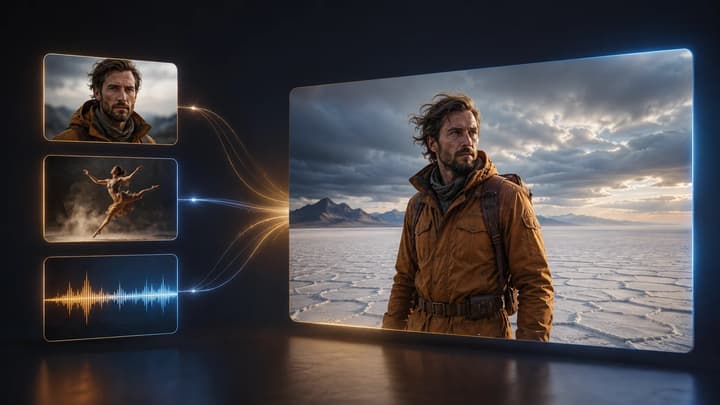
Upload image, video, and audio references in one multimodal workflow.
How to Use Video to Video AI
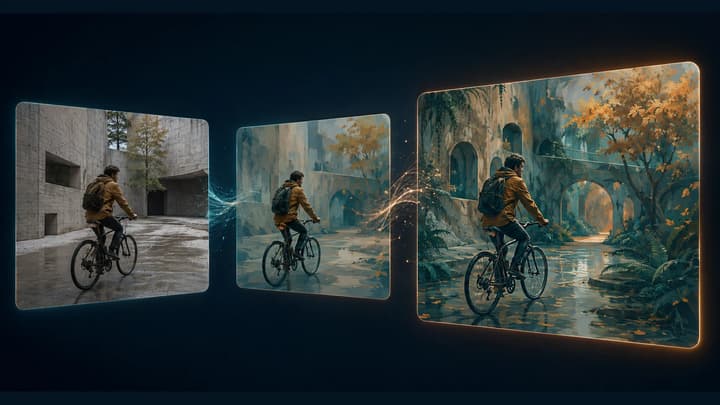
Learn how to restyle a video with AI: prepare source clips, write preserve-and-change prompts, review motion, and troubleshoot flicker or visual drift.
AI Video Generator
Start with the general video workspace when the best input mode is not yet decided.
Image to Video AI Generator
Animate one image when you only need a starting frame and motion prompt.
AI Models
Review the image and video models currently available in LumiYing.
Seedance 2.5 Tutorial
Follow the model-specific workflow and refinement guide.
Pricing
View the available plans for different creation workflows.
How to Use Reference to Video AI
How do I use Reference to Video AI?
Upload compatible image, video, or audio references, mention each one with @ and one clear role, describe a new shot and output settings, then generate and revise one variable after review.
How many references should I upload?
Use only the assets that add a distinct control goal. The generator shows current model limits, but fewer compatible references are usually easier to direct than many redundant ones.
Can image, video, and audio references be combined?
Yes. The multimodal reference workflow can combine these reference types. Assign image appearance, video movement or camera, and audio rhythm as separate jobs.
How do I write @ reference roles?
Name the asset and responsibility in direct language: use @Image1 for character appearance, @Video1 for camera movement, or @Audio1 for beat timing. Avoid assigning unrelated jobs to the same source.
Why does the generated character or product drift?
The reference may be unclear, occluded, or competing with another asset or prompt instruction. Use a cleaner angle, remove conflicts, simplify action, and keep the strongest identity reference fixed.
Why does the motion reference not match?
The prompt may contradict the source camera or performer movement. State which motion to borrow, separate camera from subject action, remove opposing directions, and shorten complex action.
Should I use Reference to Video or Image to Video?
Use Image to Video when one image should act as the starting frame. Use Reference to Video when several assets need separate jobs for appearance, motion, camera, scene, or audio timing.
How should I review a generated result?
Check identity, product shape, motion, camera, rhythm, and visual artifacts, then revise one variable at a time.
Put your reference map into practice
Open the tool, assign one clear role to each asset, and continue with multimodal reference generation.