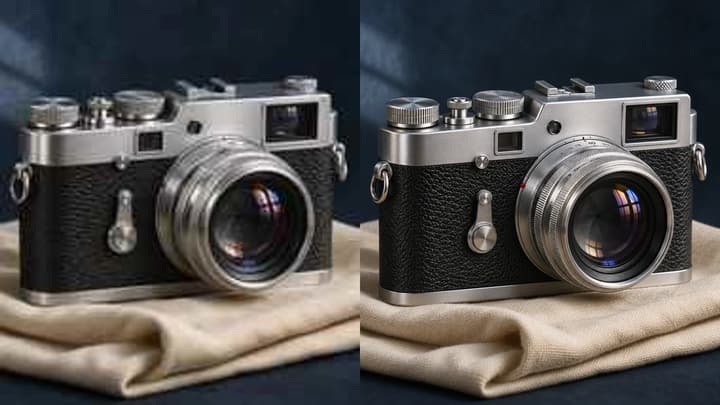


Portrait in soft light
Load this imageLook at the hairline, freckles and weave of the scarf.
Find the best source for a soft, noisy or compressed image. Compare the edited version with the original and check small details before you use it.
LumiYing TeamUpdated
Start with the original file instead of a screenshot or a copy from a messaging app. Compare the edit and the source at the same display size. A larger file can still look soft, so check the details you care about before you check the pixel count.
Check one area where the problem is easy to see. For a portrait, look at the hairline and eyes. For a product photo, read a label you can already make out in the source. If the edit changes those details, try a better source.
Open the camera file or original export. If the only copy is small, avoid saving it again as a low-quality JPEG before you upload.
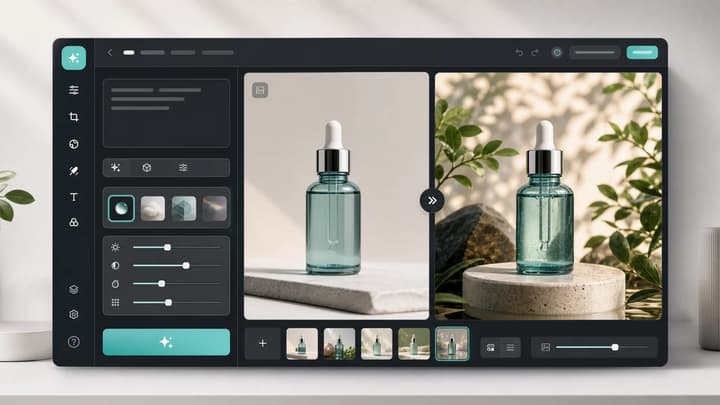
Choose 1K, 2K or 4K and select Generate. The output keeps the original aspect ratio. Exact pixel dimensions depend on that ratio.
Match the display size first. Then zoom in on edges, surfaces and any writing that must stay legible.
Download the PNG and check its pixel dimensions. For a layout that requires exact dimensions, resize the reviewed file in your editor.
Compare a compressed copy with its clear reference. Load the compressed version to try it.
Look at the hairline, freckles and weave of the scarf.

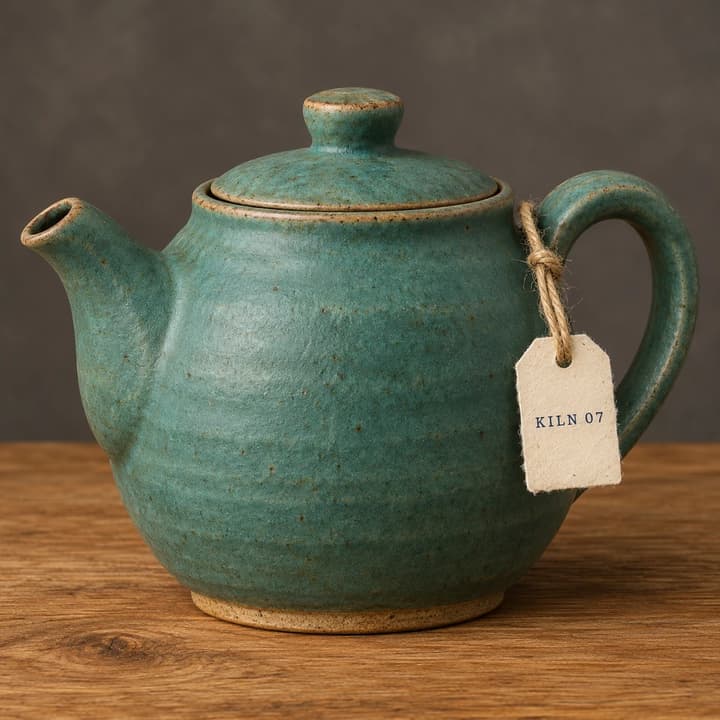
Check the rim and the small lettering on the paper tag.
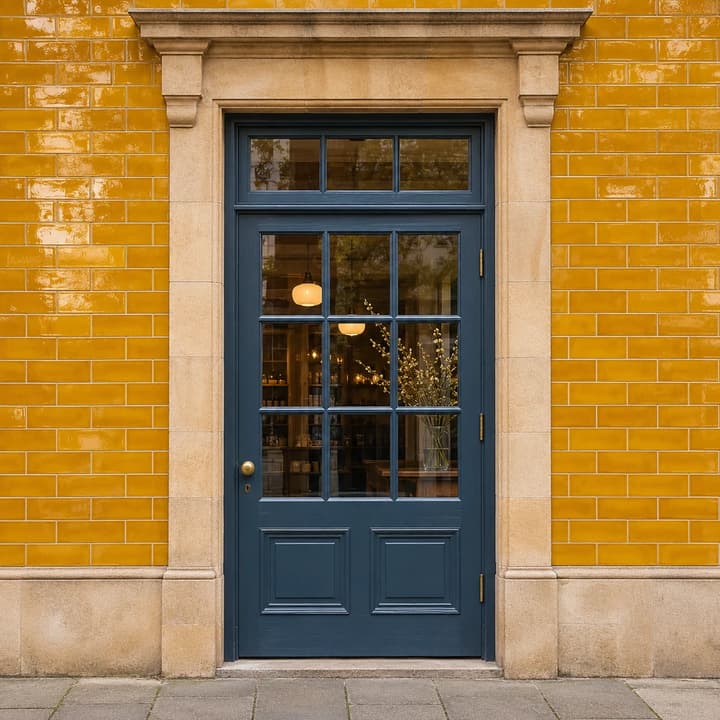
Follow the grout lines and the thin bars in the door window. Watch for soft edges and steps along straight lines.

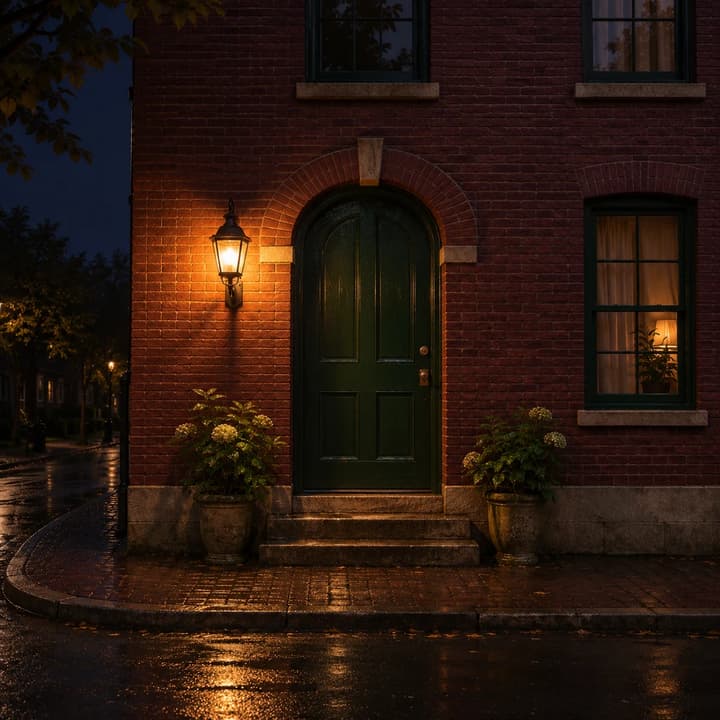
Check the bricks beside the lamp and the highlights on the wet cobblestones.
Yes. Increasing the pixel count can give you a bigger file with the same soft edges. Inspect the image at its intended display size.
Pick the earliest, least compressed version you have. Choose the camera original or design export over a screenshot or a forwarded copy.
Yes. Choose 1K, 2K or 4K. The output keeps the original aspect ratio. Exact pixel dimensions depend on that ratio.