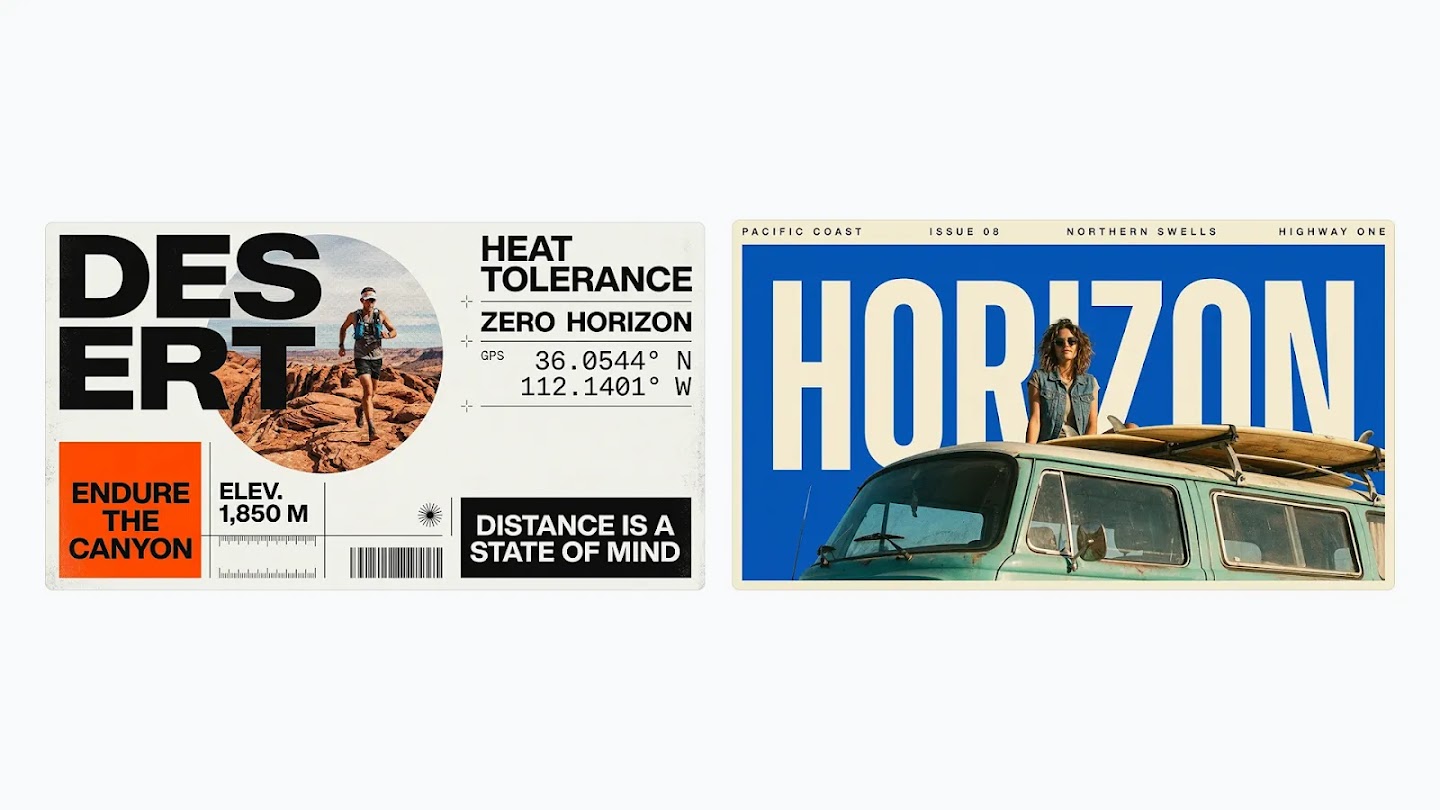
How to Use Nano Banana 2.1: Prompts, References and Image Editing
To create an image with Nano Banana 2.1, describe the subject, composition and lighting, add reference images if needed, then choose an aspect ratio and resolution. For image editing, specify what to change and what to keep. Follow the steps and sample prompts below to generate, review and refine your image.
LumiYingUpdated
Nano Banana 2.1 capabilities at a glance
How to write a useful Nano Banana 2.1 prompt
Build your prompt around the image you want. Name the subject first, then add the layout, style and details that matter.
Describe the scene and framing
Specify the main subject, setting, camera angle and lighting. For a poster or banner, describe where the subject and text should sit and where to leave empty space.
Give each reference a clear role
Explain which image defines the subject’s appearance, which guides the composition and which provides the style. Use clear references and avoid conflicting directions.
Separate changes from details to preserve
For edits, name the change directly, such as replacing the background or warming the light. Then list what should remain unchanged, such as facial features, product shape or label text.
How to generate and edit an image with Nano Banana 2.1
Choose Your Model & References
Select Nano Banana 2.1. Start from a text prompt, or upload reference images to guide the subject, style and composition.
Write Your Prompt & Configure
Describe the image or edits you want, including any text and details to preserve. Choose an aspect ratio and 1K, 2K or 4K resolution.
Generate, Refine & Download
Generate your image and review the result. Adjust the prompt or reference images to refine it, then download your chosen version.
Image examples: generate, then edit
Four examples covering product photography, reference edits, poster typography and interior composition. Prompts are in English; open an image to inspect it at full size.
1. Generate a product image
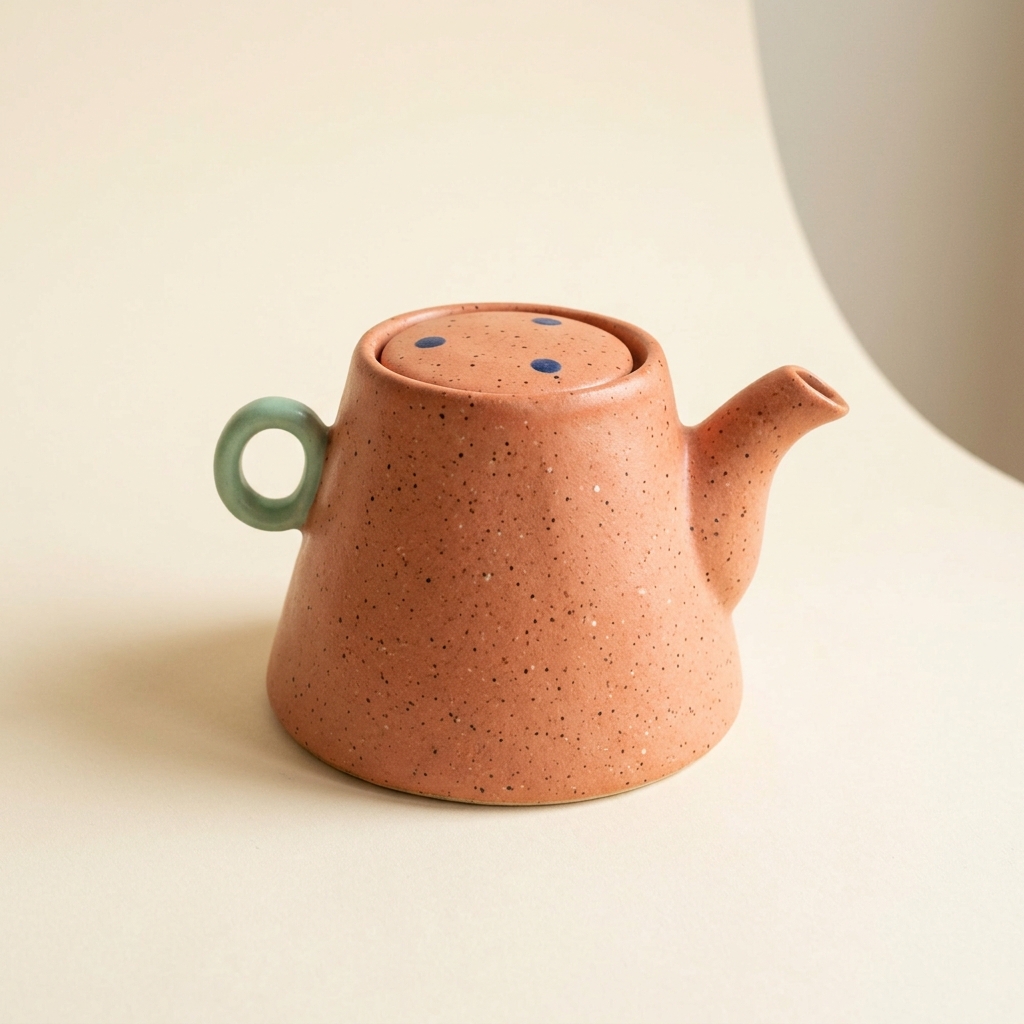
An original studio product photograph of a handmade speckled coral ceramic teapot, gently asymmetric trapezoid body, tiny mint green loop handle and short curved spout. Three little navy dots on the lid. Warm ivory seamless background, soft side lighting, no lettering or logos.
Describe the material, shape, colors and lighting together. Use the generated image as the reference for the next step.
2. Edit the color using a reference
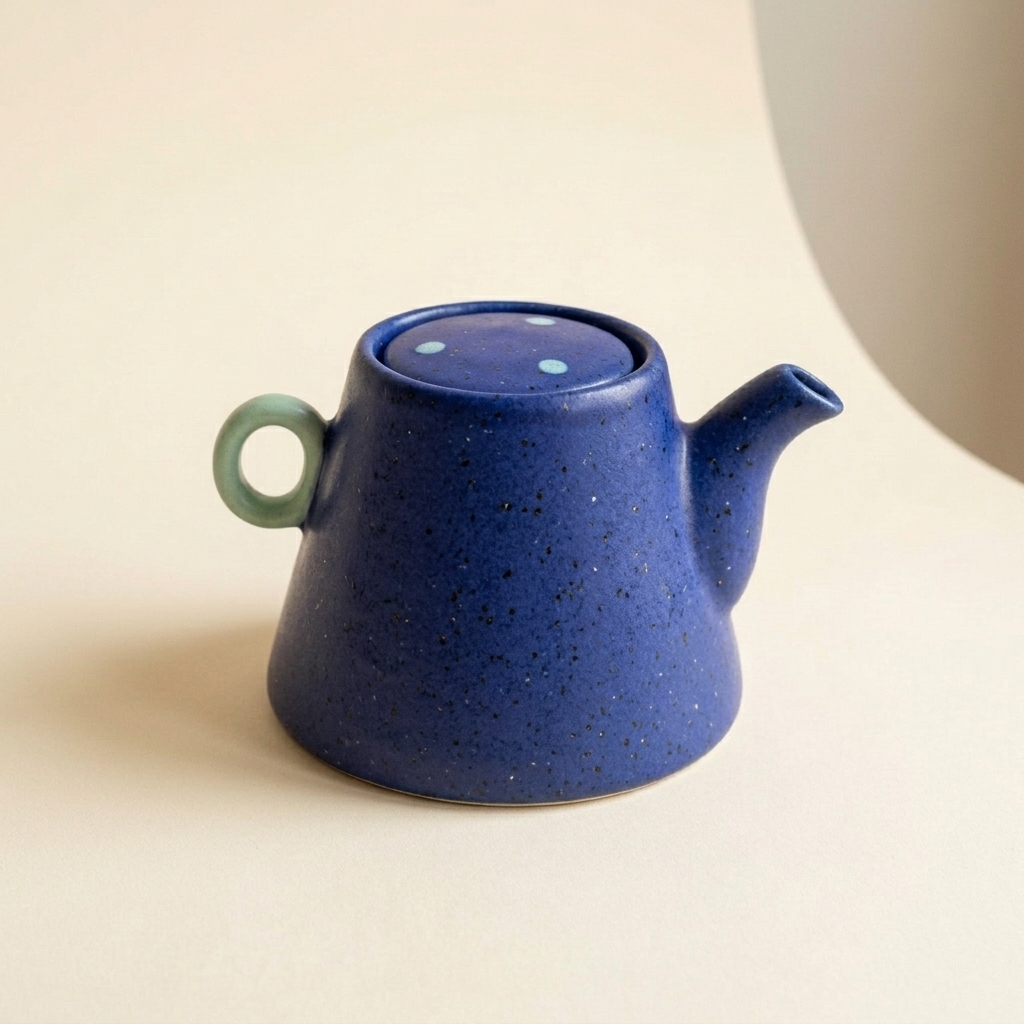
Preserve this exact original teapot shape and mint handle. Change only the teapot body glaze to deep cobalt blue, on the same neutral studio background.
Upload the first image, then use this edit prompt. Compare the shape and handle. The lid dots also changed color; explicitly ask to preserve their navy color in a further edit if that detail matters.
3. Create a poster with readable text
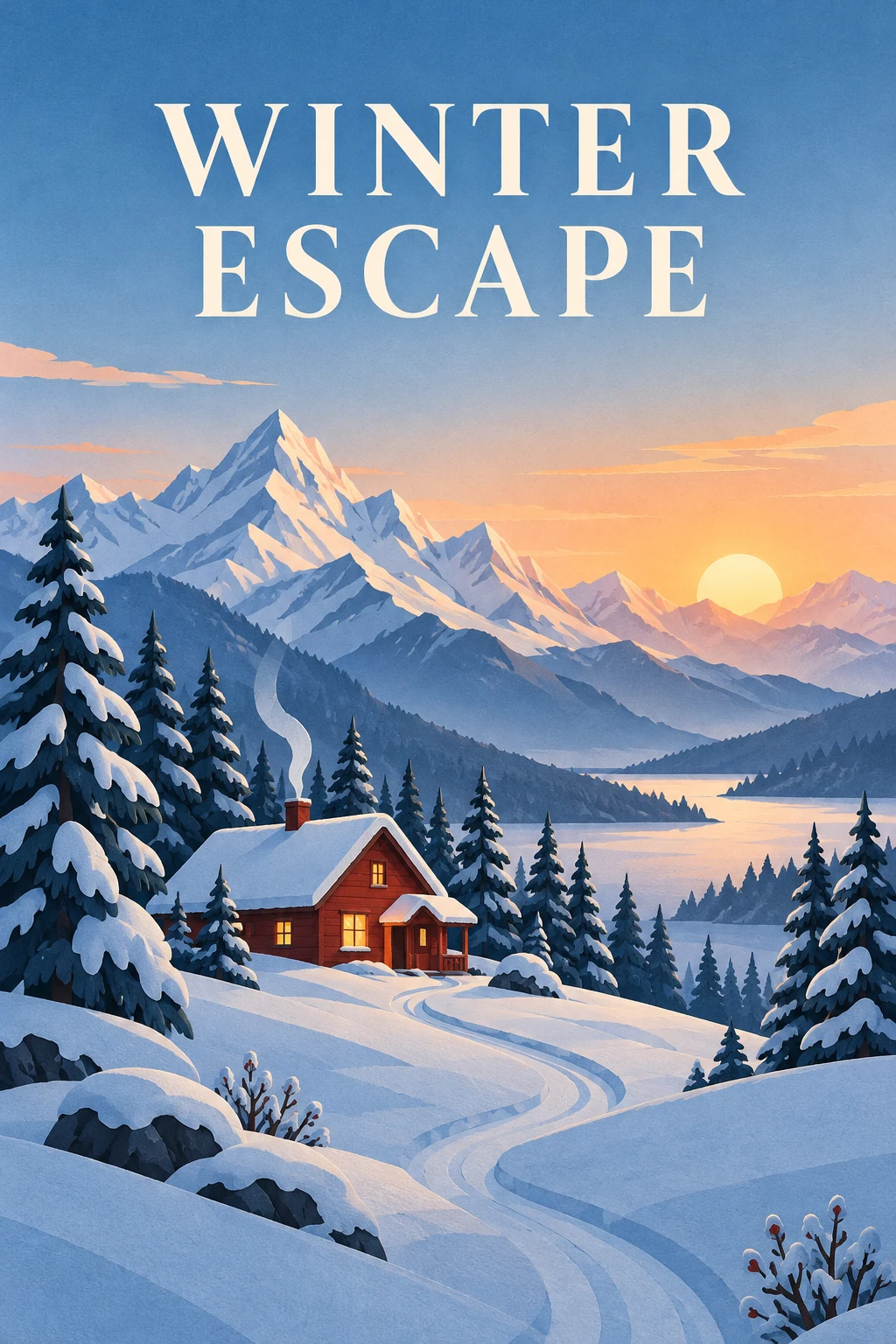
Create a vertical 2:3 travel poster of a red cabin in snowy mountains at sunrise, in a layered paper-cut illustration style with subtle paper texture. Place the exact headline "WINTER ESCAPE" at the top on two lines in large, clear uppercase lettering. Keep the cabin in the lower half, with a winding path, pine trees and mountain peaks. Leave generous open space around the text. Use warm sunrise light against cool blue snow. No other words, logos, frames or watermarks.
State the exact words, their position and the space around them. Start with a short headline and check every letter in the result.
4. Compose an interior scene
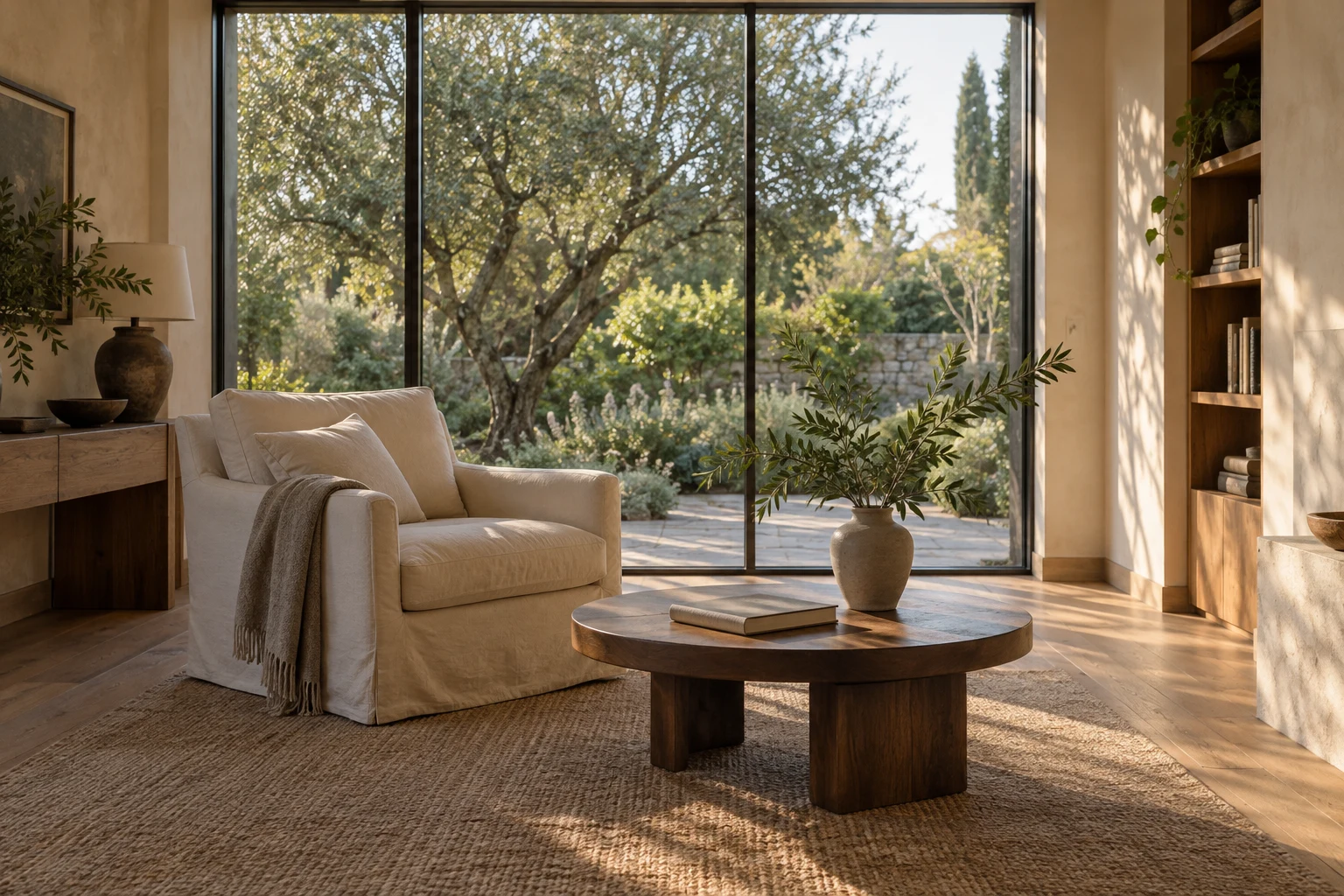
Create a photorealistic 3:2 interior photograph of a quiet reading room overlooking a leafy garden through floor-to-ceiling windows. Include warm plaster walls, an oak floor, a cream linen armchair, a low walnut table, a single closed book and a ceramic vase with a leafy branch. Use an eye-level 28mm architectural view with straight vertical lines, soft late-afternoon window light and natural shadows. Show believable linen, plaster and wood textures. No people, text, logos, exaggerated distortion or glossy CGI surfaces.
Specify the camera angle, furniture, materials and light together. Check window lines, furniture proportions and shadows before refining the image.
Continue exploring
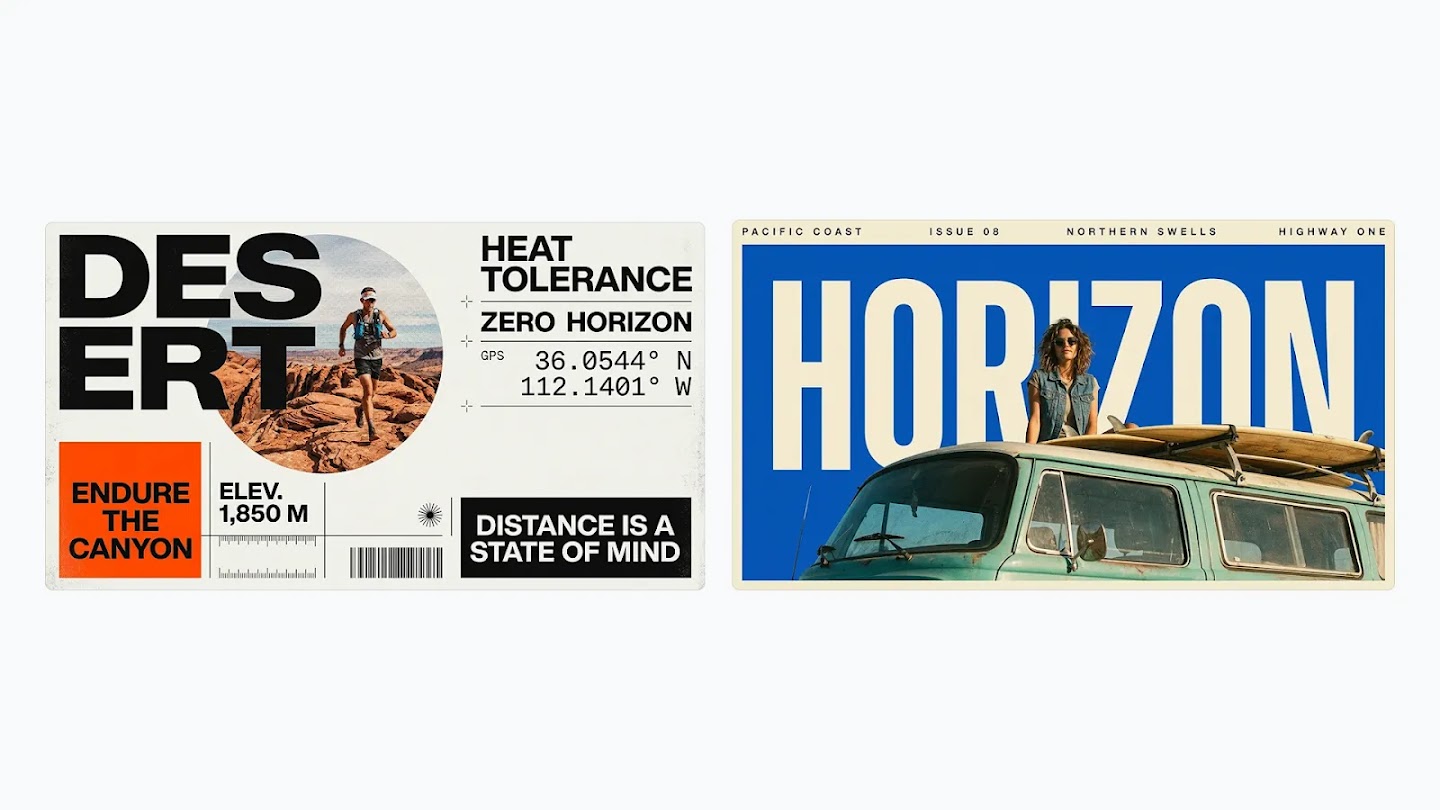
Nano Banana 2.1
Create and edit images with Google’s Nano Banana 2.1: clearer text, consistent subjects, reference image support, and up to 4K resolution.
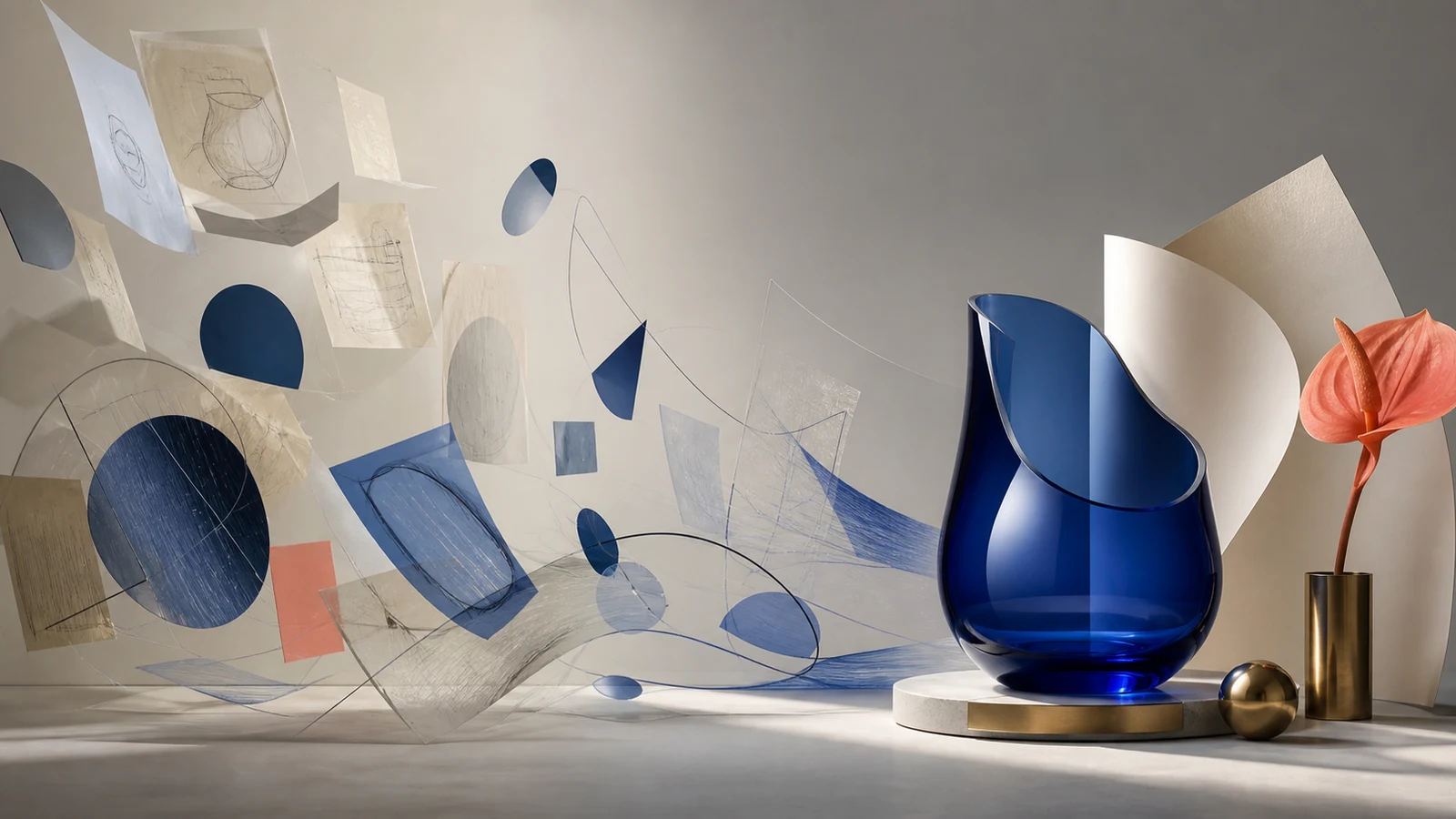
How to write AI image prompts
Practice describing a subject, layout and specific edits.
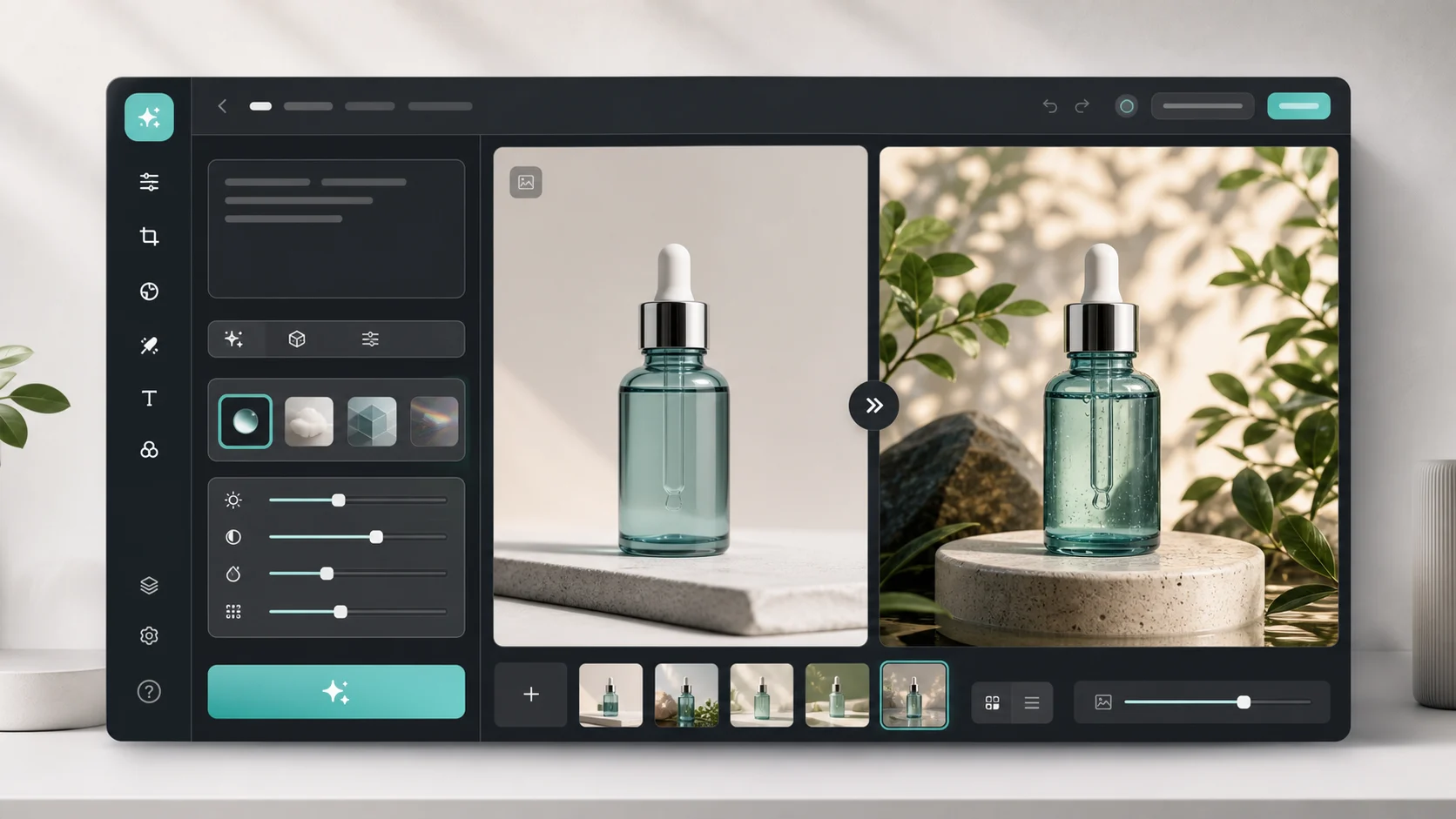
AI image editor
Edit an existing image with a prompt describing the changes you want.
Nano Banana 2.1 questions
What is Nano Banana 2.1?
Nano Banana 2.1 is Google’s AI image generation and editing model, with improved visual quality, clearer text, stronger subject consistency, and up to 4K resolution.
How do I get readable text in an image?
Put the exact words in quotation marks and specify their position, size and contrast with the background. Keep the wording short and leave room around it. Review every letter at full size and revise the prompt if the text is incorrect.
Can Nano Banana 2.1 edit existing images?
Yes. Nano Banana 2.1 supports image generation and editing with up to 14 reference images. Describe what to change and what to preserve, such as a character’s appearance, product details or the composition.
What resolutions does Nano Banana 2.1 support?
Nano Banana 2.1 supports 1K, 2K and 4K output. Choose the resolution and aspect ratio to suit your layout, from square visuals to portraits and wide compositions.
Plan your next Nano Banana 2.1 image
Choose one subject, write a clear prompt and add references with distinct roles. Refine one change at a time and compare the result before downloading.