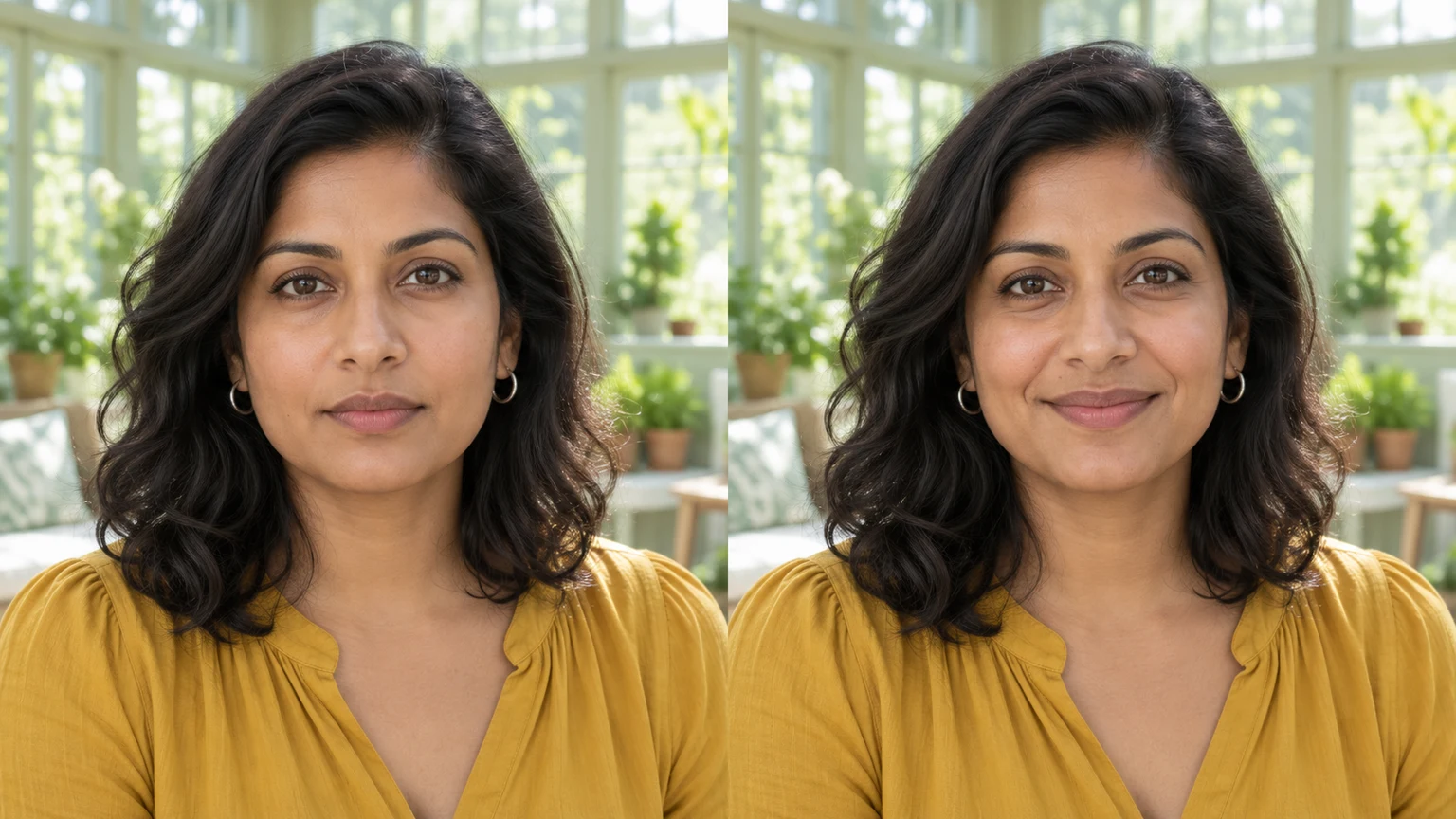


Office portrait · friendly smile
Try these settingsA neutral headshot gains a moderate toothy smile. Check the teeth, beard and original jacket.
To add a smile to a photo, upload one clear portrait, select a closed-mouth or toothy-smile template, then generate and compare the face with the original. A smile includes the cheeks and eyes as well as the mouth. This guide helps you choose the reference, write a short note and spot an unnatural result.
LumiYingUpdated
Add a smile to a photo with AI: prepare a clear portrait, choose a closed-mouth or toothy smile, write a short note and check the result against your original.
Use one visible face with readable eyes, brows and lips. A front or gentle three-quarter portrait is a useful starting point. Upload JPEG, PNG or WebP, up to 30 MB.
Lift the mouth corners gently while keeping the lips together. Part the lips moderately and show a small natural amount of teeth. Keep the source portrait and select the smallest change that fits it. A template or upload supplies one expression reference; Extra notes clarify its strength. The source face remains the identity reference.
Check the displayed credits and click Generate. Each submission makes one static image. Selecting, uploading or removing a reference does not start generation. Add a short note for the expression's intensity, such as a small smile with lips together.
Compare face shape, eyes, teeth, glasses, hairstyle, clothes and background with the original. Generative editing can change details. Reject an edit that no longer looks like the same person; keep the source and download only a result you have reviewed.
Keep the source portrait and select the smallest change that fits it. A template or upload supplies one expression reference; Extra notes clarify its strength. The source face remains the identity reference.
Eight AI-created photo illustrations compare neutral faces with closed-mouth or toothy smiles. These are illustrative examples, not verified outputs of this tool. Load a source and its smile settings to try a generation.
A neutral headshot gains a moderate toothy smile. Check the teeth, beard and original jacket.
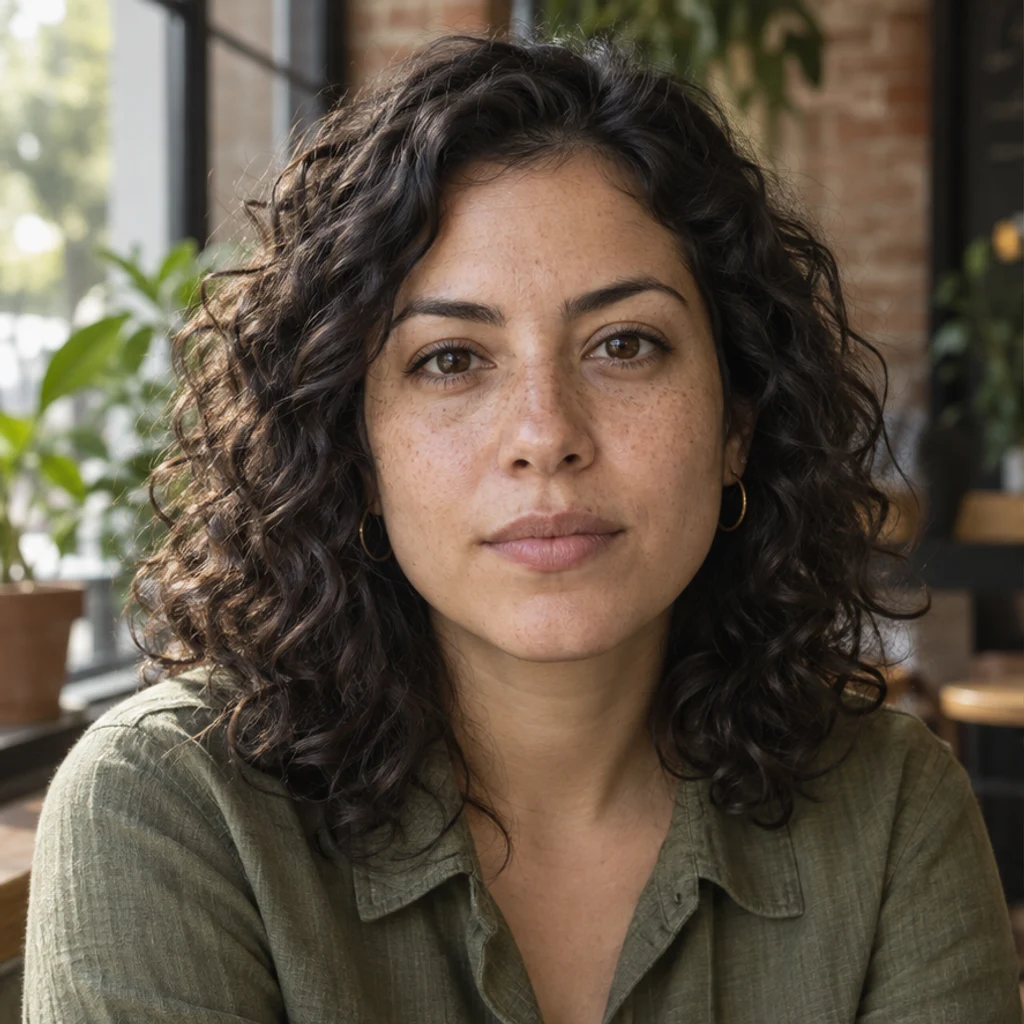
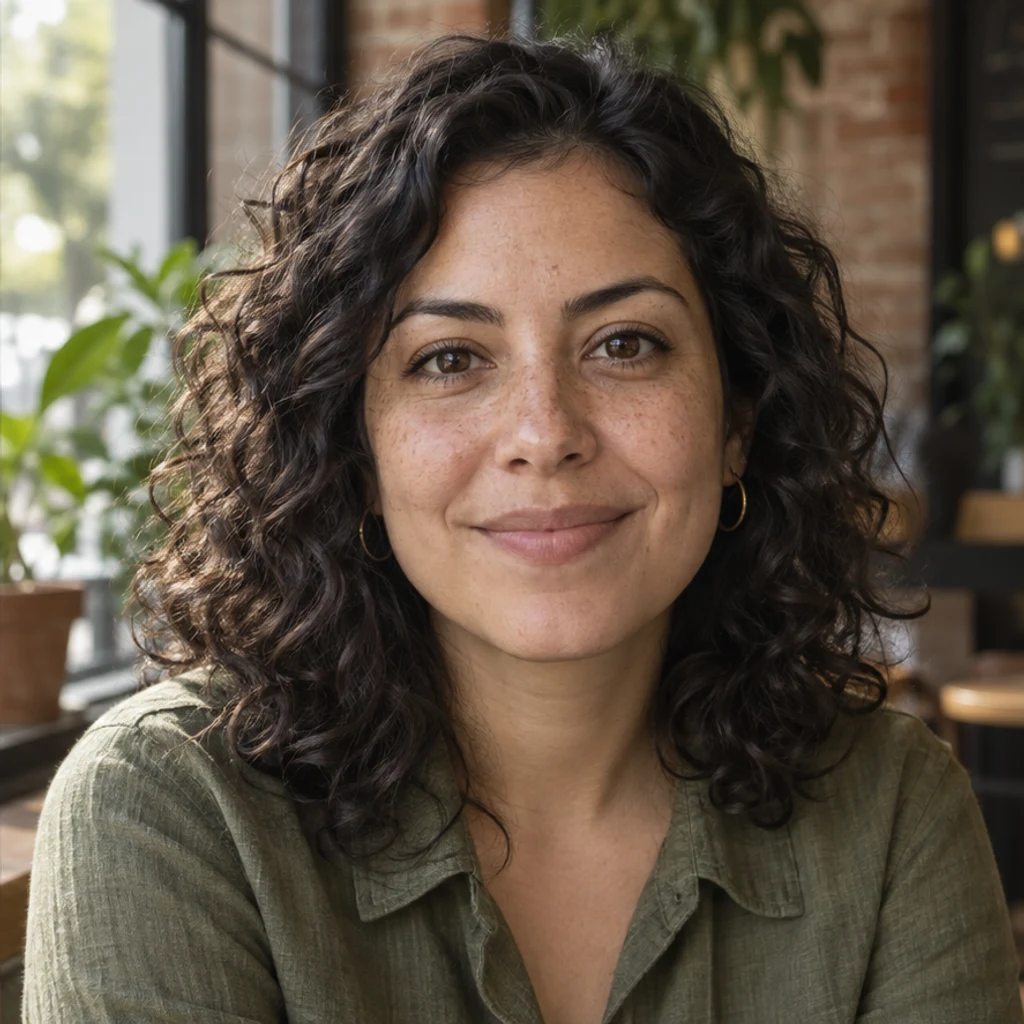
A small closed-mouth smile softens a cafe portrait. Compare the freckles, curls and window light.
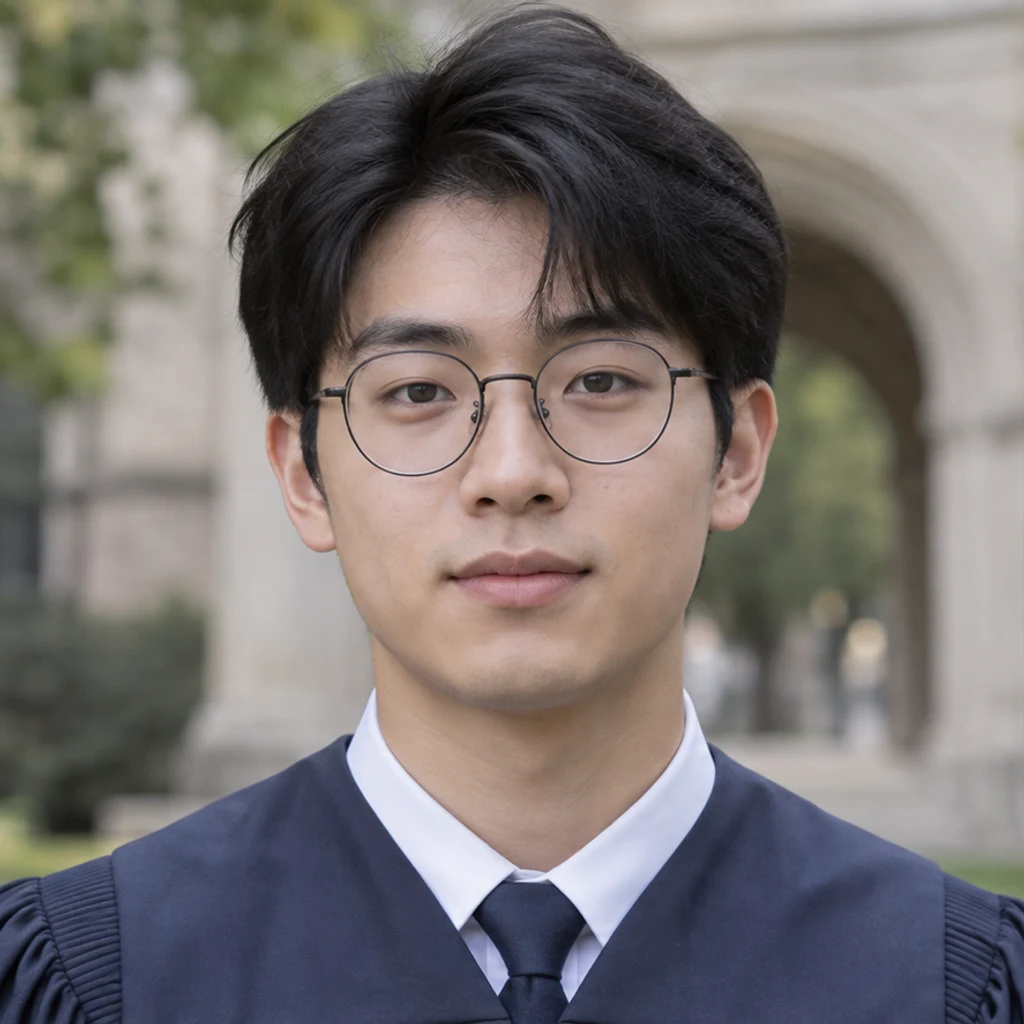
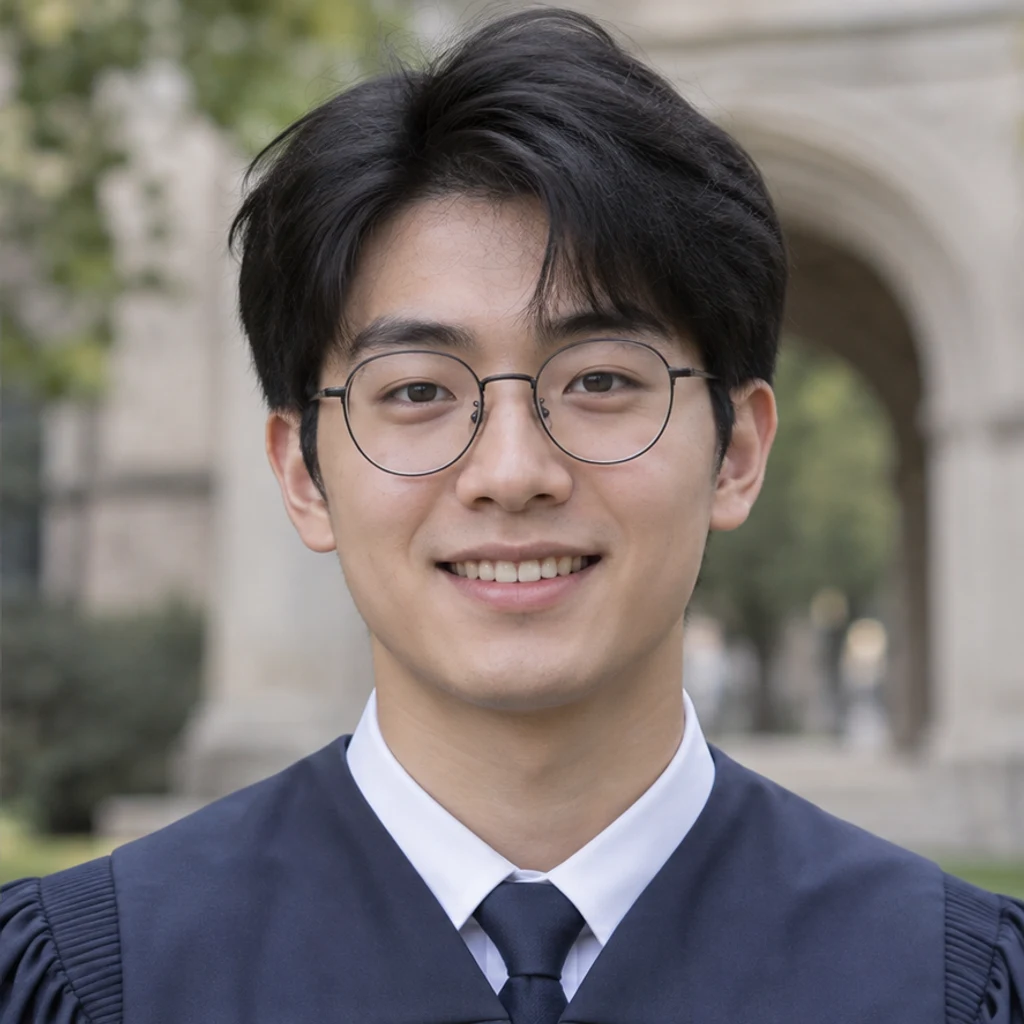
A graduate gains a friendly smile with a little upper teeth showing. Check the glasses, teeth and gown.
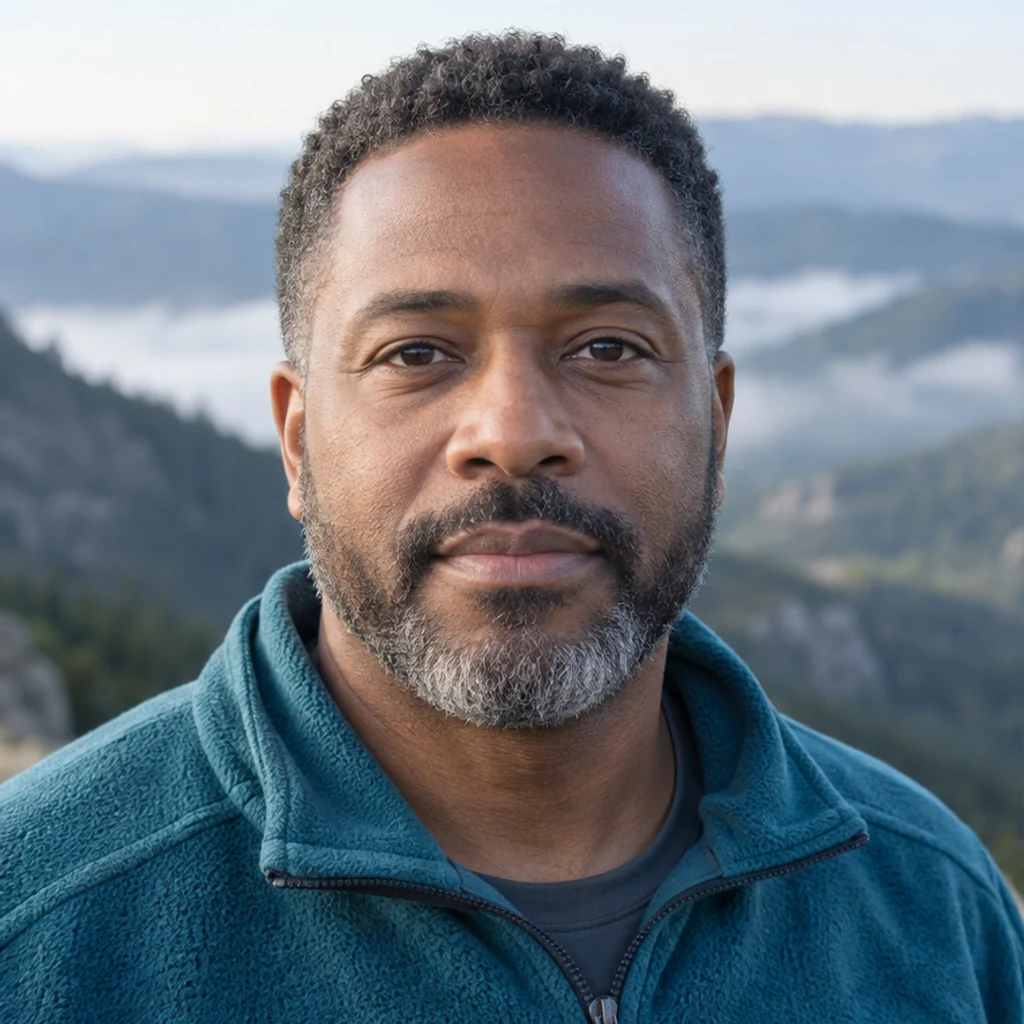
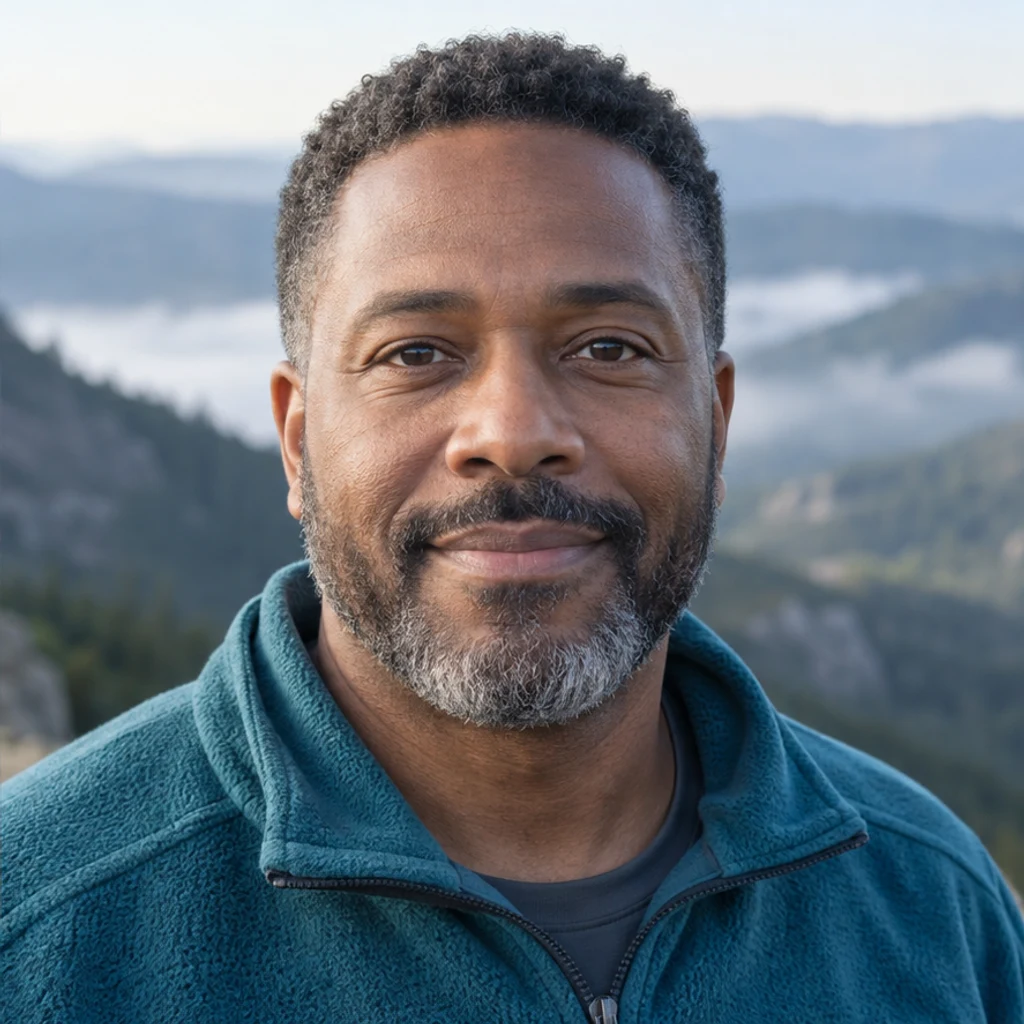
A restrained closed-mouth smile suits a mountain portrait. Review the beard, fleece and head angle.


A moderate toothy smile adds warmth to a studio portrait. Check the lip edges, teeth and headscarf.
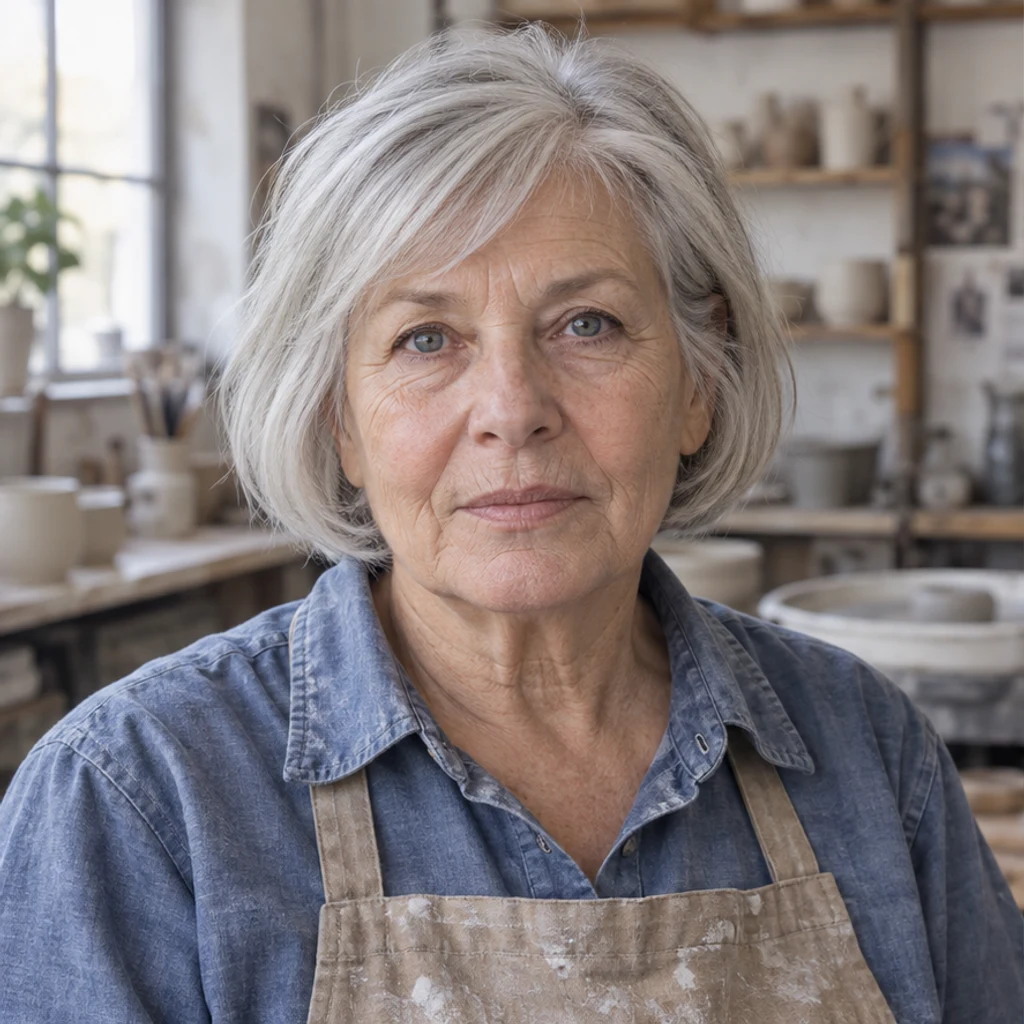
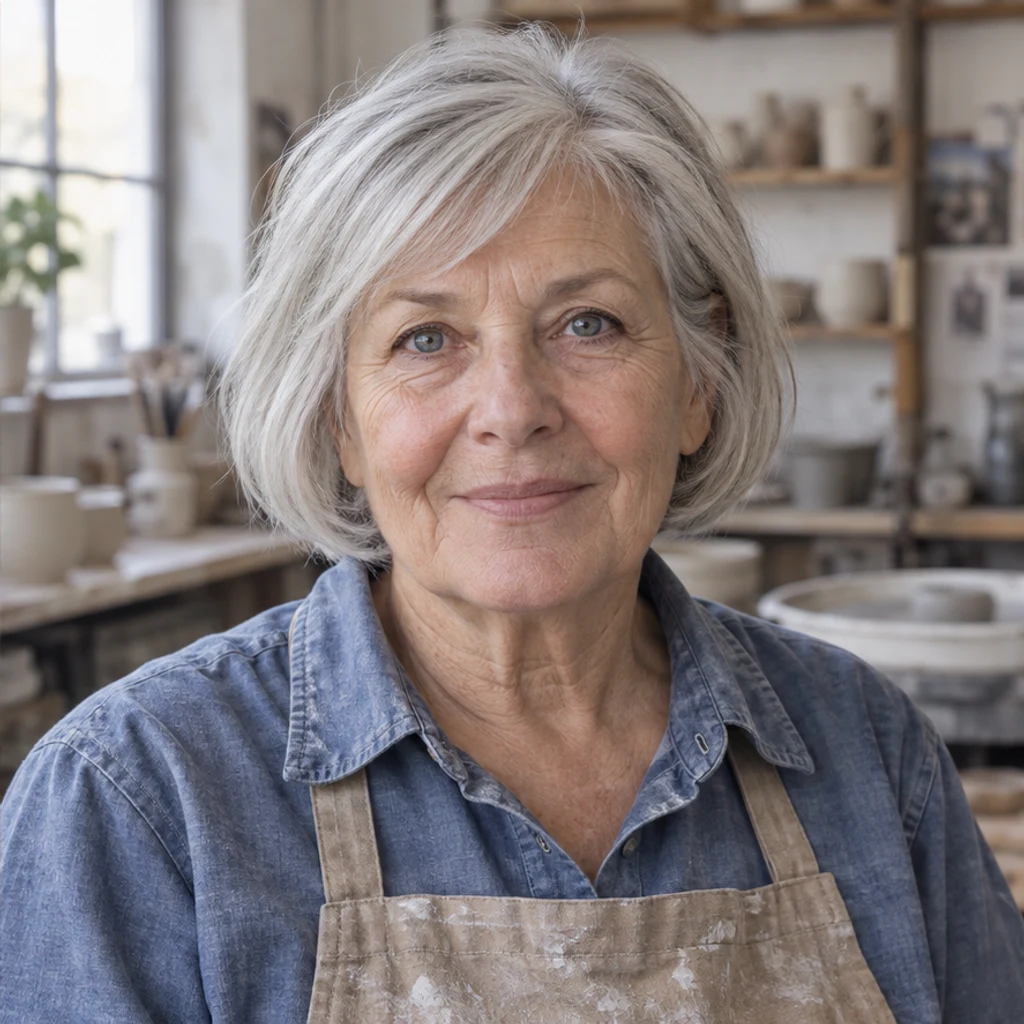
An older ceramicist gains a slight closed-mouth smile. Keep her age, wrinkles and work clothes under review.


A garden portrait gains a relaxed toothy smile. Compare the beard, sweater and dappled background.
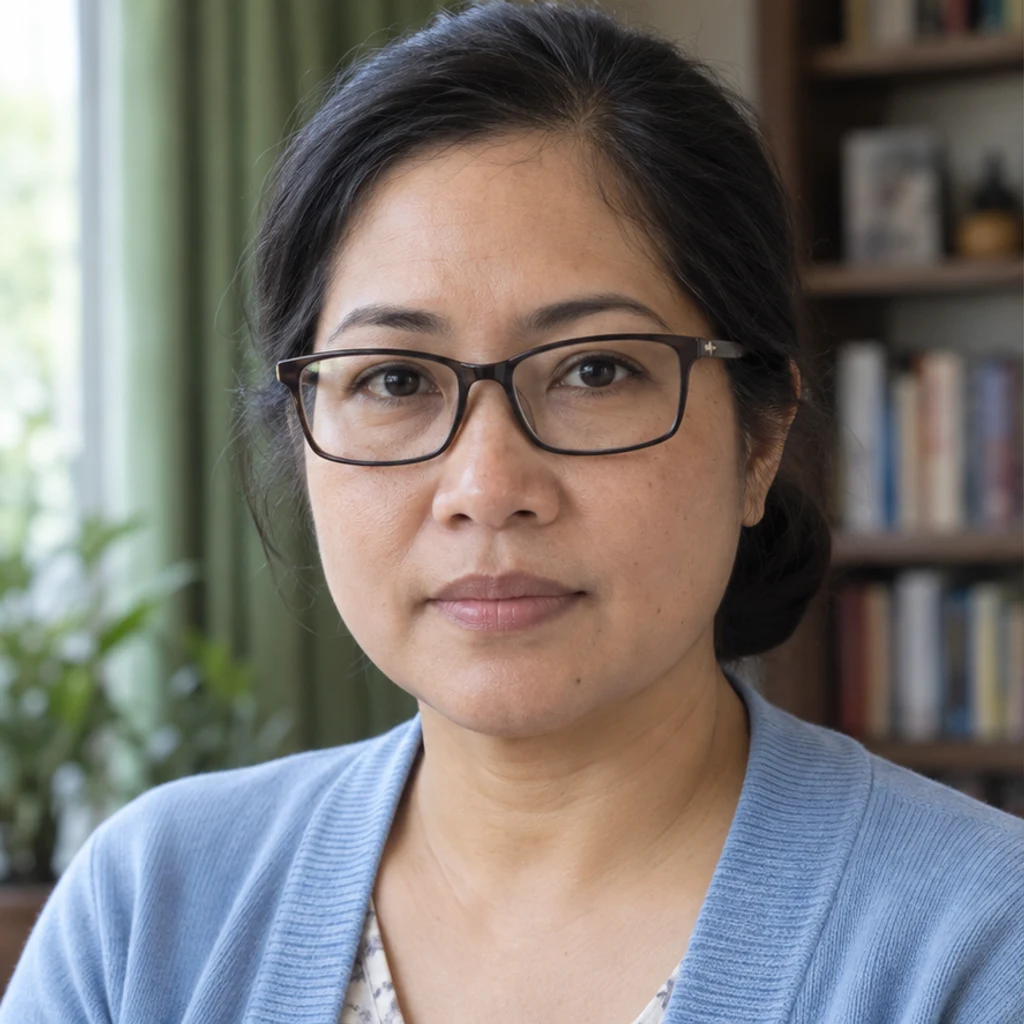
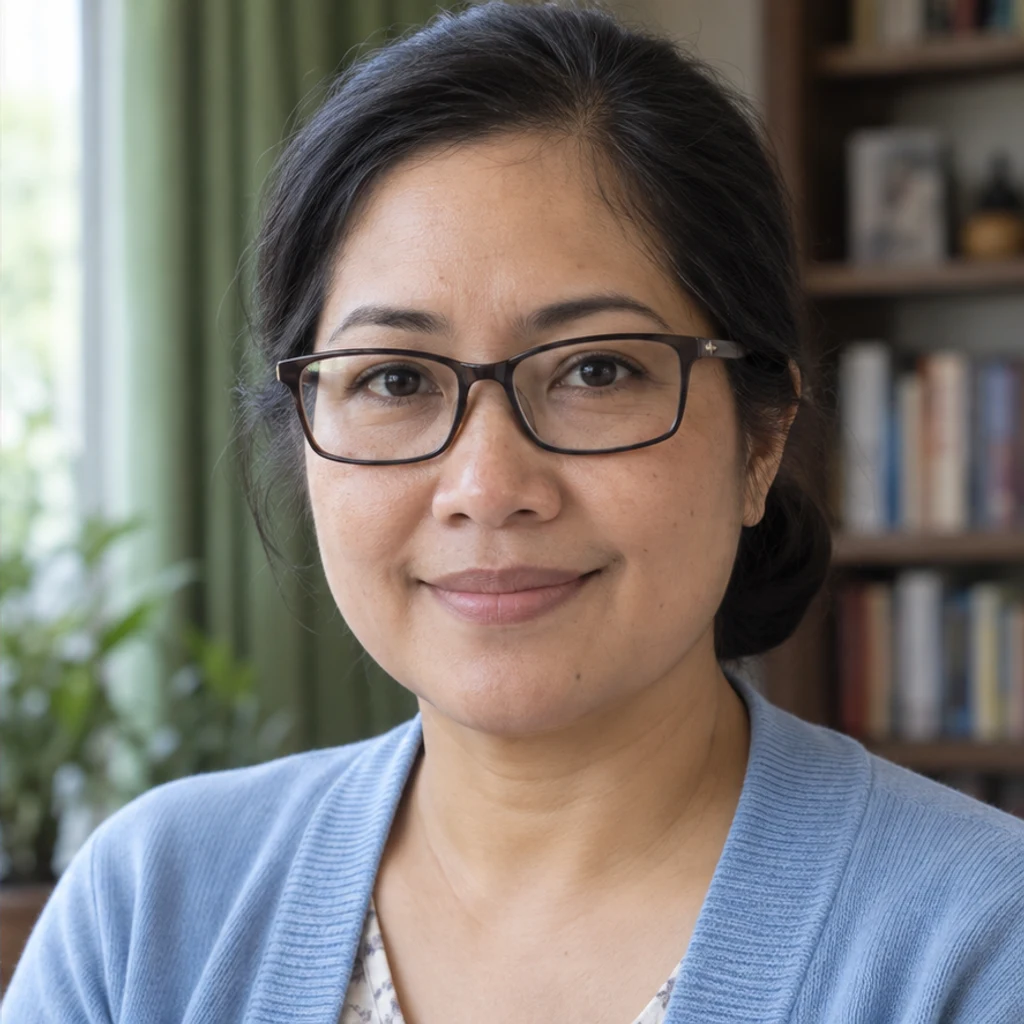
A small closed-mouth smile gives a glasses-wearing portrait a friendly look. Check the frames and facial proportions.
View the result at full size beside your source. A believable expression should fit the same person and the same photo or artwork.
Choose the gentle closed-mouth smile and keep Extra notes short. It requests a smaller change and does not need newly visible teeth.
A photo with closed lips does not show the teeth. An open-lip result contains generated detail, so compare it carefully rather than treating it as a faithful reconstruction.
The reference is intended to guide expression only, but generation can drift. Use a clearer source, a similar-angle reference and a smaller smile; reject a result with the wrong identity.
Use Re-edit to restore the original Person image and expression settings, then change one reference or note. Keeping the original avoids stacking several expression edits on an already changed face.
Add a smile to a photo with AI: prepare a clear portrait, choose a closed-mouth or toothy smile, write a short note and check the result against your original.
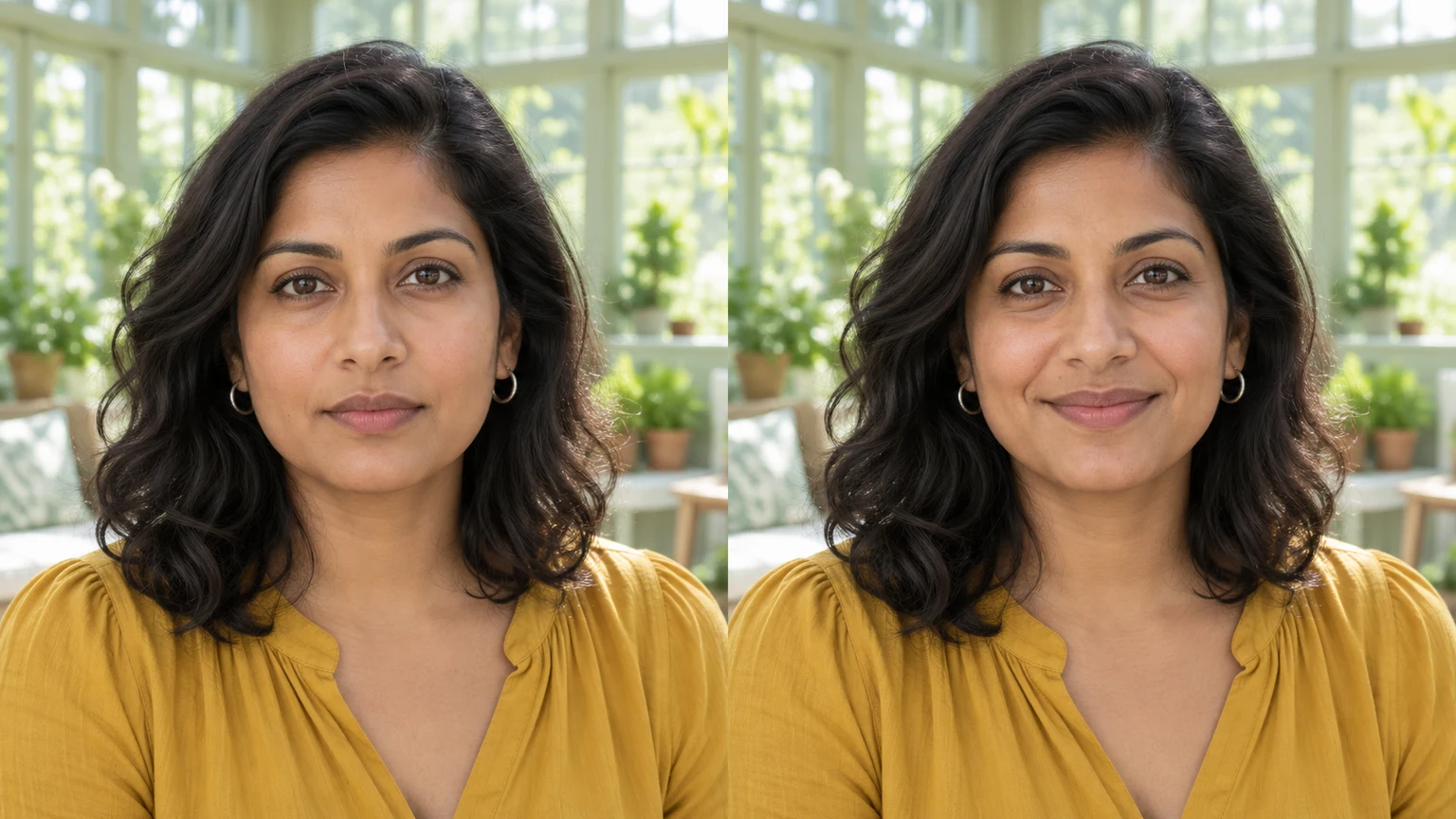
Edit facial expressions with AI. Choose a smile, reaction template or your own expression reference, then generate and review your portrait or character image.
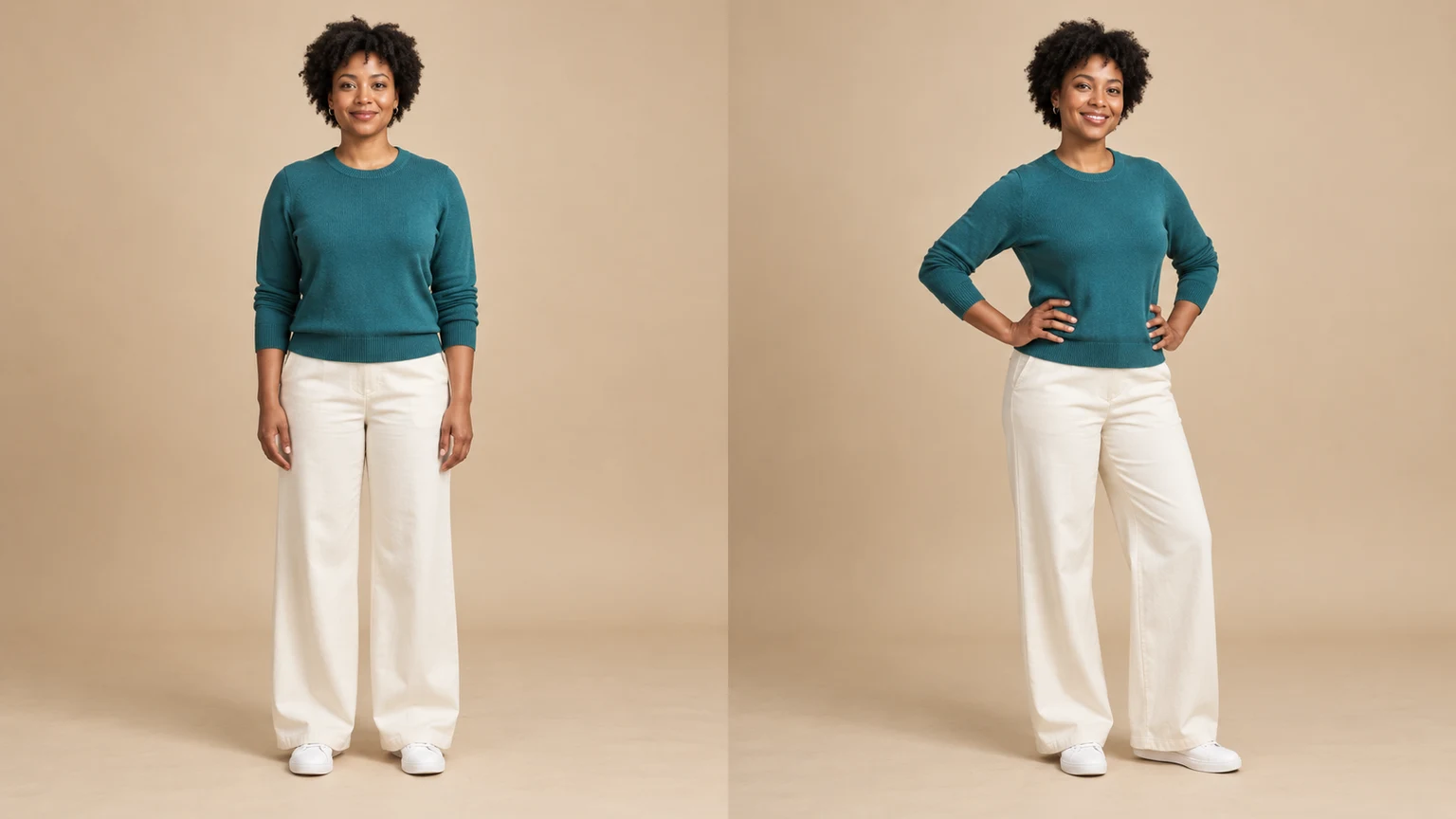
Change a person or character’s pose from a photo. Choose 8 pose templates or upload a pose reference, then generate and review the result.
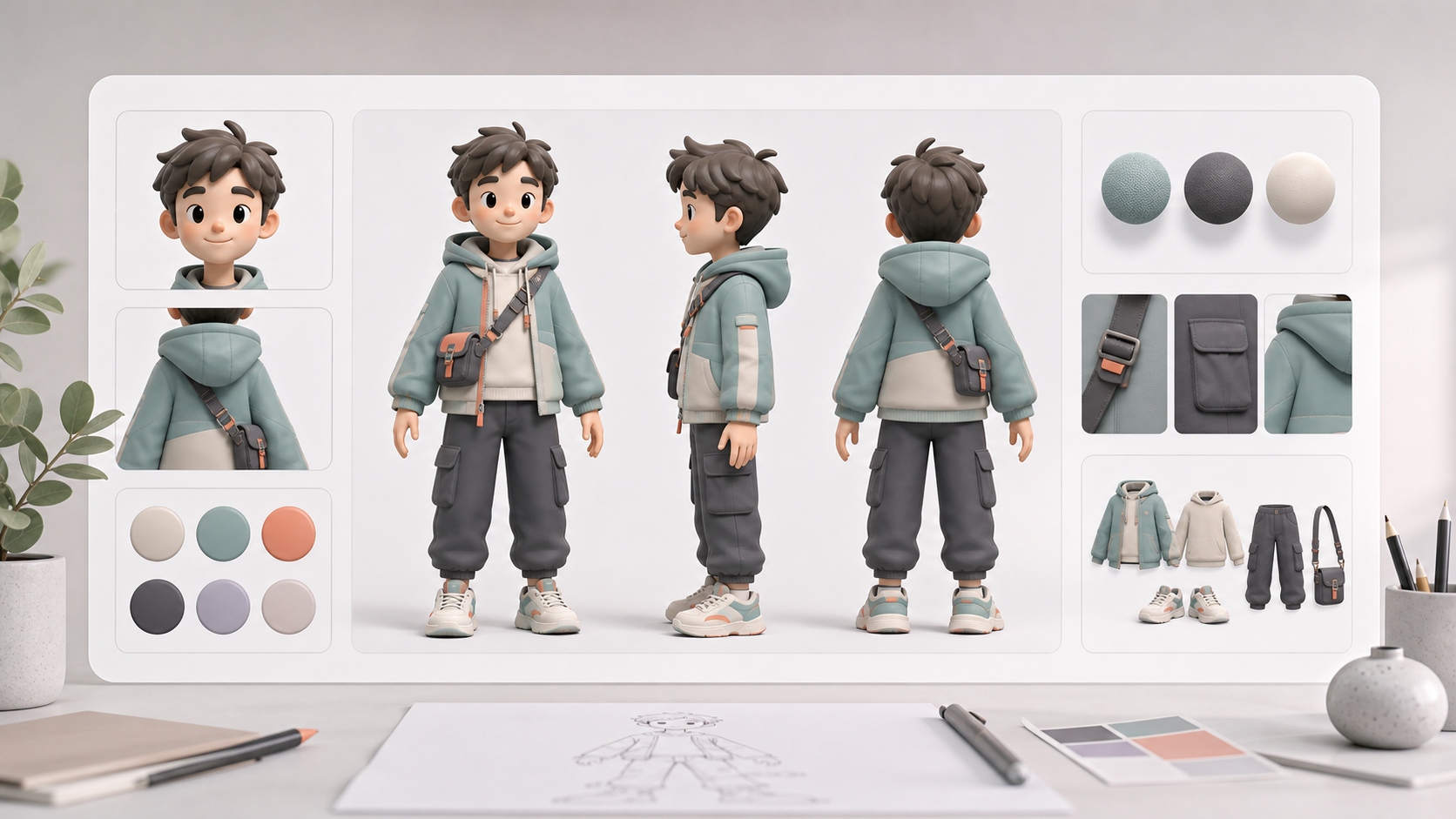
Create AI character reference sheets from a prompt or uploaded reference image. This AI character reference sheet generator turns your brief into consistent front, side, back, portrait, outfit, prop, and detail views inside one image generation.
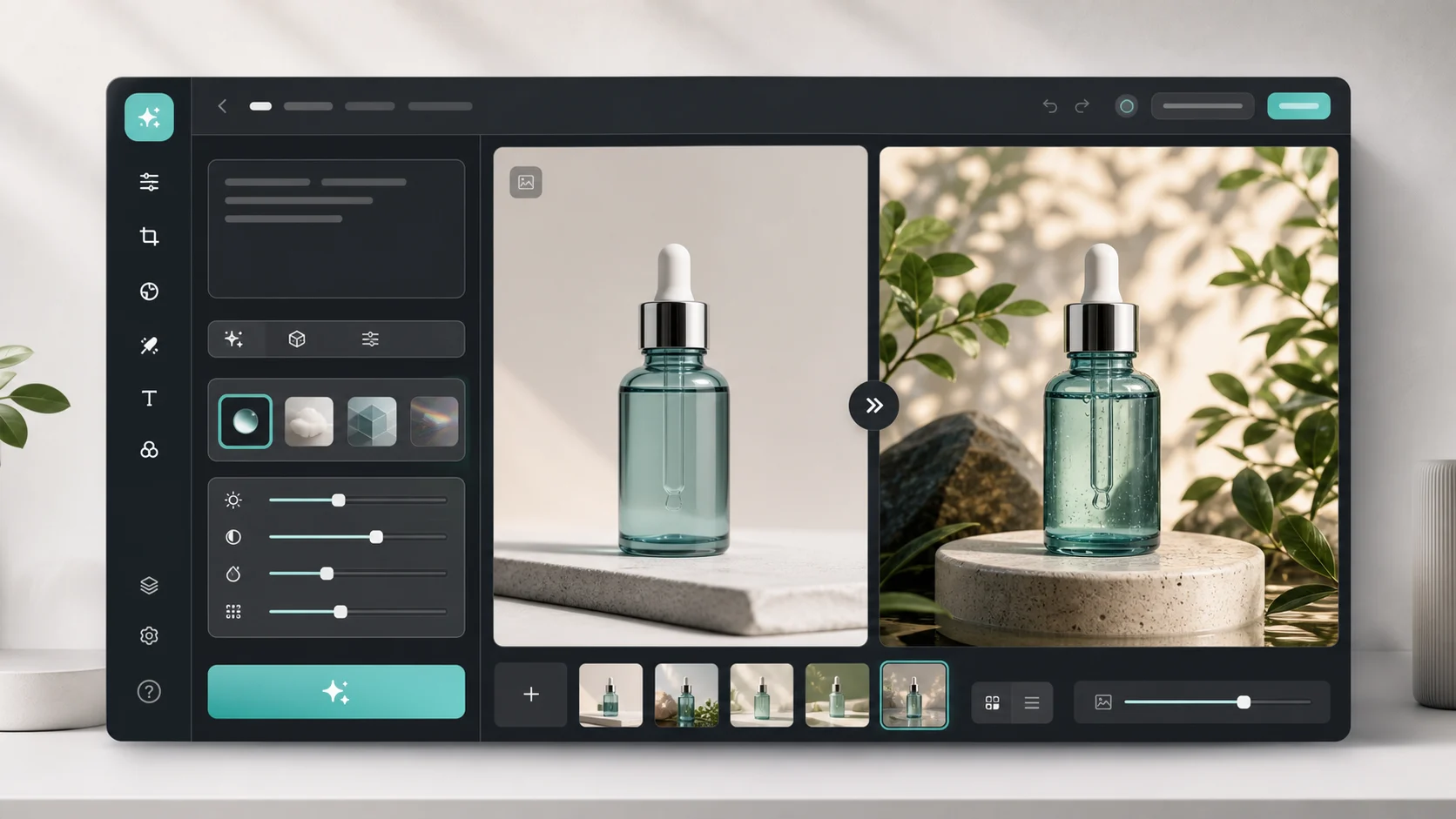
Upload an image, describe the edit, and create polished visuals for products, social posts, posters, or keyframes.
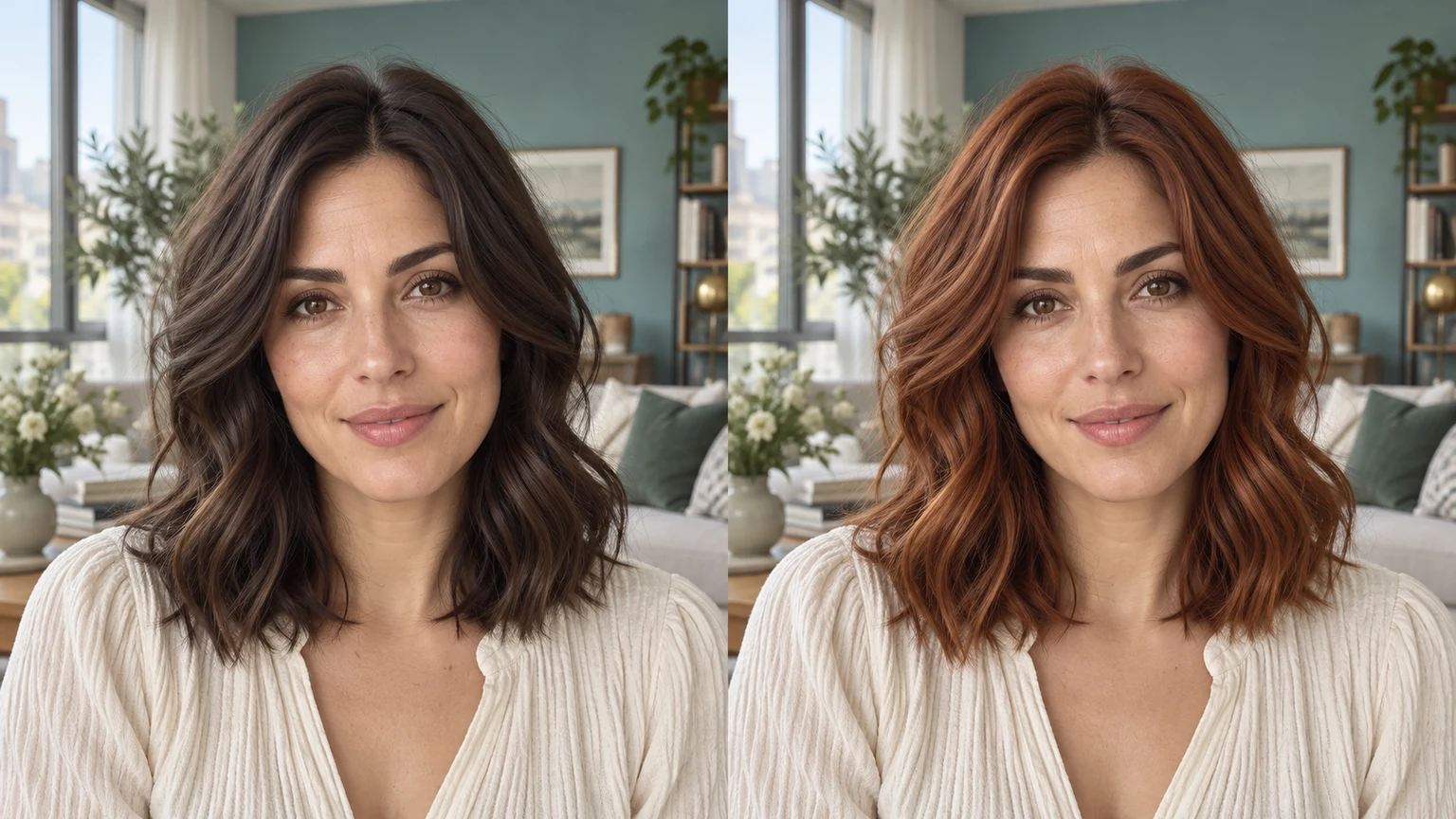
Change hair color in a photo with AI. Use a color template, upload a reference or describe your color in words, then compare and download the result.
Review credits and plans before generating.
Add a smile to a photo with AI: prepare a clear portrait, choose a closed-mouth or toothy smile, write a short note and check the result against your original.