How to Make AI Wallpapers That Work on Your Screen

An image can look beautiful in a gallery and awkward behind a clock. Design the background around what stays on your screen: icons, widgets, labels and the edges your device may crop.

LumiYingUpdated

A practical wallpaper workflow

Make one composition decision at a time, then inspect the image where it will actually be used.

  1. Step 1. Look at the destination first

    Note the screen orientation and where the clock, widgets and icons sit. Choose one destination for the first version; a phone lock screen and a desktop need different compositions.

  2. Step 2. Write a short, spatial brief

    Combine subject, palette, medium and placement. For example: a small island low in the frame, muted blue water, paper-cut texture, a calm upper third. Avoid conflicting requests for dense detail and empty space in the same area.

  3. Step 3. Set ratio before resolution

    Choose a ratio close to the destination. Start with 9:16 or 16:9 if appropriate, then choose a resolution. A larger pixel count does not fix the wrong composition or shape.

  4. Step 4. Review before setting the wallpaper

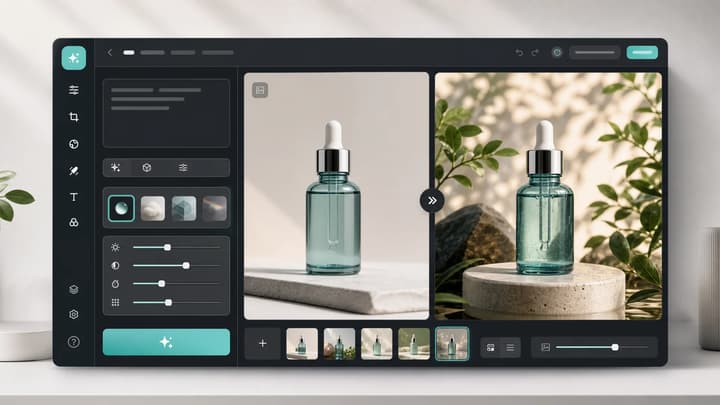
    Download the file and check its dimensions. Preview it in the device wallpaper settings with the actual clock and icons. Inspect edges and lettering contrast; use Re-edit to change the brief or ratio if needed.

Match the brief to the screen

Use these starting points, then adapt them to your device and layout.

Shape, pixels and quiet areas

Phone lock screen
9:16 portrait; keep the upper center calm and the subject lower.
Taller phones may crop the sides. Check the clock, widgets and bottom controls.
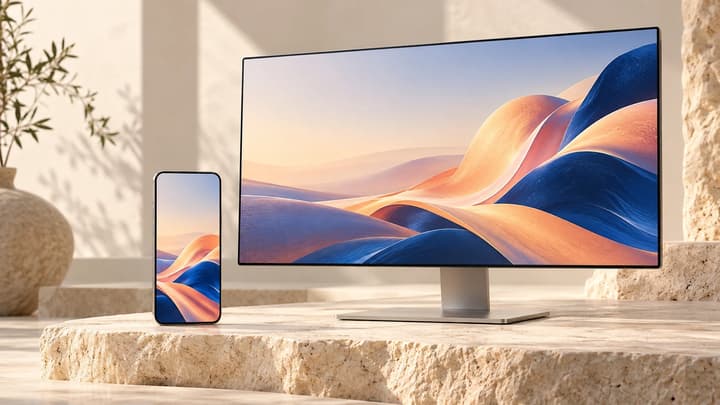
Desktop background
16:9 landscape; request low detail on the side used by icons.
Check shortcut labels at normal scale, including both light and dark parts of the image.
Ultrawide screen
21:9 if it matches your display; keep the main subject within the central region.
The 4K preset is 3808×1632 here, not 3840×2160. Confirm your display resolution separately.
Photo-inspired artwork
Upload one reference and describe which features should remain recognizable.
Style transfer can alter subjects and details. Reject a version that changes something important.

Prompts with a clear composition goal

These generated illustrations show different ways to arrange detail and quiet space. Adapt the prompt to your screen rather than copying the ratio blindly.

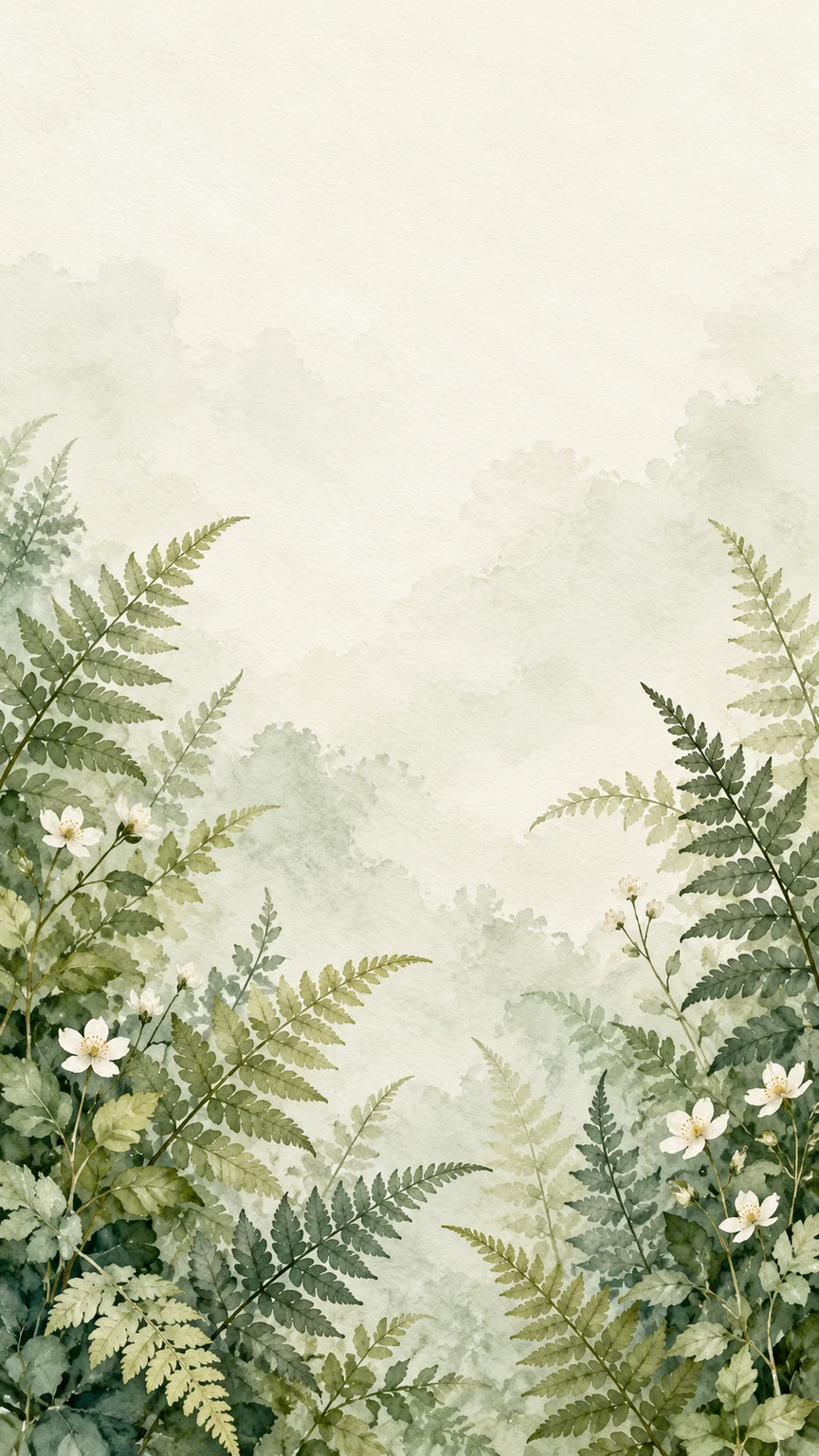
Sage watercolor ferns and white flowers beneath a pale empty upper area

Airy watercolor botanicals

A quiet upper area for a portrait lock screen.

Description

Watercolor ferns and tiny white flowers at the bottom corners, sage green and cream paper texture. Keep the upper third pale and calm. No text or device frame.

Load this example
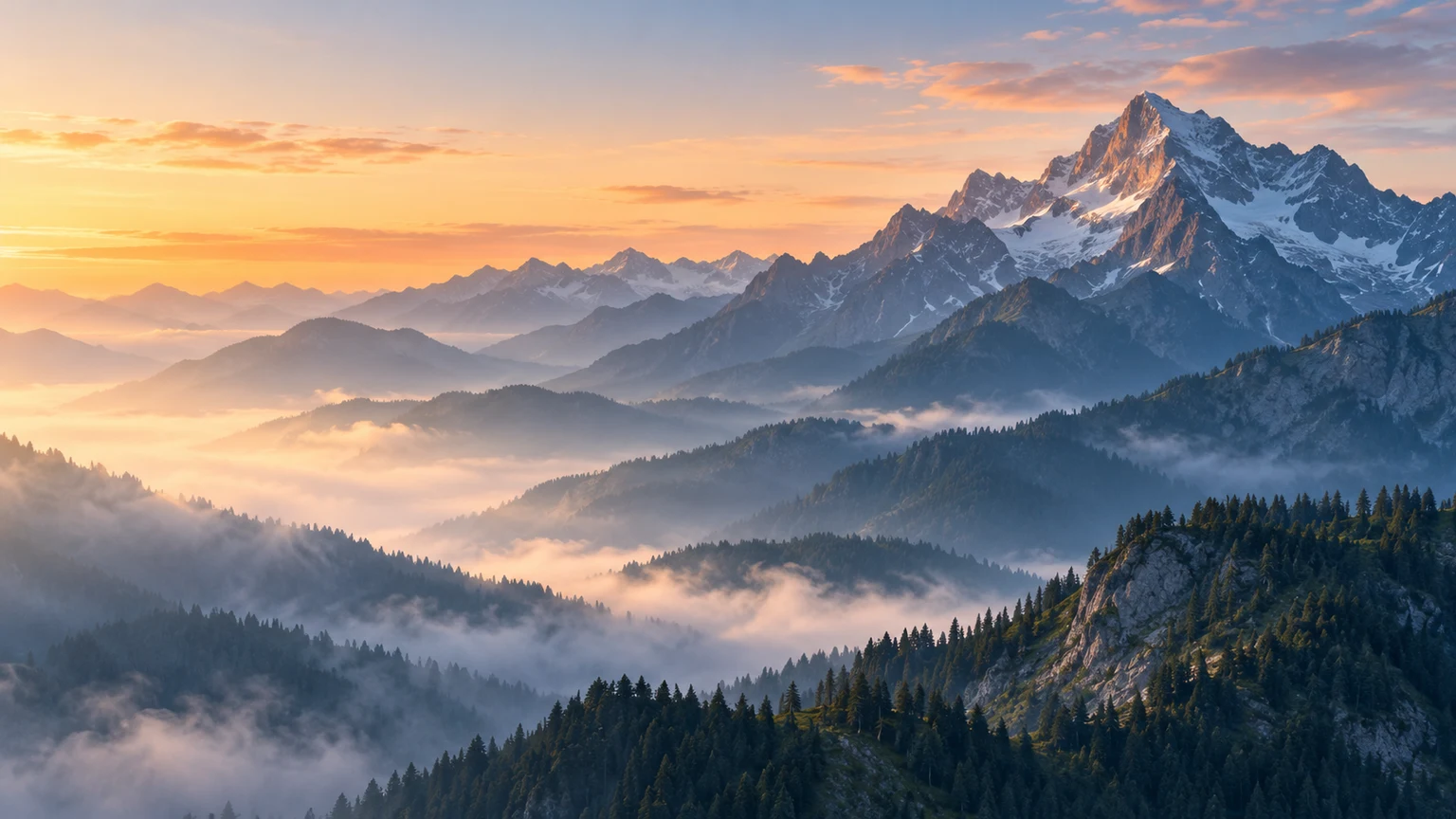

Blue-gray mountain ridges with a high peak on the right and dawn mist on the left

Misty mountain desktop

Wide scenery with a quieter left side.

Description

Blue-gray mountain ridges at dawn, tallest peak toward the right, soft warm horizon and calm mist on the left for desktop icons. No lettering or interface.

Load this example
Turquoise water with a curved sandy coastline on the right

Minimal coastline

Calm water beside a curved sandbar.

Description

Aerial turquoise coastline, a curved sandbar to the right, soft surf and calm dark teal water on the left. No boats, people, words or icons.

Load this example
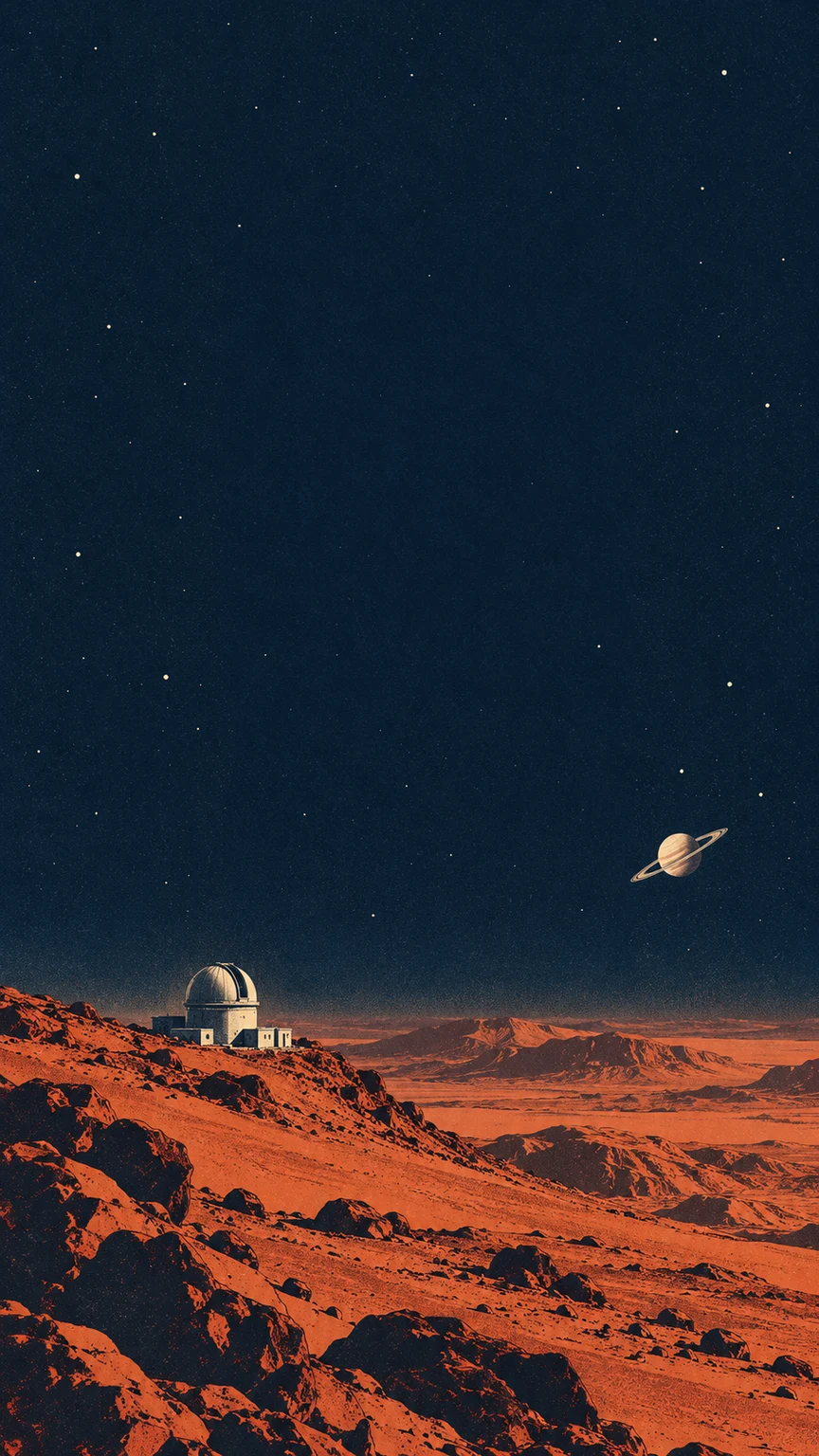
Retro orange planetary landscape and observatory below a dark indigo sky

Retro space print

Keep the small observatory below the clock.

Description

Retro space print with a rust-red planet horizon and tiny observatory low in frame, deep indigo upper sky with sparse stars. Keep the upper center calm. No text.

Load this example

Review the wallpaper on the device

Change the brief to address the problem you can actually see.

Clock disappears
Bright or detailed artwork competes with the clock.
Request a calmer, lower-contrast upper area and move the subject lower.
Important detail is cut off
Device zoom or a mismatched ratio crops the edges.
Choose a closer ratio and request more margin around the subject.
Image looks soft
Check actual file dimensions at normal display scale.
Try a higher output resolution; extra pixels do not guarantee better fine detail.
Reference changed too much
Compare recognizable shapes, faces and colors with the source.
State the features to retain, simplify the style change and reject inaccurate variants.
Resources

Before you set the wallpaper

Should I make one image for both phone and desktop?

Use separate compositions when the shapes differ substantially. Cropping a wide image into a tall screen can remove the subject or the quiet area.

Does a dark wallpaper always make icons easier to read?

No. Busy highlights and sharp edges can still compete with labels. Judge local contrast around the actual icons, not only the overall color.

How should I improve a weak result?

Change one thing at a time: subject placement, background detail or ratio. Re-edit restores the original inputs; another generation uses credits.

Can I use any photo as a reference?

Use photos and artwork you own or have permission to use. A generated variation may still retain recognizable people, logos or protected visual elements.

Make room for your next wallpaper

Start with a subject, a palette and a place for the clock or icons.