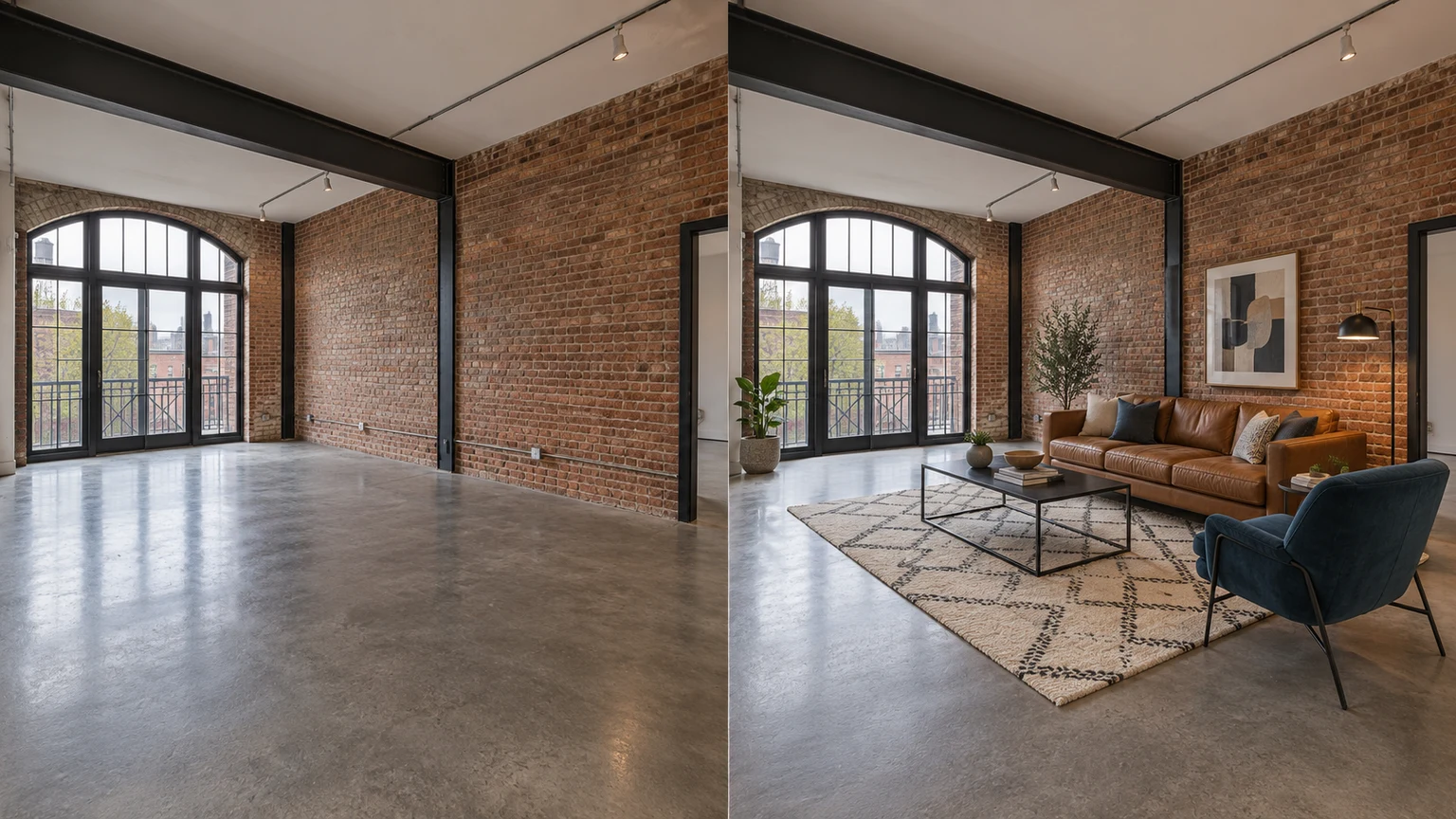
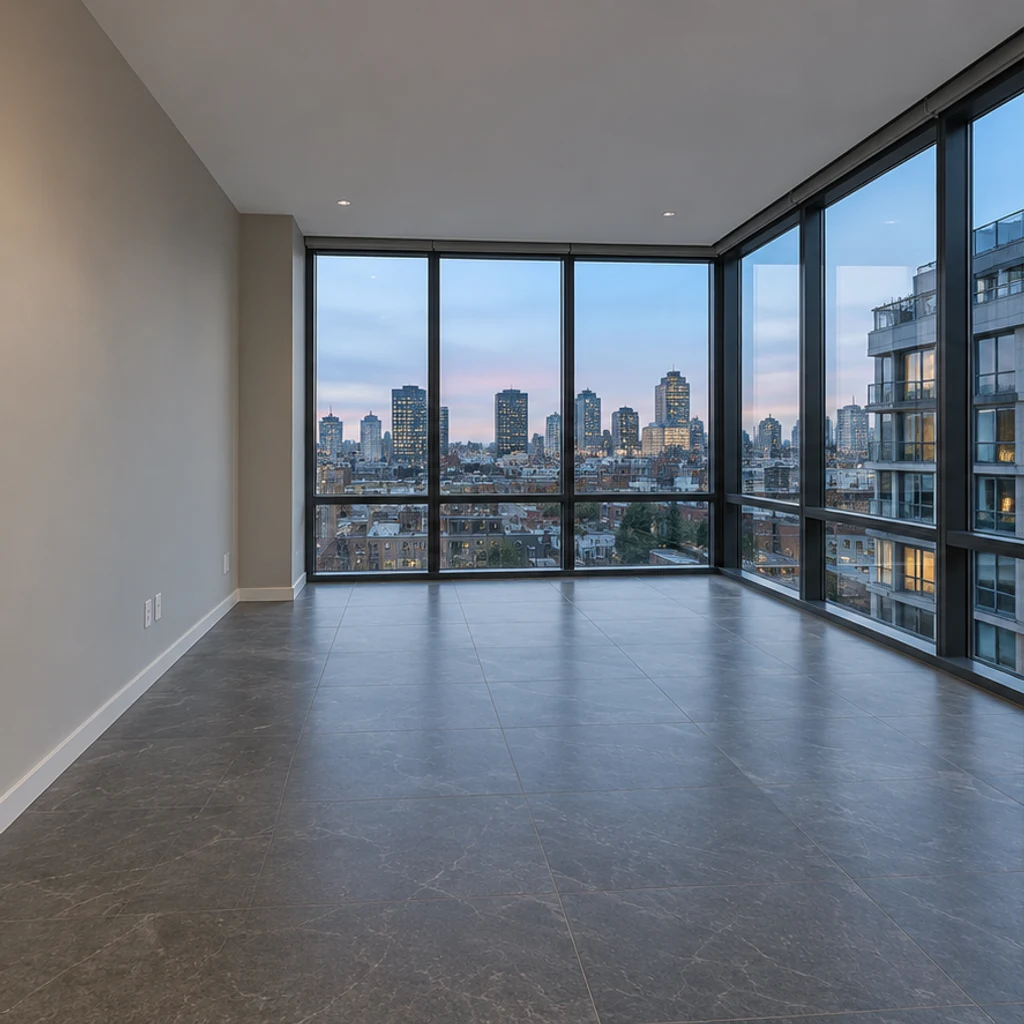
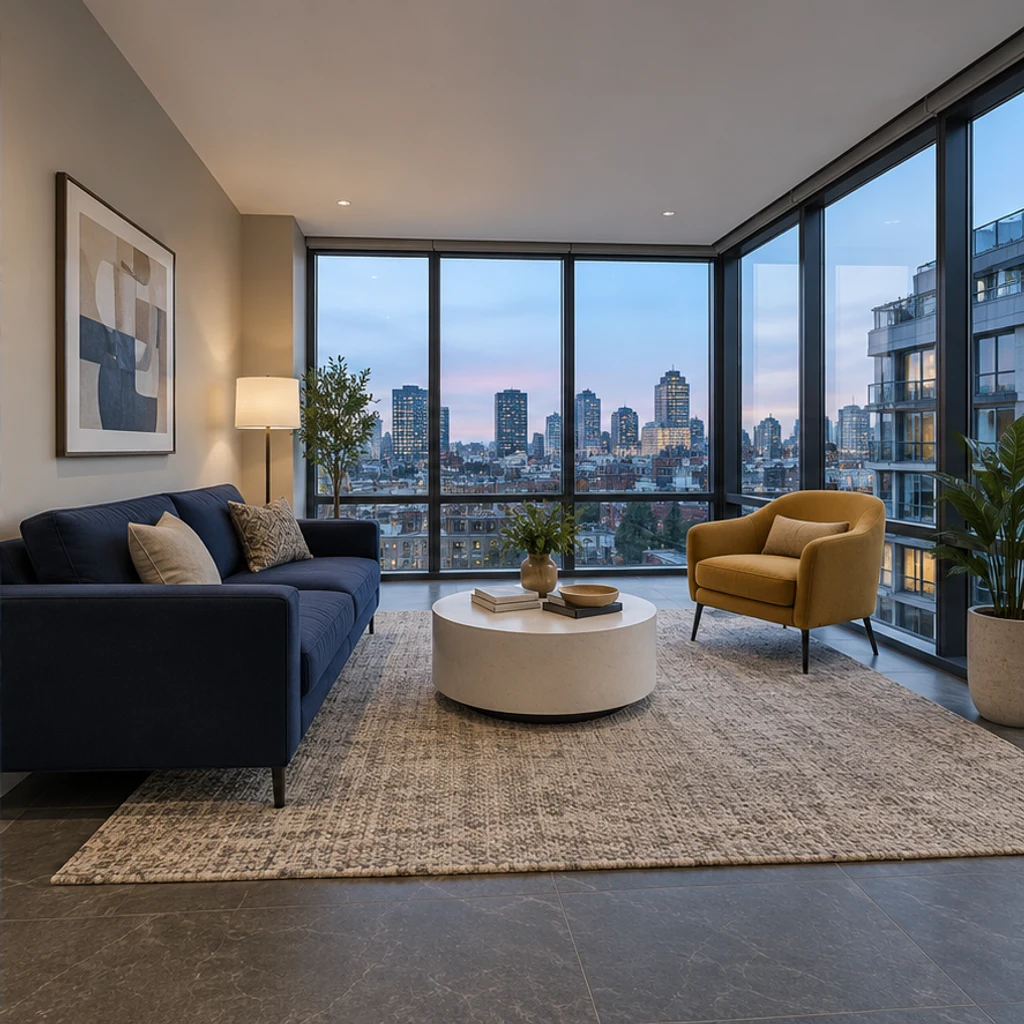
Living room
Try these settingsShow a seating layout with a sofa, coffee table and rug. Keep doors and walking space clear.
Virtual staging adds digital furniture and decor to a room photograph. The furniture exists in the image; the actual property stays as it is. It helps explain a possible layout without furnishing the room in person.
LumiYingUpdated
Add furniture to an empty room photo. Choose from 5 room types and 8 furniture styles, then review and download the staged image.
Upload one sharp JPEG, PNG or WebP up to 30 MB. Include the floor, windows and doorways; use a photo of the actual room.
Choose the room’s actual use from 5 room types, then select one of 8 furniture styles.
Check the displayed credits before generating. Compare architecture, furniture scale and shadows with the original before downloading.
Keep the original image, identify the furnished version as virtually staged, and check the listing platform’s applicable image guidance before publishing. Do not use an image that misrepresents the room.
Choose the workflow by what you need to change: a photograph, a room in person, or a proposed building design.
These AI-created illustrations show possible layouts, not verified outputs of this tool. Try a source photo and its room/style settings; actual results may differ.
Show a seating layout with a sofa, coffee table and rug. Keep doors and walking space clear.
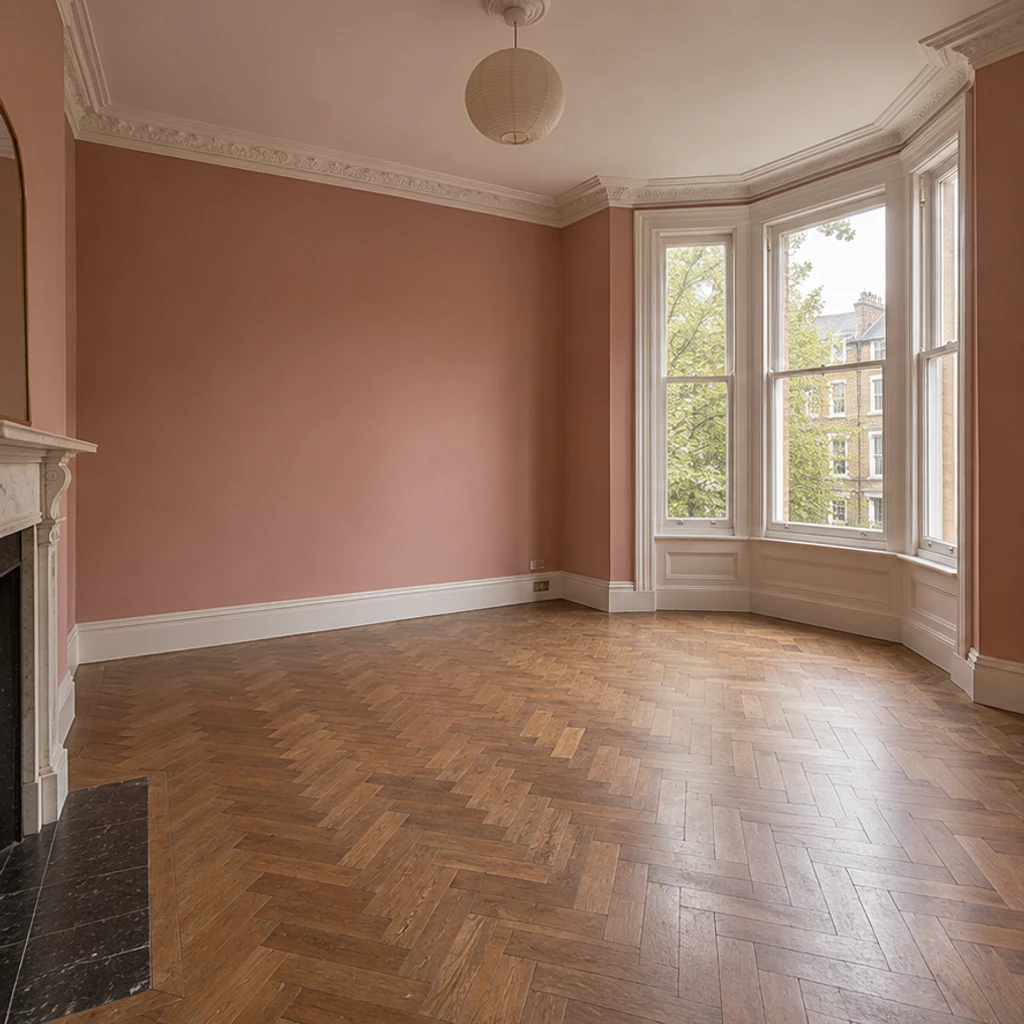
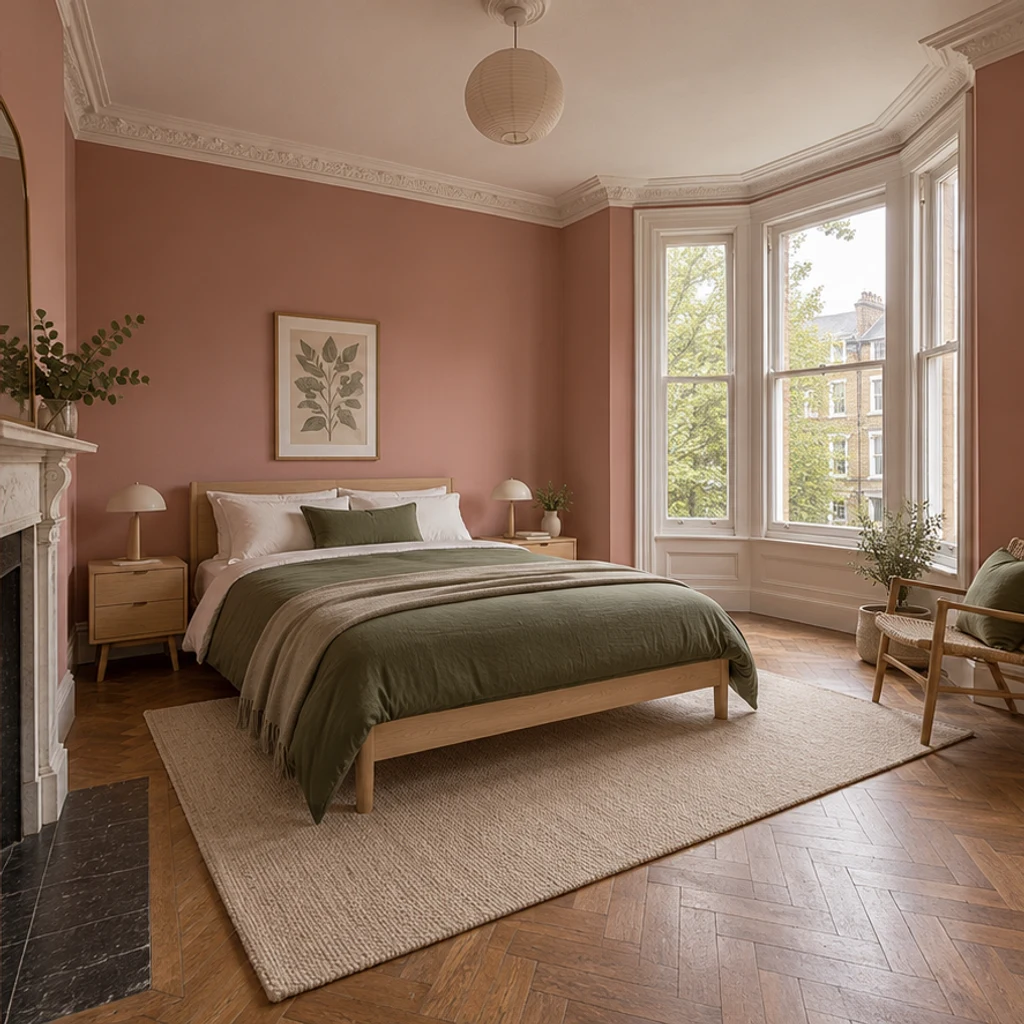
Explore a bed and bedside-table arrangement. Check the bed’s size against the window, door and floor.
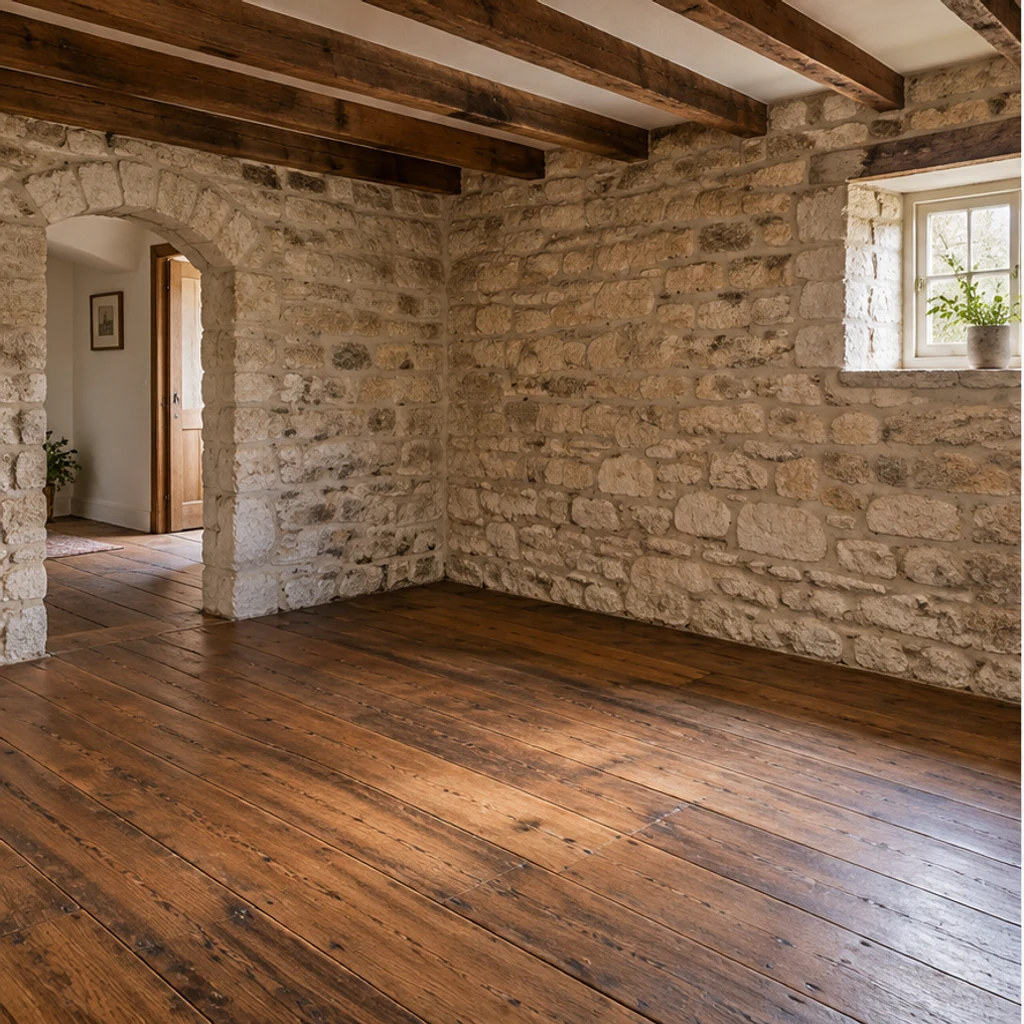
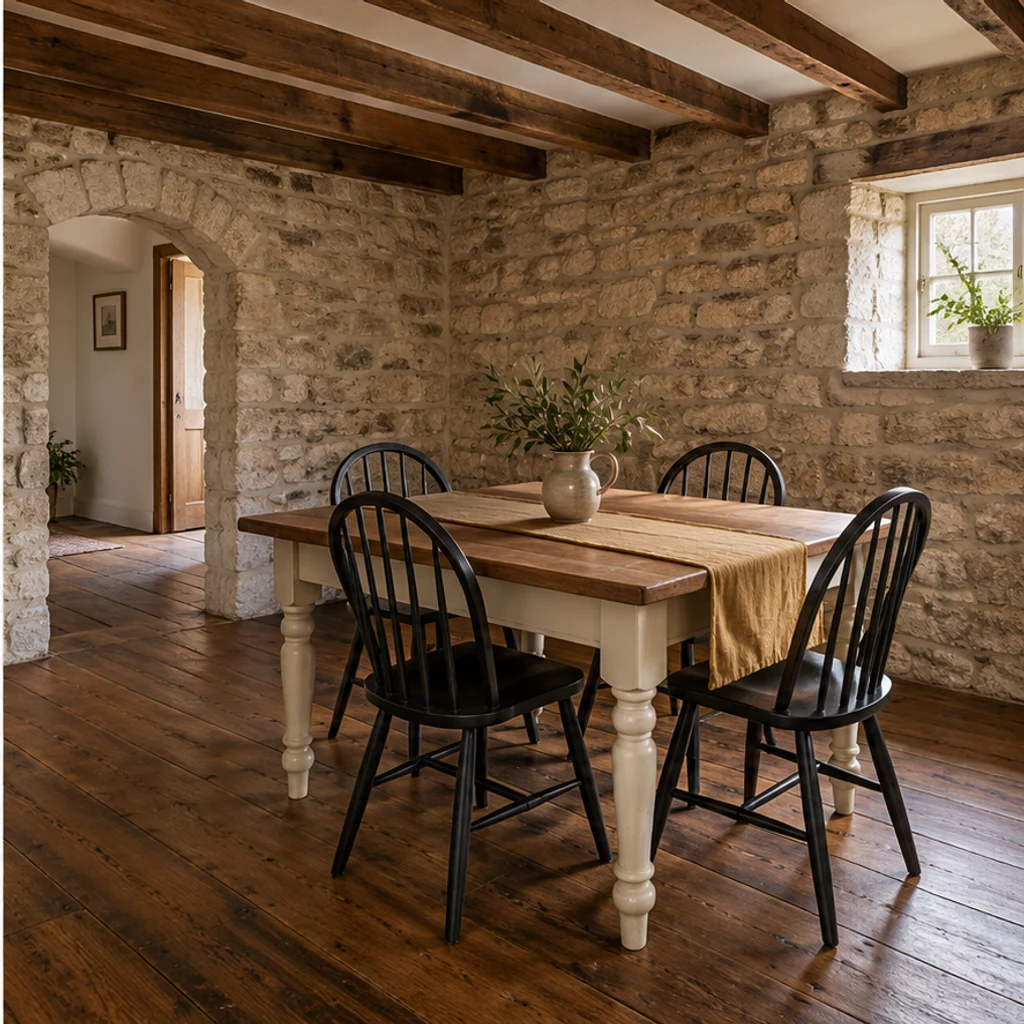
Visualize a dining table and chairs. Leave enough space for chairs and access around the table.
The edit is instructed to preserve the room, but AI can change details. Compare every result with the original photo.
AI virtual staging uses image editing to add digital furniture to a room photo. It produces a furnishing concept, not physical furniture or a measured design.
Virtual staging furnishes a photograph. Physical home staging places furniture in the property, so the furnished room is also present during a visit.
It can help explain how an empty room could be used. It does not repair the property, prove furniture will fit, or guarantee more inquiries or a faster sale.
Review the credits shown in the tool and the current pricing plans. Selecting a room, style or sample does not spend credits; each generation does.
Add furniture to an empty room photo. Choose from 5 room types and 8 furniture styles, then review and download the staged image.
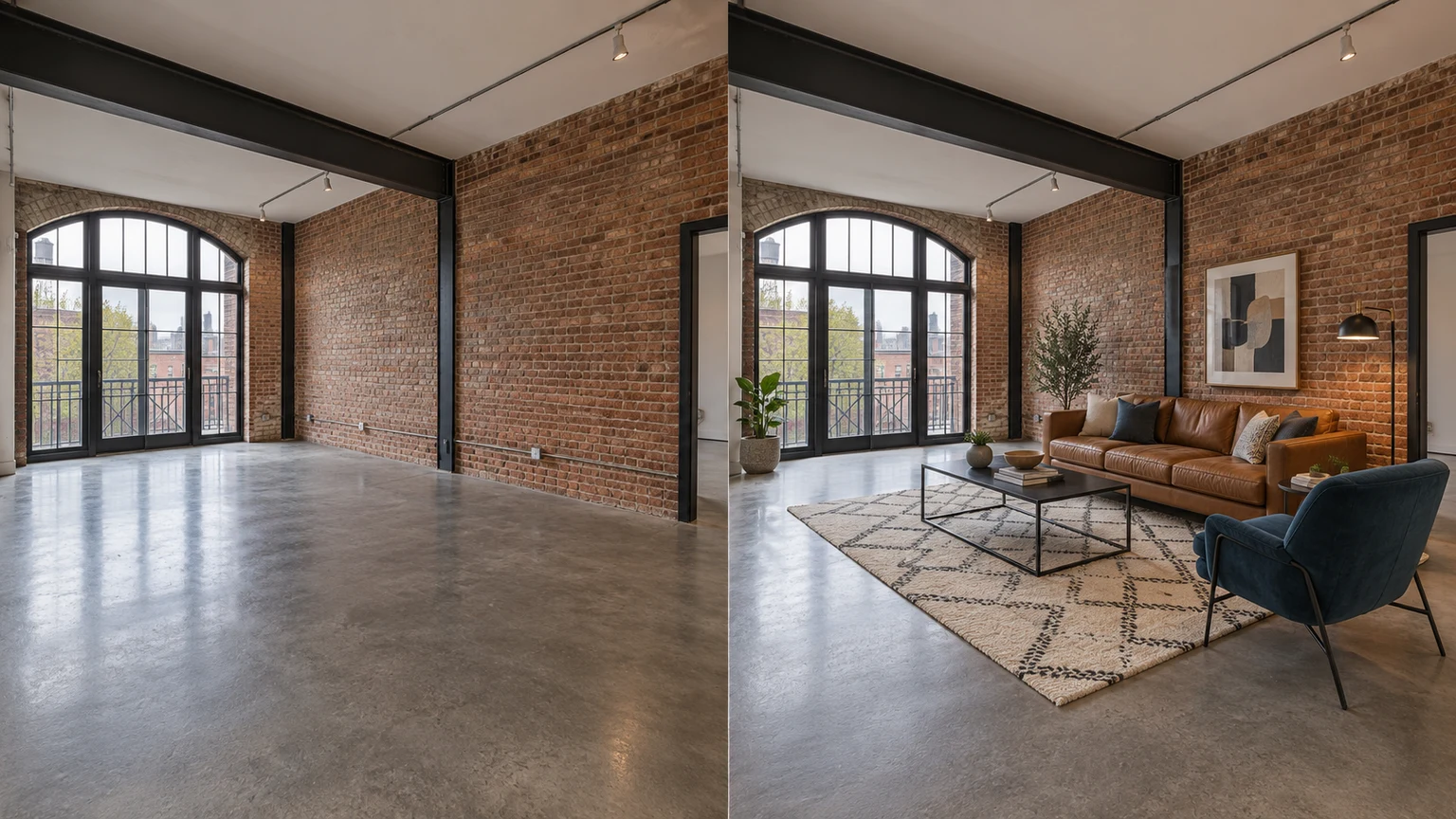
Add furniture to an empty room photo. Choose from 5 room types and 8 furniture styles, then review and download the staged image.
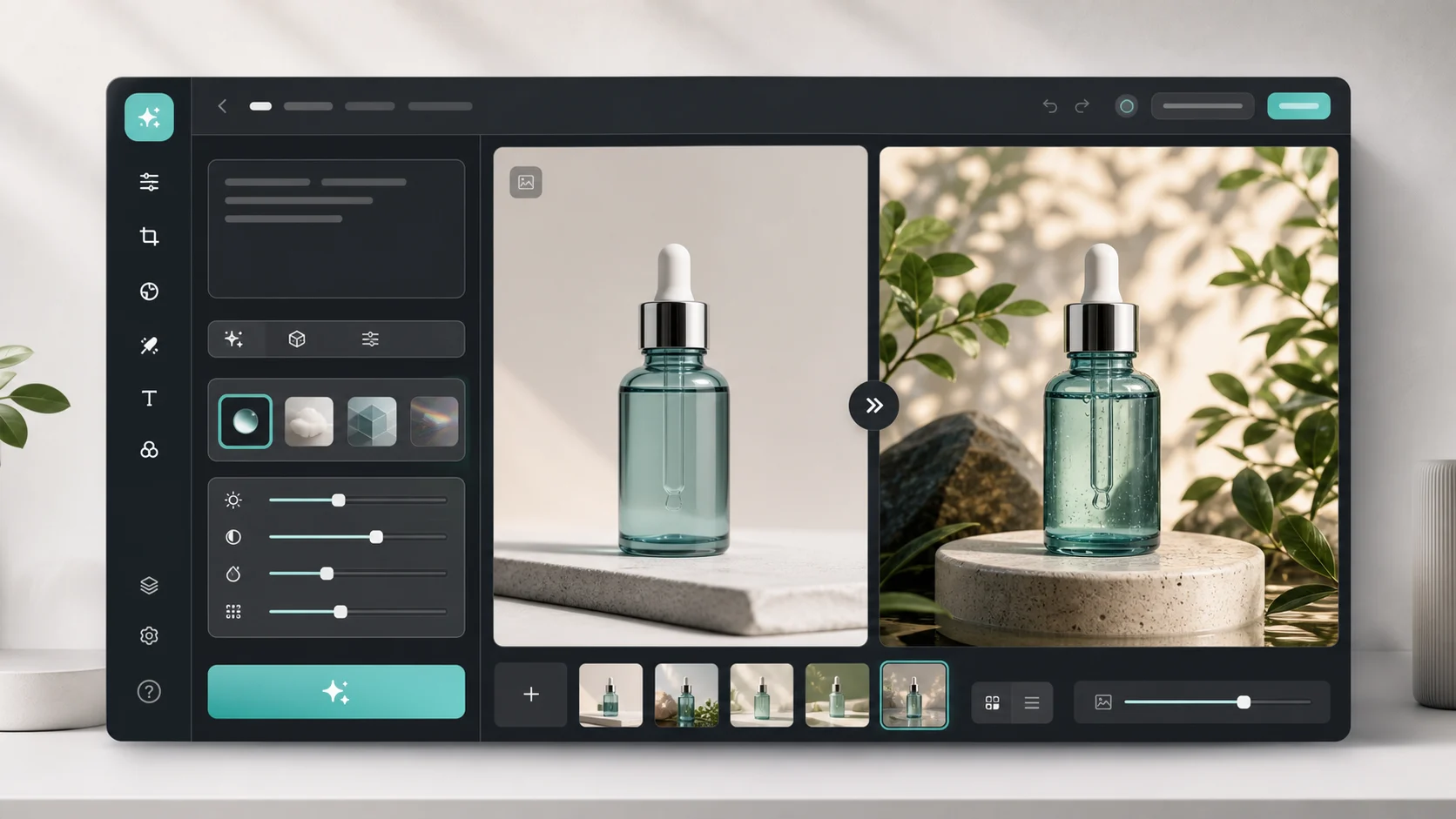
Upload an image, describe the edit, and create polished visuals for products, social posts, posters, or keyframes.

Review credits and plans before generating.
Check the displayed credits before generating. Compare architecture, furniture scale and shadows with the original before downloading.