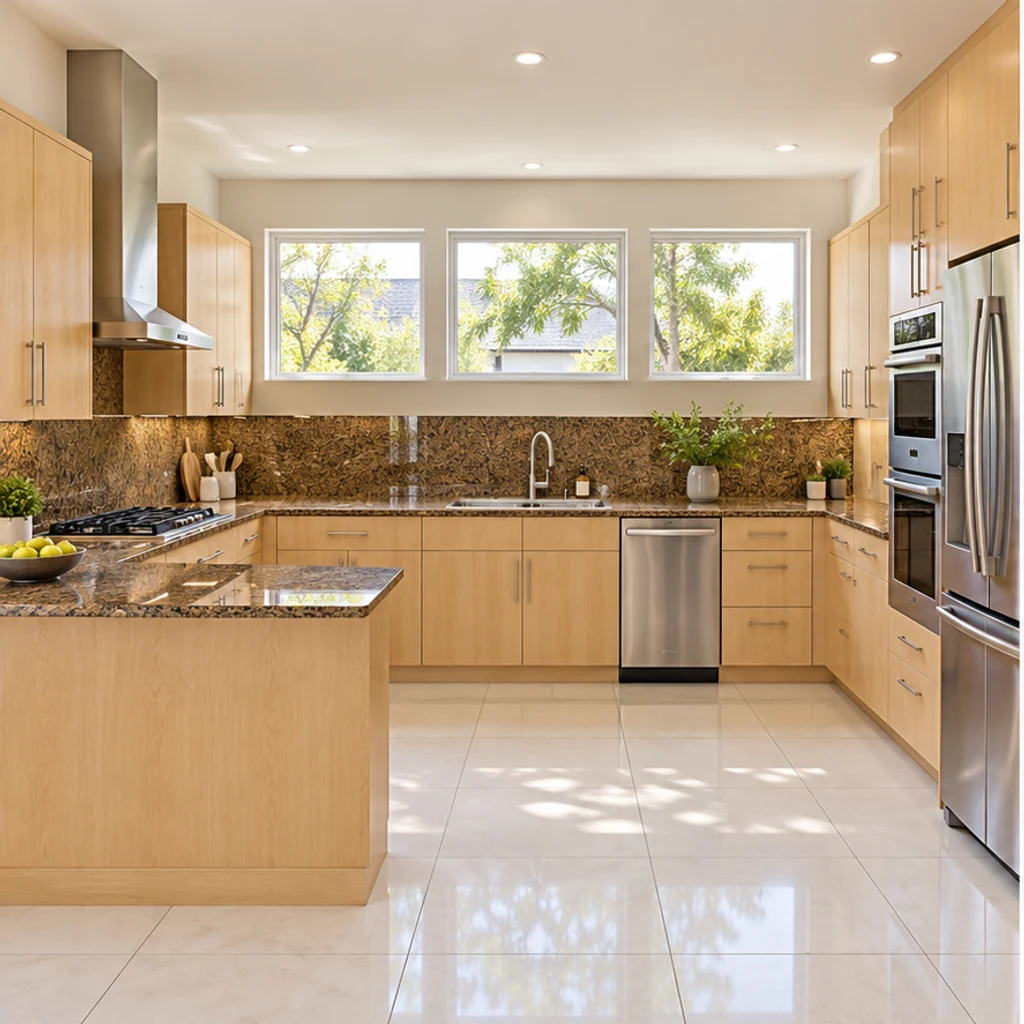
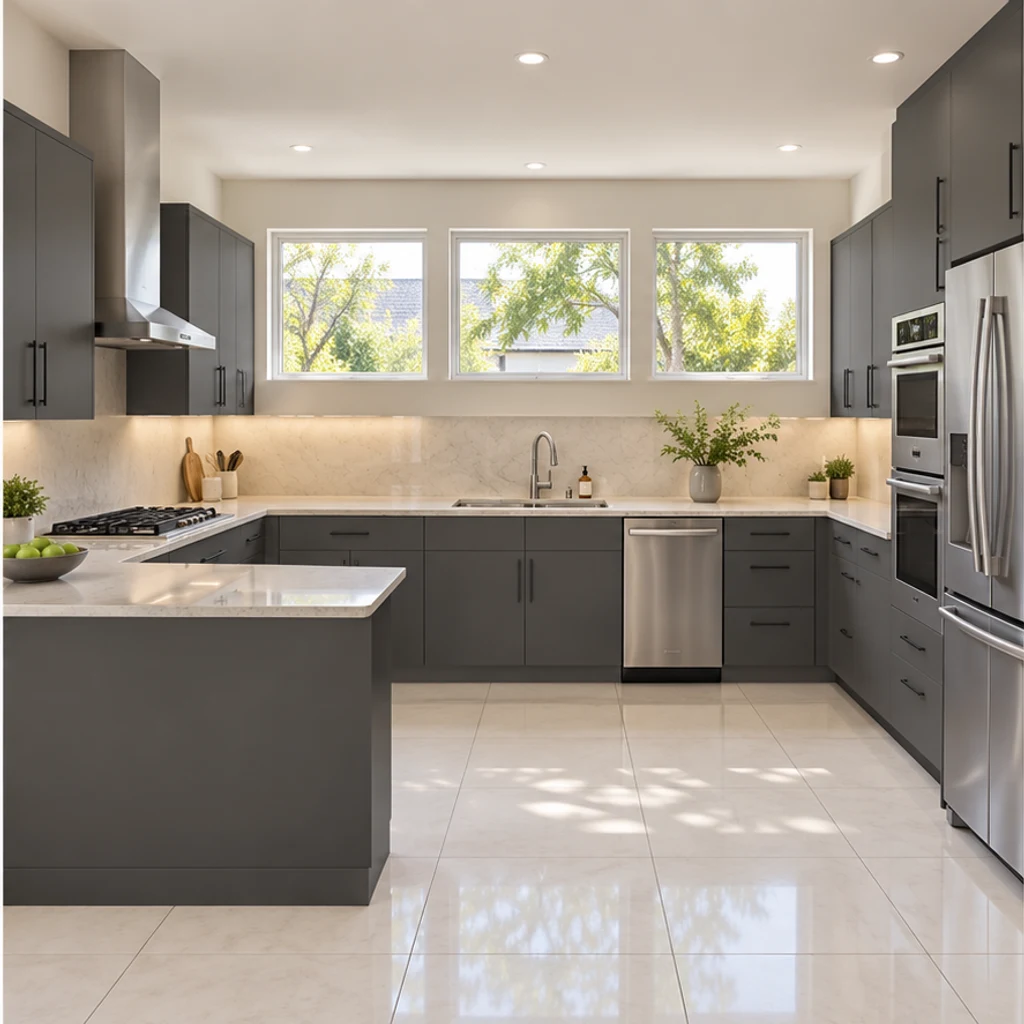
Modern graphite with pale counters
Load this exampleSlab fronts and a quiet backsplash give this peninsula kitchen a modern direction.
Create AI kitchen design ideas from your photo. Compare cabinet, countertop and backsplash finishes with 8 style references or your own instructions.
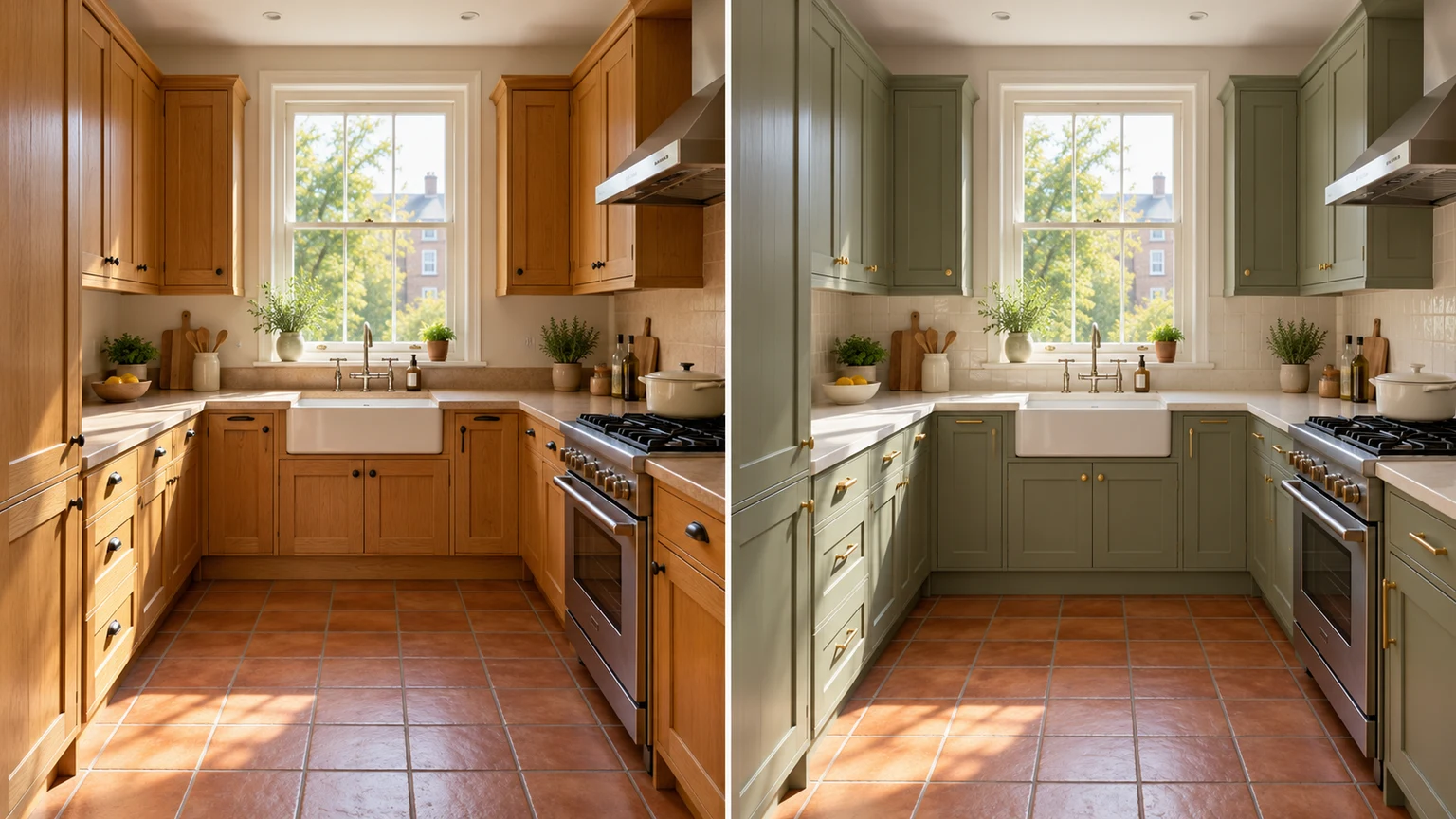
Try warm oak instead of cherry-red fronts while keeping the existing counters and cabinet arrangement.
Preview a cream stone direction against navy cabinetry. Ask to change only the countertop so the rest remains a useful comparison.
Explore green tile behind an unchanged walnut counter. Review the edges around outlets, cabinets and the window.
Try a coherent light palette in a compact kitchenette. Keep the original cabinet count, appliances and room footprint.
Explore kitchen finish ideas with these AI-generated illustrations. Choose an example to load its original photo and style reference.
Slab fronts and a quiet backsplash give this peninsula kitchen a modern direction.
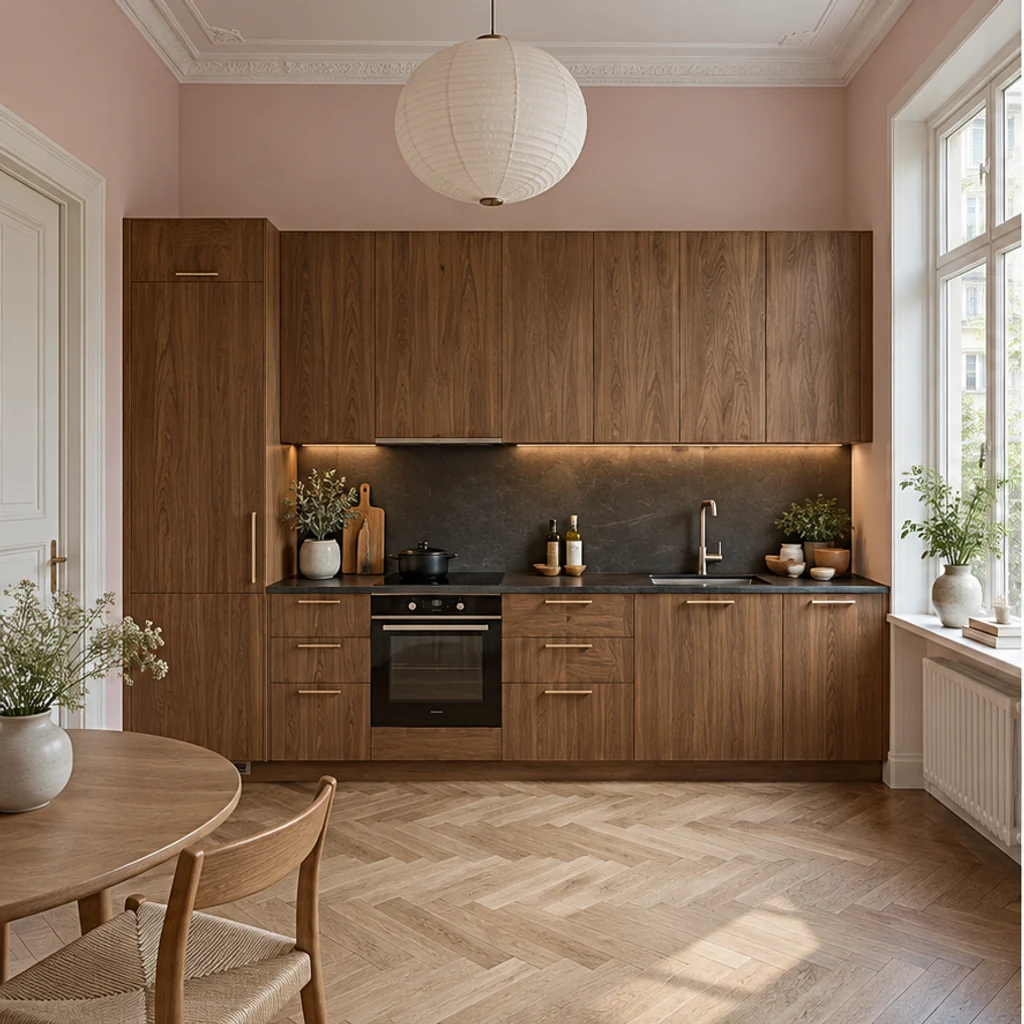
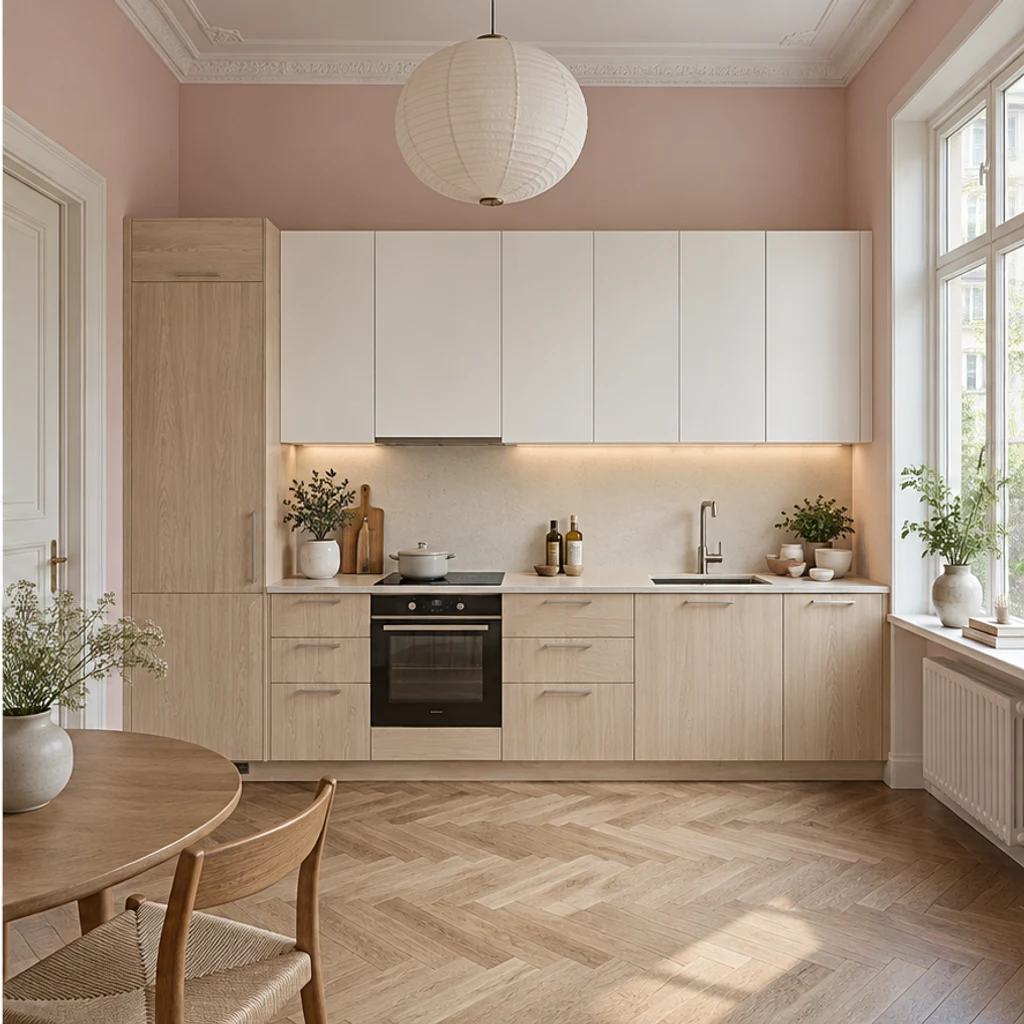
Light wood and white fronts soften this tall one-wall kitchen while the pink walls stay.
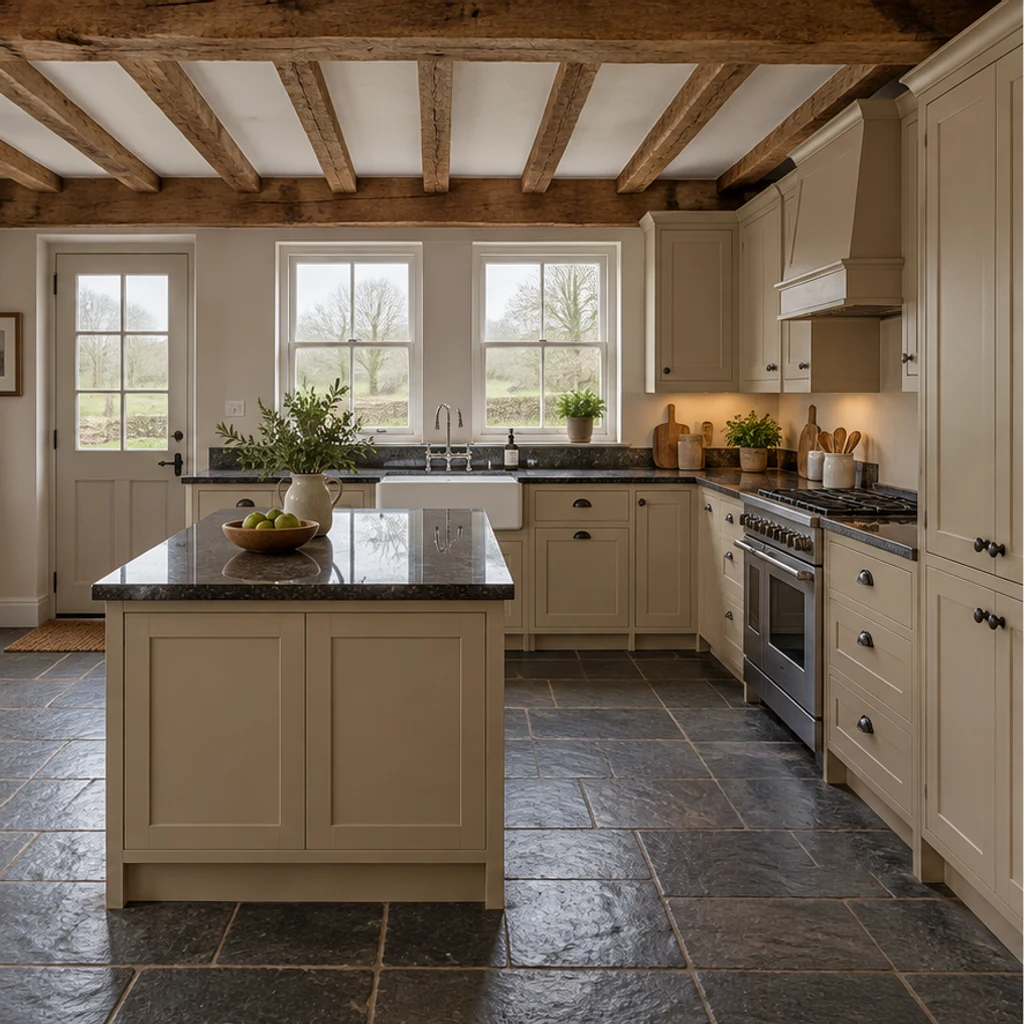
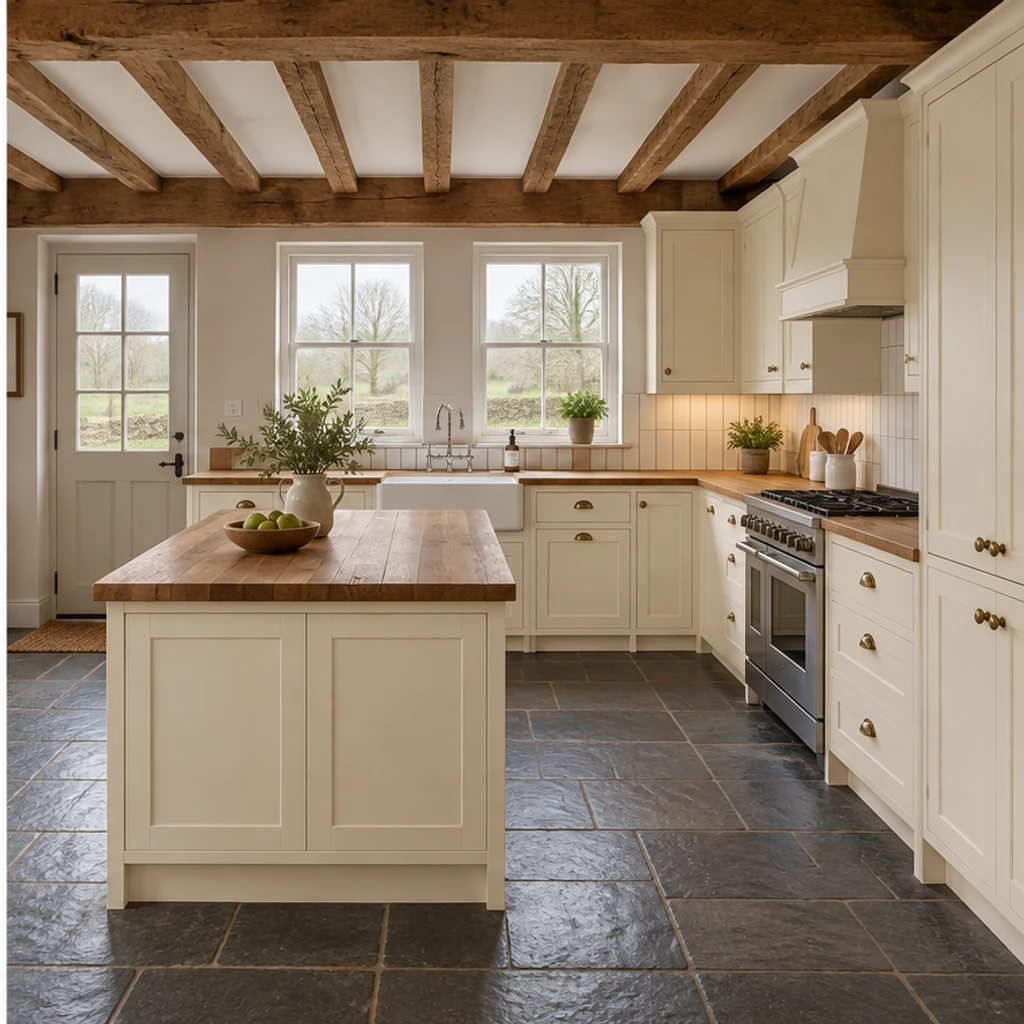
Cream cabinetry and a wood-counter direction work with this rural kitchen's existing beams.
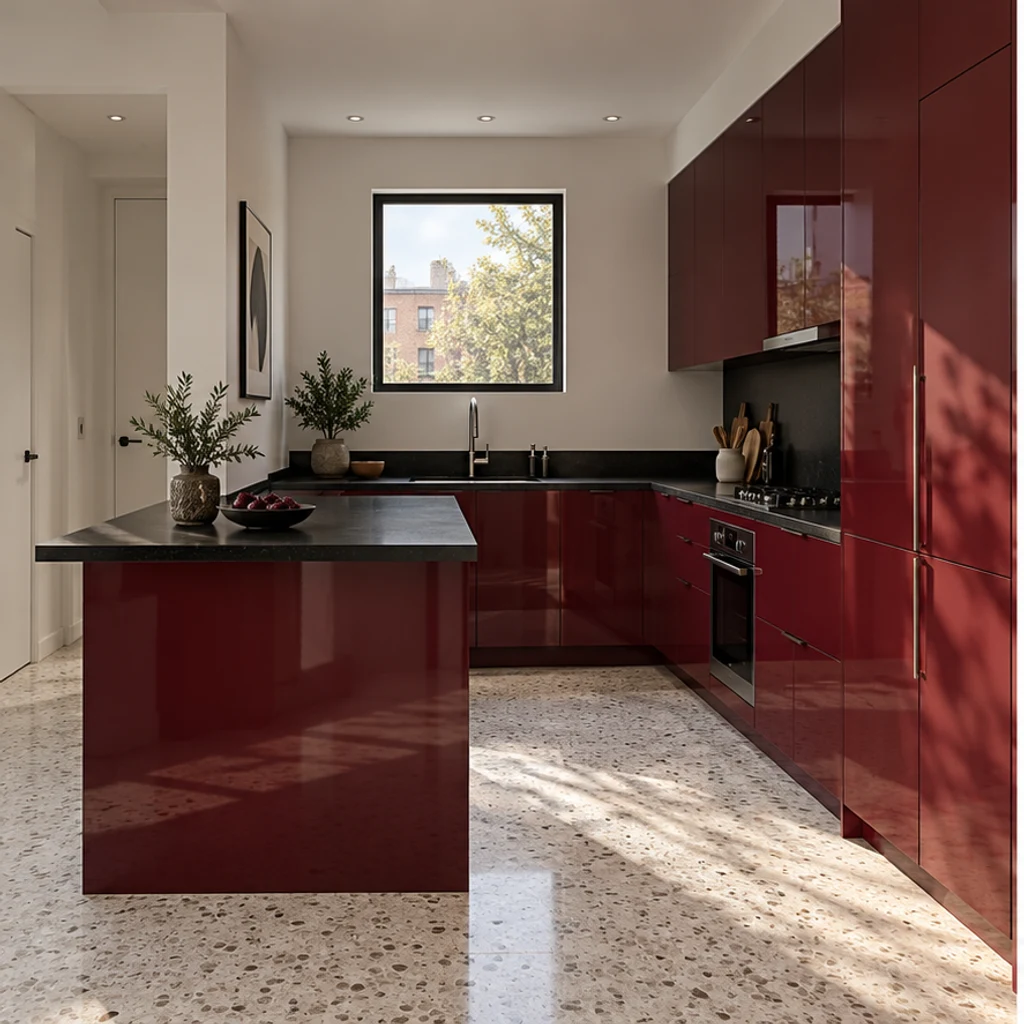
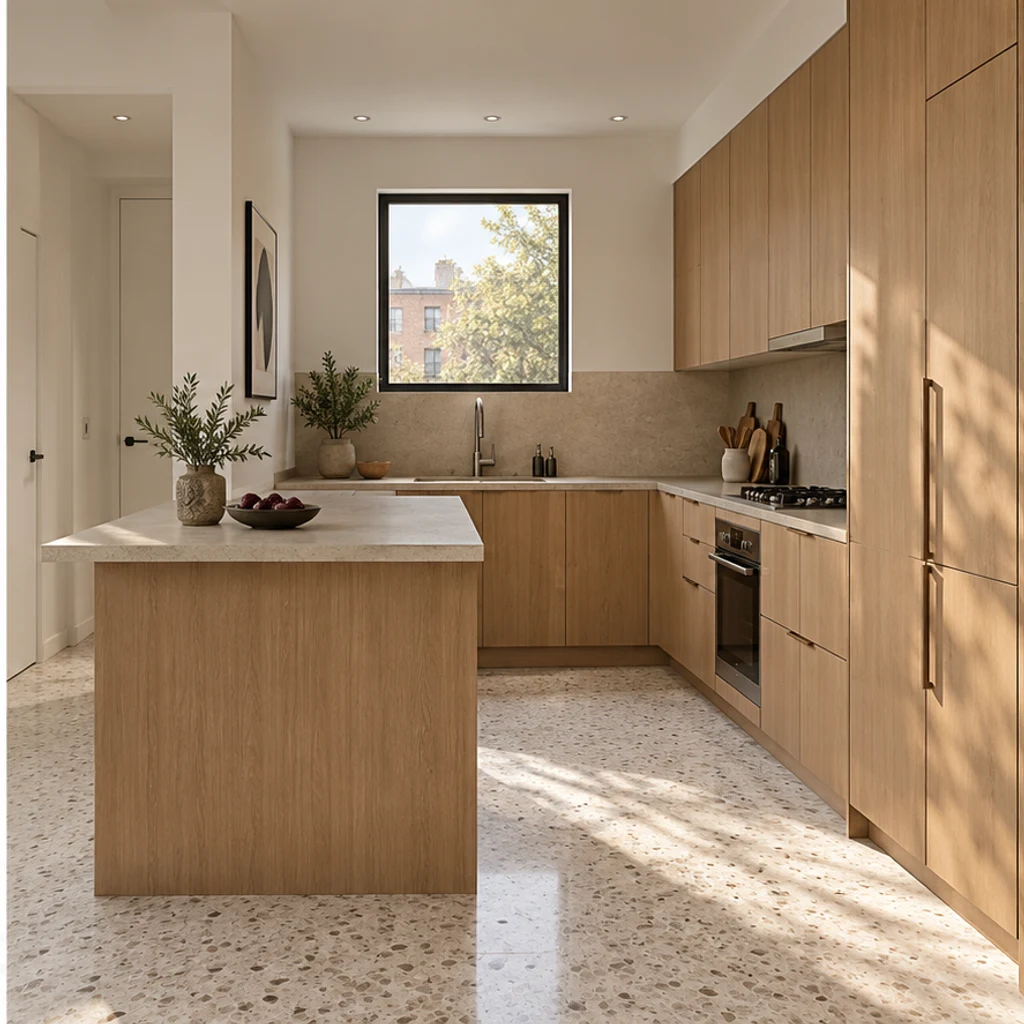
Low-contrast oak and sand finishes bring a restrained palette to a compact peninsula.
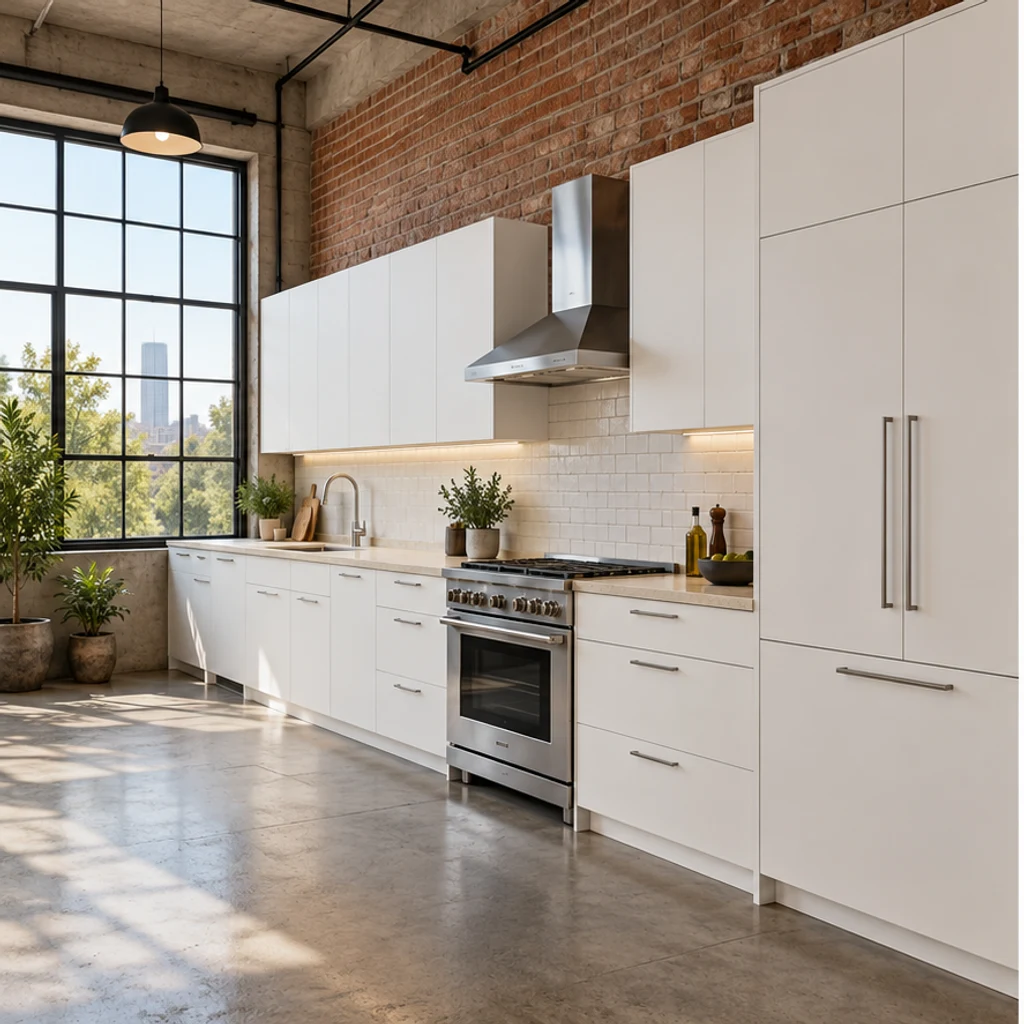
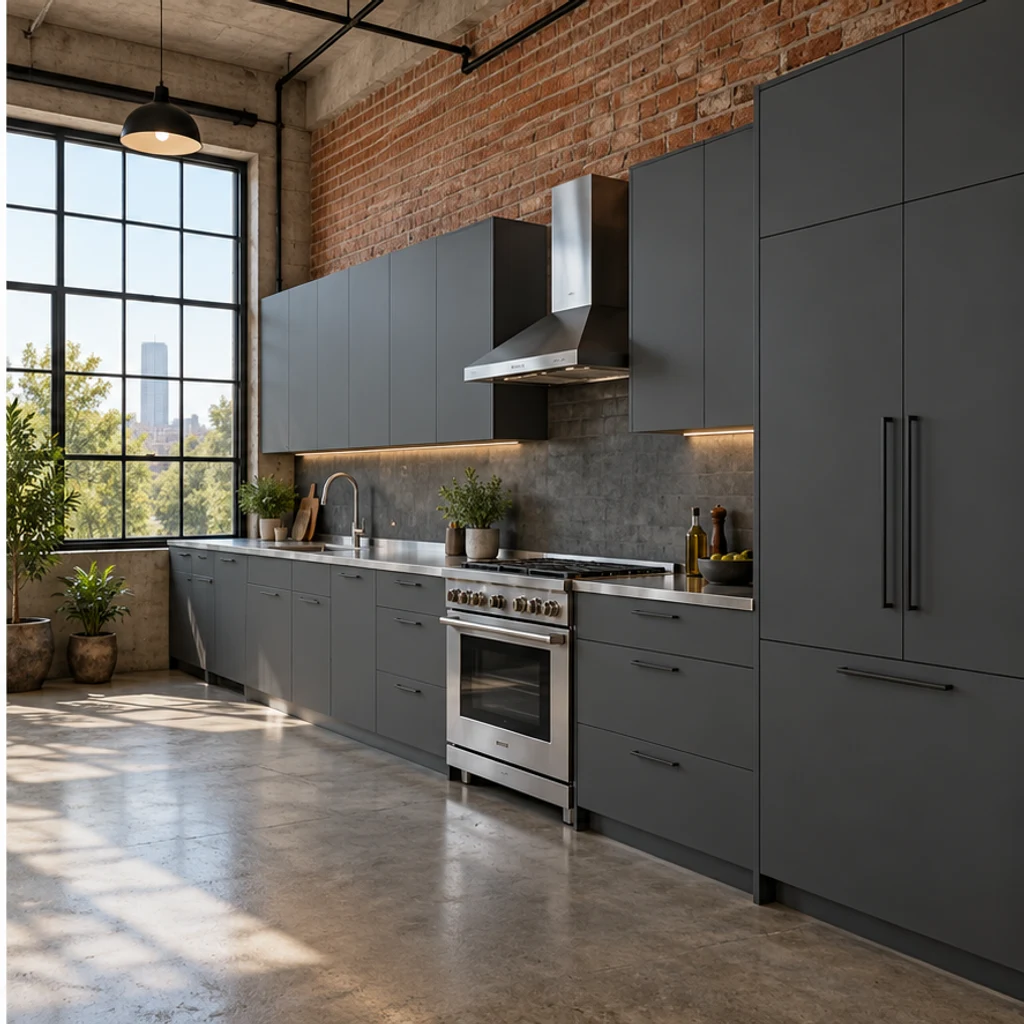
Dark fronts and a metal-counter direction sit beside the original exposed brick.
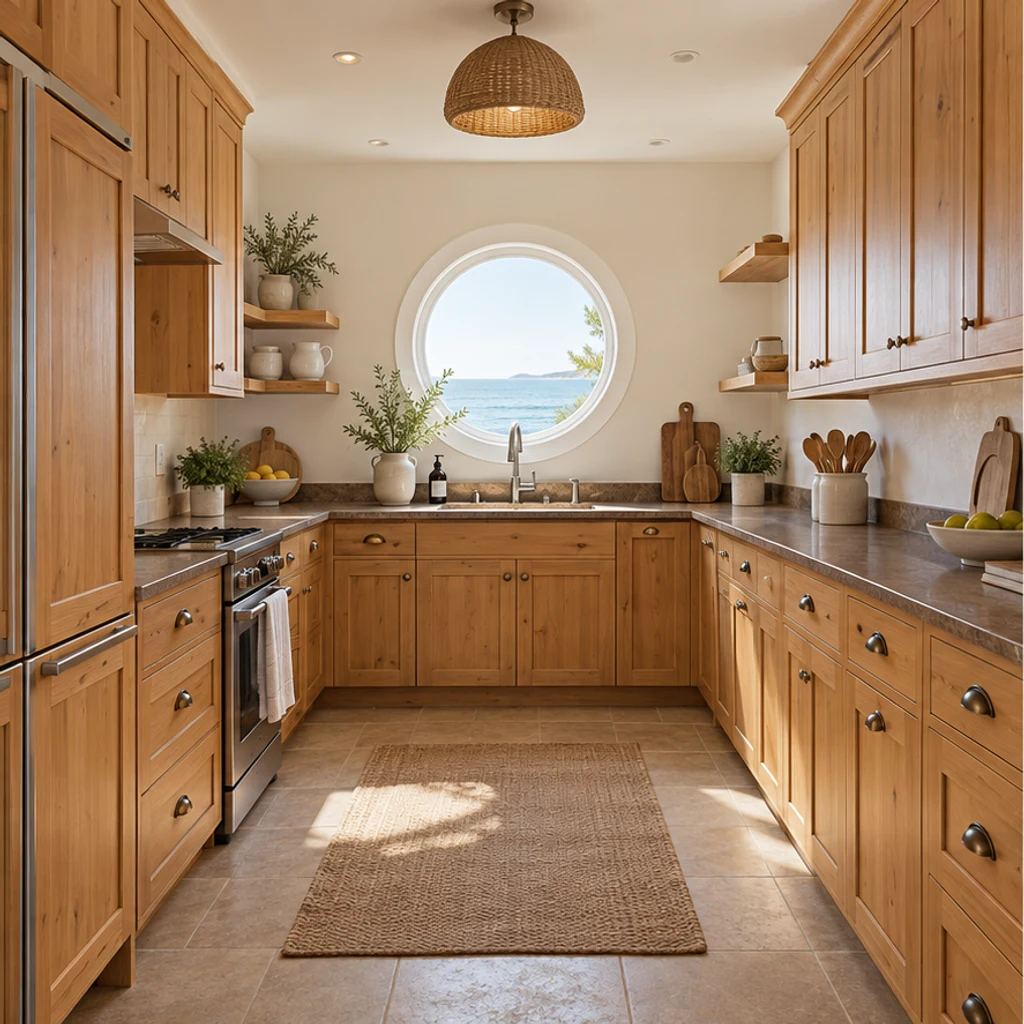
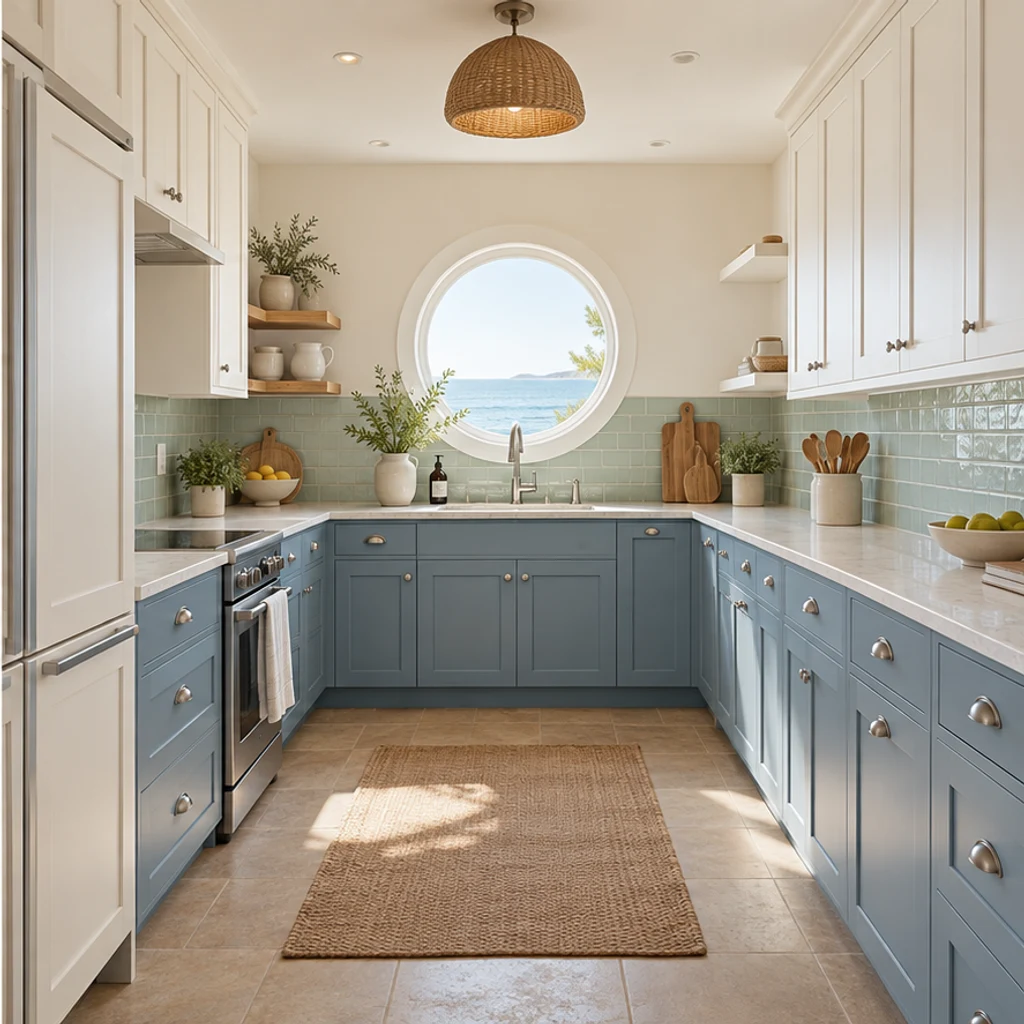
Dusty-blue cabinets and pale green tiles introduce a coastal palette around the round window.
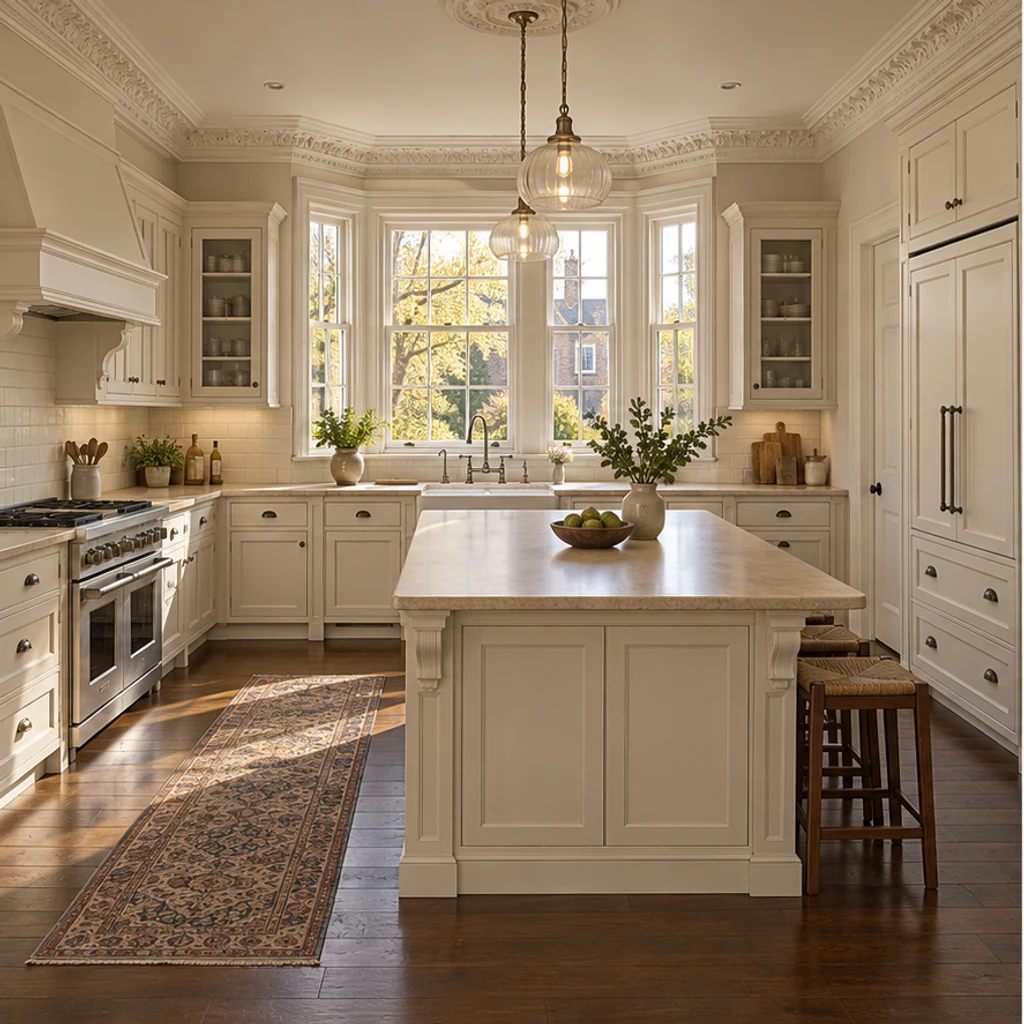
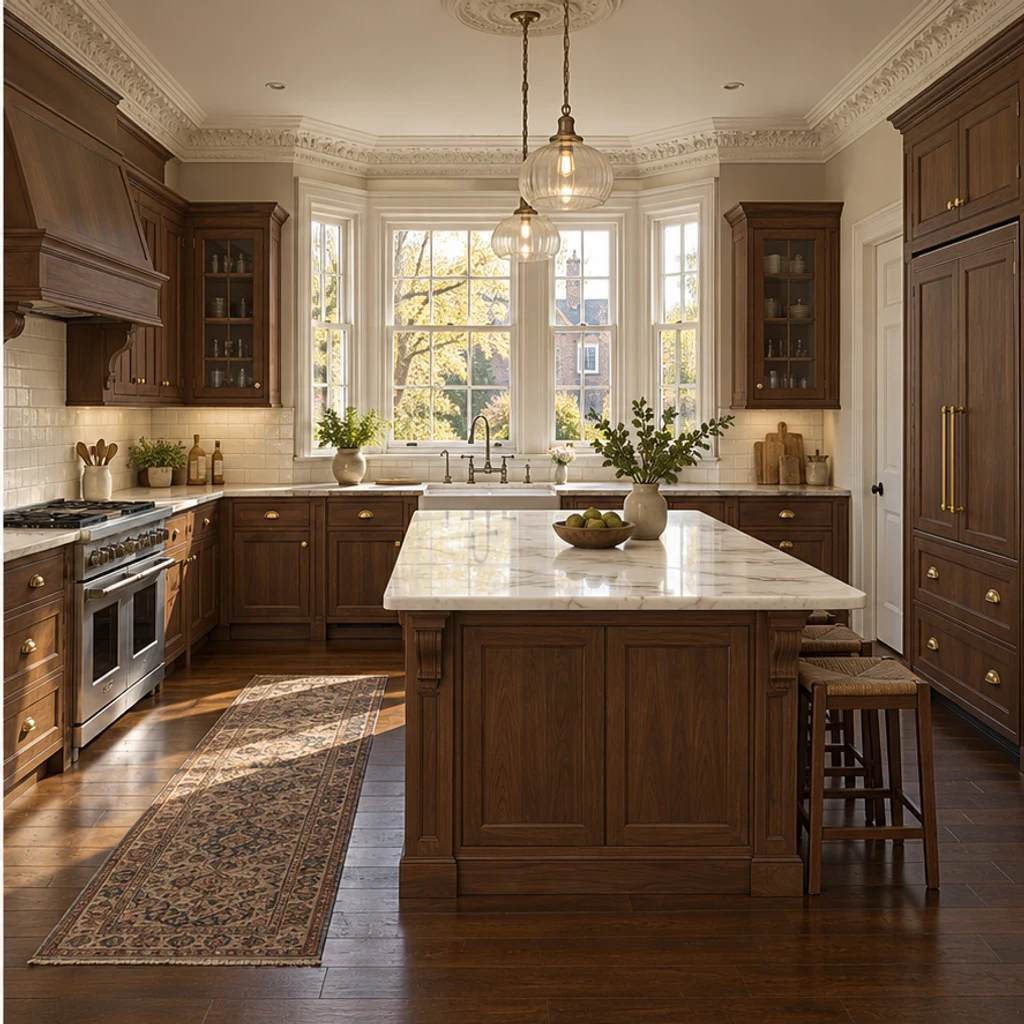
Warm walnut and subtle stone bring a classic finish direction to an island kitchen.
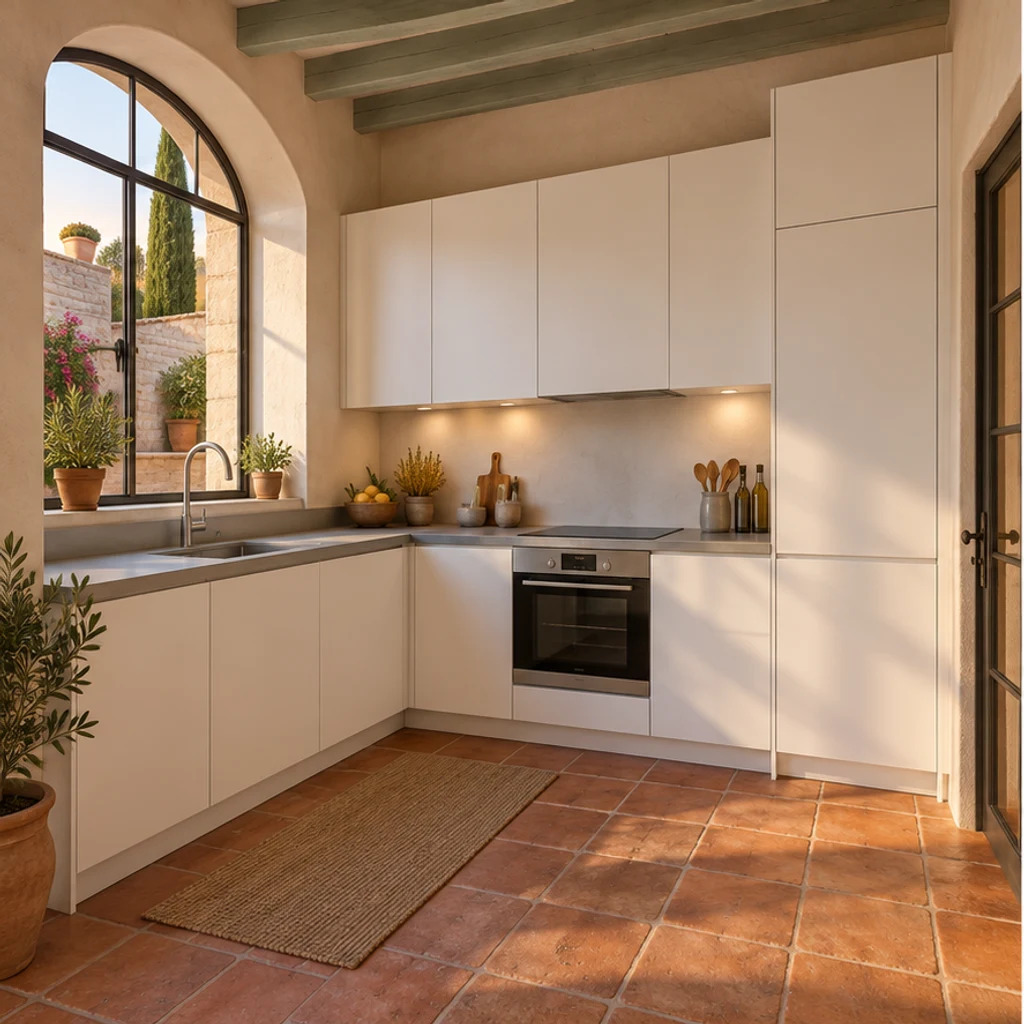
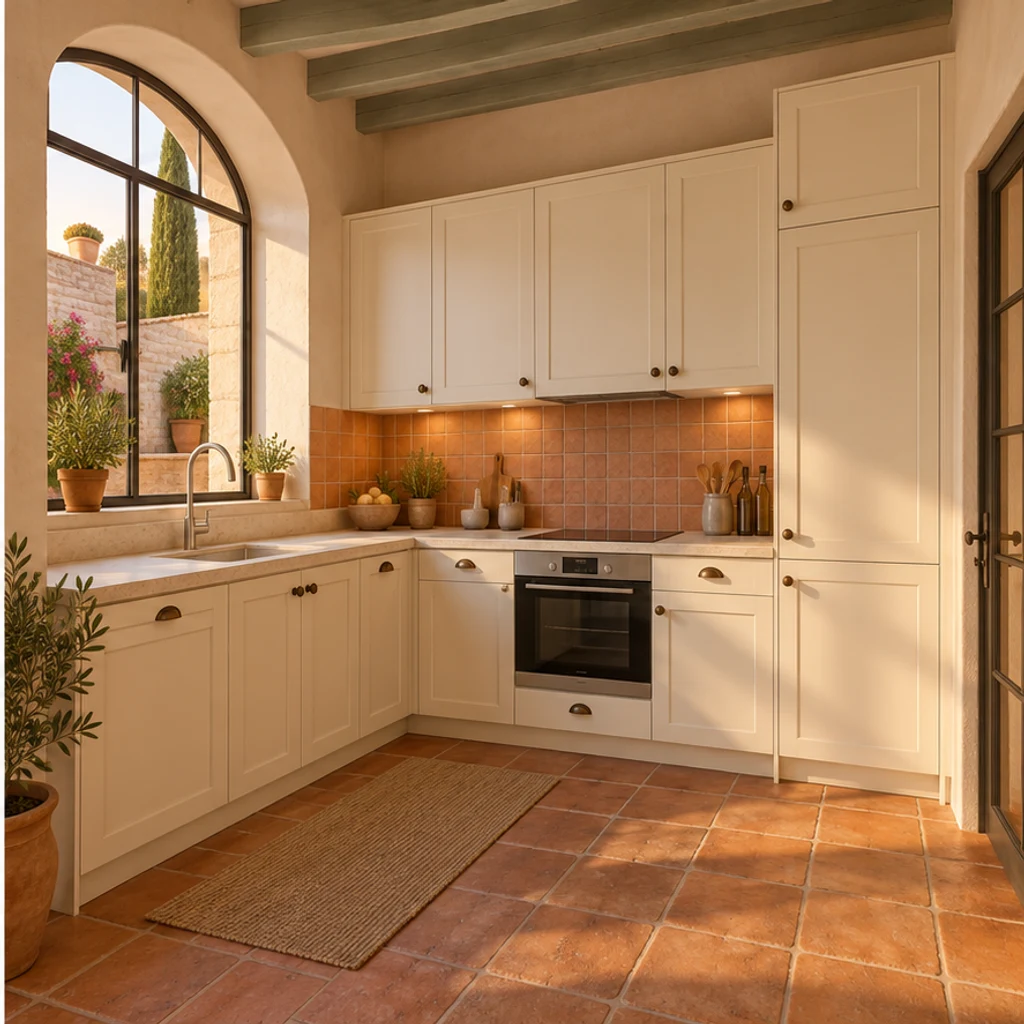
Earthy backsplash colors complement the existing arched window and terracotta floor.
Choose a clear, level photo showing the surfaces you want to change. Include windows, cabinets, counters and appliances; avoid heavy filters and extreme wide-angle distortion.
Select one of 8 kitchen style images, upload your own reference instead, or describe the changes in Edit instructions. Name the surfaces that must stay unchanged.
Generate a concept, compare it with the original, and check cabinet divisions, sink location and window edges. Refine your instructions and keep useful variants in your generation history.
A convincing image is a starting point for comparison. Review the room structure first, then decide which finish combinations deserve a physical sample.
Check that windows, sink, appliances and cabinet divisions are still in their original positions.
A new floor or altered lighting can make cabinet comparisons misleading.
Screen colors and generated grain do not identify an exact paint, stone slab or tile product.
A photo cannot establish dimensions, clearances, wiring, plumbing or structural feasibility.
AI can help you compare visual finish ideas from a photo. Use it to narrow cabinet colors, material directions and combinations, then validate the choices with real samples and measured plans.
No. Upload your kitchen photo and write instructions, or generate a restrained warm-neutral refresh with only the original photo. Templates are optional and can be removed.
Yes. The selected style image is sent alongside your kitchen photo. Uploading your own reference replaces the template source. The reference guides finishes; your original supplies the room layout.
Yes. Name the target surface in Edit instructions and say what to retain. For example: change only the cabinet fronts to muted olive; keep the countertop, backsplash, floor and appliances unchanged.
This tool focuses on surface and style previews with the existing layout retained. It does not produce measured plans, CAD drawings or construction-ready specifications. Review outputs for unintended geometry changes.
LumiYing uses credits for generation. Check the cost shown on Generate and the current pricing page. Loading an example only fills the inputs; it does not generate an image or spend credits.
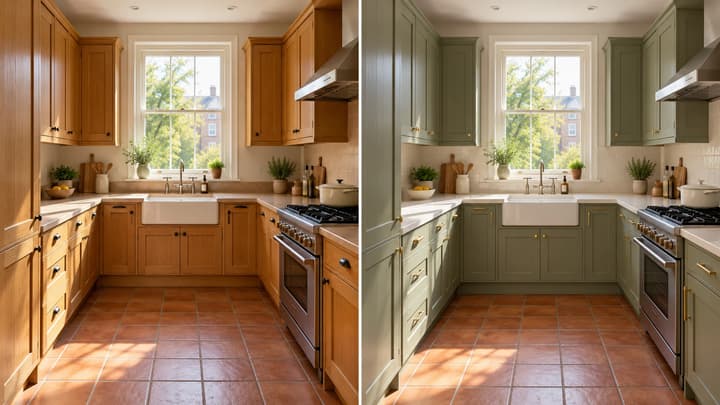
Learn how to use AI kitchen design from a photo: choose a reference, write finish-specific instructions and compare results before selecting real materials.
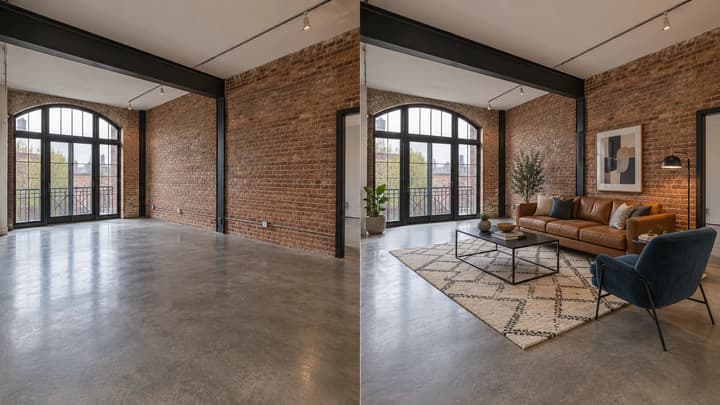
Add furniture to an empty room photo. Choose from 5 room types and 8 furniture styles, then review and download the staged image.

Change the direction and mood of light in a photo while keeping the subject, composition, text, and product details under review.
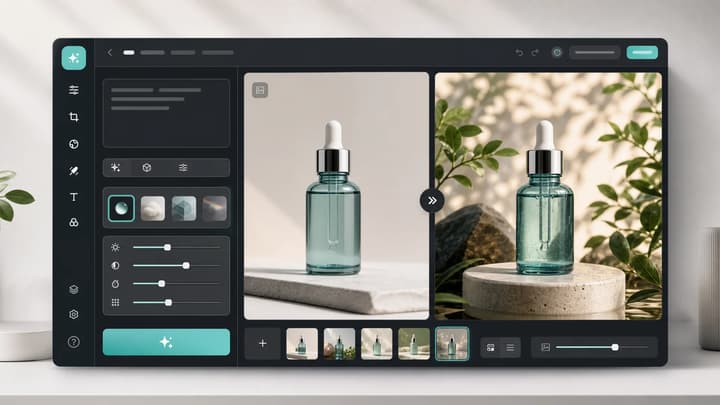
Upload an image, describe the edit, and create polished visuals for products, social posts, posters, or keyframes.
Review credits and plans before generating.
Create AI kitchen design ideas from your photo. Compare cabinet, countertop and backsplash finishes with 8 style references or your own instructions.