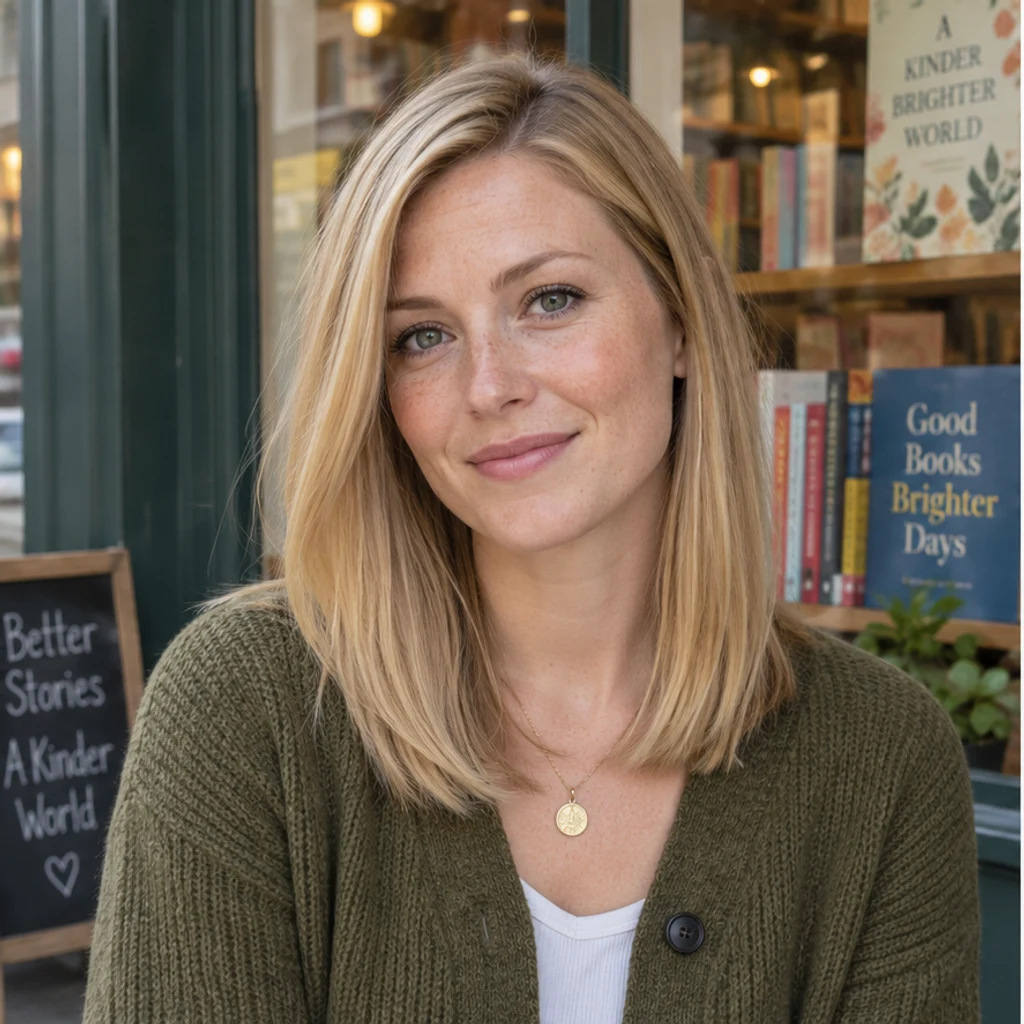
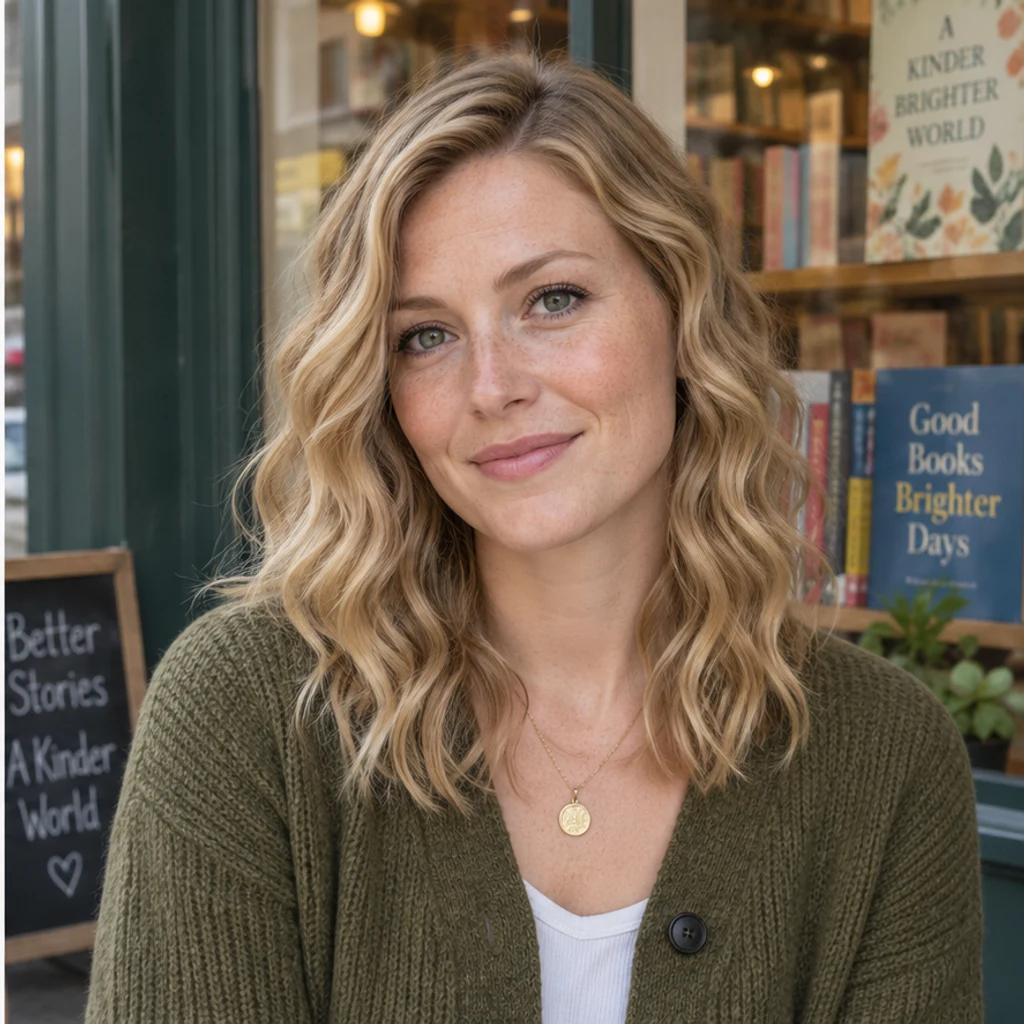
Soft waves · bookshop
Try this styleGentle S-waves begin near the blonde roots.
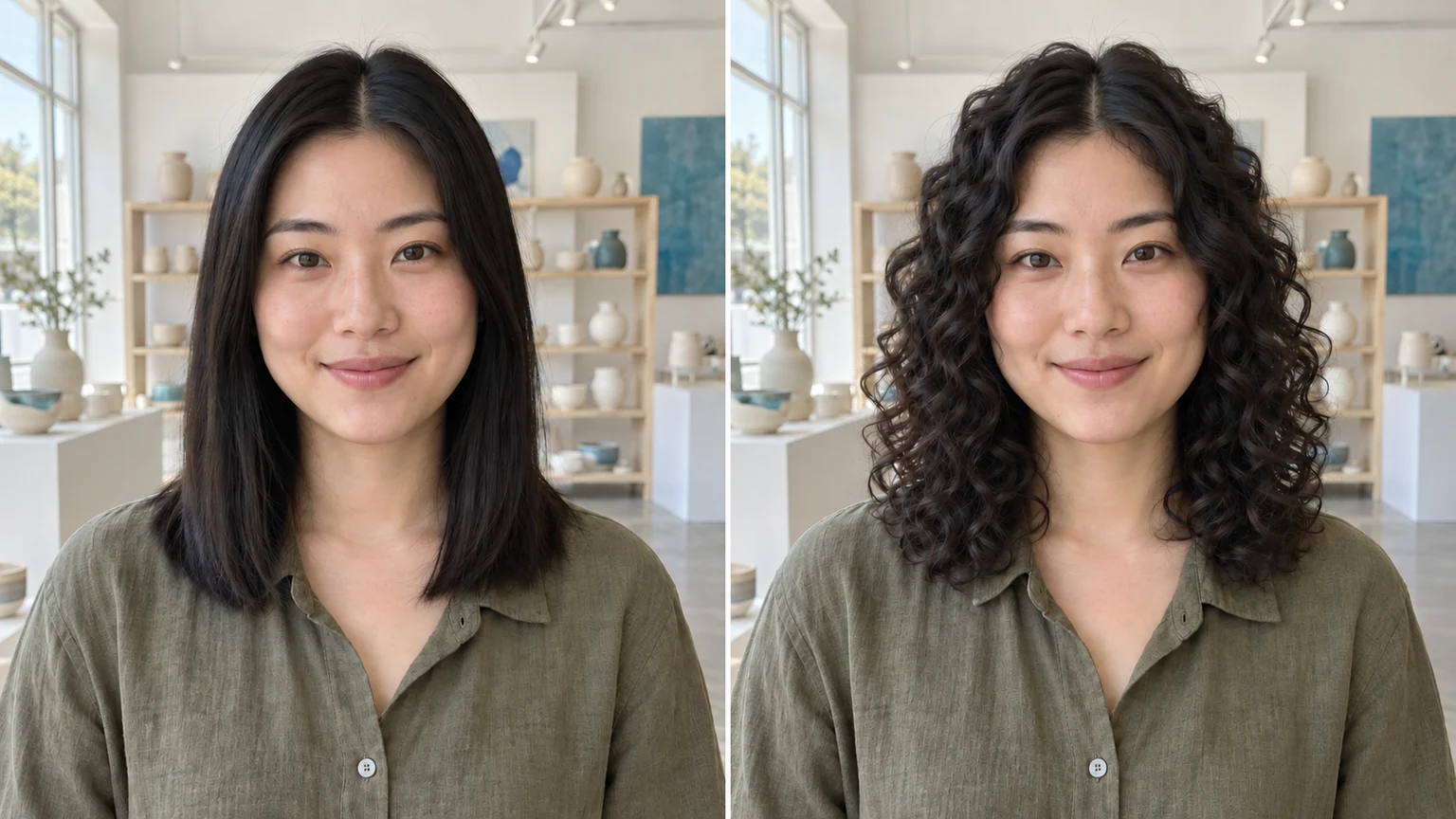
Use the same clear portrait to compare a few curl patterns. Start with the roots, then follow the curl through the lengths and ends. Check your original color, hairline and face before judging the overall shape. A photo preview explores an appearance; it cannot predict the result of a real perm.
LumiYingUpdated
See what you would look like with curly hair. Prepare a clear photo, compare curl patterns and check roots, length, volume and your original face.
Use a clear portrait with the whole hair silhouette and hairline visible. Front or slight three-quarter views with even light are useful. Upload one JPEG, PNG or WebP up to 30 MB.
Select one of eight image cards, upload a reference or describe curls in Edit instructions. Templates start unselected, can be removed and are alternatives to an uploaded reference. At least one active style, reference or written instruction is needed.
Review the displayed credits, then Generate one image. Check roots, curl continuity, color, face and scene. Re-edit restores your inputs. Loading an example only fills the form and does not generate or spend credits.
Compare roots, curl continuity, color, apparent length, volume and your face at full size. Keep the original for every attempt; adjust the curl request with Re-edit, then download a preview you want to keep.
Start with one photo and your original hair color. Change the curl direction before combining it with other edits.
Explore curl ideas with these AI-generated illustrations. Choose an example to load its photo and curl settings.
Gentle S-waves begin near the blonde roots.
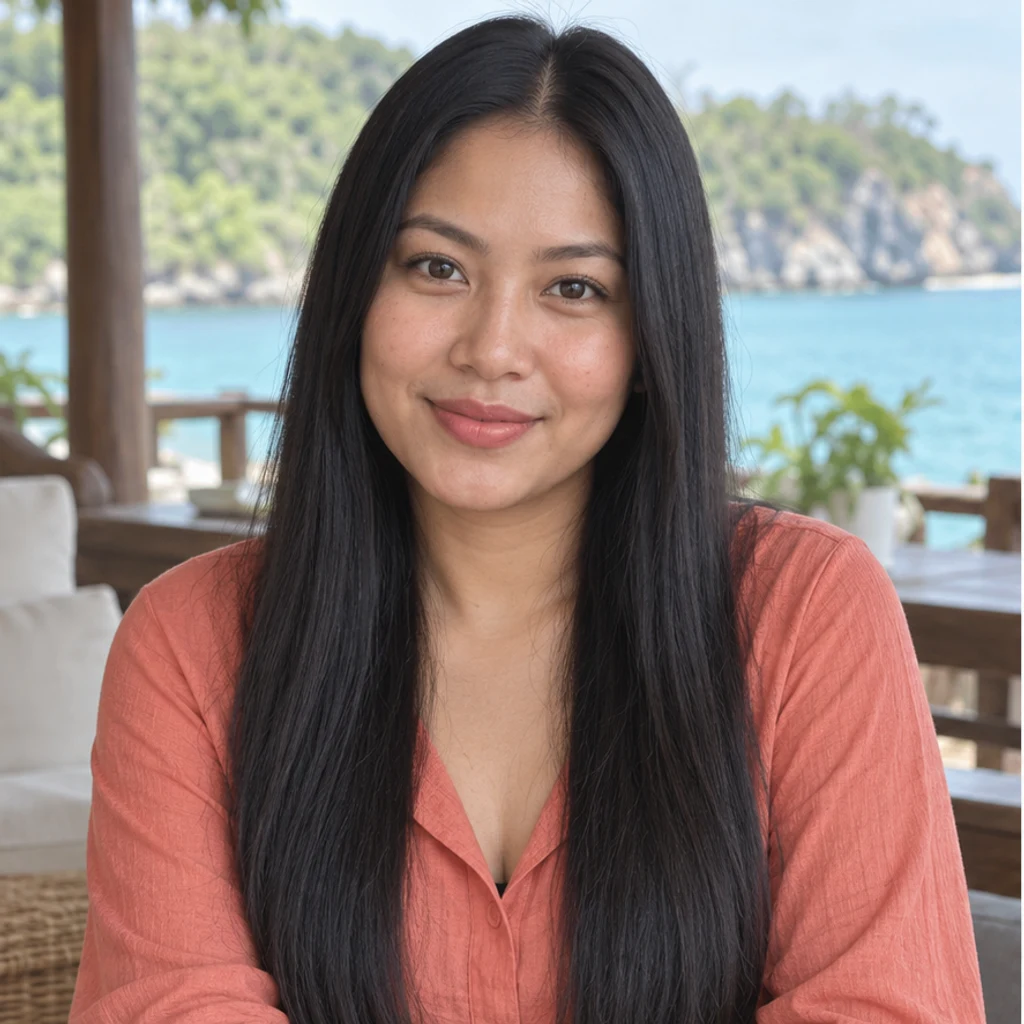
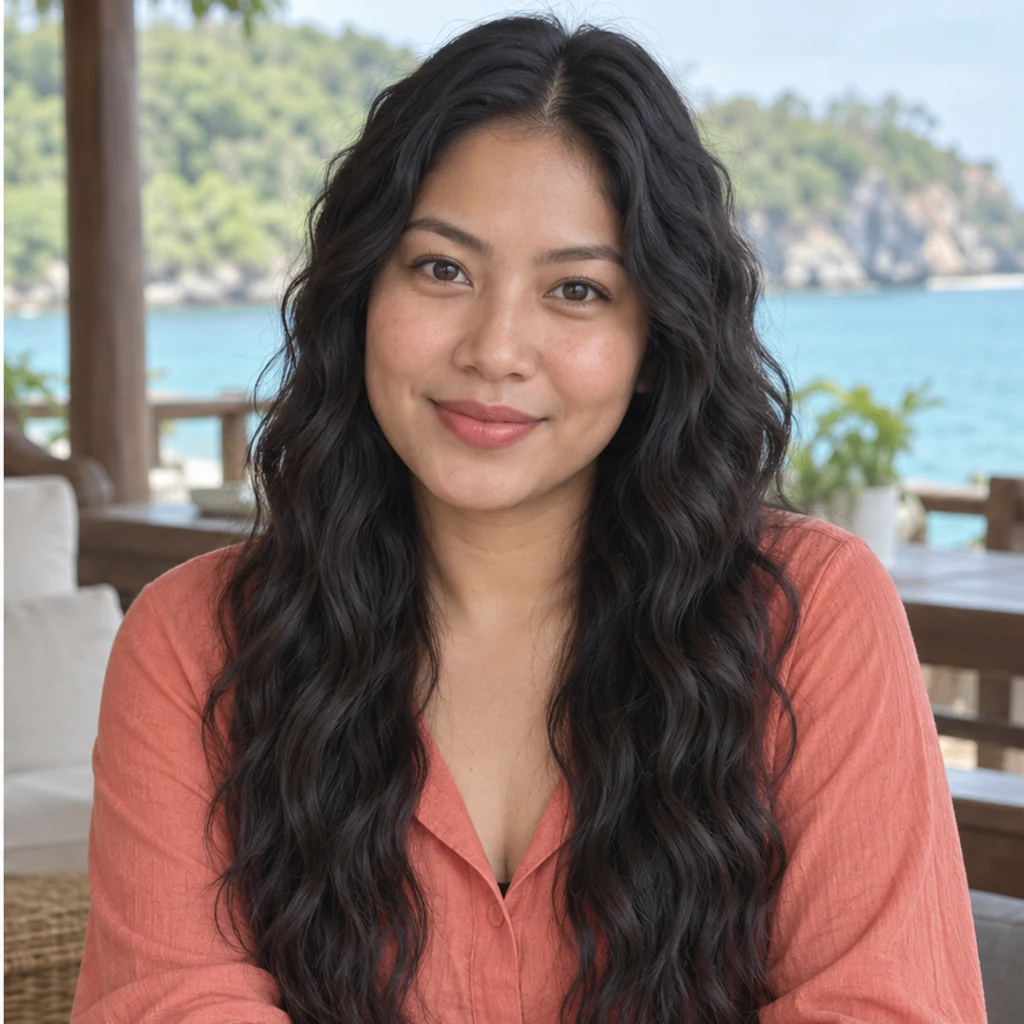
Relaxed waves continue from the black roots through the long hair.
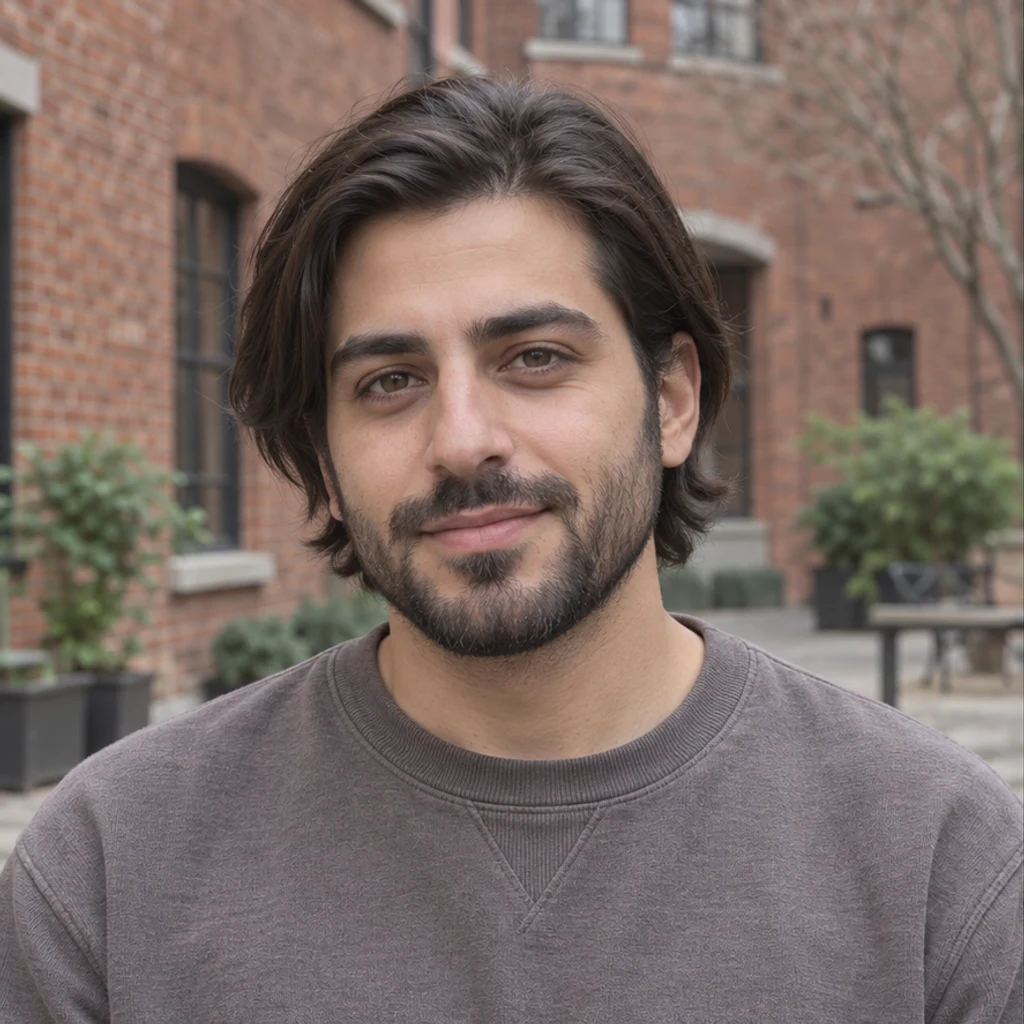
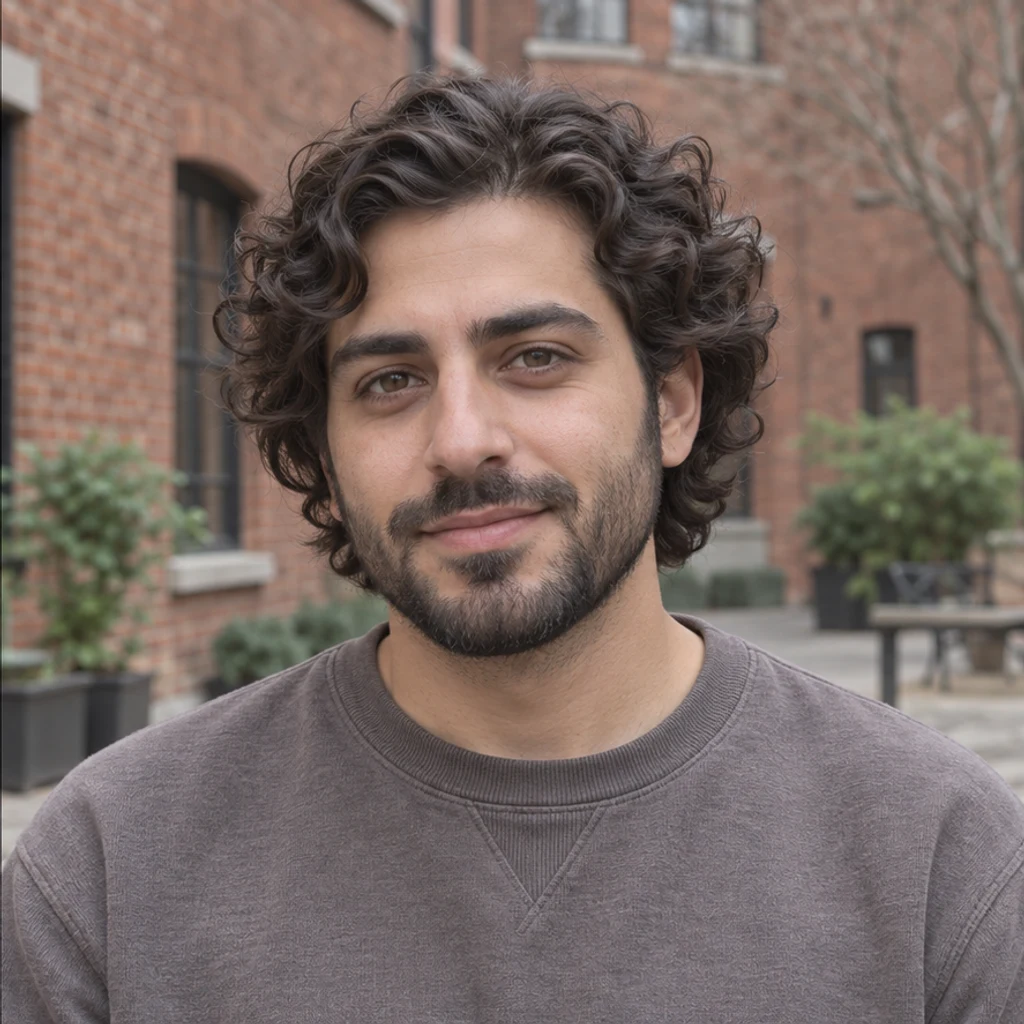
Large dark brown curls keep the man’s face and beard.
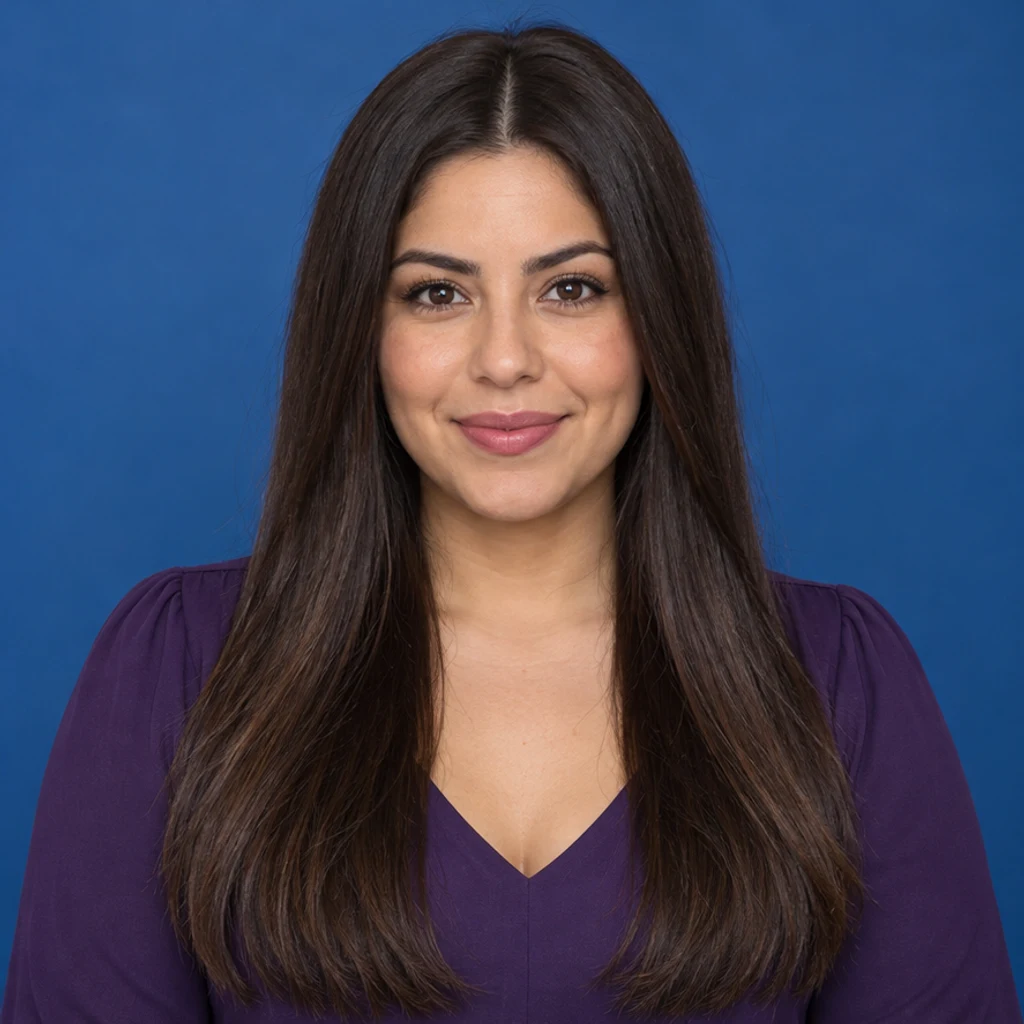
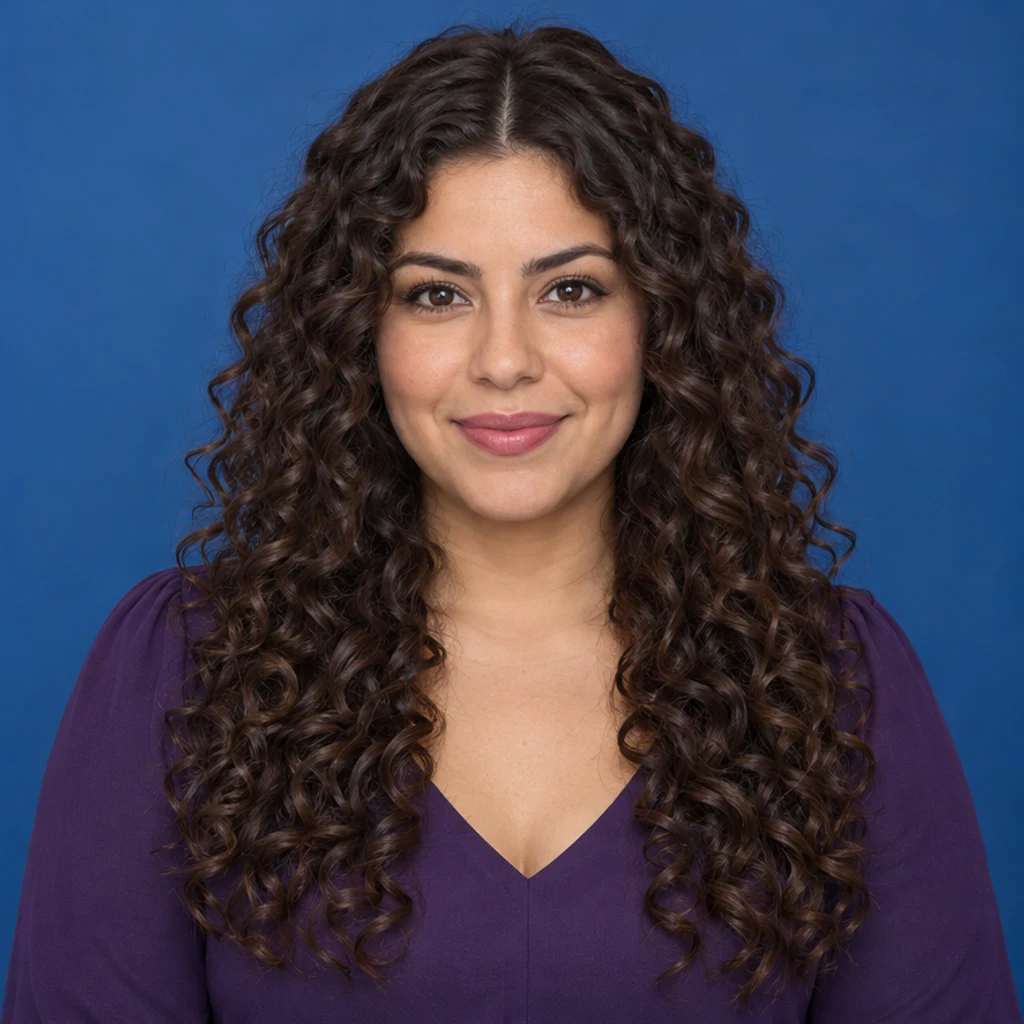
Defined chestnut spirals add shape from the crown down.
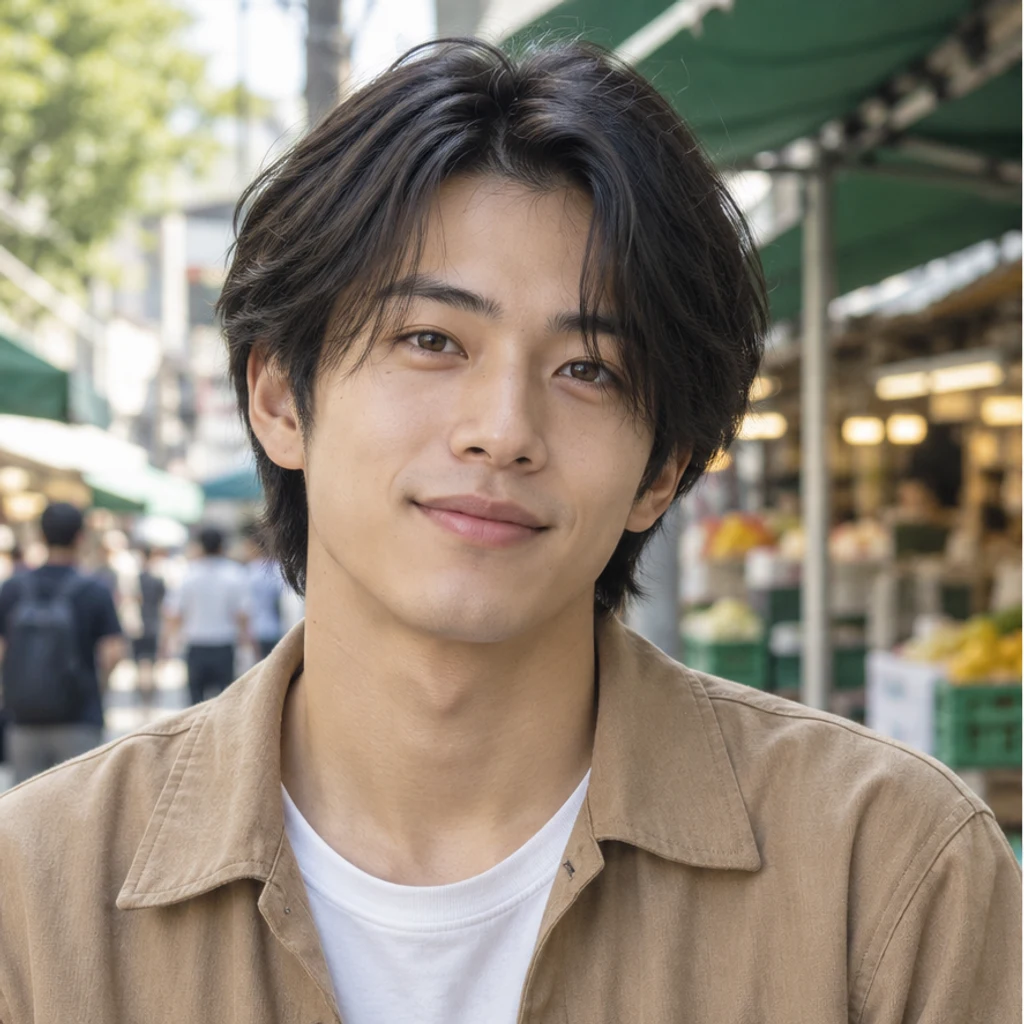
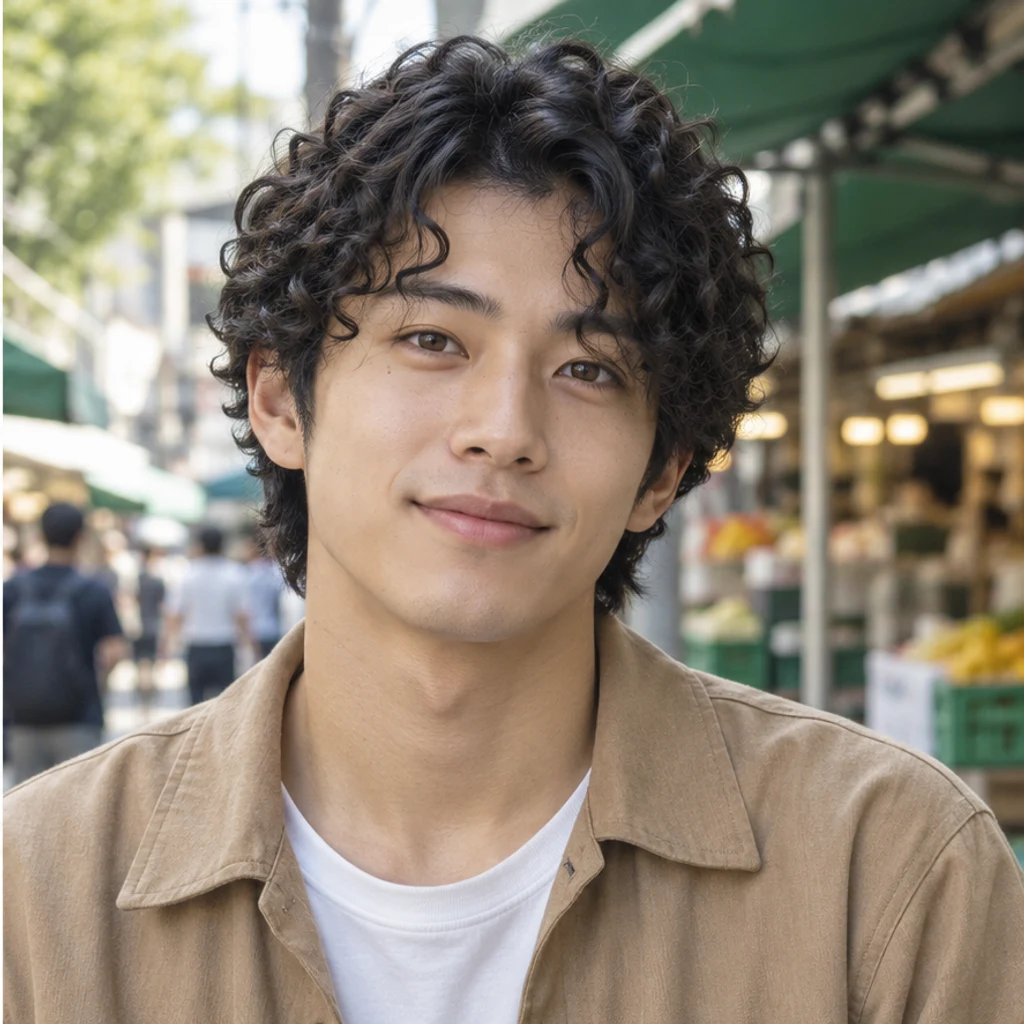
Small black curls follow the medium-length haircut.
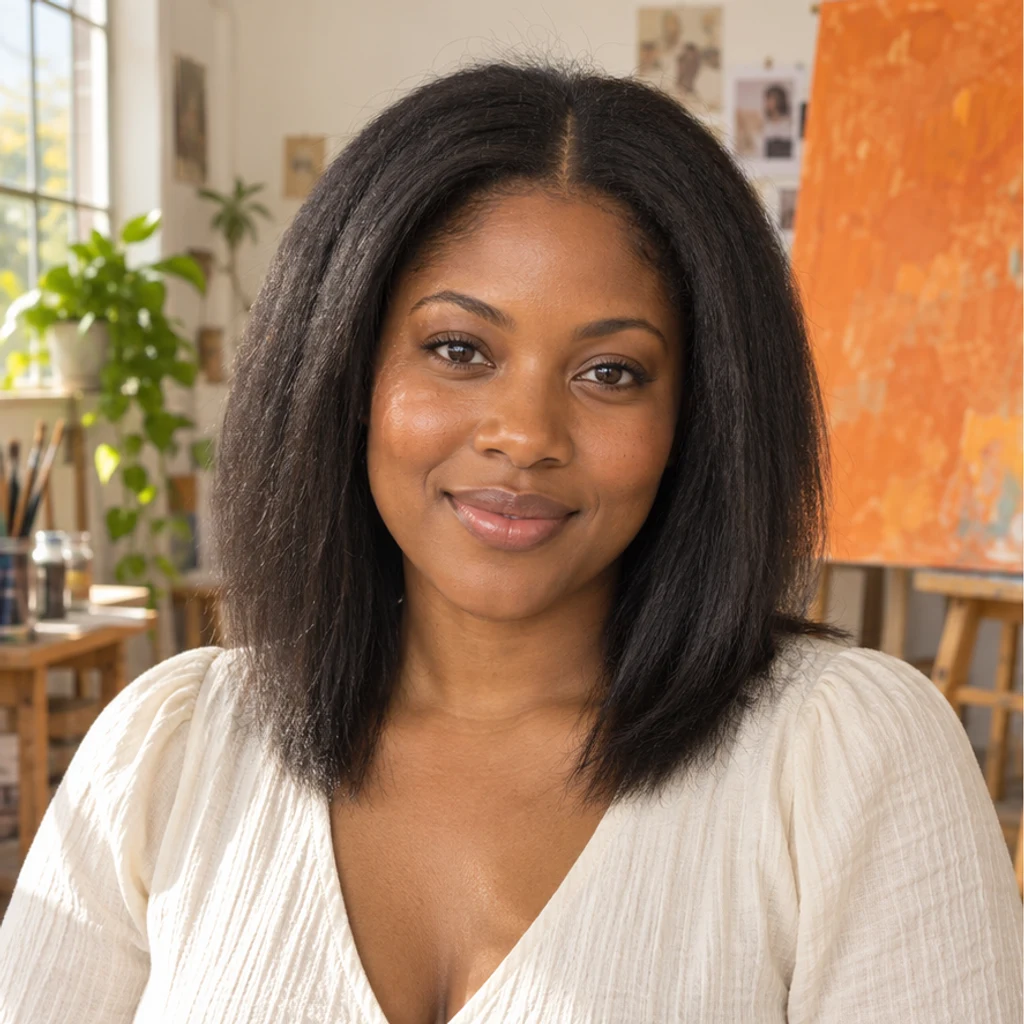
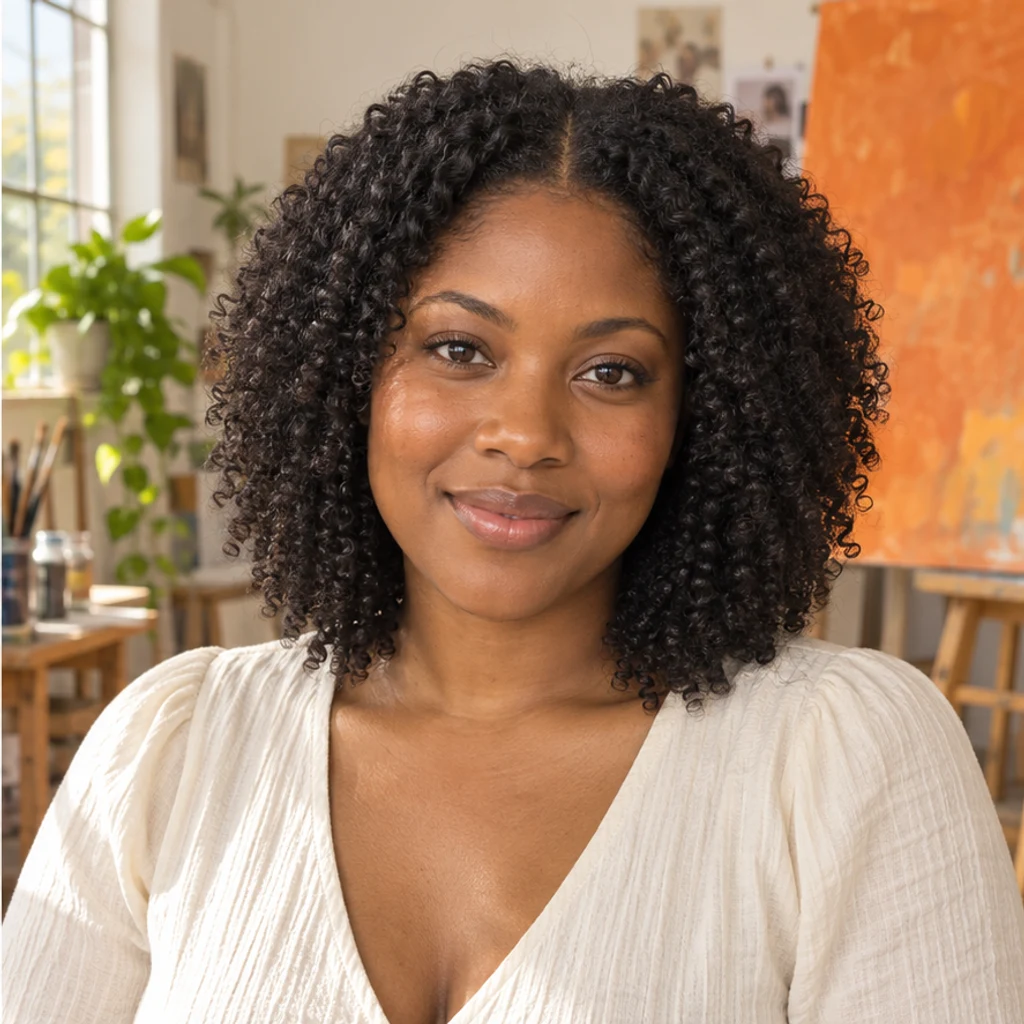
Compact coils introduce visible texture and natural shrinkage.
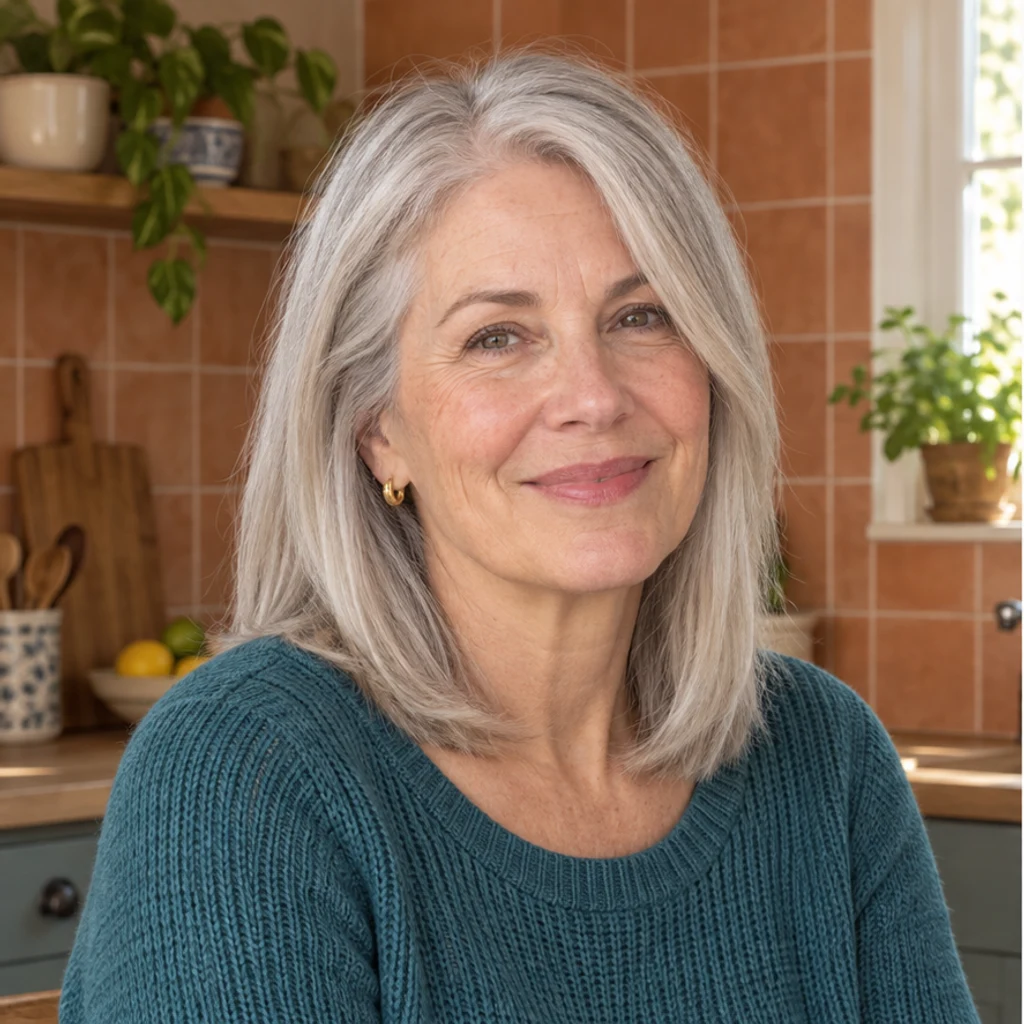
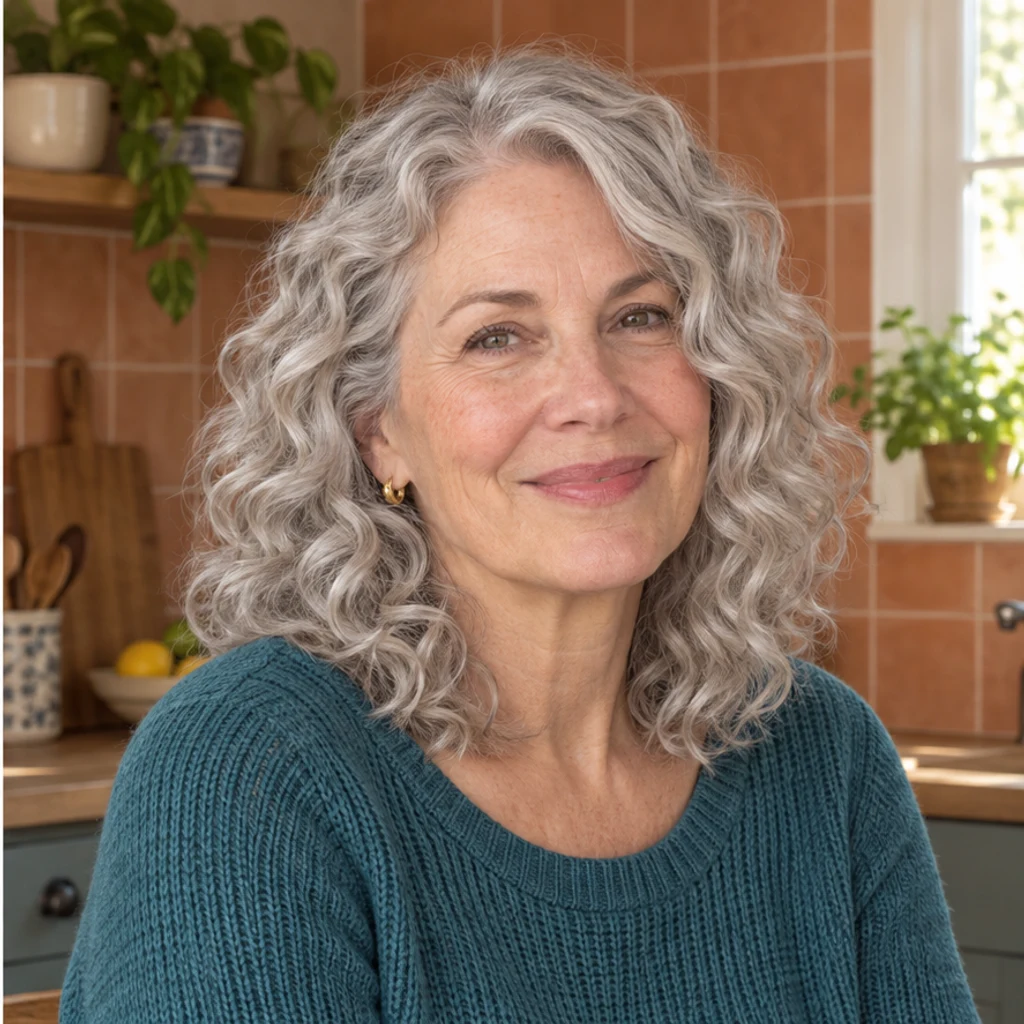
Airy curls retain the original silver-gray color.

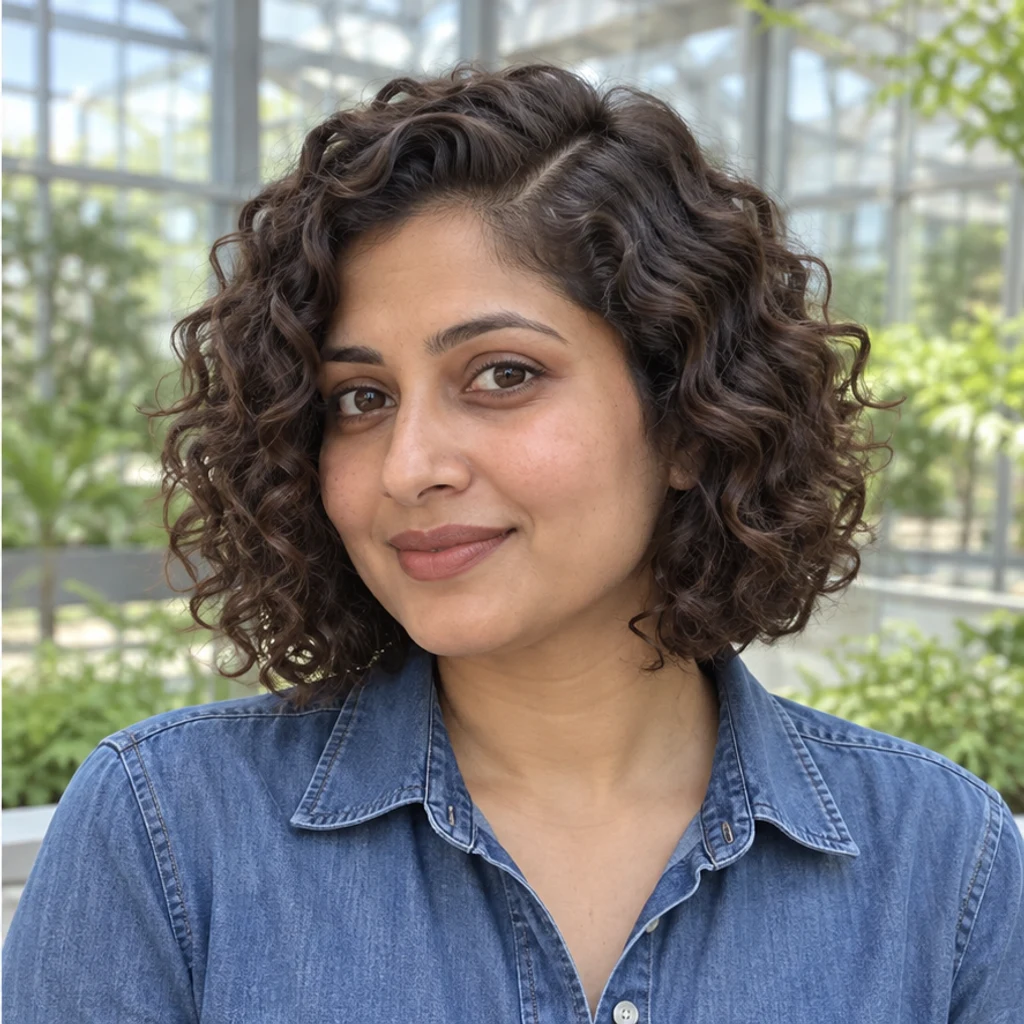
Separated curl clumps reshape a chin-length bob.
Compare the full-size result with the same original photo. Review the roots and the whole hair outline before choosing a curl pattern.
Upload a clear portrait and compare curl patterns on the same original. Review the roots, outline and visible length together. The preview helps explore a look, but does not decide which style suits you or predict salon results.
No. You can upload a curl reference or describe the pattern in Edit instructions. A person photo and at least one active template, reference or written instruction are required.
Choose one reference source. The active image is supplied with your original and guides curl size, definition and relative volume. It does not supply the reference person’s identity, color or haircut length.
Yes. The default instruction applies the chosen wave or curl from near the scalp through the crown, temples and ends. It preserves the hairline position and root color. Write an instruction if you want curls only in the lower lengths.
The edit is instructed to keep your original color, face and scene. Explicit color instructions can change the hair color; a differently colored reference alone does not request that change. Compare the result because generated details can drift.
Curl size is adapted to the available hair. For a group, identify one person in your instructions. Other people should stay unchanged. When no scalp hair is visible, the default request keeps the image unchanged instead of adding hair.
It can create a perm-style photo preview. Curls may look shorter or fuller, but the image does not measure your hair or predict how a real treatment will behave. Use it as a visual reference.
Generation requires a LumiYing account and uses the credits displayed before Generate. Selecting a template and loading an example do not spend credits. See pricing for current plans.
Try curls, explore bangs or preview a hair color change.
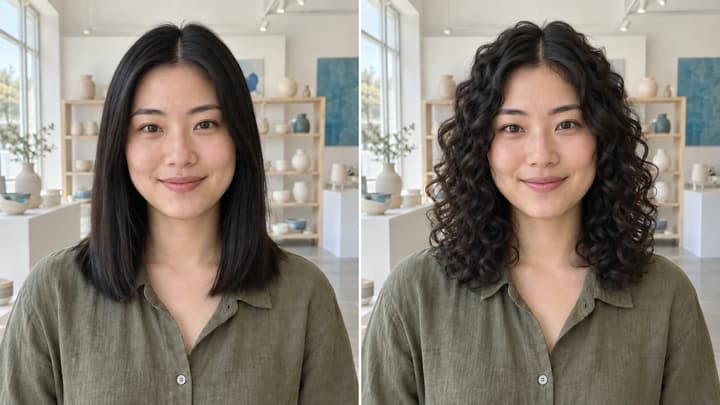
Try curls from root to tip in your photo. Choose a curl template, upload a reference or write instructions while keeping your original hair color.
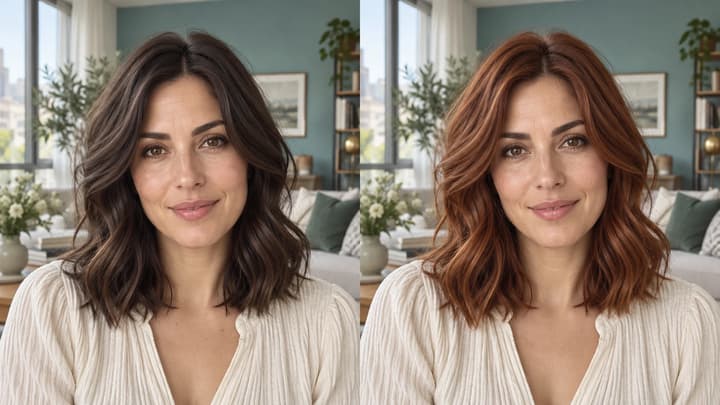
Change hair color in a photo with AI. Use a color template, upload a reference or describe your color in words, then compare and download the result.
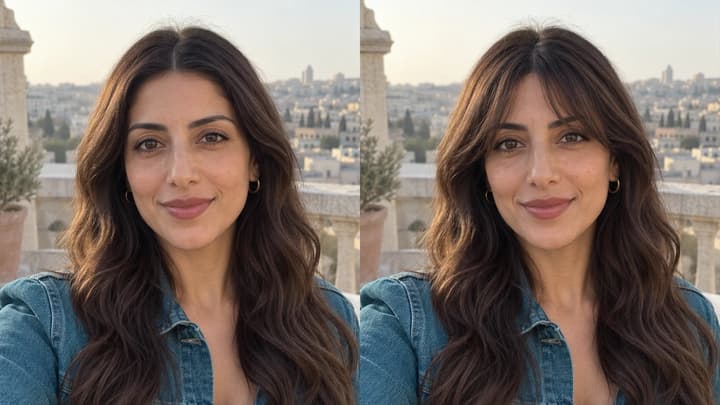
Try bangs on your photo with AI. Choose a fringe template, upload a reference or describe your style, then compare and download your preview.
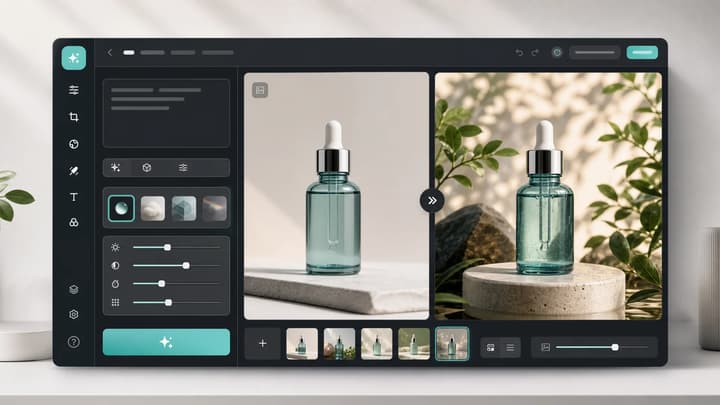
Upload an image, describe the edit, and create polished visuals for products, social posts, posters, or keyframes.
Review credits and plans before generating.
Try curls from root to tip in your photo. Choose a curl template, upload a reference or write instructions while keeping your original hair color.