

Terrace · silver round frames
Try this photoRemove the silver glasses; keep the brown eyes, stubble and coastal light.
Remove glasses from a photo with AI. Upload a person photo, optionally specify the person to edit, and review the eyes, brows and frame edges.
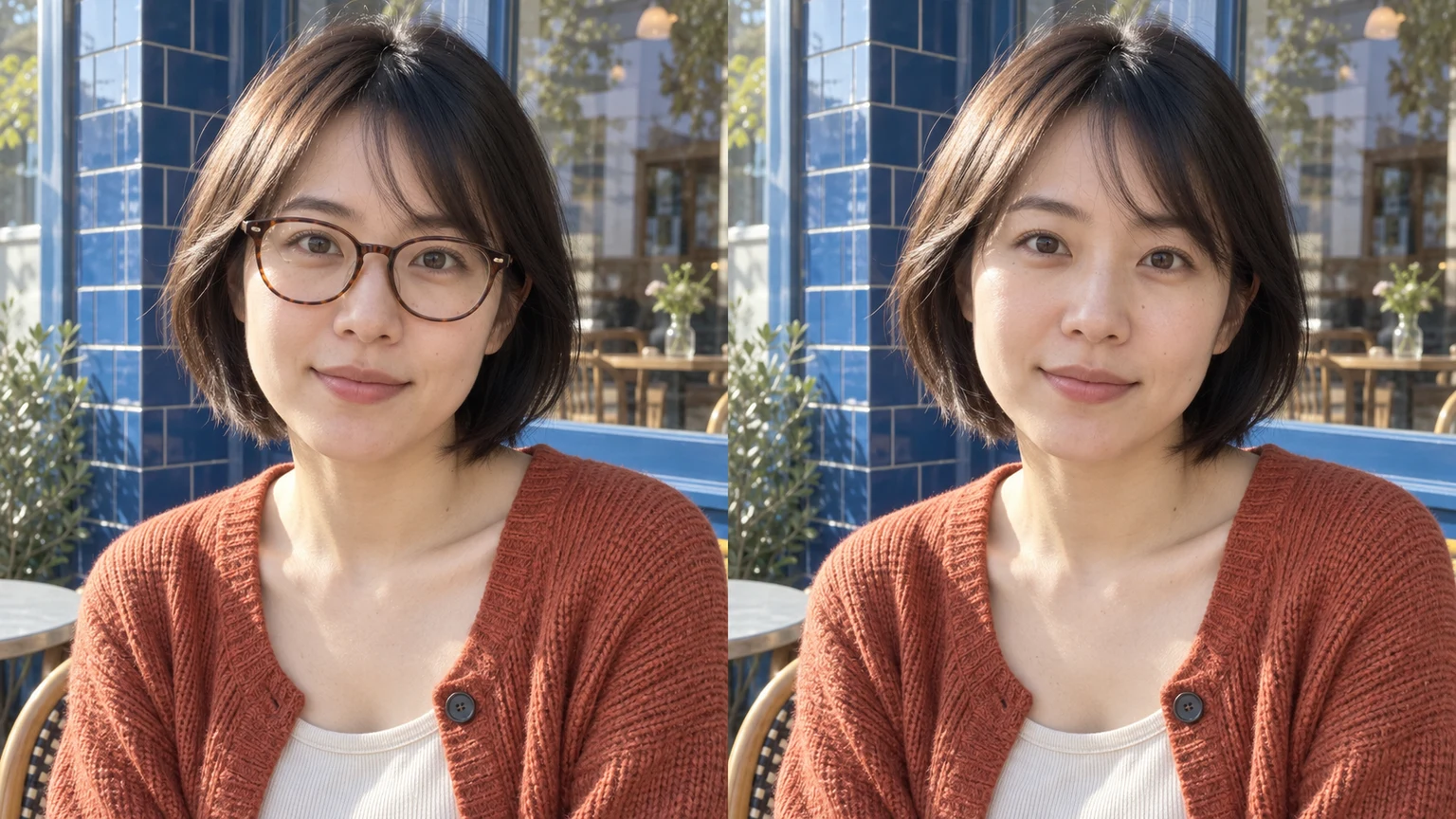
Remove fine wire frames while retaining the original gaze, iris color and natural lines.
Check the areas covered by a bold frame without smoothing the rest of the face.
Preserve hair, ears and facial perspective where the frame crosses them.
Identify the woman on the left; the man on the right keeps his glasses.
Explore glasses removal with these AI-generated illustrations. Choose an example to load its original photo and editing instructions.
Remove the silver glasses; keep the brown eyes, stubble and coastal light.


Remove the maroon glasses; preserve the eye shape, small smile and hair.

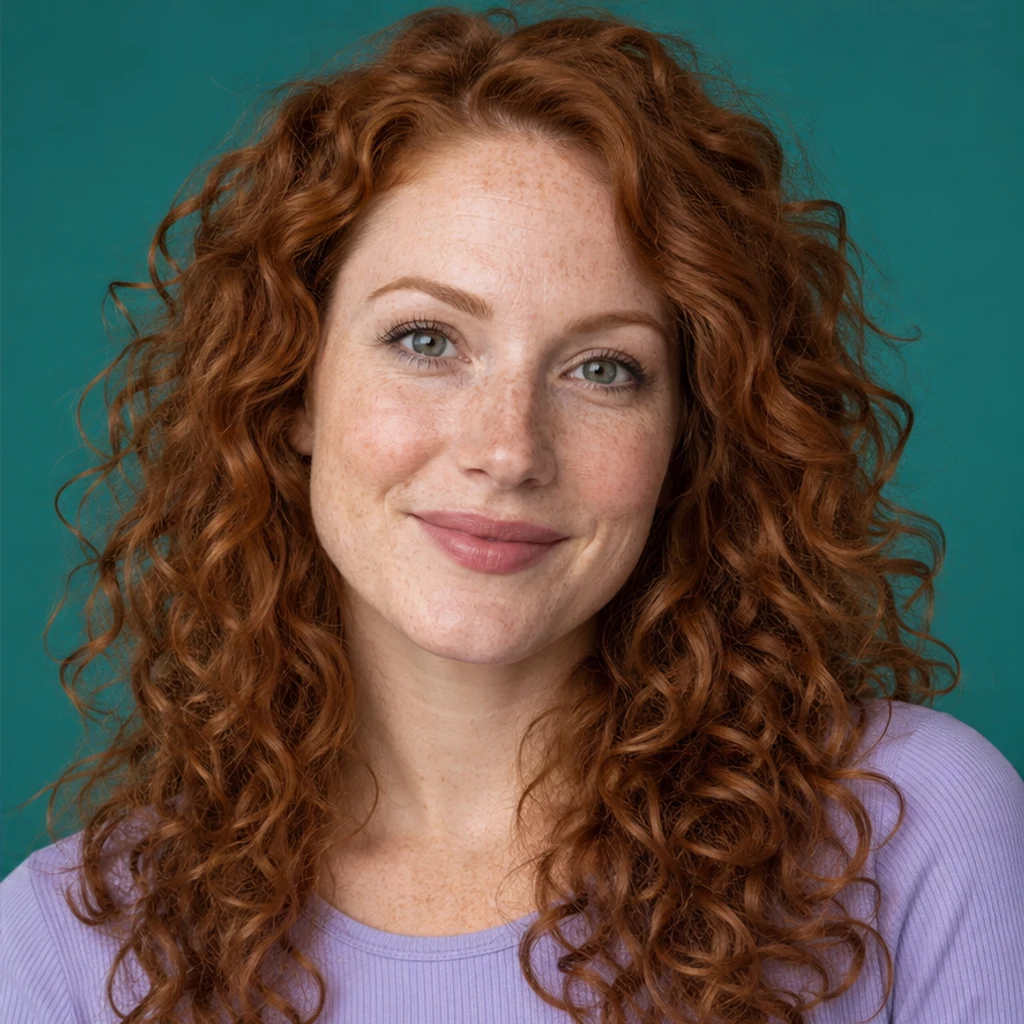
Remove the mint glasses; keep the gray-green eyes, freckles and teal backdrop.


Remove the brown glasses; preserve the moustache, smile and kitchen light.

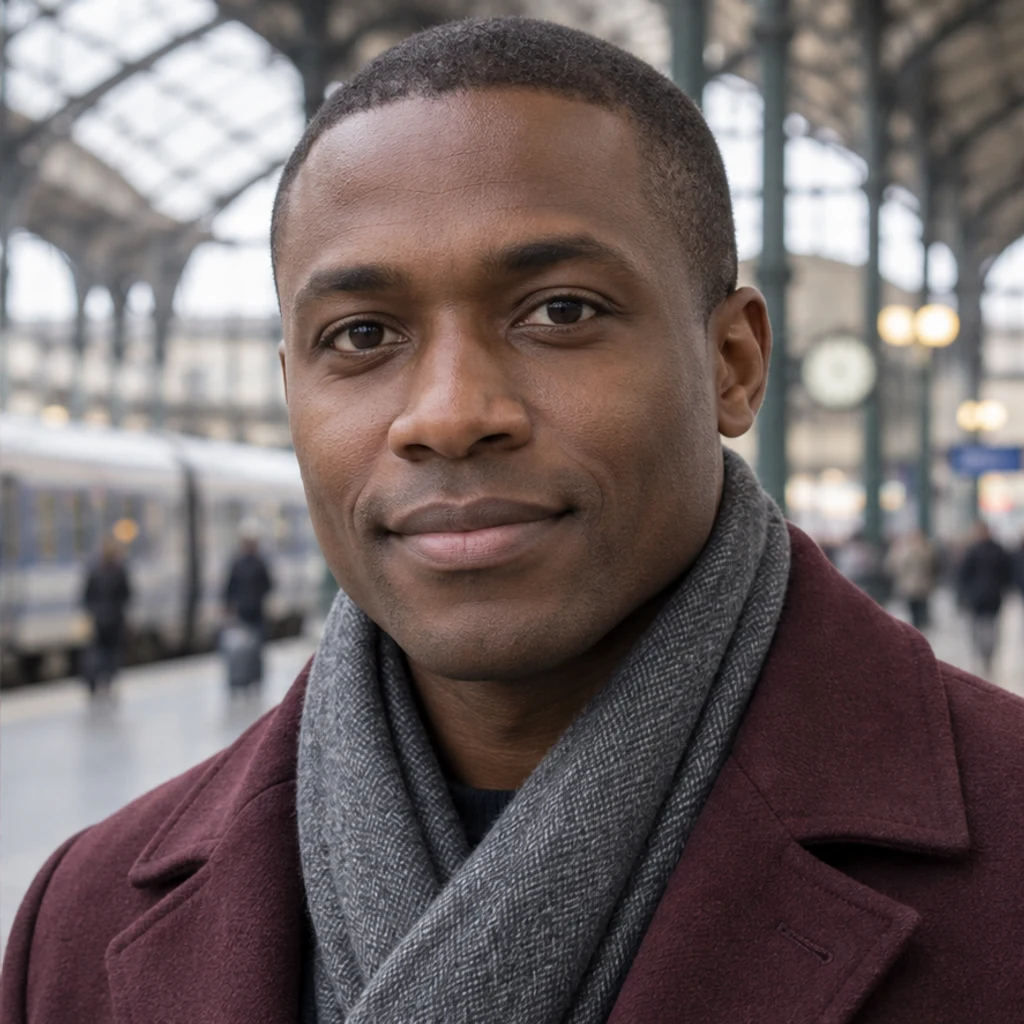
Remove the green glasses; keep the gaze, scarf and diffused daylight.


Remove the lilac glasses; preserve the braid, eyes and leafy workshop.


Remove the red glasses; keep the silver pixie cut, hazel eyes and expression.
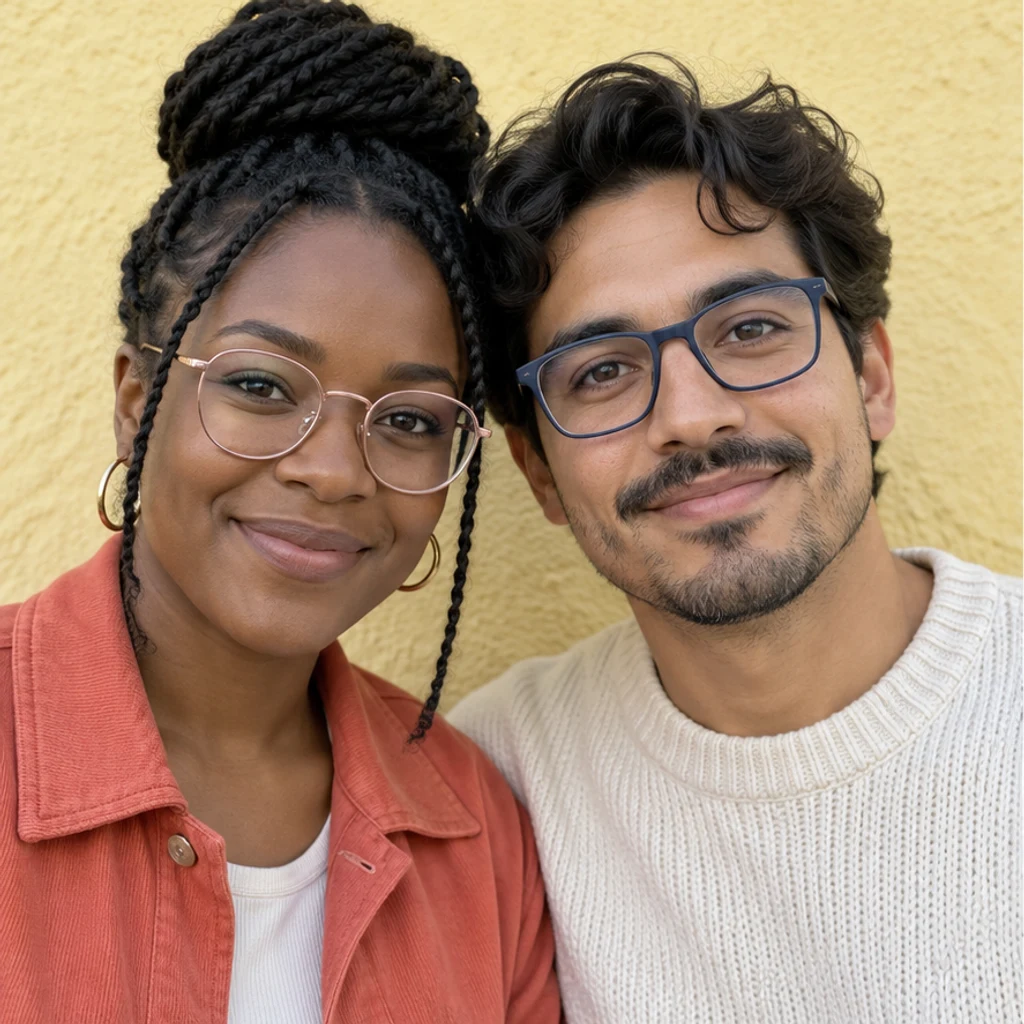
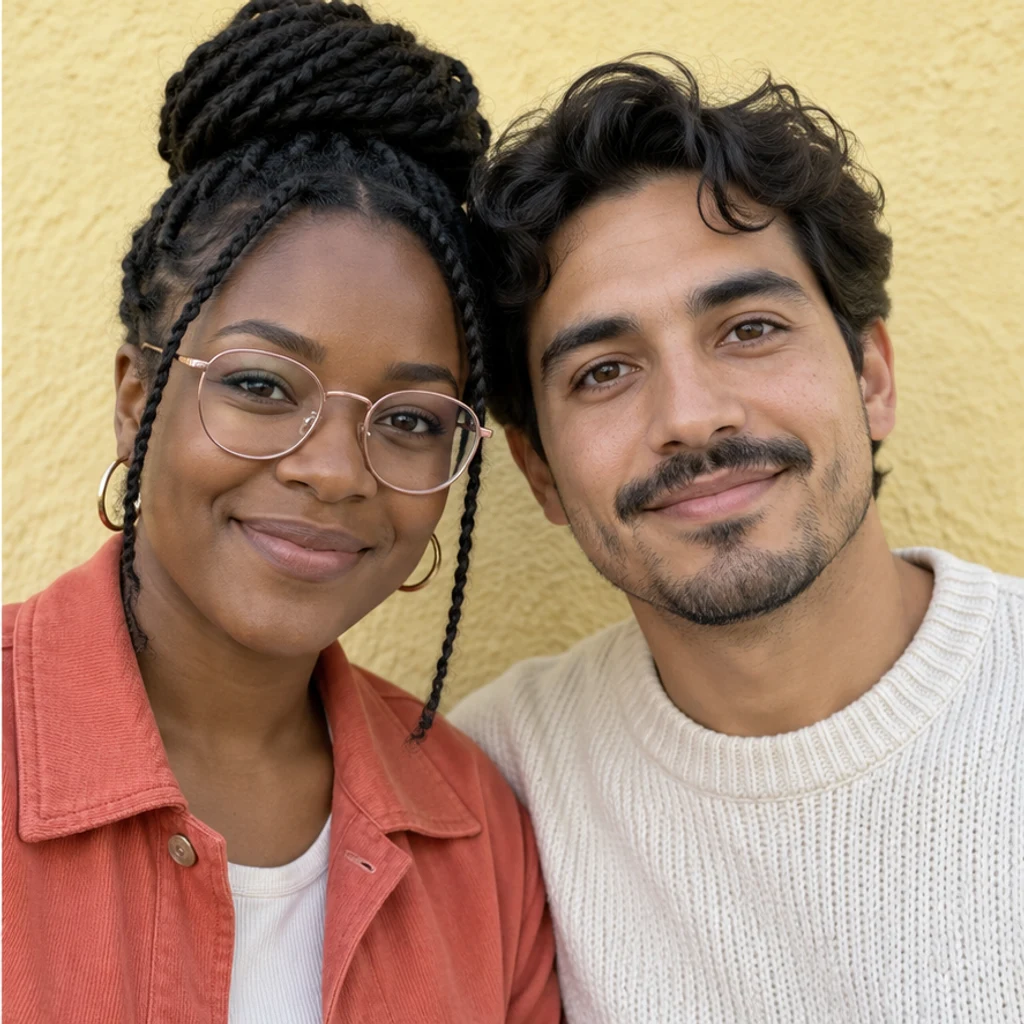
Remove only the right man’s blue glasses. Keep the left woman’s rose-gold glasses and both people’s appearance.
Use one JPEG, PNG or WebP up to 30 MB. Choose a sharp portrait with readable eyes and the whole frame in view.
Leave Edit instructions blank to remove the main person’s face-worn glasses. Identify a person by position or clothing to change the target. No second image is needed.
Review the displayed credits and generate one image. Compare the eyes, brows, nose bridge and temple edges before downloading. Examples only fill the form.
Covered facial detail is inferred from the source. The result cannot reveal the exact eyes hidden by a frame or dark lenses; compare it with the original for unintended changes.
Compare iris color, pupils, eyelids and gaze with the visible source details.
Look for leftover frame marks, missing brow hairs or an altered nose outline.
Check the side arms near the ears and the hairline for remaining pieces or blurred edges.
Check that other people’s glasses and glasses held or resting on the head stayed unchanged.
Upload a clear person photo, optionally identify the person in Edit instructions, generate and compare the eyes and surrounding details with the original.
No. One Person photo is enough for the default edit. Edit instructions are optional; there are no templates or second-image controls.
The edit targets glasses worn on the main person’s face, including lenses, frames, nose pads and side arms. Glasses in a hand or on top of the head are kept unless explicitly targeted.
Yes. Identify the person by position or clothing, such as the man on the right. Ask to keep everyone else’s glasses and check the result.
The instructions preserve visible eye color, shape, gaze and facial detail. Areas covered by frames or lenses are reconstructed from context, so review them carefully.
You can try a photo with sunglasses, but opaque lenses hide the eyes. Generated eye detail is a plausible guess and cannot be treated as recovery of the real hidden eyes.
That is a different edit. This tool removes the eyewear; use the general AI Image Editor to describe glare removal while keeping the frames and lenses.
No. It only loads a source photo and instructions. Generation requires a LumiYing account and uses the credits displayed before submission.

Learn how to remove glasses from a photo, choose a clear source and compare the eyes, eyebrows, nose bridge and hairline after editing.
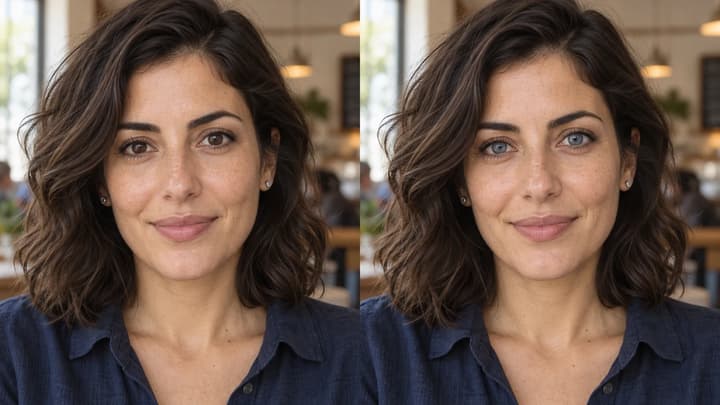
Change eye color in a photo with AI. Choose a color template, upload an iris-color reference or describe your shade, then compare and download the result.
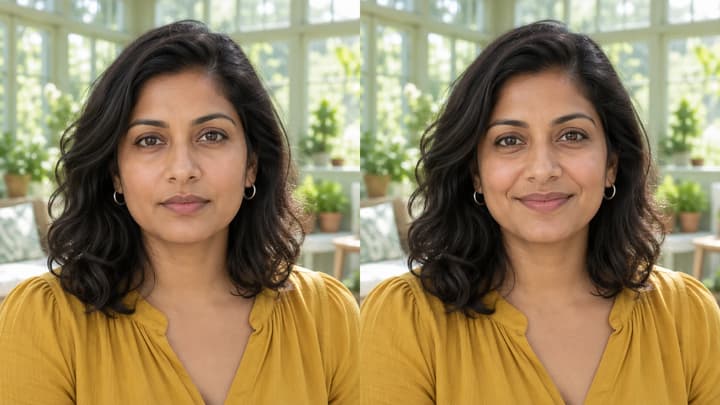
Edit facial expressions with AI. Choose a smile, reaction template or your own expression reference, then generate and review your portrait or character image.
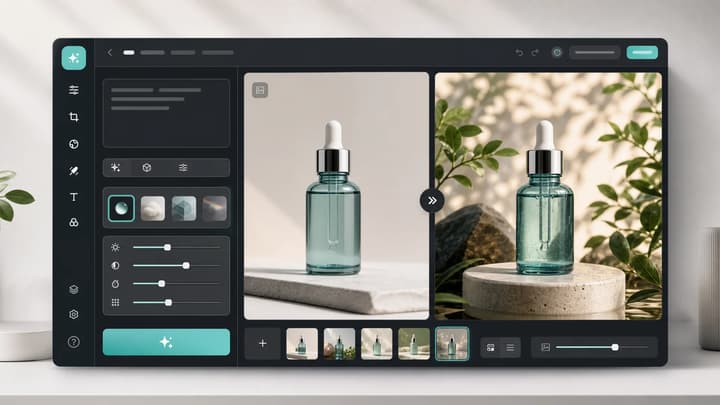
Upload an image, describe the edit, and create polished visuals for products, social posts, posters, or keyframes.
Review credits and plans before generating.
Remove glasses from a photo with AI. Upload a person photo, optionally specify the person to edit, and review the eyes, brows and frame edges.